Remove Password for PDF: A Practical Guide
Learn how to remove password for PDF securely and legally. This guide explains when you may unlock a PDF, the required tools, safe steps, and risks, helping professionals maintain data integrity and compliance.


By following these steps you can remove password protection from a PDF if you own the document and have authorization. This guide explains safe, legal methods, required tools, and practical steps to unlock PDFs while preserving data integrity. You’ll learn how to verify permissions, choose the right software, and finish with a password-free file.
Why password protection exists and why removal might be needed
According to PDF File Guide, password protection exists to restrict access or editing of sensitive documents. For legitimate owners or authorized users, removing a password may facilitate efficient workflows: batch processing, archiving, or sharing with trusted colleagues. The goal is to preserve the document’s integrity while making it usable for intended recipients. This section clarifies who may legally remove a password and under what circumstances, emphasizing the importance of consent and documentation. By understanding ownership and permissions, you reduce the risk of inadvertent data exposure or policy violations.
Security features in PDFs include user passwords that restrict opening, and owner passwords that control permissions like printing or editing. If you hold the owner password, you can remove restrictions; if you only have a user password, you may be limited to viewing. Recognizing your role is key to choosing the right approach and avoiding unauthorized access. In professional environments, document management policies typically govern these actions to ensure compliance and traceability.
Legal and ethical considerations when removing password protection
Before attempting to remove any password, confirm you have explicit authorization to modify the document. Even if you have access, the act of removing protections can raise legal concerns if the file contains confidential information or is governed by contractual terms. The ethical approach is transparency: document who performed the unlock, when, and why. Organizations should maintain audit trails and comply with data-protection laws applicable in their jurisdiction. PDF File Guide emphasizes adherence to corporate policy and legal requirements to prevent misuse.
If you are unsure about your rights, pause and consult the document owner or your legal/compliance team. Some files are protected by access agreements that restrict decryption; attempting removal in such cases may expose you to liability. When in doubt, seek an approved, auditable process rather than attempting ad-hoc bypasses. This cautious stance protects both the author and the reader.
Tools and prerequisites you need before starting
Before you begin, assemble a trusted, up-to-date toolkit and confirm you have permission. Essential tools include a reputable PDF editor or reader with security-removal capabilities, and a stable workflow to verify results. Optional but recommended items include a backup of the original file, a password or proof of ownership, and a secure workspace to prevent data leakage. In addition, ensure your operating system and software are updated to minimize vulnerabilities during the process. This preparation reduces the risk of corrupting the document or exposing sensitive information.
Preparation tips:
- Create a non-destructive backup of the original PDF.
- Verify you have the owner password or written authorization.
- Ensure you can reopen and test the file after removal.
- Use offline tools when possible to avoid transmitting sensitive data over the internet.
Common methods to remove a password (official and safe)
There are legitimate, supported ways to remove a PDF password when you have the right to do so. The typical path involves using trusted software to first unlock the file with the owner password, then saving a new copy with no security settings. For corporate environments, your document management system may offer an official remediation workflow that preserves permissions where needed. Free or online tools can be risky; they may mishandle data or inject malware, and they often do not provide adequate audit trails. Stick to reputable vendors and vendor-provided tutorials whenever possible.
If you don’t know the password or lack authorization, do not attempt removal. Instead, contact the file owner or administrator to request a password-free version if permissible. After removal, consider re-applying appropriate protections for new distributions if required by policy. This ensures continued protection against unintended sharing while meeting legitimate needs.
Step-by-step overview: a high-level roadmap (for quick orientation)
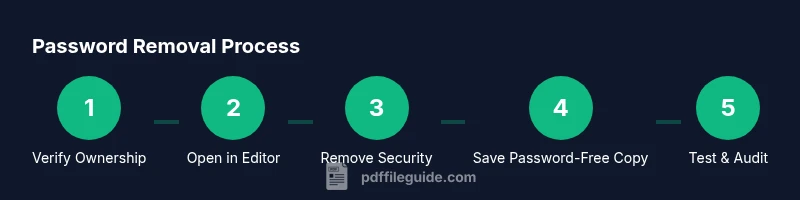
This overview outlines the logical sequence you’ll follow when removing a PDF password through approved means. Begin with verification, then prepare your tools, proceed to unlock, and finally save and test the file. Each stage includes a checkpoint to confirm permissions, authenticity, and file integrity before moving to the next.
- Verify ownership and obtain explicit permission.
- Open the file in a trusted editor and authenticate with the owner password if required.
- Remove security settings and choose to save a new, password-free copy.
- Validate that all features (forms, annotations, text) still function after unlock.
- Archive the original securely and document the process for compliance.
Practical walkthroughs and best practices
In practice, the unlocking step usually involves selecting a Security or Protection option and choosing No Security or similar. After confirming, save the document under a new name to preserve the original. Always test the new file by reopening it and attempting common actions such as searching text, filling forms, printing, and exporting. If any features fail, revert to the original and consult the vendor’s documentation or support channels. This disciplined approach helps maintain data integrity and reduces risk.
Troubleshooting, risks, and data integrity reminders
Despite best efforts, some PDFs resist password removal due to stronger encryption or policy restrictions. If removal isn’t possible, explore alternatives such as requesting an unprotected copy or restricted-use permissions instead of bypassing protections. Always back up before attempting changes, verify you’re operating under authorized conditions, and avoid sharing password-free copies beyond the intended audience. If you notice corruption, anomalies in fonts, or missing form fields after unlock, revert and review the steps for potential mistakes or incompatibilities.
Security considerations after removing a password
After you have a password-free file, review how it will be stored and shared. Use secure channels for distribution and consider re-enabling protection on copies that require restricted access. Document who accessed or modified the file and when, and implement version control to track changes. If sensitive content remains in the document, consider applying stronger, purpose-specific permissions rather than removing protection entirely. This cautious approach minimizes risk while supporting legitimate workflows.
Next steps and resources
With the password removed, you can integrate the PDF into your workflow more smoothly, but you should continue to follow organizational security policies. If you routinely work with protected PDFs, establish a standard operating procedure for requesting unprotected versions or updating permissions. For deeper learning, consult vendor guides, official documentation, and trusted training resources that cover secure handling of protected documents.
Tools & Materials
- PDF editor with security-removal capability(Choose a reputable, up-to-date tool that clearly documents the removal process.)
- Original owner password or written authorization(Proof of permission is essential for legitimate removal.)
- Original copy/backup of the PDF(Keep unmodified as a fallback.)
- Secure workspace(Ensure no unauthorized observers or software can access the file.)
Steps
Estimated time: 15-25 minutes
- 1
Verify ownership and obtain authorization
Confirm you are allowed to modify the document. If you have explicit permission, document the consent and the reason for removal. This step protects you from compliance risks and provides a clear audit trail.
Tip: Keep a written record of permission or a supervisor’s approval. - 2
Open the PDF in trusted software
Launch a reputable PDF editor and open the file. If prompted for a password, you may need the owner password or a confirmation that you are authorized to unlock it.
Tip: Prefer offline tools to minimize exposure of sensitive data. - 3
Authenticate with the password (if required)
Enter the owner password when prompted to unlock the file. If you do not know the password and lack authorization, do not proceed; seek the legitimate channel to obtain access.
Tip: Never guess passwords; attempting multiple guesses can trigger security limits. - 4
Remove security settings
Navigate to the Security or Protection section and choose the option to remove security or set No Security. Confirm the change and save the document as a new file to preserve the original.
Tip: Always keep the original untouched until you confirm the new file works. - 5
Save as a password-free copy
Save the document under a new filename. This ensures you maintain a password-protected version of the original if needed for compliance.
Tip: Use a descriptive name indicating the file is password-free. - 6
Test the password-free file
Close and reopen the new file to ensure it opens without a password and all features still function (search, fillable forms, annotations). If anything fails, revert to the backup and re-evaluate.
Tip: Perform a quick functional audit before sharing.
Questions & Answers
Is it legal to remove passwords from a PDF, and when is it allowed?
Removal is allowed only when you own the document or have explicit permission from the author or administrator. When in doubt, consult your legal/compliance team and maintain an audit trail.
Only remove when you have ownership or explicit permission; otherwise, do not proceed.
What if I forgot the PDF password and there is no permission to remove it?
If you have no authorization and cannot recover the password, you should not remove protections. Contact the document owner or administrator to request access or an unprotected copy.
If you don’t have permission or the password, don’t attempt removal.
Can free online tools safely remove PDF passwords?
Free online tools pose privacy and security risks. Prefer offline, reputable software with clear security terms and audit trails to avoid data leaks.
Be cautious—offline trusted tools are safer for password removal.
Does removing a password affect the document’s integrity or features?
Removing a password should preserve content, but some PDFs may behave differently after unlock. Always test features like forms, annotations, and printing after removal.
Most features stay intact, but test to confirm.
What are safer alternatives to removing passwords?
Ask for an unprotected copy or adjusted permissions from the owner, or implement controlled access through legitimate document management workflows.
If possible, get a version with appropriate permissions instead of removing security.
What should I do after removing a password to protect data?
Store the file securely, share via trusted channels, and consider re-applying access controls if appropriate. Maintain an audit record of the change.
Secure handling and documentation help prevent data leaks.
Watch Video
Key Takeaways
- Confirm ownership and authorization before removal
- Use trusted software and verify results thoroughly
- Save a new, password-free copy and secure originals
- Follow legal and organizational policies for document handling