How to Take Out PDF Password: Legal Methods & Step-By-Step Guide
Learn legal, ethical ways to remove a password from a PDF you own or have permission to modify. This guide covers methods, tools, step-by-step instructions, and safety tips for securely removing password protection.


With proper authorization, you can remove a PDF password by using built-in protection settings in PDF software or trusted tools. This quick answer outlines the legal approach and the essential steps to disable password protection while preserving the original document. Always verify you have permission before proceeding. If you do not own the file, seek consent first.
Understanding PDF password protection
PDF passwords are part of the document's security layer that restricts access or modification. There are typically two types of protection: user passwords (which block opening the file) and owner passwords (which restrict printing, editing, or copying). If you are wondering how to take out pdf password, this guide explains the legitimate paths to regain access when you have proper authorization. According to PDF File Guide, password removal should be approached with ethical handling and compliance with laws. PDF password removal is only appropriate for files you own or for which you have explicit permission from the author. Before attempting any removal, verify you have consent and understand how encryption works. When you remove protections with authorization, you preserve the integrity of the document and avoid brittle, untraceable workarounds.
Legal and ethical considerations
Removing a password from a PDF without authorization is unlawful in many jurisdictions and can expose you to civil penalties. Always secure written permission from the document owner or your organization's administrator before attempting to remove protections. The PDF File Guide analyses emphasize transparency and accountability — keep records of consent, the reason for removal, and the tools used. If the file contains sensitive or regulated information, follow your organization's policy and any applicable data protection rules. In all cases, choose method options that preserve the original file's integrity and audit trail. This is not about bypassing security; it's about legitimate access to content you have the right to view or edit. The responsible path reduces the risk of data loss, legal trouble, and reputational harm.
When legitimate password removal is required
There are several legitimate scenarios: you created the document and forgot the password; you received the file with explicit permission to modify; you must extract content for accessibility or archival purposes under policy. In all cases, avoid improvised hacks or third-party services that promise instant results. The goal is to maintain compliance and ensure the document remains usable across platforms. If you cannot obtain authorization, pause and contact the author or administrator for a reset or reissue. The process should never compromise security beyond what is necessary to access the content.
Methods to remove a password (legal paths)
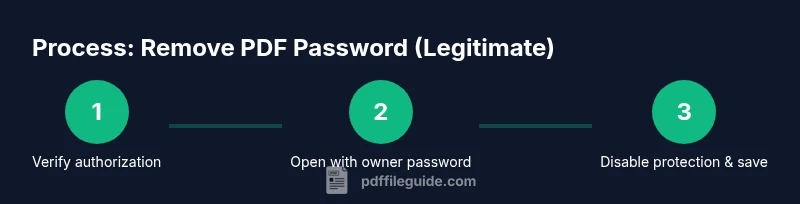
Begin with the simplest route: use the official owner password to disable protection and save a copy without a password. If you know the owner password, open the PDF, go to the security settings, and remove the password; then save a new version. If you lack the password, request it from the author or the organization. Some tools enable you to export or print to PDF to create a non-password protected copy, but only if the file permits such actions. Always back up the original before making changes, and verify the new file opens without prompts. The general approach relies on legitimate access and the capabilities provided by reputable software vendors.
Authority references for further reading
For readers who want to explore official guidelines and best practices, consult established resources. You can review document security concepts in standard references and vendor documentation. The discussion here aligns with common industry practices and is supported by sources like ISO standards and major software documentation to help professionals apply safe, compliant techniques. See the references below for deeper reading and to verify your workflow against recognized standards. [Authoritative references: ISO standards, Adobe PDF security docs, and PDF Association resources]
Verification and next steps
After you remove the password, close and reopen the PDF to confirm it no longer prompts for a password. Save a backup and test essential tasks: search, copy, print, and annotate if needed. If the file is used in a workflow (e.g., forms, signatures), re-check permissions and any embedded protections. Maintain an audit trail documenting consent, method, and software used. If you encounter issues, revert to the backup and consult vendor support or your organization's IT security team. This ensures your actions remain compliant and traceable.
Tools & Materials
- PDF editing software (e.g., Adobe Acrobat Pro)(Needed to disable password when you have the owner password.)
- Backup copy of the original PDF(Always keep an unmodified backup before removal.)
- Official owner password (if available)(Required to disable protection directly.)
- A reputable alternative editor(Useful if you don’t have Acrobat Pro.)
- Documentation of authorization(Keep written consent to avoid compliance issues.)
Steps
Estimated time: 25-40 minutes
- 1
Confirm your authorization to remove the password
Verify you have explicit permission from the file owner or administrator. Document the authorization and the purpose for removal. This step is essential to stay compliant and to avoid disputes later.
Tip: Keep a written record or email thread that explicitly grants permission. - 2
Locating the owner password or permission channel
If you have the owner password, locate it securely and prepare to enter it when prompted. If you don’t have it, contact the owner or IT admin to request access or a reset.
Tip: Do not try to guess or brute-force passwords; this is often illegal and could damage the file. - 3
Open the PDF in trusted software and disable protection
Open the document in the official editor (e.g., Acrobat Pro). Navigate to the security settings and choose to disable password protection, then save a new version without a password.
Tip: Before saving, ensure you’re saving a new copy to preserve the original. - 4
If you lack the owner password, request a legitimate copy
If the owner password isn’t available, ask the author to issue a password-free version or grant a temporary access mode that suits your workflow.
Tip: Avoid third-party services that promise fast removal; they may compromise data. - 5
Alternative legitimate methods when allowed
Some documents permit printing to PDF to create a non-password protected copy if the policy allows. Use only permitted methods and always verify the resulting document.
Tip: Always back up the original before attempting alternative methods. - 6
Verify, document, and finalize
Open the new file to confirm it no longer prompts for a password. Run basic checks (search, copy, print) and retain the authorization trail for audits.
Tip: Keep a changelog noting the tool used, date, and reason for removal.
Questions & Answers
What does it mean to remove a PDF password legally?
Legally removing a PDF password means you have explicit permission from the document owner and are complying with applicable laws and organizational policies. Never bypass protections on files you do not own or have authorization to access.
Legally removing a PDF password requires explicit ownership or written authorization and adherence to laws and company policies.
Can I remove a password from a PDF I found?
No. If you find a password-protected PDF, do not attempt removal. Seek the owner or administrator to obtain proper access or report it according to your organization's policy.
If you find a password-protected PDF, don’t try to remove it. Contact the owner or admin for proper access.
What should I do if I forgot the password to my own PDF?
If you forgot your own PDF password, try any official recovery or reset options offered by your software vendor, or contact the document administrator for a new version with access rights. Do not use untrusted services.
Forgot your own password? Check official recovery options or contact the administrator for a compliant reset.
Is printing to PDF a valid way to create a password-free copy?
Printing to PDF can create a new file that may not have the original protections, but this depends on the document's security settings. Use this only if your policy allows it and you have authorization.
Printing to PDF can work if allowed by policy, but confirm permission first.
What tools are considered trustworthy for removing password protection?
Use reputable software from established vendors and ensure you are compliant with policies. Avoid free online services that may compromise your data or violate licensing terms.
Stick to trusted vendors and verify compliance before removing protection.
What should I document after removing a password?
Record the authorization, date, tool used, and the new file version. This audit trail helps in compliance reviews and future references.
Keep an audit trail with consent, date, tool, and new version.
Watch Video
Key Takeaways
- Verify ownership before proceeding.
- Use reputable tools with proper permissions.
- Back up the original file first.
- Test the unprotected copy thoroughly.
- Document consent and method for audits.