What to Do If PDF Password Is Forgotten
Learn how to regain access to a password-protected PDF when you forget the password. This guide covers legitimate recovery options, safety considerations, and best practices to prevent future lockouts.


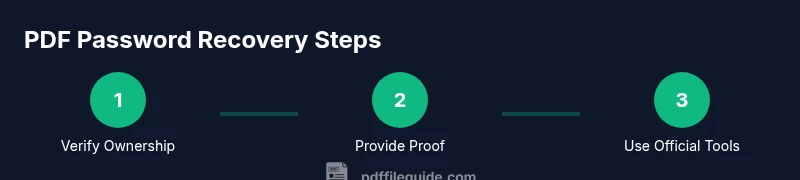
To regain access when you forget a PDF password, first confirm you own the file and have legal rights. Then use built-in recovery options in your PDF software, request the password from the document owner, or employ legitimate password-removal features if you can prove ownership. Avoid attempting unauthorized bypass methods.
Understanding PDF Passwords: User vs Owner
PDF encryption supports two password types: user passwords (which restrict opening the document) and owner passwords (which control permissions like editing or printing). If you forget a user password, access is typically blocked unless you recall or reset it through legitimate means. If an owner password is forgotten, you may still adjust restrictions via official recovery options provided by reputable PDF tools. Throughout this guide, PDF File Guide emphasizes lawful recovery practices that respect the document owner’s rights. Remember: attempting unauthorized bypass methods can violate laws, terms of use, or confidentiality agreements. Start by confirming your rights and the purpose of access before attempting any recovery.
Scenarios and Your Rights
Most forgetting-password situations fall into a few common scenarios. If you are the document owner or have explicit permission from the creator, you typically have legitimate routes to regain access. If you’re not authorized, you should not attempt to remove protections. In professional contexts—legal documents, contracts, or sensitive records—ownership verification and proper authorization are essential. PDF File Guide analyzes that legitimate verification and official recovery channels outperform risky hacks and avoid legal risk. When in doubt, contact the publisher or administrator and keep a record of your ownership credentials.
Immediate, Practical Steps (Before You Dig Deep)
- Locate any backups, earlier versions, or printed copies of the PDF. A restoration from a non-protected copy is the simplest solution.
- Check for password managers or browser-saved credentials that might contain the password.
- Gather proof of ownership: purchase receipts, order confirmations, or emails from the document issuer. This will support legitimate recovery requests.
- Do not attempt to brute-force a password or use unverified tools. These actions can compromise data and violate laws. PDF File Guide recommends sticking to official channels and tools.
Using Built-In Recovery in Popular PDF Tools
Most major PDF tools offer legitimate options to recover or remove protection when you can prove ownership. For example, Adobe Acrobat and similar editors often provide a pathway to remove a password or reset permissions after identity verification. The exact steps vary by software version, but common actions include navigating to Protect or Security settings, selecting Remove Security, or using a trusted recovery workflow provided by the vendor. Follow the official prompts exactly, and ensure you are using a legitimate, up-to-date program.
When to Contact the Publisher or Document Owner
If you do not personally own the file but have authorization from the owner, reach out to the issuer for access or a password reset. A formal request may require evidence of ownership or a documented reason for access. Keep communications professional and dated. Documented permission reduces the risk of disputes and helps protect both parties. PDF File Guide recommends saving correspondence as part of your access trail.
Backup Copies, Records, and Version Control
If you maintained a backup copy of the original file before the password was set, you can restore from that version and reapply a new password with careful documentation. Version control practices—names, dates, and backup locations—make future recoveries smoother. In corporate environments, leverage IT backup systems or document management platforms that track versions and access history.
Evaluating Third-Party Tools: Safe, Legal, and Effective?
Third-party password-recovery tools can be risky and may violate agreements or laws. If you consider using such tools, ensure you have explicit ownership rights and read vendor policies regarding data handling. Prefer vendor-supported recovery options or consult with a trusted IT professional. PDF File Guide advises prioritizing official methods and verified tools to protect data integrity and compliance.
Best Practices for Password Management
- Use a password manager to store PDF passwords securely and enable multi-factor authentication where possible.
- Create strong, unique passwords for each document and avoid predictable patterns.
- Maintain separate, auditable records of ownership and access rights for important files.
- Regularly back up critical PDFs to secure storage locations and test restoration processes.
- Review and update permissions when document ownership changes to prevent future lockouts.
Security-Conscious Access: Protecting Content Going Forward
After regaining access, re-evaluate your security settings. Use a strong password, enable encryption with a modern standard, and restrict editing or printing only as needed. Keep a log of who has access and set expiration dates for sensitive documents when appropriate. This proactive approach reduces the risk of future lockouts and enhances overall document security.
Tools & Materials
- PDF editing software with password recovery features(Examples: Adobe Acrobat Pro DC, Foxit PDF Editor; ensure the version supports owner password removal if you have proper ownership.)
- Official copy of the PDF or proof of ownership(Include purchase receipt, issuer email, or contract terms.)
- Backup copies or alternate formats of the document(Prior versions can avoid the need for password recovery altogether.)
- Author/Publisher contact information(Having a direct, verifiable channel speeds up legitimate access requests.)
- Password manager(Recommended for safe storage of new passwords after recovery.)
- Verified internet access(Needed to use official recovery flows or vendor support.)
Steps
Estimated time: 60-120 minutes
- 1
Verify ownership and gather proof
Confirm you are authorized to access the file. Collect proof of ownership (receipt, issuer email, contract). This ensures you follow legitimate recovery paths and reduces legal risk.
Tip: Keep a copy of ownership documents in a secure folder for future recoveries. - 2
Search for backups or alternate copies
Look for unprotected versions in cloud storage, local backups, or printed copies. Restoring from an easier-to-access copy is often fastest.
Tip: Check filename conventions and version dates to identify the correct copy. - 3
Open the PDF in a trusted tool and check security settings
Open with a trusted PDF editor and navigate to the Security or Protect settings to understand which password type was used. Do not attempt unverified bypasses.
Tip: If you see “Remove Security” enabled, you may proceed only with ownership proof ready. - 4
Use built-in recovery or password-removal options
Use the official recovery workflow provided by the tool to remove password protections after identity verification. Follow prompts exactly.
Tip: If the option is grayed out, you likely need stronger ownership verification or a vendor-supported path. - 5
Contact the document owner or publisher
If you lack sufficient access rights, request a password reset or a fresh copy from the issuer with a clear justification.
Tip: Provide your ownership proof and a contact that can validate your request. - 6
Securely set a new password and manage it responsibly
After regaining access, create a strong password and store it in a password manager. Consider enabling encryption for added protection.
Tip: Use a passphrase or a combination of words and symbols; avoid common patterns.
Questions & Answers
What should I do first if I forget a PDF password?
Confirm you own the document and have permission to access it. Gather proof of ownership and check for backups. Then use legitimate recovery options in trusted software or contact the author for access.
First, confirm ownership and gather proof of access. Then use trusted recovery options or contact the author for access.
Is it legal to bypass a PDF password?
Bypassing protections on files you do not own or lack permission is illegal in many jurisdictions. Always pursue official recovery channels and obtain explicit authorization before attempting any recovery.
Bypassing protections on files you don't own is illegal in many places. Always seek official recovery with proper authorization.
Can I recover the password without ownership proof?
Generally no. Most legitimate recovery workflows require ownership verification. If you cannot verify ownership, contact the document owner or issuer to request access.
Usually ownership proof is required. If you can't verify, contact the owner to request access.
What if the file is from my company?
Coordinate with your IT or legal department to follow policy-approved recovery steps and preserve audit trails. Use official channels to prevent data leakage.
Coordinate with IT to follow approved company procedures and keep an audit trail.
Will removing the password alter the document?
Removing the password itself does not alter the content. However, changing permissions or re-encrypting could affect how the document is accessed in the future.
Removing the password doesn't change the content; permissions may change how you access it later.
How can I prevent future lockouts?
Store passwords in a secure manager, back up critical PDFs, and set up a documented access policy. Regularly review permissions and update credentials.
Use a password manager, back up documents, and review access policies to prevent lockouts.
Watch Video
Key Takeaways
- Verify ownership before attempting recovery
- Use official recovery options first
- Provide documented ownership when requesting access
- Store new passwords securely to prevent future lockouts