Audio Read PDF: A Complete How-To Guide for Accessibility
Learn to read PDFs aloud using text-to-speech, screen readers, and accessibility features. This step-by-step guide covers setup, tools, and tips for smoother audio reading across desktop and mobile devices.


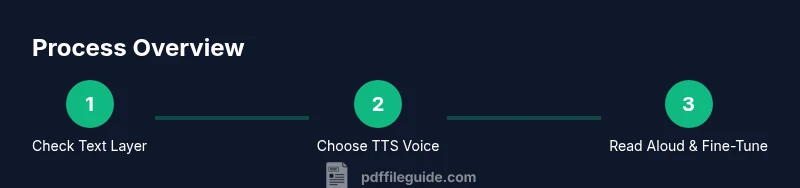
With this guide, you will set up a reliable workflow to read PDFs aloud, choose voices, and navigate documents using accessibility features. It covers desktop and mobile options, recommended tools, and practical steps so you can start audio reading PDFs today, whether for study, work, or accessibility compliance. The quick answer below summarizes the core actions.
Understanding the Promise of Audio Read PDFs
Audio read pdf refers to the practice of listening to PDF content rather than reading it with eyes alone. By converting on-screen text into spoken language via text-to-speech engines or screen readers, you can consume information while commuting, exercising, or multitasking. For professionals who handle long manuals, research papers, or legal documents, audio reading can reduce cognitive load and increase focus. It also levels the playing field for people with print disabilities, dyslexia, or vision loss, enabling more inclusive workflows.
The PDF File Guide team found that audio reading workflows, when configured properly, can maintain context, preserve formatting cues (headings and lists), and allow you to skim with audio cues. While not every PDF is immediately ready for audio (some are image-based or scanned), understanding the underlying text layer and accessibility basics makes the difference between a smooth read and constant repetition.
In this guide, you will learn how to set up devices, select voices, optimize text extraction, and navigate PDFs using built-in features and third-party tools. The goal is to give you a repeatable, reliable method for listening to PDFs with clear, natural-sounding speech.
Core Tools and Formats for Audio Reading
To read PDFs aloud effectively, you need a few core tools that fit your workflow. On hardware, a dependable computer, tablet, or smartphone with a comfortable display and stable internet connection is ideal. For software, you’ll want a PDF viewer that supports text-to-speech or access to a dedicated TTS app. The key is to choose a voice with clear enunciation and an adjustable pace to match your reading style. Formats matter too: prefer PDFs with an actual text layer rather than image-only scans, or prepare the document with OCR if necessary. When combining TTS with screen-reader features, you gain benefits like punctuation cues, sentence boundaries, and emphasis that improve comprehension. Finally, keep a pair of headphones or good speakers handy to minimize background noise and maximize clarity.
Assessing PDF Accessibility: Text Layers vs Images
Not all PDFs offer equal text accessibility. Text layers enable TTS engines to read aloud directly, while image-based PDFs require OCR to extract text. Start by testing if your PDF can be highlighted or selected with a cursor; if so, a text layer exists. If you encounter garbled or missing words, OCR tools can convert the image content into editable text, though OCR accuracy varies with font, spacing, and layout. For best results, obtain or create accessible PDFs with properly tagged structure, including headings, lists, and alternative text for images. PDFs that incorporate semantic tagging simplify navigation for audio reading and improve overall accuracy.
Selecting the Right TTS Engine and Voices
The quality of audio read pdf output hinges on the TTS engine and voice you choose. Look for voices with natural intonation, clear consonants, and flexible speed control. Decide between built-in system voices and premium options offered by third-party providers, considering factors like language support and pronunciation handling. Configure key settings such as voice, rate, pitch, and pause duration to optimize readability. If you work with multilingual PDFs, ensure your TTS supports the target language and offers accurate pronunciation rules for industry-specific terms.
Reading PDFs Across Devices: Desktop, Tablet, and Mobile
Accessibility tools exist across platforms, so you can choose a workflow that fits your life. On desktops, you may use a PDF viewer with integrated read-aloud features or a separate TTS app. On tablets and smartphones, many operating systems offer built-in screen-reader support and speak-aloud options that work with PDFs. When reading on the go, syncing progress via cloud storage helps maintain continuity. Regardless of device, ensure your chosen setup supports the document’s structure, especially headings and lists, so you can skim efficiently and jump between sections without losing context.
Navigation, Highlights, and Comprehension Aids
Effective audio reading relies on navigation aids that mirror visual cues. Use PDF bookmarks, outline views, and heading-based navigation to jump between sections. Enable highlighting and note-taking so you can capture key ideas while listening. Some readers support synchronized text highlighting with audio, which reinforces comprehension by linking spoken words to on-screen text. For longer documents, chunk content into logical sections and set listening goals so you can manage fatigue and maintain retention.
Accessibility Considerations and Compliance
Accessibility is not only about reading aloud; it’s about ensuring content is usable by all audiences. When creating or sharing PDFs intended for audio reading, include proper tagging, alternative text for images, and clear heading structures. Consider language options, font size, and contrast to aid listening accuracy. If you work in regulated environments, verify that your PDFs meet accessibility standards such as WCAG-based guidelines or your organization’s policies. Regular audits help maintain compliance while supporting inclusive workflows.
Troubleshooting Common Issues and Practical Tips
You may encounter skipped sentences, mispronunciations, or inconsistent pacing. Start with the basics: check the document’s accessibility, ensure you have a healthy text layer, and adjust the TTS speed to a comfortable range. If pronunciation is off, add phonetic hints or switch to a different voice. For noisy environments or limits on hardware, use noise-canceling headphones and allocate dedicated reading time to improve focus. Finally, keep your software updated to benefit from improved voices and bug fixes.
Tools & Materials
- Computer, tablet, or smartphone(Any modern device with a reliable internet connection works)
- PDF viewer with TTS support or stand-alone TTS app(Ensure it can read aloud highlighted text or has a read-aloud feature)
- Quality text-to-speech voice(Choose voices with clear pronunciation and adjustable speed)
- Headphones or external speakers(Prefer noise-canceling headphones for better clarity)
- OCR tool (for image-based PDFs)(Useful when the document lacks a text layer)
- Notes app or annotation tool(Helps capture key ideas during listening)
Steps
Estimated time: 60-90 minutes
- 1
Define your reading goals and platform
Identify what you want to accomplish with audio reading (study, review, or quick skim). Choose the device you’ll use most (desktop, tablet, or mobile) and ensure it has a stable internet connection for setup or updates.
Tip: Clarify your target time and the document types you’ll encounter. - 2
Verify text accessibility in the PDF
Open the document and check if you can select text. If not, prepare the file with OCR or obtain a more accessible copy to ensure the TTS engine can read it.
Tip: If text selection fails, try another viewer before OCR. - 3
Select and configure the TTS engine
Choose a voice that sounds natural and set your preferred reading rate and pause style. Test a few options with a short paragraph to find the best fit for you.
Tip: Prefer a slower rate for dense material and a faster rate for summaries. - 4
Open the PDF and start the read aloud
Highlight the starting text and activate the read-aloud feature or TTS tool. Verify that the audio aligns with on-screen text and adjust as needed.
Tip: Use keyboard shortcuts for quick start/stop without losing your place. - 5
Navigate using structure and navigation aids
Use headings, bookmarks, and the outline to jump between sections. Enable synchronized highlighting if available to reinforce comprehension.
Tip: Create listening goals by section to chunk long documents. - 6
Annotate and capture key ideas
Pause at important points and take notes. Save highlights or export a summary if your tool supports it.
Tip: Keep a separate log of terms that require pronunciation tweaks. - 7
Export audio or save your listening session
If your workflow supports it, export an audio file or save progress so you can resume later without reconfiguring settings.
Tip: Label files clearly with document name and date for easy retrieval. - 8
Troubleshoot and refine settings
If you encounter mispronunciations, skipped text, or lag, revisit the text layer, re-check OCR results, and adjust voice parameters.
Tip: Update software regularly to access better voices and fixes.
Questions & Answers
What is audio read pdf and why should I use it?
Audio read pdf refers to listening to PDF content through text-to-speech or screen-reader tools. It benefits accessibility, multitasking, and long-form reading by providing a hands-free option and potentially faster information absorption.
Audio read pdf means listening to PDFs with speech software. It helps you multitask while staying informed.
Can I use audio reading on both desktop and mobile devices?
Yes. Many PDF viewers and TTS apps offer cross‑device compatibility, so you can read on a computer, tablet, or phone. Syncing progress via cloud storage is common to maintain continuity.
Yes. Most tools work on desktop and mobile, with cloud sync to continue where you left off.
What about scanned PDFs or image-based documents?
Image-based PDFs require OCR to extract text before TTS can read aloud. Some tools include OCR, but accuracy varies by document quality.
If a PDF is image-based, you’ll need OCR to read it aloud.
How do I adjust pronunciation and voice speed?
Most TTS tools let you adjust voice, rate, pitch, and pronunciation rules. Test a few settings with a short sample to find what feels natural.
You can change voice and speed to fit your reading style.
Are there language considerations for multilingual PDFs?
Yes. Ensure the TTS supports the target language and switch voices if needed for accurate pronunciation and natural rhythm.
Check language support and use appropriate voices for each language.
What privacy considerations should I keep in mind?
When using online TTS services, understand how your data is processed. Prefer offline or locally hosted solutions for sensitive documents.
Be mindful of data privacy; offline options are safer for confidential PDFs.
Watch Video
Key Takeaways
- Define clear listening goals before starting.
- Prefer accessible PDFs with a proper text layer.
- Choose TTS voices and settings that match your material.
- Use navigation aids to maintain context during listening.
- Regularly troubleshoot to maintain accuracy and reliability.