How to Convert with Adobe Acrobat Reader to PDF
Learn how to convert documents to PDF using Adobe Acrobat Reader and built-in OS tools. This guide covers free and paid options, step-by-step workflows, tips for accuracy and accessibility, and best practices for professional PDF creation in 2026.


This guide explains how to perform adobe acrobat reader to pdf workflows, including saving documents as PDF directly from supported apps or by printing to a PDF printer. You will learn when Acrobat Pro is needed, and how to use OS features to produce reliable, portable PDFs that preserve layout and accessibility.
Understanding PDF creation and why you might use Adobe Acrobat Reader to PDF
According to PDF File Guide, converting documents to PDF with Adobe Acrobat Reader and compatible tools helps preserve layout and ensure universal accessibility across devices. PDFs are the lingua franca of business sharing: they look the same on Windows, macOS, iOS, and Android. This guide explains how to create PDFs using Acrobat Reader and related tools, including when you need a paid license and when OS features suffice. We will compare direct export options in Acrobat Pro with free methods built into Windows and macOS, and outline which kinds of documents are easiest to convert. Throughout, you will see practical, real-world examples from corporate reports to marketing one-pagers, showing how a well-made PDF supports sharing, printing, archiving, and accessibility.
How Acrobat Reader interacts with OS PDF tools
Acrobat Reader does not always replace a full PDF workflow with a single click, but it works hand in hand with your operating system to create PDFs in many situations. On Windows, you can utilize the built-in PDF printers like Microsoft Print to PDF to capture almost any printable content as a PDF. On macOS, you can use the Print dialog and select Save as PDF to produce a PDF from virtually any application. These OS-based options are often sufficient for day-to-day tasks, especially when you do not need advanced features like form recognition, tagging, or batch processing. For higher fidelity and professional needs, Acrobat Pro offers direct export and optimization settings that retain fonts, color profiles, and accessibility features.
Free options vs paid options: what you can do with Acrobat Reader vs Pro
Adobe Acrobat Reader (the free version) provides reliable viewing and basic printing to PDF, plus some simple printing to PDF workflows via OS printers. Acrobat Pro extends this with advanced options such as File > Save as Other > PDF, Export To formats beyond PDF, and batch actions. If you frequently convert Word, Excel, or image-laden documents, or you require features like searchable text, bookmarks, or tagged PDFs for accessibility, a Pro license becomes worthwhile. In practice, many users start with OS PDF tools and graduate to Pro for efficiency and consistency across large projects.
Path A: Convert common sources to PDF using Reader and OS features
You can create PDFs from most common sources without upgrading to Pro. For Windows users, open the document, choose Print, and select a PDF printer such as Microsoft Print to PDF. For macOS users, open the document, select Print, click the Save as PDF button in the bottom left, and choose a destination. For Word, Excel, or PowerPoint, you can also use the native Save as PDF option if you have the corresponding program installed. Images can be printed to PDF in the same way via their image viewer or editor. When using OS options, verify that the resulting PDF preserves layout and image quality.
Path B: Converting with Acrobat Pro: direct export and batch processing
If you have Acrobat Pro, you can export directly from many source formats via File > Save as Other > PDF or Export To > PDF. Pro also enables batch processing, combining multiple files into a single PDF, and applying consistent settings across a folder worklist. Use Advanced Optimization to balance file size with readability, embed fonts where necessary, and ensure that the PDF is navigable with bookmarks and tagged content for accessibility. Pro's batch workflows can save time on monthly reports or multi-file submissions.
Quality, fonts, accessibility, and optimization
PDF quality hinges on font embedding, image compression, and proper tagging for assistive technologies. When exporting, choose higher resolution for on-screen viewing and print-ready PDFs as needed. Enable font embedding to avoid font substitution on other devices. Add document structure, alt text for images, and bookmarks for easier navigation. For accessibility, tagging and reading order are critical; always test with a screen reader to confirm navigation and content clarity.
Practical tips for business workflows
Develop a repeatable naming convention and folder structure for all PDFs, especially in teams. Use batch processing where possible to enforce consistent font embedding, color management, and metadata. Maintain a master copy of the source files and create PDF archives with versioning. If you handle sensitive information, enable password protection or redact content as needed, and review annotation and form data policies before sharing publicly.
Troubleshooting common issues
If fonts appear incorrect after conversion, verify font embedding and substitute fonts only when necessary. If bookmarks and accessibility tags are missing, re-export with tagging enabled from Acrobat Pro. Large file sizes can be reduced by adjusting image compression, downsampling, and removing unnecessary metadata. When OS printers fail, check printer compatibility, driver updates, and confirm the correct page size and orientation.
Best practices for workflows and security considerations
Prioritize accessibility by tagging PDFs, adding alt text, and creating a logical reading order. Use consistent metadata and document properties to help search and retrieval. For recurring tasks, automate with batch actions or actions that apply to entire folders. Finally, protect sensitive PDFs with encryption, watermarks, and controlled permissions to reduce the risk of data leaks.
Tools & Materials
- Computer with Adobe Acrobat Reader installed(Ensure the latest version for OS PDF compatibility and security patches)
- Acrobat Pro license (optional but recommended for advanced features)(Needed for direct export, batch processing, and accessibility optimization)
- PDF printer or OS PDF writer (e.g., Microsoft Print to PDF or macOS Save as PDF)(Used when Reader is the tool available to create PDFs from any printable source)
- Source documents (Word, Excel, images, emails, webpages)(Have the originals ready for conversion to ensure quality)
- Reliable storage destination (folder or cloud storage)(Organize by project and date for easy retrieval)
Steps
Estimated time: 20-60 minutes
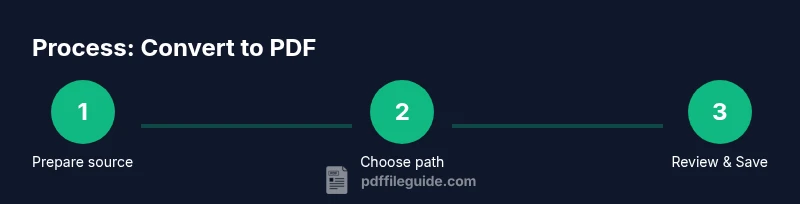
- 1
Prepare source content
Open your document in its native app and review layout, fonts, and images. Make any final edits, fix typos, and ensure accessibility elements such as alt text are ready. This upfront check reduces post-export edits.
Tip: If possible, run a quick spell-check and verify that fonts used are standard or embedded in the PDF. - 2
Decide your conversion path
Choose between using a PDF printer from the OS or exporting via Acrobat Pro. Your choice depends on whether you need simple PDFs or a publication-ready, accessible file with bookmarks and tags.
Tip: Pro users should plan for tagging and bookmarks early to avoid rework later. - 3
Windows: print to PDF or Save as PDF
In the source app, choose Print and select a PDF printer like Microsoft Print to PDF. Save the file with a descriptive name and choose a safe destination.
Tip: Check page size and orientation in the print settings to prevent clipping. - 4
macOS: print to PDF from the Print dialog
In the Print dialog, click Save as PDF, enter a file name, choose destination, and save. This works from most apps on macOS without extra software.
Tip: For long documents, enable two-column reading order in the export settings if available. - 5
Acrobat Pro: direct export or save as PDF
If you have Acrobat Pro, use File > Save as Other > PDF or Export To > PDF for a direct conversion from the source. This preserves fonts and can retain bookmarks and metadata.
Tip: Choose high-quality image settings for print-ready PDFs and enable font embedding when needed. - 6
Batch processing (Pro only)
For multiple files, set up a batch action that applies consistent export settings to all items in a folder. This saves time and ensures uniform quality across documents.
Tip: Test the batch on a small subset before full deployment. - 7
Review the final PDF
Open the PDF in Acrobat Reader or Pro and check readability, bookmarks, and accessibility tags. Verify font rendering and image quality, and confirm hyperlinks work.
Tip: Run a quick accessibility check if the file will be used by a broad audience. - 8
Organize and store
Save the final PDF in the intended project folder with a clear naming convention. Keep a link to the original source for audit purposes.
Tip: Use versioning like project_date_v1 to track iterations. - 9
Security and privacy checks
If the PDF contains sensitive information, enable encryption or restrict permissions as needed. Review redaction and data leakage risks before distribution.
Tip: Avoid sharing unencrypted files over unsecured channels.
Questions & Answers
Can I convert Word or Excel files to PDF using Adobe Acrobat Reader alone?
Not directly. Word or Excel can save as PDF only if you have the native applications. Acrobat Pro adds direct export to PDF from various formats. Reader relies on OS printing or Pro features for broader conversions.
You typically need Word or Excel or Acrobat Pro for direct export; Reader uses OS print-to-PDF or Pro features for richer exports.
Is there a built-in PDF printer on Windows or macOS?
Yes. Windows includes a built-in PDF printer like Microsoft Print to PDF, and macOS offers Save as PDF from the Print dialog. These let you create PDFs from any printable source without extra software.
Windows and macOS both provide a built-in PDF printer or Save as PDF option for quick conversions.
What is the advantage of using Acrobat Pro for conversions?
Acrobat Pro provides direct export to PDF from many formats, batch processing, and deeper controls for fonts, compression, tagging, and accessibility compliance. It can save time on large projects and improve output quality.
Pro adds batch processing, direct export, and accessibility controls that can simplify large-scale conversions.
Can I merge multiple PDFs into one with Acrobat Reader?
Merging is typically a Pro feature or requires external tools. Acrobat Pro allows combining files into a single PDF, while Reader alone does not.
Merging usually needs Acrobat Pro or another dedicated tool.
How do I ensure accessibility in a PDF I convert?
Enable tagging, add alt text for images, and ensure a proper reading order when exporting. Test with a screen reader to confirm navigation and content structure.
Enable tags, add alt text, and test with a screen reader to ensure accessibility.
Are there security considerations when converting to PDF?
Yes. Consider encryption, password protection, and restricting editing or printing for sensitive documents. Always review permissions before sharing PDFs externally.
Encrypt PDFs when needed and set permissions before sharing externally.
What is the difference between Save as PDF and Print to PDF?
Save as PDF is a direct export from the source app, preserving structure. Print to PDF uses a printer driver and may simplify layout but can lose interactive features unless the source supports them.
Save as PDF exports with structure; Print to PDF uses a printer path and can vary by app.
Can I automate PDF conversions for a folder of files?
Yes, with Acrobat Pro you can create batch actions to convert or export multiple files with a single run. This is ideal for monthly reports and standardized output.
Batch actions in Pro automate multi-file conversions.
Watch Video
Key Takeaways
- Choose the right conversion path based on needs and tools.
- Embed fonts and add accessibility features when exporting to PDF.
- Verify output with bookmarks, tags, and reading order.
- Batch process for consistency in multi-file projects.