How to Convert PDF to Word Using Adobe Reader (and Alternatives)
Learn how to handle PDF to Word conversions when using Adobe Reader workflows and practical alternatives. This guide covers limitations, best practices, and secure options from PDF File Guide.


Adobe Reader alone cannot export a PDF to Word. To perform this conversion, use Adobe Acrobat Pro, or use Word's built-in importer, or a trusted online converter. In this guide, you’ll see step-by-step workflows, quick checks to preserve formatting, and security tips for handling sensitive documents. We also cover caveats and how to verify results after conversion.
Why editors need PDF to Word and the caveats of using Adobe Reader\n\nFor professionals who edit, convert, and optimize PDF files, turning a PDF into an editable Word document is a common need. However, describing this as a single-click task would be inaccurate, especially when tools and formats vary. The keyword pdf to word adobe reader captures a popular expectation: that Adobe Reader can magically bridge the gap between fixed layouts and editable text. In reality, this capability depends on the software you use and the source file's structure. PDF File Guide notes that many PDFs are built more like images than text, which affects how well Word can recreate the original formatting. To avoid frustration, plan for potential formatting tweaks after conversion and choose the right tool for the job. We emphasize the best practice of using desktop solutions for sensitive documents and validating results before sharing them with others.
What Adobe Reader can and cannot do for PDF to Word\n\nAdobe Reader is designed for viewing, annotating, and filling forms in PDFs, not for converting them back to Word documents. It cannot export a PDF to Word directly. If you need a Word document, you must use one of two primary alternatives: a desktop program like Adobe Acrobat Pro, or a built-in capability in Word to import the PDF. Online services exist too, but they pose privacy risks for confidential material. PDF File Guide recommends evaluating the trade-offs between convenience and security before uploading any sensitive PDFs.
Choosing the right path: Acrobat Pro, Word, or online tools\n\nThere are three common routes to get a Word version of a PDF. The desktop route with Adobe Acrobat Pro tends to preserve layout better, but requires a license. Word's own importer can handle simple layouts and is convenient when you have Word installed, though complex tables may require post-conversion cleanup. Online converters are quick and accessible from any device but raise privacy concerns for sensitive content. Each route has trade-offs in accuracy, formatting, and file size. In this guide, we break down when to use each option so you can pick the path that aligns with your security needs and editing goals.
Prepare your files for a smooth conversion\n\nStart with clean sources: remove unnecessary images or embed fonts that Word can handle, flatten complex layouts, and ensure your PDF text is searchable if possible. Rename the file to avoid confusion, and back up the original before experimenting with any converter. If you anticipate multiple conversions, organize a dedicated workflow folder with consistent naming conventions.
Post-conversion cleanup: formatting, tables, and images\n\nAfter the conversion, you will likely need to adjust fonts, margins, and spacing. Watch for misaligned tables, missing images, and hard returns that Word introduced. Use Word's styles to apply consistent headings, bullet lists, and captions. Check that embedded fonts and accuracy of numbers remain intact. Save versions frequently to compare with the original.
Security and privacy considerations when converting PDFs\n\nBe cautious about sending sensitive PDFs to online converters. Prefer offline workflows on trusted devices, and review any privacy notices for online tools. If your document contains personal data or confidential business information, use on-device conversion with Acrobat Pro or Word rather than cloud-based services. Always store output Word files in a secure folder with restricted access.
Troubleshooting common issues you might encounter\n\nCommon problems include garbled text, missing fonts, or excessively large Word files after conversion. If you see odd characters, try exporting as DOCX from a different tool, or run OCR on image-based PDFs before trying a text export. For complex layouts, plan to do manual adjustments after conversion.
Quick checklist before exporting\n\nVerify source quality, choose the correct export format (DOCX), run a test on a small sample, back up both PDFs and Word documents, and review results with a focus on headings, tables, and equations.
Authoritative sources\n\n- Adobe PDF to Word export guide: https://www.adobe.com/content/dam/acom/en/devnet/acrobat/pdfs/pdf_to_word_export.pdf\n- Open a PDF in Word: https://support.microsoft.com/en-us/office/open-a-pdf-in-word\n- PDF conversion best practices (general guidance): https://www.pdfa.org
Tools & Materials
- Computer with reliable internet(Essential for software access or online tools)
- Adobe Acrobat Pro(Used for exporting PDFs to Word in desktop workflow)
- Microsoft Word (2013+)(Can import/export PDFs depending on version)
- Trusted online PDF converter (optional)(Use only for non-sensitive documents)
- Original PDF file(The document you want to convert)
- Secure storage location(For output Word files and backups)
Steps
Estimated time: 25-40 minutes
- 1
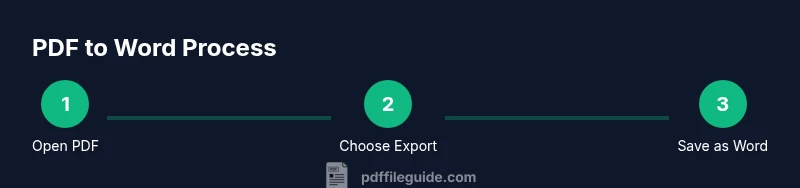
Open the PDF in your chosen tool
Launch Acrobat Pro or Word and open the PDF file you want to convert. Confirm that you are viewing a text layer rather than a scanned image when possible.
Tip: If the PDF is image-based, you may need OCR before a clean Word export. - 2
Choose the export or import option
In Acrobat Pro, select Export To > Microsoft Word. In Word, use Open > File and choose the PDF to convert via Word's importer.
Tip: For complex layouts, consider exporting to DOCX and then performing post-conversion edits. - 3
Select the Word format and confirm
Choose DOCX as the destination format and confirm the export. Save to a secure location to preserve a clean workflow.
Tip: Rename the output file to reflect the original document for easy tracking. - 4
Review the Word output
Open the generated Word document and scan headings, tables, and images for accuracy. Note any formatting shifts or missing elements.
Tip: Use Word styles to standardize headings and lists quickly. - 5
Perform formatting cleanup
Adjust fonts, spacing, margins, and table layouts. Normalize lists and captions to match your document's style guide.
Tip: Keep a version history to compare against the original PDF. - 6
Save and secure the final file
Save the final Word document in a secure folder with restricted access and back up to a trusted storage solution.
Tip: Consider a short, descriptive file name with the date.
Questions & Answers
Can I convert PDF to Word using Adobe Reader?
No. Adobe Reader is a viewer. You need Acrobat Pro, Word's importer, or a trusted online tool for conversion.
No. Reader cannot convert; you need Acrobat Pro or another method.
Is Word able to open or convert PDFs directly?
Word can open PDFs and convert them to editable Word documents, with varying accuracy depending on the PDF structure.
Word can open PDFs and convert, but results vary.
Will formatting be preserved after conversion?
Formatting may shift during conversion. Be prepared to adjust fonts, headings, tables, and spacing.
Formatting may shift; plan to tweak after conversion.
Are online tools safe for confidential PDFs?
Online tools pose privacy risks. Use offline methods for sensitive documents and review privacy policies.
Online tools can be risky; prefer offline methods for sensitive files.
What if the PDF is image-based?
If the PDF is image-based, run OCR first or use a tool that supports OCR to improve text extraction.
OCR may be required for image PDFs.
Can I automate PDF to Word conversions?
Automation is possible with batch processing in Acrobat Pro or scripting with Word, but it requires setup and testing.
Automation is possible with proper setup.
Watch Video
Key Takeaways
- Reader cannot export to Word; use Acrobat Pro or Word importer.
- Choose the conversion path based on layout and privacy needs.
- Expect post-conversion cleanup for complex PDFs.
- Always back up originals and outputs before editing.
- Prioritize on-device conversion for sensitive documents.