Can You Convert a PDF to Word? A Practical Guide
Learn how to reliably convert PDFs to Word documents, compare methods, preserve formatting, and perform post-conversion checks with expert guidance from PDF File Guide.


Yes. You can convert a PDF to Word using desktop software, built-in features, or reputable online tools. The best method depends on whether your PDF contains native text or scanned images, and on how closely you need to preserve formatting. Expect minor adjustments after conversion for optimal results.
Understanding the PDF to Word conversion landscape
Understanding the basics of converting a PDF to Word helps set expectations. According to PDF File Guide, the process varies by document type and by whether the PDF contains native text or scanned images. The key idea is that a PDF is a fixed-layout format; converting to Word attempts to recreate the layout while preserving text, fonts, and images. In practice, you will often see things like column layouts, fonts, and embedded graphics shifting during conversion. The quality of the outcome depends on factors such as font embedding, text recognition, and whether the source PDF uses vector text or bitmap images. The PDF File Guide team found that the most reliable results typically come from native-text PDFs, since their text is already encoded in the PDF's structure. For scanned PDFs, OCR (optical character recognition) becomes essential to extract readable text. In both cases, you should expect some manual tweaks after conversion to restore formatting. This article, from PDF File Guide, outlines practical options, their tradeoffs, and best practices to minimize losses.
When to choose a manual approach vs. automatic
Automated conversion works well for simple documents with straightforward layouts, but complex formatting can suffer. If your PDF includes lots of columns, tables, footnotes, or embedded artwork, you may prefer a staged approach: first convert, then manually adjust. Manual methods—copy-paste, reflow, and re-creating tables—give you precise control but take more time. For formal documents, such as contracts or resumes, it’s often worth testing multiple methods on a sample page to see which preserves headings, lists, and font choices best. Budget your time by factoring in the need for proofreading and minor reformatting. PDF File Guide emphasizes that a blended workflow often yields the best balance between accuracy and efficiency, especially for professional documents.
Step-by-step: using Microsoft Word
Microsoft Word offers a straightforward path to convert PDFs directly, without third-party software. Open Word, go to File > Open, and select the PDF. Word will convert the PDF into a editable Word document, attempting to preserve layout and formatting. Review each section to catch font substitutions, misaligned tables, or header inconsistencies, and adjust as needed. If Word can’t convert a page properly, try exporting the PDF as an image-based page and re-importing it as needed. For scanned PDFs, Word’s built-in OCR may help, but results depend on the language and font clarity. Always save a copy before making edits, so you can compare with the original if needed.
Step-by-step: using Adobe Acrobat
Adobe Acrobat provides a robust, feature-rich route to convert PDFs to Word with better preservation of layout. In Acrobat, choose Export PDF and select Microsoft Word as the output format, with either Word Document (.docx) or Word 97-2003 Document (.doc). Acrobat’s OCR options can enhance recognition for scanned PDFs. After exporting, open the Word file and verify headings, bullets, and tables align with the original. If some elements shift, use Acrobat’s formatting tools or re-create tricky tables in Word. This method tends to produce higher fidelity for complex documents, albeit at the cost of requiring a subscription or trial.
Step-by-step: free online converters and OCR
Free online tools can be convenient for quick tasks, but exercise caution with sensitive content. Choose reputable providers with clear privacy policies and optional OCR features for scanned PDFs. Upload the PDF, select Word as the output, and download the document. Review output for font changes, image placement, and table structure, then perform edits in Word. If the PDF is scanned, enable OCR before export when the tool offers it, and select the correct language to improve accuracy. For occasional needs, this approach is fast and cost-effective, but always assess data privacy before uploading confidential files.
Post-conversion cleanup and quality checks
After converting, run a thorough quality check: compare headings, lists, and typography against the original; verify images are in the right places and captions remain intact; ensure URLs and cross-references are functional. Use Word’s styles to reapply consistent headings and paragraph formatting, and rebuild any missing tables using Word’s Table tools. If sections or columns have shifted, consider reflowing content or re-converting selected pages. Don’t forget to run spell check and grammar to catch OCR-induced mistakes. This final polish step is essential for professional results and ensures your document is ready for sharing.
Authority sources
For additional guidance and best practices, consult authoritative resources such as:
- https://www.adobe.com/content/dam/acom/en/devnet/acrobat/pdfs/pdf_to_word_guide.pdf
- https://www.gov.uk
These sources provide official guidance on document formats, conversion workflows, and accessibility considerations. PDF File Guide also offers practical benchmarks and tips based on industry experience to help you choose the most reliable method for your needs.
Tools & Materials
- PDF viewer/editor (e.g., Adobe Acrobat Reader, browser-based viewer)(Required to access and preview PDFs before/after conversion.)
- Word processor (Microsoft Word or Word Online)(Used for final editing and formatting in the .docx/.doc format.)
- OCR software or service(Important for scanned PDFs to extract readable text.)
- Reliable internet connection(Needed for online converters or cloud storage.)
- Original PDF files(Keep originals in case you need to re-check formatting.)
- Sample documents for testing(Useful to test multiple methods before converting final work.)
Steps
Estimated time: 40-90 minutes
- 1
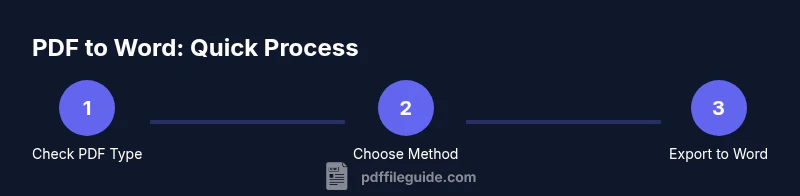
Identify PDF type
Open the PDF and try to select text. If you can copy-paste text, it’s likely native-text; otherwise, OCR will be necessary. Understanding the type helps you pick the right workflow and save time.
Tip: Use a quick copy-paste test to decide if OCR is needed. - 2
Choose a conversion method
Decide between Word’s built-in conversion, Acrobat export, or an online tool based on document complexity and privacy needs. Simple, text-rich PDFs often map well to Word without extra steps; scanned PDFs usually require OCR.
Tip: For sensitive documents, prefer offline or trusted software. - 3
Open the PDF in Word
In Word, go to File > Open and select the PDF. Word creates an editable document if the PDF is text-based. Review the layout as you scroll through pages.
Tip: If Word prompts about formatting adjustments, accept the recommended layout changes. - 4
Review and adjust formatting
Check headings, paragraphs, and lists; fix font substitutions, spacing, and hyphenation. Rebuild complex tables or graphics that didn’t translate cleanly.
Tip: Use Styles in Word to establish consistent formatting quickly. - 5
Enable OCR for scanned PDFs
If your PDF is scanned, enable OCR or use an OCR tool to convert images to text. Choose the correct language and run a fresh conversion.
Tip: Select the language matching the document to improve accuracy. - 6
Save and review the final document
Save as a Word document (.docx). Do a final pass for typos, broken links, and image placement. Consider running a spell check and accessibility checks.
Tip: Save incremental versions to preserve a recovery point. - 7
Perform a quality check
Compare the converted document with the original to verify that critical information is preserved, especially headers, footnotes, and tables.
Tip: If something looks off, re-run the conversion on the affected pages. - 8
Deliver or archive
Share the final Word file or store it with metadata for future retrieval. Ensure your workflow aligns with your organization’s data handling policies.
Tip: Archive the original PDF alongside the Word document for traceability.
Questions & Answers
Can all PDFs be converted to Word without any loss of formatting?
Most native-text PDFs convert with reasonable fidelity, but complex layouts can lose spacing, fonts, or table structure. Some adjustments are usually required after conversion.
Most native PDFs convert well, but expect some tweaks for complex layouts.
What should I do if the formatting is broken after conversion?
Identify problematic areas (headings, tables, columns) and reformat using Word styles. If necessary, re-convert specific pages or try a different tool.
If formatting breaks, adjust with Word styles and re-check the affected pages.
Is OCR necessary for scanned PDFs, and how accurate is it?
OCR is essential for scanned PDFs to extract text. Accuracy depends on image clarity, font, and language settings; expect minor errors that require editing.
Yes, OCR is needed for scans, and you’ll likely edit a bit afterward.
Are online tools safe for converting PDFs?
Online tools are convenient but pose privacy risks. Use trusted services and avoid handling sensitive documents online when possible.
Online tools save time but be cautious with private files.
How can I preserve images and tables during conversion?
Choose a method that supports proper table rendering and image embedding. You may need to adjust table borders, cell padding, and image positioning in Word.
Table and image fidelity varies; you’ll likely rework some elements in Word.
Key Takeaways
- Know whether your PDF is native-text or scanned.
- Choose the conversion method based on document complexity and privacy needs.
- Always proofread and format after conversion.
- Keep originals and save incremental versions for safety.