How to Convert a PDF File to Word
Learn how to convert a PDF file to Word with practical steps, comparing Word, Acrobat, and OCR options while preserving formatting and accessibility.


By the end, you will convert a PDF file to Word using built‑in Word features, third‑party tools, or OCR when needed. You’ll evaluate document type (text vs. scanned images), select the best method, and follow steps to preserve layout, fonts, and images. The workflow also covers verification, edits, and accessibility considerations for a polished Word document.
What happens when you convert a PDF to Word?
Converting a PDF to Word is a process of translating fixed-page content into an editable, reflowable document. Text may be extracted directly if the PDF contains selectable text, but many PDFs—especially scans or image-heavy files—require optical character recognition (OCR) to recover the underlying text. Even when text is successfully extracted, preserving the original layout, fonts, hyphenation, and embedded images can be challenging. The goal is to end up with a Word document that is faithful to the source while remaining easy to edit. This is where PDF File Guide’s guidance becomes valuable: it emphasizes evaluating the document type and selecting a method that minimizes manual cleanup while maintaining accessibility and searchability.
Key factors that affect conversion quality
Several variables determine how well a PDF converts to Word. Document type (text vs. image-based), font embedding, column layouts, tables, and embedded graphics all influence the result. PDFs produced from scanned paper often require OCR and post‑processing to restore structure. PDFs with complex layouts may lose headers, footnotes, or bullet styles during automatic conversion. The PDF File Guide analysis shows that the most reliable results come from using a workflow that combines an appropriate tool with a dedicated review phase to fix formatting, verify accuracy, and ensure accessibility.
Word's built-in Open PDF feature
Microsoft Word’s built‑in PDF import can be surprisingly effective for simple PDFs. When you open a PDF in Word, the application attempts to convert the content into editable text, preserving many paragraphs and basic formatting. For straightforward documents—text-heavy with minimal images—this method provides a quick path from PDF to Word. However, you should anticipate some formatting shifts, especially with multi-column layouts, complex headings, or tables. If you’re aiming for a fast first draft, this is a sensible starting point, and you can refine the result afterward.
Using Adobe Acrobat Pro for higher fidelity
Adobe Acrobat Pro offers more control over PDF-to-Word conversion, including options to export directly to Word with enhanced layout preservation. Acrobat’s export feature can handle more intricate formatting, user-defined page ranges, and table structures more consistently than the Word importer. The trade-off is cost and a slightly longer workflow, especially if you’re dealing with large or image-heavy documents. For teams that require high fidelity and predictable results, Acrobat Pro is a strong choice aligned with PDF File Guide recommendations.
Free alternatives: Google Docs and online converters
Free tools can be surprisingly capable for basic PDFs. Google Docs, for example, can import a PDF and convert it to an editable Google Doc, which you can then download as a Word (.docx) file. Other online converters provide similar functionality without software installation. When using free or online services, consider data sensitivity and privacy: avoid uploading confidential documents to third‑party sites. PDF File Guide notes that free options are practical for casual use but may require more manual cleanup than paid software for complex layouts.
Handling scanned PDFs with OCR
If your PDF is image-based, OCR becomes essential. OCR converts pictures of text into selectable, searchable text. The accuracy depends on image quality, language settings, and font complexity. Post‑OCR cleanup is almost always required: confirm that characters, punctuation, and diacritics are correct, and reformat sections that OCR misinterpreted. Choose OCR tools that support your document language and include layout retention modes to minimize manual edits after conversion.
Preserving formatting: fonts, headings, and images
After conversion, formatting often needs adjustment. Key steps include reviewing font substitutions, reapplying consistent heading styles, and ensuring images are properly anchored and captioned. Use Word’s Styles and the Navigation Pane to rebuild a clean, accessible structure. If you converted tables, verify borders, cell padding, and alignment. A disciplined approach to reformatting saves time and yields a document that’s easier to read and preserve across devices.
Tables, lists, and complex layouts
Tables and multi-column layouts frequently break during conversion. Expect merged cells, misaligned borders, or stray captions. Correct these by recreating or reformatting tables in Word, adjusting column widths, and using table styles for consistency. For bullet lists and numbering, ensure the sequence remains intact and that nested lists retain proper indentation. When layouts are too intricate to salvage automatically, consider recreating key sections in Word for accuracy.
Accessibility and metadata after conversion
Accessibility should not be an afterthought. After converting, check document structure, heading levels, alt text for images, and reading order. Word’s Accessibility Checker can help identify issues that affect screen readers. Metadata—such as author, title, and keywords—also matters for searchability and compliance. A well‑formatted, accessible Word document is easier to share, edit, and reuse in professional workflows.
Practical workflow: choosing the right method for common cases
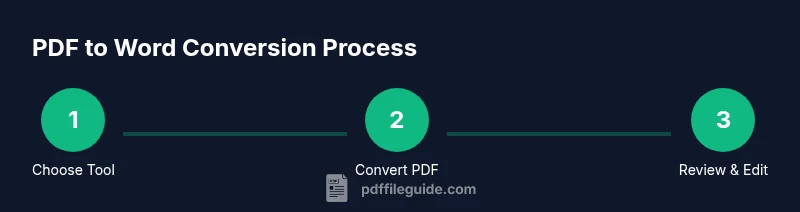
For simple text PDFs, Word’s built‑in importer is often the fastest path. For documents with complex formatting, images, or tables, using Acrobat Pro or an OCR‑enabled tool may yield better fidelity, followed by targeted manual cleanup. When you need a quick draft for review, Google Docs or free online converters can be convenient, but plan for additional polishing. PDF File Guide suggests evaluating a couple of methods on a small test page before committing to a full document.
Troubleshooting: common issues and quick fixes
If characters appear garbled, re-run OCR with higher accuracy settings and verify language packs. If bullets or numbering are off, reapply Word's list styles and ensure consistent indentation. If images shift or captions disappear, reinsert captions and adjust anchor properties. Finally, always save a backup before applying major edits and run a final spell check and readability test to catch lingering issues.
Tools & Materials
- Computer with internet access(Any OS; ensure up-to-date browser)
- Microsoft Word (latest version)(Word 2019/365 or equivalent)
- Adobe Acrobat Pro (optional)(Helpful for high‑fidelity conversion)
- OCR software (optional)(If the PDF is image-based)
- Google account and Google Docs (optional)(Free alternative workflow)
- Fonts and layout references (optional)(Used to compare with source formatting)
Steps
Estimated time: 45-60 minutes
- 1
Open PDF in Word or chosen tool
Launch Word and use File > Open to select the PDF. Word will start a conversion to an editable document. Review the initial result for obvious formatting issues and note areas that will need adjustment.
Tip: If you’re using a scanned PDF, OCR may be required to extract text. - 2
Choose the best conversion method
If the PDF is simple text, Word’s built‑in importer may suffice. For complex PDFs with many images or tables, consider Acrobat Pro export or dedicated OCR tools for higher fidelity.
Tip: Test multiple methods on a sample page to gauge fidelity before converting the entire document. - 3
Review and correct formatting
Go through headings, paragraphs, lists, and tables. Reapply Word Styles, adjust fonts, line spacing, and margins, and fix any broken table structures.
Tip: Enable non‑printing characters to see spacing and paragraph marks clearly. - 4
Handle images and captions
Check image placement, resize as needed, and re-add or adjust captions. Ensure image alt text is present for accessibility where possible.
Tip: Large image files can impact document performance; optimize image size if needed. - 5
Convert scanned sections with OCR
If OCR is required, run the OCR process with appropriate language settings and quality options. Review output to correct misread characters and spacing.
Tip: Select the correct document language to improve OCR accuracy. - 6
Save and verify accessibility
Save the document as .docx. Run the Accessibility Checker and verify metadata (title, author, keywords). Ensure reading order is logical for assistive technologies.
Tip: Add alt text to all images and verify that headings form a logical hierarchy.
Questions & Answers
Can I convert a scanned PDF to Word without losing formatting?
For scanned PDFs, OCR is required to extract text. The fidelity varies with tool quality, language settings, and document complexity, so you’ll likely need manual cleanup.
Scanned PDFs need OCR to convert text. Expect some cleanup after conversion.
Is Word’s built‑in converter free?
Yes. If you have Microsoft Word, you can open a PDF and Word will convert it to an editable document without extra cost beyond your Word license.
Yes. Word can convert PDFs for free with Word installed.
What should I do if formatting is lost after conversion?
Reapply and standardize styles using Word’s Styles, fix fonts, adjust margins, and rebuild any broken tables. Save revisions frequently.
Reformat using Word styles and fix tables and fonts after conversion.
Which method yields the best results for complex layouts?
Adobe Acrobat Pro export generally preserves more layout details, but it may require additional post‑processing. For extremely complex documents, a mixed workflow often works best.
Acrobat Pro often preserves layout better; expect some cleanup afterward.
Can I convert a PDF to Word without any software?
Yes, via Google Docs or some online converters, though results vary and privacy considerations apply. Desktop tools typically offer more reliable fidelity.
Free options exist, but reliability varies and consider privacy.
How can I preserve accessibility and metadata after conversion?
Check headings, alt text, and reading order. Use Word’s Accessibility Checker and update metadata like Title, Author, and Keywords.
Ensure accessibility with headings and alt text, and fix metadata.
Watch Video
Key Takeaways
- Identify whether the PDF is text-based or image-based.
- Choose the conversion method suited to document complexity.
- Expect formatting tweaks and plan for post‑processing.
- Verify accessibility and metadata after conversion.
- Test on sample pages to optimize your workflow.