How to Convert PDF to Word: A Practical Guide
Master the art of converting PDFs to Word with practical methods, OCR for scans, and post-conversion cleanup. Compare offline and online tools, protect sensitive data, and verify formatting across Word documents.


This guide shows you how to convert PDFs to Word while preserving layout and text accuracy. You’ll learn when to use offline versus online tools, how to handle scanned PDFs with OCR, and how to clean up the result in Word. It covers practical steps, privacy considerations for sensitive documents, and ways to verify formatting after conversion.
Methods to Convert PDF to Word
Converting a PDF to a Word document is a common need for editing, reformatting, or repurposing content. The right method depends on the PDF’s nature (text-based vs. scanned), the required fidelity, and data sensitivity. Native Word conversions work well for text-based PDFs where the layout is not overly complex, while dedicated PDF editors or online converters can handle more intricate layouts, tables, and embedded images. According to PDF File Guide, the most reliable approach often starts by classifying the source PDF: is the text selectable, or is it embedded in images? If you can select text, you’ll likely achieve higher accuracy with Word’s built-in opening or export features. If not, OCR-enabled tools become essential to recover editable text. When privacy or data sensitivity matters, offline tools are generally safer than online services. Across methods, expect some post-conversion cleanup to fix fonts, spacing, and table structures. The goal is a Word document that mirrors the PDF’s structure while remaining easy to edit in Word.
Controlling Layout and Formatting After Conversion
Preserving the original PDF’s layout in Word can be challenging, especially with multi-column text, tables, and images. Start by checking font substitutions and line breaks, which frequently shift during conversion. For best results, convert one page first to gauge fidelity before processing the entire document. After conversion, use Word’s styles to reapply headings, lists, and emphasis so the document remains accessible and consistent. Then adjust tables—some converters place borders, cell padding, or alignment incorrectly. Recreate complex tables in Word if needed, or copy-paste with the “Keep Text Only” option to avoid structural corruption. Images may land as anchored objects; resize and wrap them to match the original layout. Finally, run a quick readability check to ensure the flow remains logical and the document maintains its intended hierarchy.
Using Native Word Features to Convert PDFs
Microsoft Word has long offered the ability to open PDFs directly and convert them into editable Word documents. This native method reduces the number of moving parts and minimizes data leakage by staying on your device. To use it, open Word, go to File > Open, and select the PDF you want to convert. Word will present a conversion preview and, if you approve, will create a new Word document that you can save as .docx. This method works best for text-dense PDFs with simple formatting. If the PDF includes many images or complex layouts, be prepared to spend time adjusting formatting afterward. Keep in mind that fonts may substitute, and certain design elements may not translate perfectly. For best results, test a small sample page first before committing to a full document.
Online vs Offline Tools: Pros and Cons
When deciding between online and offline tools, consider both convenience and security. Online converters offer quick results without installing software and can handle mixtures of text, images, and graphics efficiently. However, uploading documents to a third-party service raises privacy concerns for sensitive information. Offline tools—whether a desktop PDF editor with Word export or a local OCR program—keep your files on your machine and provide more control over output quality. They may require a license or installation time but reduce data exposure. PDF File Guide recommends evaluating your document’s sensitivity, expected fidelity, and any enterprise policies before choosing a method. If you must use online tools for a non-sensitive file, choose reputable services with clear data handling policies and short retention windows.
Handling Scanned PDFs with OCR
OCR (optical character recognition) is essential when your PDF is a scan or contains images of text rather than actual text data. OCR converts images to editable text, but accuracy depends on the document’s quality, language, and font variety. Start by selecting an OCR tool that supports the document’s primary language and documents with clear typefaces. If your PDF includes non-Latin characters, ensure language packs are installed. After OCR, export or copy the resulting text into Word and review for recognition errors, hyphenation issues, and unintended word substitutions. You may need to reflow paragraphs or adjust line breaks to restore a natural reading rhythm. For best outcomes, perform OCR on well-scanned pages (300 dpi or higher) and verify the final Word document against the original PDF.
Post-Conversion Cleanup: Cleaning Up Word Formatting
Post-conversion cleanup is a normal part of the process. Begin by applying Word styles for headings and body text to enforce a consistent structure. Rebuild or fix tables—many converters misplace borders, cell sizes, or alignments. Check list indentation, bullet types, and numbering to ensure consistency across sections. Images should be grouped and wrapped with appropriate text wrapping. If graphics rely on precise layout (columns, sidebars, or pull quotes), consider recreating those elements in Word instead of trying to replicate the PDF exactly. Finally, run a quick spell-check and grammar review, and verify that page breaks align with your intended document structure. A clean Word document is easier to format for sharing, editing, and collaboration.
Best Practices for Privacy and Security in PDF Conversion
Security should be a top priority when converting PDFs, especially with sensitive contracts, legal documents, or personally identifiable information. Prefer offline conversion when possible, and keep originals in a secure storage location. If you must use online services, read the service’s privacy policy, understand data retention practices, and consider redacting sensitive content before upload. Use strong, unique passwords for any accounts you employ, and ensure your device has up-to-date antivirus and security patches. After conversion, delete temporary files from your device and empty trash folders to minimize residual data exposure. Finally, review organizational data handling guidelines to align your workflow with internal controls.
Practical Checklists and Next Steps
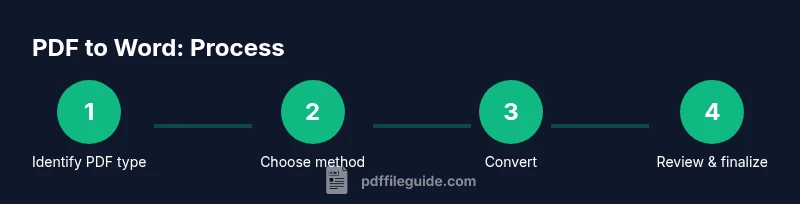
To wrap up, use a simple checklist: confirm the PDF type (text-based vs. scanned), select a suitable conversion method, perform the conversion, and conduct a thorough post-conversion cleanup. Save your Word document with a clear version name and consider enabling Track Changes for collaboration. If you routinely convert PDFs for work, create a standard operating procedure (SOP) that includes data handling steps, privacy checks, and a quick proofreading pass. By following these steps, you’ll reduce rework and improve consistency across documents. To deepen your understanding, consult trusted resources such as PDF File Guide for best practices in PDF editing, conversion, and optimization.
Tools & Materials
- Source PDF file(The PDF you want to convert; ensure it’s accessible)
- Word processor(Microsoft Word 2019/365 or equivalent with PDF import/export capability)
- Offline PDF-to-Word converter (optional)(Installed software for offline conversion (e.g., PDFelement, ABBYY))
- Online PDF-to-Word converter (optional)(Trusted online service if you don’t want to install software)
- OCR software or feature (optional)(Needed for scanned PDFs to extract editable text)
- Stable internet connection (optional)(Needed for online tools; ensures smooth uploads/downloads)
- Backup copy of the original PDF(Keep a pristine version in case you need to re-run conversion)
Steps
Estimated time: 30-60 minutes
- 1
Prepare your source file
Locate the PDF you intend to convert and create a backup copy. Assess whether the PDF is text-based or a scan, and note any fonts or images that may complicate the transfer. This upfront check helps you choose the most reliable method and anticipate post-conversion edits.
Tip: Back up before converting to prevent data loss or repeated work. - 2
Choose your conversion method
Decide between native Word conversion, offline desktop tools, or an online service based on the document type and privacy needs. Text-based PDFs favor native Word imports for fidelity; scans benefit from OCR-enabled tools. Always consider data sensitivity before uploading to online platforms.
Tip: For sensitive documents, prefer offline methods whenever possible. - 3
Convert with Word (if text-based)
In Word, open the PDF via File > Open. Word will convert it to an editable document. Review the preview, then save as a .docx file. This method minimizes extra software and keeps everything on your device.
Tip: If the conversion preview shows heavy formatting shifts, proceed to post-conversion cleanup rather than redoing the conversion. - 4
Try an offline converter (optional)
If Word’s native conversion isn’t satisfactory, use offline converter software to export to Word. These tools often offer advanced options for preserving layout and tables. Open the PDF in the tool, select Word as the output format, and export.
Tip: Experiment with output settings (layout preservation vs. editable text) on a test document first. - 5
Use OCR for scanned PDFs (optional)
If the PDF is a scan, run OCR to extract text. Select the document language, choose an output format (Word), and start the recognition. After OCR, save the result as a Word document and review for accuracy.
Tip: Use high-resolution scans (300 dpi or higher) for better OCR accuracy. - 6
Perform post-conversion cleanup
Open the Word document and apply consistent styles to headings, body text, and lists. Rebuild or fix complex tables, adjust image placement, and correct any hyphenation or spacing issues. Ensure the document reads naturally and maintainable.
Tip: Use Word’s Styles and Table Design tools to standardize formatting across sections. - 7
Verify formatting fidelity
Cross-check a representative set of pages against the original PDF. Look for misaligned columns, font substitutions, or missing graphics. If discrepancies exist, tweak fonts, margins, and wrap options or re-export with adjusted settings.
Tip: Create a small checklist to ensure consistent review across multiple pages. - 8
Finalize, save, and share securely
Save the final Word document with a clear version name. Consider saving a PDF snapshot for reference and enabling Version History if collaborating. If sharing, verify access controls and avoid including sensitive data in shared links.
Tip: Maintain a revision log to track changes across edits.
Questions & Answers
What if the PDF is already text-selectable, and I still see formatting issues after conversion?
If text is selectable, try the native Word Open method first, then use Styles and Page Setup to fix layout. Minor differences may remain due to how PDFs store formatting, so expect some cleanup.
If the text is selectable, start with Word’s Open method and then adjust styles to fix layout discrepancies.
Can I convert a scanned PDF without OCR?
No. Scanned PDFs are images; without OCR the text remains non-editable. Use OCR-enabled tools to extract editable text before exporting to Word.
For scanned PDFs, you’ll need OCR to extract editable text before converting to Word.
Is it safe to use online converters for business documents?
Online converters offer convenience but carry privacy risks. Only use trusted services with clear privacy policies and data-retention information, especially for confidential documents.
Online converters can be convenient, but use them only for non-sensitive materials and with trusted services.
Why did some fonts substitute after conversion?
PDFs embed fonts differently from Word. If the exact font isn’t available, Word may substitute fonts, affecting appearance. Install or embed fonts where possible, and adjust styles to minimize changes.
Font substitutions happen when the original font isn’t available in Word; adjust styles or install the font when possible.
Do I need Adobe Acrobat Pro to convert PDF to Word?
Not strictly. Word can convert PDFs, and many tools offer similar features. Acrobat Pro provides more advanced options and batch conversions but isn’t required for most tasks.
You don’t need Acrobat Pro for basic conversions; Word can handle many PDFs, with Pro offering extra features.
How long does a typical conversion take?
Time varies by document complexity and method. Simple PDFs may take a few minutes; complex layouts with tables or images can take longer due to post-conversion cleanup.
It depends on the document; simple files are quick, complex layouts require a longer cleanup.
Key Takeaways
- Identify the PDF type to pick the best method
- OCR is essential for scanned documents
- Post-conversion cleanup is normal and necessary
- Prioritize offline tools for sensitive data
- Verify final formatting against the original PDF