Can You Convert PDF to Word? A Practical How-To
Learn how to convert PDFs into Word documents with confidence. Compare offline and online options, preserve formatting, handle OCR for scanned PDFs, and follow a step-by-step workflow for high-fidelity results.


Yes. You can turn a PDF into a Word document using built-in apps, offline desktop tools, or online converters. The aim is to preserve text, images, and layout while ensuring the result is editable. This how-to guides you through reliable methods, caveats, and best practices for accurate conversion. Whether you work with contracts, reports, or research papers, getting a faithful Word version minimizes rework.
Understanding PDF-to-Word conversion
Converting a PDF to Word is not a single, universal action; it is a process that depends on the source format and the content layout. Text that is embedded as actual characters transfers more cleanly than text contained in images. If the PDF is image-based (a scanned document), the software must perform optical character recognition (OCR) to extract meaningful text before Word can edit it. The quality of the conversion often hinges on the original file's structure: clean headings, consistent fonts, and properly tagged lists make the Word result easier to edit.
According to PDF File Guide, starting with a clean, native PDF yields the best Word conversion results. The PDF File Guide team found that when the source is a true text PDF, modern converters typically preserve most paragraphs, bullets, and basic formatting, with fewer manual corrections needed after the run. When you work with digital PDFs, you still may see subtle shifts in margins or font rendering, so plan for a post-conversion pass. Also, consider privacy: avoid uploading sensitive documents to public online tools unless you trust the service.
In practice, expect that some elements may require adjustment after conversion. Headings might shift to a different style, bullet indent levels can reset, and images may move. These changes are normal, and a short round of editing in Word will usually restore the intended layout. The goal is fidelity, not perfection on the first try.
Methods to convert PDF to Word
There are three broad approaches: built-in tools, offline desktop applications, and online converters. Each method has trade-offs for accuracy, privacy, and convenience.
-
Built-in tools: Some word processors can import or open a PDF and convert it to an editable document. These options are convenient for quick edits and require no extra software, but they may struggle with complex layouts, fonts, and tables.
-
Offline desktop applications: Dedicated PDF editors or office suites with PDF conversion modules tend to deliver higher fidelity, especially for tables and multi-column layouts. They require installation and may cost money, but they keep data on your device, avoid network delays, and give you full control over processing.
-
Online converters: Cloud-based services offer fast results and batch processing. Be mindful of privacy since you are uploading files to a third party; choose reputable providers and delete files after use. OCR-enabled options can extract text from scans, but results vary and may require corrections.
We will provide a step-by-step workflow later, showing when to pick each method based on the file type and quality you need to preserve. The overarching message is that high-fidelity results come from using source files that are easy to interpret as text, with OCR reserved for scanned documents.
Preparing the source document for conversion
Preparation reduces post-conversion edits. Start by checking that the PDF is not password-protected and that you have permission to convert. If you have the original document or the author’s source files, use them instead of the scanned image version. Make a copy of the PDF to preserve the original, and remove or hide any sensitive pages before uploading to online tools. If your PDF contains fonts that may not be available on your computer, note this because font substitution can alter the look of the final Word document. If you anticipate heavy formatting, enable OCR if necessary in your chosen tool. Finally, disable any watermarks and ensure the document's layout is stable before conversion.
Quick-start workflow: a practical example
Suppose you have a native PDF with simple headings and bullets and you want a Word document for editing. Start by opening Word and using File > Open to load the PDF; Word will perform a conversion and present an editable document. Inspect headings, lists, and paragraphs, and fix any obvious issues. If the layout is still off, try a desktop PDF editor's export-to-Word feature, which often preserves tables better. For a large, image-rich document or a scanned file, you might choose an OCR-enabled online tool, but only after ensuring privacy. After conversion, search for common problem areas—tables, multi-column text, and image placement—and correct them in Word. Save the document in Word format and compare with the original PDF to confirm accuracy.
Quality assurance and post-conversion edits
Quality checks should be part of every conversion workflow. Proofread the entire document and verify that the text is readable, tables align, and images are correctly placed. Check fonts and font sizes to avoid unexpected substitutions, and adjust bullets, numbering, and indentation to match the original. Use Word’s styles to rebuild the structure rather than manual formatting, which helps future edits. If formulas or special characters appear garbled, retype or use a symbol map. Finally, run a quick spell and grammar check and save a backup before sharing.
When to choose offline vs online and privacy considerations
Offline methods are preferable for sensitive content or when you need to preserve complex formatting reliably. They keep your data on your device and don’t require uploading files to the cloud, which reduces privacy risk. Online converters offer speed and convenience, which is helpful for non-sensitive documents or when you don’t have a PDF tool installed. Always read the privacy policy, delete files after processing, and consider using encryption for any sensitive materials. If you frequently convert PDFs, invest in a dedicated desktop tool to balance accuracy, control, and cost.
Tools & Materials
- Computer or device with internet access(For online tools, ensure a stable connection)
- PDF file to convert(Source document you intend to edit in Word)
- Word processing software(Microsoft Word, LibreOffice, or Google Docs with Word export)
- Offline PDF converter (optional)(Provides higher fidelity for complex layouts)
- OCR capability (optional)(Needed for image-based PDFs)
- Privacy-conscious workflow plan(Strategy for handling sensitive documents)
Steps
Estimated time: 20-40 minutes
- 1
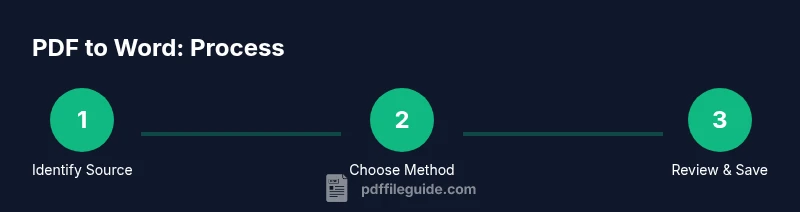
Identify PDF type
Open the PDF and determine if the source is text-based or image-based by attempting to select text. If you can select text, OCR is unnecessary and the conversion will likely be smoother.
Tip: Use the text selection tool to verify whether characters are embedded as text. - 2
Choose a conversion method
Decide between built-in Word conversion, offline software, or an online tool based on document sensitivity, complexity, and available tools. Simpler files often work well with built-in options.
Tip: If the document has complex tables, plan to review and adjust after conversion. - 3
Prepare the PDF
Create a working copy of the PDF, remove sensitive pages if needed, and note any password protections. Ensure the file is accessible to your chosen tool.
Tip: Always work on a duplicate to protect the original document. - 4
Run the conversion
Execute the conversion using your chosen method. Save the resulting Word file in a dedicated folder for easy retrieval.
Tip: If the tool reports errors, try an alternate method or adjust input options like language settings. - 5
Review the Word output
Check headings, paragraphs, bullets, and basic formatting. Look for characters that didn’t transfer cleanly and correct typos introduced during conversion.
Tip: Apply Word Styles to rebuild structure quickly and consistently. - 6
Tackle tables and images
Inspect tables for merged cells, misaligned borders, or shifted column widths. Reinsert or resize images as needed to preserve layout.
Tip: Use table tools to adjust alignment and cell padding for a cleaner look. - 7
Apply OCR if needed
If the PDF was image-based, run OCR on the source or in the converter to extract text, then re-check the document for accuracy and formatting.
Tip: OCR quality depends on image clarity; higher DPI helps. - 8
Finalize and save
Save the final version as a Word document and store a backup. Compare side-by-side with the original PDF to ensure fidelity and note any remaining edits.
Tip: Keep version history to track changes over time.
Questions & Answers
What is the easiest way to convert a PDF to Word?
For quick edits, use Word's built-in converter; for higher fidelity, try offline desktop tools. Choose based on document complexity and privacy needs.
Use Word to convert for speed, or a dedicated desktop tool for better fidelity.
Will fonts and formatting be preserved?
Fonts and formatting often shift slightly. You may need to adjust font choices, margins, and spacing in Word after conversion.
Fonts can change; expect minor adjustments after conversion.
Is OCR required for scanned PDFs?
Yes. Scanned PDFs are images; OCR converts the images to editable text. Then you’ll likely need post-processing.
Yes, OCR is needed for image-based PDFs.
Can I convert for free?
Yes, there are free online tools and built-in options. However, offline professional tools may offer better fidelity and privacy.
There are free options, but quality and privacy vary.
How should I handle privacy and security?
For sensitive documents, prefer offline tools or trusted providers. Avoid uploading confidential files to unknown online services and delete files after processing.
Be mindful of privacy; use offline tools for sensitive content.
Watch Video
Key Takeaways
- Identify source type to choose the right method.
- OCR is essential for scanned PDFs to become editable text.
- Expect some formatting tweaks after conversion.
- Proofread and adjust with Word Styles for consistency.