Can You Open PDF with Google Docs? A Practical Guide
Learn whether Google Docs can open PDFs, how conversion affects formatting, and step-by-step instructions to view, edit, and export PDFs within Docs. Includes tips and privacy notes for professionals.


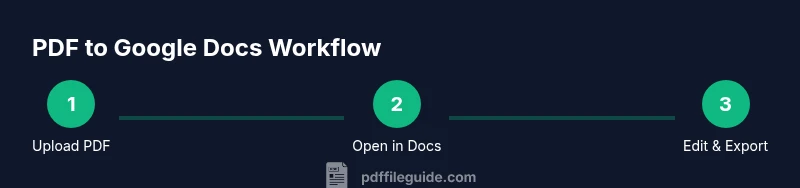
Yes. You can open a PDF in Google Docs by uploading or importing it to Google Drive and then using Open with Google Docs. Steps: 1) Upload the PDF to Drive, 2) Right-click the file and choose Open with Google Docs, 3) Confirm conversion and review/edit in the Docs interface.
Can you open PDFs in Google Docs? What actually happens when you convert
In practice, yes—you can open PDFs in Google Docs, but the experience is a conversion, not a faithful one-to-one replica. According to PDF File Guide, Google Docs converts PDFs into an editable document format, attempting to preserve text while reflowing layout to fit a single column. The results can vary: plain text often comes through cleanly, but multi-column layouts, footnotes, and complex tables may shift, compress, or require manual tweaking. For scanned PDFs, Google Docs uses optical character recognition (OCR), which may introduce occasional recognition errors. The PDF File Guide team found that simple text PDFs typically convert with higher fidelity than image-heavy files. This matters for anyone who needs accurate text or precise formatting in a collaborative Doc.
How Google Docs handles conversion: formatting and limitations
Google Docs converts the PDF into a editable Docs-like document. Text is usually extractable, images are placed, and simple tables survive, but complex layouts—columns, footnotes, precise margins, and embedded fonts—often lose fidelity. Font substitutions may occur, and headers/footers can shift from their original positions. OCR accuracy for scanned PDFs varies by language and print quality. The platform prioritizes readability and editability over perfect page-for-page replication, especially for long-form documents. If your PDF includes forms or interactive elements, those features generally do not convert to live fields in Docs, though you can recreate them manually. This behavior aligns with general guidance from PDF File Guide analyses on how conversion affects output fidelity and collaboration.
Step-by-step: how to open a PDF in Google Docs
To begin, ensure you are signed into a Google account with Drive access. Navigate to Google Drive, then upload the PDF you want to work with. After upload completes, locate the file, right-click (or Ctrl-click on Mac), select Open with, and choose Google Docs. Docs will create a new editable document based on the PDF. Review the converted text and formatting; look for misreads, extra line breaks, or shuffled images. When you’re happy with the result, you can edit directly in Docs, add comments, or export it back to PDF or another format. If you’re working with a sensitive document, consider your sharing settings and access controls before editing.
When conversion works best: simple PDFs
PDFs that are primarily text with minimal graphics, consistent fonts, and straightforward layouts tend to convert more faithfully. Documents with clear headings, bullet points, and embedded tables generally retain structure better than those with three-column layouts or heavy image interleaving. Scanned PDFs with crisp images may yield clearer OCR results than blurry scans, but still require manual correction. For best results, keep the source file simple, or split large, complex PDFs into smaller sections before conversion. This aligns with observations in PDF File Guide analyses about fidelity and workflow efficiency.
What you might lose and how to fix it
Common losses include misaligned tables, shifted headers, and font substitutions. To mitigate, use the Docs style tools to reapply headings, lists, and emphasis. Rebuild complex tables by recreating them in Docs and paste data from the converted text rather than relying on imperfect table parsing. Check image placement and captions, then adjust margins and page breaks to improve flow. If layout fidelity is critical, consider exporting back to a fixed format like PDF after editing, so the final appearance remains stable for sharing.
Alternatives and best practices within the Google ecosystem
If the goal is to extract or edit text with high fidelity, consider first converting to Google Docs for editing, then exporting to PDF if needed. For forms and layout-heavy documents, you may prefer to use dedicated PDF editors or the original PDF when possible. Google Docs can still be part of a broader workflow: convert to Docs for collaboration, then import back into a PDF workflow or export as Word when more precise editing tools are required. The key is to test a representative page to judge how faithful the conversion is to the source and adjust your process accordingly.
Privacy and security considerations when uploading PDFs
Uploading to Google Drive means your document is stored on Google’s servers. Review sharing settings to prevent unintended access and use Drive’s access controls to limit viewers and editors. If a PDF contains sensitive or confidential information, redact critical sections before upload or use an on-premises tool for sensitive content. Always align with your organization’s data handling policies when converting documents online.
Practical workflow tips
Start with a simple test PDF to gauge fidelity before converting lengthy documents. Create a dedicated Drive folder for PDF conversions to keep files organized. Use a consistent naming convention so collaborators can quickly locate the original and converted versions. After conversion, leverage Google Docs’ outlining and style features to restructure content for readability. Finally, compare the edited Docs version to the original to ensure critical information remains intact before sharing or exporting.
Tools & Materials
- Google account with Drive access(Needed to access Google Docs and Drive)
- Stable internet connection(Essential for uploading and converting in Drive)
- PDF file to convert(Source document for the workflow)
- Optional: Microsoft Word or alternative editor(Helpful if you want to reformat after export)
Steps
Estimated time: Total time: 8-15 minutes
- 1
Prepare your PDF and account
Ensure you have a Google account with Drive access and a stable internet connection. Have a small, representative PDF ready for a quick test conversion.
Tip: Use a non-sensitive test file first to gauge fidelity. - 2
Upload the PDF to Google Drive
In Drive, click New > File upload and select your PDF. Wait for the upload to finish before proceeding.
Tip: Prefix the file name with 'Test_' for easy identification. - 3
Open with Google Docs
Right-click the uploaded PDF, choose Open with > Google Docs. Google Docs will create a new editable document from the PDF content.
Tip: If Open with Google Docs isn’t visible, choose Open with > Connect more apps. - 4
Review and edit the converted document
Scan for misreads, adjust headings, and fix any table or image placement. Use Docs formatting tools to restore structure.
Tip: Use the Document Outline panel to navigate quickly. - 5
Export or save the final version
If you need a fixed layout, export as PDF or Word. For collaboration, share directly from Docs with appropriate permissions.
Tip: Prefer PDF export for final distribution to preserve layout. - 6
Manage access and versions
Set sharing settings to limit access and enable version history tracking for changes across collaborators.
Tip: Enable version history to revert if needed.
Questions & Answers
Can I edit a PDF directly in Google Docs without conversion?
Google Docs converts the PDF into an editable Docs document. While you can edit text and basic formatting, fidelity may vary and some elements may require manual adjustment.
Yes, you edit after conversion, but expect occasional formatting tweaks.
Will images and tables convert perfectly to Google Docs?
Images and tables often lose exact positioning and formatting. You may need to reinsert images or recreate tables for precise layouts.
Images and tables may shift; you might need manual tweaks.
Can Google Docs handle password-protected PDFs?
Password-protected PDFs cannot be converted through this workflow. Remove the password or use a secure workflow before attempting conversion.
Protected PDFs usually can't be converted in Docs.
Is there a size limit for PDFs converted in Docs?
Google Drive imposes general file size limits for uploads, and very large PDFs may be slower to convert. Break large files into smaller chunks when possible.
Large files may take longer to convert; consider splitting.
What should I do if the converted document is unusable?
If the result is not usable, revert to the original PDF, try a different file, or export the content to Word for more robust editing tools.
If it’s unusable, revert and try another approach.
Can I keep the original PDF and work in Docs simultaneously?
Yes. Maintain the original PDF in Drive while editing a copy in Docs to preserve the source material.
Keep a copy in Drive and edit a Docs version.
Watch Video
Key Takeaways
- Upload the PDF to Drive before converting
- Expect some formatting changes after conversion
- Review and edit in Docs for clarity and structure
- Export to PDF if you need a fixed layout
- Use sharing controls to manage collaboration