Can You PDF a Google Doc? Step-by-Step Guide
Learn how to export Google Docs to PDF on desktop and mobile, preserving formatting and links. This comprehensive guide covers steps, pitfalls, accessibility, and sharing best practices.


Yes. You can convert a Google Doc to PDF directly from Google Docs on desktop or mobile, or export via Google Drive. This guide shows simple steps, common options, and tips for preserving formatting and links. Whether you need a print-ready copy, an archive, or a shareable file, PDF export in Google Docs keeps layout consistent across devices.
Why PDF a Google Doc
According to PDF File Guide, exporting a Google Doc to PDF is a reliable way to preserve formatting, fonts, margins, and images when sharing with colleagues, clients, or students. PDFs ensure that your document looks the same on laptops, tablets, and smartphones, reducing the risk of layout shifts. This practice supports professional workflows, especially for finalized reports, handouts, and submission-ready documents. PDF export also facilitates universal viewing, because most devices have a native or widely-supported PDF reader. The goal is to create a stable, easily shareable file that can be archived without needing the original editing environment. For teams, exporting to PDF can simplify review cycles and ensure version control when multiple people access the document.
Based on PDF File Guide research, many professionals rely on PDF export for consistent viewing across devices and for archival purposes. When time is tight or you must deliver a polished document, exporting to PDF is often the fastest and most reliable option. This section sets up the practical steps you’ll see in the next sections and helps you understand when a PDF export is the best choice.
How Google Docs exports to PDF
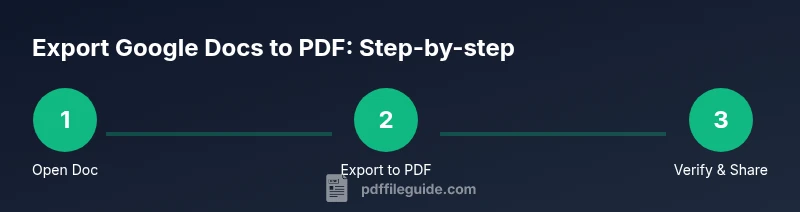
Google Docs provides a straightforward export path, designed to keep formatting intact. On a desktop browser, you open the doc, choose File > Download > PDF Document (.pdf), and the browser saves the file to your default download location. On a mobile device, the process is similar but uses the app’s menu (three dots) and the Share & export option to Save as PDF. The PDF file retains most complex elements from the original, including headings, bullet points, tables, and simple images. If you add hyperlinks or footnotes, they are typically preserved as clickable links or discoverable notes, depending on the document structure. For many users, this single-step export is sufficient for finalization and distribution.
Desktop vs Mobile: Where to export
Exporting from a desktop offers a stable, predictable path with full access to the Google Docs menu. Desktop exports benefit from larger screens, easier drag-and-drop saving, and consistent download locations. Mobile exports are convenient when you’re away from a computer or need to share quickly from a phone or tablet. The mobile export path may vary slightly by platform (iOS vs Android) but generally follows the same pattern: open the doc, access the menu, select export or Save as PDF, and confirm the download or save location. If you rely on cloud storage, you can save the PDF directly to Drive or another app. If you need off-line access later, ensure the file is stored locally as well as in the cloud.
Common pitfalls and how to avoid them
One common pitfall is missing dynamic content such as embedded charts that rely on live data. Before exporting, review the doc to ensure charts render correctly in PDF, and consider updating data or converting charts to static images if needed. Another issue is margins and page size shifting when documents contain wide tables or long footnotes. To minimize surprises, set a clear page size in the Google Doc (e.g., Letter or A4) and preview the PDF in the print dialog to verify margins. If you notice broken links or missing images, re-check the source images or use alt text to improve accessibility. Finally, if you’re sharing with external partners, verify that the recipient’s viewer supports the file type and that any sensitive content is appropriately redacted or protected.
Pro tip: always perform a quick quality check on the exported PDF by opening it in a dedicated PDF viewer to ensure fonts and formatting survive the export process.
Accessibility and links in PDF exports
Accessible PDFs are important for inclusive communication. When exporting from Google Docs, the structure of headings should map to the PDF outline, helping screen readers navigate the document. Ensure you use semantic headings (Heading 1, Heading 2, etc.) in your document so the PDF retains a logical reading order. Hyperlinks are generally preserved as clickable links, which improves navigability in PDFs distributed to clients or stakeholders. If your document uses images with alt text, verify that those descriptions appear in the PDF or are accessible via screen readers. If accessibility is critical, test the final PDF with a screen reader and adjust styles or layout to improve readability.
For teams that require compliant documents (e.g., accessibility standards), PDF export remains a practical option for delivering accessible, shareable content.
Quick checks after export
After exporting, perform a quick check to verify essential elements:
- The PDF opens without errors and preserves the original page order.
- Text appears legible with consistent font sizing.
- Links, footnotes, and images render as expected.
- Margins and page breaks align with the desired print layout.
- The file name reflects your naming conventions for easy retrieval.
If any issue arises, revert to the original Google Doc, adjust the content, and export again. A reliable workflow involves keeping both the editable source and the final PDF in organized folders for easy reference.
Tools & Materials
- Device with internet access(Desktop, laptop, or mobile device)
- Google account(Active Google account to access Google Docs)
- Google Docs file(Document you want to export as PDF)
- Printer or PDF printer (optional)(Use Print to PDF if you need a different output format)
- PDF viewer/editor (optional)(To review or annotate after export)
Steps
Estimated time: 5-10 minutes
- 1
Open your Google Doc
Launch Google Docs and open the document you want to export as a PDF. Review the content to ensure it reflects your final version before exporting.
Tip: Use the File menu to access export options and verify that any recent edits have saved. - 2
Choose the export method
On desktop, go to File > Download > PDF Document (.pdf). On mobile, tap the menu (three dots) > Share & export > Save as PDF. The file will be downloaded or saved to your device.
Tip: If you don’t see PDF as an option, ensure your browser or app is up to date. - 3
Review export options
Confirm that the document’s page size and orientation match your needs (Letter/A4, portrait/landscape). Some apps honor page settings better than others, especially with complex layouts.
Tip: Preview the PDF in a viewer before finalizing to catch layout issues early. - 4
Save and rename the file
Choose a clear, descriptive file name and save location. Consistent naming helps with archiving and future retrieval.
Tip: Include date or project code in the file name for quick sorting. - 5
Verify the PDF
Open the PDF to verify text legibility, image rendering, and link functionality. Check that headings appear in the proper order and that no content was truncated.
Tip: If links don’t work, re-export and ensure the original links in the Doc are not broken. - 6
Share or archive
Share the PDF via email, Drive, or a project portal, or store it in your archival folder. Maintain a master copy in both editable and final formats.
Tip: Set appropriate permissions when sharing sensitive documents to protect confidential content.
Questions & Answers
Can I export multiple Google Docs to PDF at once?
Google Docs does not natively support batch exporting multiple documents to PDF from the same interface. You would need to export each file individually or use Google Drive to organize and download a zipped bundle after exporting individually.
Bulk export isn’t built into Google Docs; export each file or use Drive organization and download in a group after exporting separately.
Will hyperlinks remain clickable in the PDF?
Most hyperlinks in Google Docs are preserved when exporting to PDF, resulting in clickable links in the final file. If a link does not work, re-check the source link and re-export.
In most cases, hyperlinks stay clickable after export; if one fails, re-check and re-export.
Is the export different on mobile vs desktop?
The core export to PDF is similar on both platforms, but the navigation and menus differ. Desktop uses File > Download, while mobile uses the app menu to Save as PDF. The resulting PDF should be comparable in content and formatting.
Export paths differ by platform, but the result is typically the same PDF content and formatting.
How can I ensure accessibility in the exported PDF?
Use semantic headings in the Google Doc so they map to the PDF outline. Include alt text for images and test the final PDF with a screen reader if accessibility is important.
Use proper headings and alt text; test the PDF with a screen reader for accessibility.
What if the PDF export looks wrong after saving?
Return to the Google Doc, re-check page size and margins, and re-export. Sometimes minor formatting issues are resolved by adjusting the doc layout before exporting again.
If it looks off, adjust the layout and export again.
Can I export a Google Doc to PDF without my edits being saved?
The export uses the current saved version of the document. If you want the latest changes in the PDF, ensure you save or wait for Google Docs to sync before exporting.
Export uses the saved version; save or wait for sync to include latest edits.
Watch Video
Key Takeaways
- Export to PDF to lock formatting.
- Verify links and images render correctly.
- Choose desktop or mobile export paths as needed.
- Check margins and page size before finalizing.
- Store both editable and final PDFs for archival.