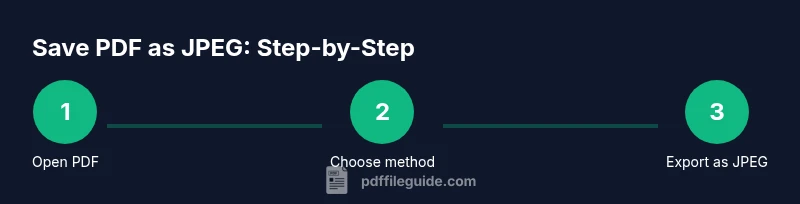
How to Save PDF as JPEG: A Step-by-Step Guide
Learn how to save PDF as JPEG with desktop software, online tools, or batch methods. This comprehensive guide covers quality, privacy, and workflow tips for professionals editing PDFs.


Can you save pdf as jpeg? Yes—this quick answer confirms that converting PDF pages to JPEG images is possible using built-in software, image exports, or online tools. The guide compares methods for quality, privacy, and bulk conversions, so you can pick the approach that fits your workflow and security needs. According to PDF File Guide, practical options exist for both individual pages and multi-page documents.
Understanding why you might save a PDF as JPEG
In many professional contexts, converting a PDF to JPEG helps when you need universal image compatibility, faster previews, or easier sharing without requiring a PDF reader. JPEGs are widely accessible across devices and platforms, which makes them ideal for quick reviews, proofing, or distributing content to audiences that don’t work with PDFs. When you ask can you save pdf as jpeg, you’re typically weighing fidelity against file size and accessibility. This section clarifies when a JPEG export is preferable, such as for thumbnails, slide decks, or embedding into non-PDF formats. The choice also depends on whether you must preserve vector data or simply deliver bitmap images for on-screen viewing. PDF File Guide emphasizes that while JPEGs are convenient, they are raster images and will not scale without quality loss in the way vector-based PDF pages can.
A key consideration is whether the PDF contains complex graphics, embedded fonts, or transparency. If high fidelity is essential, you may opt for rasterized high-resolution JPEGs or, in some cases, alternative formats like PNG (which preserves lossless compression and transparency better). The overarching principle is to align your method with the end-use: quick previews or thumbnails versus print-ready images. For can you save pdf as jpeg workflows, plan your output directory, naming conventions, and color management early to minimize rework later.
According to PDF File Guide, this decision should also factor in privacy and data sensitivity. Some online tools require uploading files to external servers, which may be inappropriate for confidential documents. On the other hand, desktop software typically offers more control over output and processing speed, especially for multi-page PDFs. With the right setup, you can convert securely and efficiently while preserving the visual intent of the original document.
note":"Focus on context and decision criteria: audience, output device, and whether transparency or color accuracy matters."],
blockDataDensityError
Tools & Materials
- Computer or device with internet access(Windows, macOS, or Linux; up-to-date browser or apps.)
- PDF file(s) to convert(One or more documents to export as JPEGs.)
- JPEG output destination folder(Choose a clear, organized folder path for exported images.)
- Desktop PDF editor or converter software(Examples: Adobe Acrobat, Affinity, or dedicated PDF-to-JPEG tools.)
- Web browser (for online tools)(If using online converters, ensure you have a stable internet connection.)
- Quality and privacy checklist(Have a plan for reviewing output quality and handling sensitive data.)
Steps
Estimated time: 20-45 minutes
- 1
Open the PDF you want to convert
Launch your chosen application or online tool and open the PDF you plan to export as JPEG. Verify you have permission to convert the document, and note which pages you’ll export if you don’t need the entire file.
Tip: If you’re unsure about page permissions, check document restrictions or contact the author before converting. - 2
Choose the conversion method
Decide whether you’ll convert via desktop software, an online tool, or a built-in export feature. Consider privacy needs, the number of pages, and required image quality. For can you save pdf as jpeg, this choice drives subsequent settings.
Tip: For large batches, desktop tools often offer faster batch processing and better privacy than online options. - 3
Set output format and resolution
Select JPEG as the output format and choose a suitable resolution (for example, 150–300 DPI for on-screen viewing; higher for print). Pay attention to color mode (sRGB is common for web use).
Tip: Higher DPI improves quality but increases file size, so balance needs with delivery method. - 4
Export or save the pages as JPEG
Use the tool’s export or save-as feature to generate JPEG images. If exporting a multi-page PDF, decide whether to export all pages or specify a page range.
Tip: Test export on a single page first to confirm quality and settings before batch processing. - 5
Review output quality
Open the resulting JPEGs to verify clarity, color accuracy, and any artifacts. Compare against the original PDF to ensure legibility and correct composition.
Tip: Check for font legibility and color consistency across different pages or slides. - 6
Batch or automate for multiple pages
If you have many pages, use batch conversion or automation to process efficiently. Some tools support naming conventions and folder hierarchies for organized output.
Tip: Label files with page numbers or original document names to simplify retrieval. - 7
If using online tools, download securely
After conversion, download JPEGs to your device and delete any uploaded copies from the online service if privacy is a concern.
Tip: Use reputable services with clear privacy policies and avoid sensitive documents when possible. - 8
Archive and document settings
Store your JPEGs with a consistent naming convention and document your chosen DPI, color profile, and compression settings for reproducibility.
Tip: Create a small reference sheet for future conversions.
Questions & Answers
Can I save a single-page PDF as a JPEG image?
Yes. Most tools let you export a single page or a page range as a JPEG. Use the page selector to choose the specific page(s) and export to JPEG with your preferred resolution.
Yes, you can export one page or a range as a JPEG using most converters; just select the page you want and export.
Will saving as JPEG reduce the document quality?
JPEG is a raster format, so some quality loss can occur with compression. Start with a higher DPI and moderate compression to preserve legibility while keeping file sizes practical.
JPEG can lose some quality due to compression, so start with higher DPI and moderate compression.
Are online tools safe for confidential PDFs?
Online converters can pose privacy risks. If your content is sensitive, use offline desktop software or services with strong privacy policies and data handling controls.
Online tools may not be ideal for confidential PDFs; consider offline options for sensitive material.
Can I convert PDFs to JPEGs in bulk?
Yes, many desktop applications and some online services support batch processing. Prepare a naming scheme and verify a few pages before running the full batch.
Yes, you can convert many pages at once with batch processing in desktop tools or trusted online services.
Is there a difference between exporting as JPEG vs. PNG?
JPEG is generally smaller and suited for photographs or complex images, while PNG preserves transparency and is lossless. Choose based on need for transparency and quality.
JPEG is smaller but lossy; PNG is lossless and supports transparency—choose based on your image needs.
What about color profiles when exporting to JPEG?
Match the color profile to your destination (sRGB is standard for web). Some tools let you embed or convert color profiles during export.
Use sRGB for web images, and embed color profiles when possible to ensure color consistency.
Watch Video
Key Takeaways
- Choose the right method (desktop vs online) based on privacy and scale
- Export at a balanced DPI to preserve readability without inflating file size
- Verify output quality on representative pages before batching
- Document your settings for repeatable, reproducible results