Can You PDF a JPG? A Complete Conversion Guide
Learn how to convert a JPG image into a PDF using built-in OS features, offline software, or trusted online options. This educational guide covers quality, DPI, multi-page PDFs, accessibility, and security considerations.


You can convert a JPG to PDF using built-in OS features, offline software, or trusted online tools. The right method depends on your privacy needs, the number of images, and your desired PDF quality. In this guide, you’ll learn quick, reliable ways to create single-page or multi-page PDFs from JPGs, with practical tips for professional results. According to PDF File Guide, these methods balance speed and quality.
can you pdf a jpg? What it means and why you’d want to
When you ask can you pdf a jpg, the answer is yes: a JPG image can be turned into a PDF document that preserves the image as a page, making sharing, archiving, and printing simpler. PDF files unify formatting and ensure consistent viewing across devices. For professionals and students who commonly work with scanned images, newsletters, or marketing visuals, converting JPGs to PDFs helps with distribution, storage, and compatibility. According to PDF File Guide, understanding the core trade-offs—quality, size, and accessibility—lets you choose the best workflow for your needs.
Native OS options: Windows, macOS, iOS, and Android
Most devices include built in ways to turn a JPG into a PDF. On Windows you can print the image to a PDF using the built in PDF printer; on macOS you can use Preview to export as PDF; mobile devices offer similar options in the share or print menus. These native routes are fast, private, and do not require uploading your image to the cloud. For simple needs, they are usually the best starting point. When working with many pages, consider a desktop workflow to keep things organized.
Online vs offline tools: safety, privacy, and quality
Online converters are convenient when you are away from your computer, but privacy and data retention vary by service. If the JPG contains sensitive information, prefer offline methods or trusted apps that run locally. For occasional tasks with non confidential images, online tools can save time. Always review the tool's privacy policy and delete uploaded files after download to reduce risk. Offline tools preserve control and avoid data exposure.
Preparing your JPG for PDF conversion: cropping, orientation, and color mode
Before converting, ensure the image is properly oriented and cropped to show the important area. If the photo is tilted, rotate it before export. Consider converting color mode if your source uses an unusual profile; most PDFs use standard color spaces like sRGB to avoid color shifts when viewed on other devices.
Creating a single-page PDF from one JPG
To create a single-page PDF from a single JPG, open the image in a viewer or editor, choose print or export, and select PDF as the output format. Make sure the page size matches the image dimensions or select a standard size that fits your needs. Save with a clear name and location. Check the resulting PDF in a PDF viewer to confirm that the image fills the page as intended.
Creating a multi-page PDF from several JPGs
To compile multiple JPGs into a single PDF, use a workflow that preserves the order you choose. Open the first image, initiate the export to PDF, and add subsequent images in the same session, or arrange pages in a PDF editor afterward. Ensure spacing and orientation are consistent across pages for a cohesive document.
DPI, resolution, and image quality decisions
Image quality in a PDF depends on the source resolution and the DPI setting used during export. Higher DPI improves print clarity but increases file size; lower DPI reduces footprint but can appear pixelated on screen or print. Balance your needs by matching DPI to the intended output: screen viewing often benefits from standard screen DPI, while print requires higher detail.
Color management, compression, and file size
JPG compression affects color accuracy and sharpness. When exporting to PDF, you may be offered options to compress images or to convert to grayscale. Choose settings that preserve critical details while keeping the file manageable for sharing or archiving. If color is not essential, consider color reduction to save space.
Accessibility, metadata, and searchability
PDFs may be consumed by screen readers if properly tagged. When you convert a JPG to PDF, check whether the application supports tags or alt text for the image page. Adding document metadata and alt text improves accessibility and searchability, especially for archiving and compliance workflows.
Security considerations when creating PDFs from images
If the content is sensitive, use password protection or encryption where available. Some tools offer permissions to restrict printing or copying. For online converters, avoid sharing confidential images. Always store your final PDF in a secure location and keep backups.
Troubleshooting and pro tips for professional results
If the output looks blurry, try saving with a higher DPI or rescan at a higher resolution. If parts of the image are cropped, check the page size and margins before export. For multi-page PDFs, verify that the page order matches your intended sequence. For formal documents, run a quick quality check by printing a test page and viewing on a different device.
Tools & Materials
- JPG image file(s)(Source image(s) to convert)
- Computer or mobile device with PDF export capability(OS features or basic software that can print to PDF)
- Access to a PDF adapter(Print to PDF or export as PDF option)
- Internet connection (optional)(Needed only for online converters)
- Storage space for the resulting PDF(Ensure enough disk space for larger files)
Steps
Estimated time: 20-40 minutes
- 1
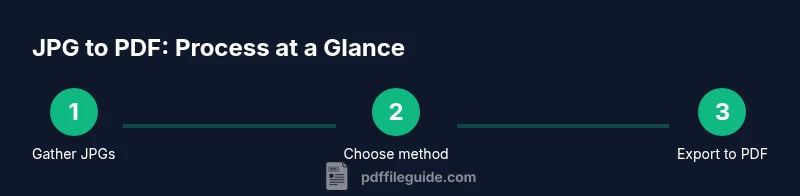
Gather your JPG files
Collect the image files you want to convert and decide if you will produce a single page or a multi-page PDF. Having a clear plan reduces rework and helps you determine the appropriate output dimensions.
Tip: Name your final file clearly, such as project-brief.pdf, to avoid overwriting existing documents. - 2
Choose your conversion method
Evaluate whether to use built-in OS features, offline software, or an online converter. Consider privacy, the number of images, and whether you need masking or encryption.
Tip: For sensitive images, favor offline methods to minimize data exposure. - 3
Open the JPG in the chosen tool
Open the image in the program or viewer that will export or print to PDF. Confirm the image is correctly oriented and cropped before exporting.
Tip: If the image is landscape but the page is portrait, rotate before exporting. - 4
Export or print to PDF (single-page).
In the export or print dialog, choose PDF as the output and verify the page size matches the image dimensions. Save to a known location.
Tip: Preview the PDF to confirm the image fills the page as intended. - 5
Create a multi-page PDF from several JPGs
Add additional JPGs in the same session or combine pages later in a PDF editor. Maintain consistent orientation and margins across pages.
Tip: Arrange files in the exact order you want before exporting. - 6
Adjust DPI and image quality
If your tool allows, adjust the DPI to balance clarity and file size. Image quality depends on source resolution and the chosen DPI.
Tip: Higher DPI improves print sharpness but increases file size. - 7
Save and organize
Choose a logical destination folder and update the file name to reflect content and date. Keep a copy in a backup location.
Tip: Use a consistent naming convention to simplify retrieval later. - 8
Consider security options
If needed, enable password protection or restrictions on printing and copying. This helps protect sensitive images.
Tip: Store protected PDFs in a secure folder with access controls. - 9
Verify the final document
Open the PDF on a different device or viewer to ensure readability and layout integrity. Check color accuracy and margins.
Tip: Test on mobile and desktop to catch device-specific issues. - 10
Tackle common issues
If edges are cropped or text is blurry, revisit page size, margins, and DPI settings. Re-export after adjustments.
Tip: A small tweak in export settings can save a lot of rework. - 11
Best practices for future JPG to PDF tasks
Maintain high-resolution originals, plan page order in advance, and document any settings you used for reproducibility.
Tip: Create a ready-to-use workflow for repeat conversions.
Questions & Answers
Can I convert a JPG to PDF for free?
Yes. Many operating systems include built-in export options, and there are free online converters. For offline privacy, you can also use the computer’s print to PDF feature.
Yes, you can convert JPGs to PDFs for free using built-in tools or free online services.
What DPI should I use when converting JPG to PDF?
DPI affects clarity; for screen use, standard DPI is fine, while print calls for higher detail. The exact figure depends on the source resolution and desired output.
Higher DPI yields crisper print; for web use, standard suffices.
Can I combine multiple JPGs into one PDF?
Yes. Most tools allow adding multiple JPGs into a single export or arranging pages in a PDF editor.
Yes, you can merge several JPGs into one PDF.
Will the resulting PDF preserve EXIF data?
PDFs generally do not preserve image EXIF metadata unless the converter explicitly transfers metadata. Most viewers ignore EXIF for display.
EXIF data is usually not preserved in PDFs.
Is it safe to use online JPG to PDF converters?
Online tools can be convenient but risk exposure of private content. Use trusted services and avoid upload of sensitive files.
Be cautious with online tools; use reputable services and avoid sensitive files.
How can I password protect a PDF created from a JPG?
Look for the security or encryption option in the tool you use. You can set a password so only authorized users can open the PDF.
You can add a password to the PDF in many tools.
Watch Video
Key Takeaways
- Can you pdf a jpg? Yes, via OS, offline apps, or online tools.
- Choose single-page versus multi-page based on content and use case.
- Balance quality and size with DPI and compression settings.
- Verify accessibility and security when needed.