How to Convert JPG to PDF: A Practical Guide
Learn how to convert jpg to pdf with simple steps, whether you prefer online tools, desktop software, or built-in OS features. This guide covers methods, tips, and best practices for maintaining image quality and file integrity.


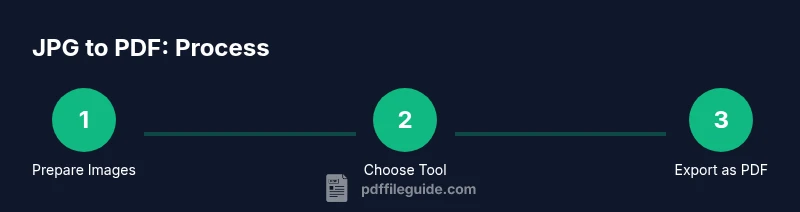
To convert jpg to pdf, start with a chosen method (online tool, desktop app, or built‑in OS feature). Upload or select your JPG, then export or save as PDF. Check page size, orientation, and image quality before finalizing. For multiple images, batch convert or merge files into a single PDF to simplify sharing.
Why Convert JPG to PDF? Practical use cases
Images saved as JPGs are flexible, but PDFs offer consistent formatting across devices and platforms. If you’re learning how to convert jpg to pdf, you’ll discover why many workflows prefer PDFs for sharing and archiving. PDFs preserve layout, fonts, and color profiles, which is essential for professional documents and portfolios. For one-off sharing, a single JPG may suffice; for multi-page reports, a PDF keeps everything together in a predictable, printable format.
From a business perspective, converting a batch of product photos or screenshots into a single PDF helps streamline review cycles. It reduces attachment management for emails and ensures recipients see the content as intended. The PDF File Guide Editorial Team notes that many editors use PDF as a universal container to capture images and annotate them later. For personal use, PDFs are ideal for creating photo albums, school projects, or receipts that you want to store for years.
As you plan your approach, consider future needs: Will you convert a handful of images or thousands in a workflow? Do you require offline processing for privacy, or is convenience the top priority? The best approach balances ease of use with quality and security, and should scale from quick tasks to batch conversions.
Methods at a Glance: Online Tools, Desktop Apps, and OS Features
Online tools let you convert JPG to PDF quickly from any device with a browser. They’re convenient for occasional tasks and don’t require installing software, but privacy risks exist and batch options may be limited. Desktop applications (paid or free) provide more control: batch processing, better compression controls, and tighter integration with folders and printers. Built-in OS features (Windows,
Prepare Your Images for a Smooth Conversion
Before converting, organize and clean your JPGs. Keep the filenames in the desired order, and remove any unintended borders or watermarks that could distract from the final document. If printing, aim for higher resolution (300 dpi) to maintain legibility; for on‑screen viewing, 150–200 dpi can be sufficient and helps keep file sizes down. Check color settings (RGB is standard for on-screen PDFs; CMYK may be used for professional printing). If you plan to combine several images, decide whether you want a consistent margin or blank pages to separate sections. If you plan to batch, place images in the exact order you want them in the final document; many converters will honor the file sequence as shown in your folder.
Privacy, Quality, and File Size Considerations
Privacy matters when using online converters. Read the vendor’s privacy policy to understand data handling and retention. If content is sensitive, use offline conversion to avoid uploading files to the cloud. Image quality is influenced by DPI, compression, and color space. For print-ready PDFs, target 300 dpi; for digital sharing, 150–200 dpi is common. Be mindful of color modes: RGB is typically fine for on-screen and most printers; CMYK can be better for professional print workflows, but not all online tools preserve color accuracy.
File size can be a constraint when sending via email or uploading to cloud storage. If the PDF becomes too large, adjust image quality or use compression settings that preserve readability. Some tools offer “optimize for web” or “low resolution” presets. After exporting, open the PDF in a viewer and verify that text is legible, images are sharp, and there are no unintended artifacts. This helps you catch issues before distributing the file widely.
Batch Conversion: How to Merge Many JPGs into a Single PDF
If you need to convert a folder of JPGs into one document, batch processing is essential. Most tools provide a simple interface to add multiple images, order them correctly, and export as a single PDF. Start by listing your images in the planned order in a dedicated folder. In offline software, you can often drag the entire folder into the converter window. In online tools, you may need to upload images sequentially or use a dedicated batch option if available.
During batch operations, keep an eye on memory usage and processing time. Large image sets can take longer to export, especially at higher resolutions. If possible, perform a test run with a subset of images to verify order and output settings before committing the full batch. Finally, name the resulting PDF clearly, so others can locate it easily in shared folders or email threads.
Authority Sources and Further Reading
For readers who want to dive deeper, these sources provide in-depth guidance on PDF formats, compression, and accessibility:
- Adobe: Official documentation on PDF creation and parameters (https://www.adobe.com/content/dam/acom/en/devnet/acrobat/pdfs/pdf_open_parameters_1_7.pdf)
- PDF Association: Information on PDF/A and best practices for portable document formats (https://www.pdfa.org/)
- Adobe Help Center: Practical tips for converting images to PDFs and working with PDFs (https://helpx.adobe.com/acrobat/using/pdf-to-word-converter.html)
Using these references, you can refine your workflow and ensure compatibility across devices and platforms.
Tools & Materials
- JPG image file(s)(One or more images to convert)
- Computer or mobile device(With internet access for online tools or offline software)
- Internet access(Needed for online converters; skip if using desktop OS)
- PDF viewer or editor(To verify and share the output)
- Software or app for conversion(Examples: desktop PDF suites or browser extensions)
Steps
Estimated time: 15-25 minutes
- 1
Prepare your JPG files
Gather all JPG images you want in the PDF and ensure they are organized in the correct order.
Tip: Rename files to reflect the intended order. - 2
Choose your conversion method
Decide between online tools, desktop software, or built-in OS features based on privacy and batch needs.
Tip: Offline tools are safer for sensitive documents. - 3
Open the tool and load images
Launch the tool and add or import your JPGs in the desired sequence.
Tip: If the tool supports drag-and-drop, use it for speed. - 4
Configure output settings
Set page size (A4/Letter), orientation, and image quality to balance readability and file size.
Tip: Use 300 dpi for print-ready PDFs; 150-200 dpi for on-screen viewing. - 5
Preview and adjust
Review the PDF pages to catch misalignments, cropped edges, or rotation issues.
Tip: Fix orientation with a single-click if needed. - 6
Export and save
Export or save the result as PDF and choose a descriptive filename.
Tip: Consider adding a version number to track updates. - 7
Verify the final file
Open the PDF to ensure all pages appear correctly and text remains legible.
Tip: Check color and contrast on different devices.
Questions & Answers
What is the simplest way to convert a single JPG to PDF?
Use a built-in OS feature or a quick online converter. Import or drag the JPG, then export as PDF with standard settings.
Use your OS or a quick online tool to convert your single JPG to PDF.
Can I convert multiple JPGs into one PDF?
Yes. Most tools offer a 'merge' or 'add files' option to create a single PDF from several images.
Yes, you can merge several JPGs into one PDF.
Should I use online tools for sensitive documents?
Online tools can be convenient but risk exposure. Prefer offline software for sensitive content.
Be cautious with sensitive materials; offline tools are safer.
What resolution should I use for print vs. screen?
Use around 300 dpi for print quality and 150-200 dpi for on-screen viewing.
300 dpi for print, 150-200 for screen.
Do I need special software to convert JPG to PDF?
No; many free online tools or built-in OS features can do the job. For advanced options, consider a desktop PDF suite.
You don't necessarily need special software.
How can I batch convert JPGs to PDF on Windows or macOS?
Use built-in print-to-PDF features or batch-capable software to combine multiple images.
Batch conversion is supported by many tools.
What if the pages don’t fit the page size?
Adjust orientation or crop images within the converter, then re-export.
Adjust size and orientation to fit the page.
Key Takeaways
- Choose the right method for privacy needs.
- Check page size and orientation before exporting.
- Batch-merge JPGs into a single PDF when possible.
- Verify the final PDF on multiple devices.