Change PDF to Word with Adobe: A Practical Guide
Learn how to change PDF to Word using Adobe Acrobat Pro DC. Step-by-step instructions, OCR tips, and best practices for preserving formatting and accuracy.


Goal: change pdf to word adobe using Adobe Acrobat Pro DC. You’ll export PDFs to Word, preserve layouts, and fix common issues like fonts and images. This step‑by‑step guide covers exact export steps, OCR for scanned text, and how to review the Word document for accuracy.
What you gain by converting PDFs to Word with Adobe
Converting PDFs to Word with Adobe Acrobat Pro DC helps you regain editable content without recreating a document from scratch. When you change pdf to word adobe, you unlock the ability to edit paragraphs, adjust formatting, and reuse text in new projects. According to PDF File Guide, the export-to-Word feature tends to preserve layout more reliably for text-heavy documents than many free tools, making it a smart choice for business reports, resumes, and forms. The key is to start with a clean source PDF and to verify output in Word, because fonts, images, and column structure can shift during conversion. PDF File Guide Editorial Team emphasizes that understanding the source file—and choosing the right export settings—reduces post-conversion rework. In practice, you’ll see Word headings, bullet lists, and tables appear in roughly the same places as in the PDF, with fonts adjusted to your installed font set.
The Export Workflow in Adobe Acrobat Pro DC
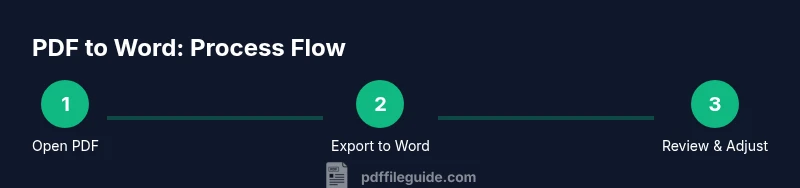
Adobe Acrobat Pro DC provides a straightforward path to convert PDFs to Word documents. Open the PDF you want to convert, then navigate to Tools > Export PDF. Choose Microsoft Word as the output type and select Word Document (.docx). Click Export, then save the resulting file to your desired location. If you’re using Acrobat on a device with internet access, be mindful of cloud-based options that might handle fonts and images differently. This workflow minimizes manual retyping and helps you maintain the document’s structure. For best results, work with a clean source PDF and review the Word file for any misplacements. PDF File Guide Editorial Team notes that keeping a version history during conversion helps prevent loss of critical content.
Choosing the Right Export Settings
Export settings determine how closely Word mirrors the original PDF. In Acrobat Pro DC, you’ll encounter options like preserving layout, flowing text, and including images. If your PDF is text-heavy with simple formatting, choose the option that “Retain Layout” or “Page Layout” to keep columns and headers intact. For documents with complex tables, charts, or embedded graphics, you may prefer “ flowing text” so Word can reflow content more naturally. Remember that not all fonts are available on every system; if a font is missing, Acrobat will substitute it, potentially altering line breaks. When in doubt, export a test page first and compare with the PDF to gauge accuracy. The goal is to minimize post-conversion edits while maintaining readability and structure.
OCR for Scanned PDFs: Accuracy and Limits
Many PDFs are scans rather than true text, which means you must enable OCR (Optical Character Recognition) to extract editable text. In Acrobat Pro DC, use Tools > Enhance Scans > Recognize Text > In This File to apply OCR. Choose the appropriate language and output option (editable text in Word is typical). OCR can dramatically improve editability, but it isn’t perfect. Expect occasional misrecognized words, line breaks, or hyphenation that require manual review. After export, run a quick spell check and proofread the Word document to catch OCR artifacts. PDF File Guide Analysis, 2026 indicates OCR quality depends on scan clarity, font legibility, and page complexity.
Maintaining Fonts and Formatting in Word
Word’s appearance depends on the fonts installed on your computer. If the source PDF uses fonts that aren’t available, Word will substitute them, which can alter spacing and indentation. To preserve appearance, install common, web-safe fonts or the exact fonts used in the original document if licensing allows. After exporting, apply consistent Styles in Word (Heading 1, Heading 2, Normal) to reestablish a predictable structure. Adjust margins, line spacing, and paragraph settings to match the PDF’s layout. If the document includes footnotes, endnotes, or callouts, verify their placement in Word, as automated transfer can shift references.
Tables, Images, and Complex Layouts
Tables and images often don’t translate perfectly. Tables may lose borders, merged cells, or alignment, while images can shift or drop captions. In Word, review each table and adjust cell padding, borders, and alignment. For layered layouts, you might need to re-create columns using Word’s Table feature rather than relying on the exported layout. Captions and figure numbers should be re-added to preserve references. If the PDF includes form fields or interactive elements, these will not convert to Word as-is; plan to recreate or simplify those components in Word.
Post-Conversion Checks and Quick Fixes
After exporting, perform a page-by-page comparison between the original PDF and the Word document. Check headers and footers, page breaks, and section numbering. Use the Find and Replace function to standardize fonts and spacing, and apply consistent paragraph styles across the document. Save both a draft and a final version to track changes. If you notice persistent formatting issues in a particular section, consider exporting that section as a separate Word document and then merging it back, which can help preserve layout without forcing a global reflow.
Alternative Methods if You Don’t Have Acrobat Pro DC
If you don’t have a licensed Acrobat Pro DC, Microsoft Word offers built-in PDF import capabilities that can convert PDFs to editable Word content. Open Word, use File > Open, and select the PDF; Word will inform you that it will convert the file to an editable document. The result may be less precise for complex PDFs, but it’s a viable option for simple text documents. You can also use online tools with caution for non-sensitive files, but exercise care around data privacy. For sensitive documents, prefer desktop solutions like Acrobat Pro DC or offline workflows.
Best Practices and Common Mistakes to Avoid
From a practical standpoint, the most reliable path to a clean Word document is to start with a high-quality PDF, apply OCR when needed, and verify formatting post-export. Common mistakes include assuming perfect fidelity, neglecting font substitution, and exporting large documents in one go without intermediate saves. Always review margins, hyphenation, and bullets, and consider exporting in smaller chunks for lengthy reports. By adopting a methodical approach, you minimize rework and preserve the document’s meaning and readability.
Tools & Materials
- Adobe Acrobat Pro DC subscription(Ensure it’s updated to the latest version for best compatibility)
- Source PDF file(Prefer a clean, high-quality PDF with selectable text if possible)
- Microsoft Word (2019/Office 365) or Word for the web(Needed to open and edit the exported DOCX)
- Computer with compatible OS (Windows/macOS)(Sufficient RAM and storage to handle large documents)
- Stable internet connection (optional but helpful for cloud features)(Cloud-based export can be convenient but is not required)
- Fonts installed on your system(If you rely on specific fonts, ensure they are installed)
Steps
Estimated time: 25-40 minutes
- 1
Open the PDF in Acrobat Pro DC
Launch Adobe Acrobat Pro DC and use File > Open to load your PDF. Verify that the document is legible and that fonts appear correctly on screen. If the PDF is password-protected, enter the password to proceed.
Tip: Use the two-pane view to compare the PDF with the Word output during later steps. - 2
Choose Export to Word
From the right-hand Tools pane, select Export PDF and choose Microsoft Word as the output format. Pick Word Document (.docx) for broad compatibility. This is the central step that converts layout and text into an editable Word file.
Tip: If you see a 'Recognize Text' option, skip it here only if your PDF text is already selectable. - 3
Configure export settings
Decide between preserving layout or allowing flow text. For complex layouts, choose Retain Layout; for simpler content, flowing text often reduces misalignment in Word. Confirm whether to export images and charts as part of the document.
Tip: Run a quick test export with a single page first to gauge fidelity. - 4
Run OCR if needed
If the PDF is a scan, run OCR before export. In Acrobat, go to Tools > Enhance Scans > Recognize Text > In This File, choose the correct language, and apply. Then export to Word.
Tip: OCR results improve with higher scan resolution; aim for 300 dpi or higher where possible. - 5
Export and save
Export to Word and save as a .docx file. Choose a descriptive filename and a stable folder location. Keep a copy of the original PDF for reference in case you need to re-export.
Tip: Consider creating a versioned filename (e.g., Project_Meeting_2026-03-15_v1.docx). - 6
Open the Word document for review
Open the exported DOCX in Word and review section headings, lists, and tables. Check for font substitutions, misaligned columns, and image placement. Correct issues using Word’s built-in Styles and alignment tools.
Tip: Run a quick spell check and use the Compare documents feature to compare with the PDF if available. - 7
Tidy up tables and graphics
If tables are off, adjust borders, merge cells, and reapply header rows. Reposition images and resize them to fit the page layout. Reinsert captions where needed.
Tip: Convert complex tables to Word-native formats rather than trying to preserve every PDF table structure. - 8
Check fonts and margins
If fonts don’t match, install the missing fonts or adjust Word styles to emulate the PDF’s look. Verify margins and line spacing to ensure consistent page breaks.
Tip: Apply a consistent Normal style across the document for predictable spacing. - 9
Finalize and archive
Save the final Word document, retain the PDF reference, and document any manual edits. Consider exporting back to PDF to verify that the layout still holds after changes.
Tip: Keep a change log describing edits made during the conversion process.
Questions & Answers
Do I need Adobe Acrobat Pro DC to convert PDFs to Word?
Converting PDFs to Word is easiest with Acrobat Pro DC, but Word’s built-in PDF import can handle simple PDFs. Pro DC offers more reliable formatting for complex layouts and supports OCR for scanned PDFs.
You can use Acrobat Pro DC for the best results, though Word also offers a basic conversion for simple PDFs.
Will OCR be applied automatically for scanned PDFs?
If your PDF is scanned, you must enable OCR before exporting to Word. Auto OCR improves text extraction but may introduce minor errors that you’ll need to correct afterward.
Yes, enable OCR for scanned PDFs before exporting to Word.
How accurate is the Word output after export?
Accuracy depends on source quality and settings. Complex layouts, fonts not installed on your system, and heavy graphics can require manual adjustments in Word.
The accuracy varies, but with good source and correct settings, it’s usually close and save a lot of editing time.
Can I preserve tables and images perfectly?
Tables and images may need tweaks in Word. Exported tables often require adjustments to borders and alignment, while image placement may shift during conversion.
Tables and images might need some tweaking after export.
What if the fonts don’t match after conversion?
Install the original fonts or switch Word styles to alternatives that resemble the PDF’s look. Font substitution is a common cause of layout changes.
Install the source fonts or adjust Word styles to match the PDF.
Are there privacy concerns with online converters?
Yes, online tools may expose sensitive content. Prefer desktop solutions like Acrobat Pro DC for confidential documents.
Be cautious with sensitive PDFs; use offline tools when possible.
Watch Video
Key Takeaways
- Export to Word preserves structure better with Arial/Calibri fonts installed.
- OCR is essential for scanned PDFs and requires proofreading.
- Review and adjust formatting in Word after export.
- Keep original PDFs for reference and version control.