Convert from PDF to DOCX: A Practical How-To Guide
Learn how to convert from PDF to DOCX with high fidelity. Compare tools, handle text vs scanned PDFs, and apply post-conversion polishing for clean Word documents.


By the end of this guide, you will be able to convert from PDF to DOCX with high fidelity using text-based or OCR-enabled methods. You’ll learn how to choose the right tool, handle layout and fonts, and perform a post-conversion cleanup to preserve tables, images, and formatting. The key requirement is ensuring access to the source PDF and one suitable conversion method.
Understanding the PDF to DOCX conversion landscape
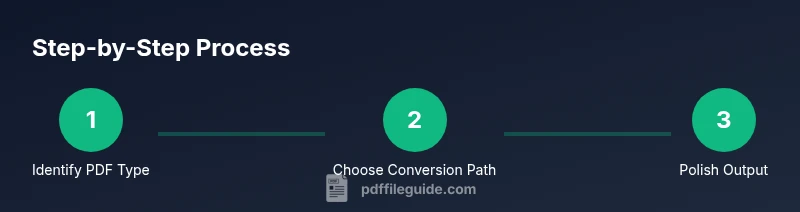
The quality of your conversion hinges on the PDF type and the chosen tool. According to PDF File Guide, text-based PDFs usually map cleanly to DOCX, preserving paragraphs, headings, and lists with minimal tweaking. Scanned PDFs, by contrast, require OCR and often yield mixed results: garbled characters, font substitutions, and shifted layouts. Before you begin, verify whether text can be selected in a viewer; if you can, you’re dealing with a text-based PDF and the workflow will focus on structure and styles. If not, you’ll rely on OCR to recognize characters and reconstruct the document structure. The OCR outcome depends on scan resolution, font clarity, and language settings. The PDF File Guide team found that setting the correct language and enabling layout-aware OCR yields the best downstream results. Beyond accuracy, consider the document’s purpose—editable draft vs final submission—as this will influence how aggressively you clean up formatting after conversion. The overarching goal is to produce a DOCX that is faithful, readable, and easy to edit.
Methods at a glance
There are several paths to convert from PDF to DOCX, each with trade-offs. Text-based PDFs can be converted by using a Word import/export workflow or dedicated conversion software that preserves headings and tables. OCR-enabled routes are essential for scanned PDFs, and many tools offer layout-aware OCR to minimize reflow errors. Online services are convenient but raise privacy considerations, while desktop applications often provide robust batch processing. A common approach is to export a PDF to DOCX or Word format using a tool that supports direct conversion, then open the result in Word and apply styles. If you don’t have a premium tool, you can also copy-paste content and use copy-preserving paste options, followed by manual cleanup of fonts and spacing. For sensitive documents, prefer offline software to keep data on your device. In all cases, plan for a light round of post-conversion editing to fix tables, images, and multi-column layouts.
How to choose the right tool
Key criteria include accuracy, fidelity of layout, and support for tables, footnotes, and images. Look for tools that offer: 1) OCR with language support; 2) layout-preserving conversion; 3) batch processing for multiple files; 4) reliable handling of complex elements like tables and forms; 5) a direct export to DOCX or a clean intermediate Word format; 6) offline processing to protect sensitive documents. Consider whether you need cross-platform compatibility (Windows, macOS, Linux) and whether the tool integrates with your existing workflow (e.g., cloud storage or document management systems). Pricing models matter: some tools are paid but offer higher fidelity, while free options may require more manual cleanup. Finally, test on a representative sample of PDFs to validate results before committing to a long-term workflow. PDF File Guide’s evaluation suggests running a quick fidelity check on headings, bullet lists, and image captions after conversion.
Start with a plan: categorize your PDF
Different PDF types require different tactics. If text selection works, you’ll focus on preserving structure and typography; if not, you’ll plan for OCR accuracy first, then layout cleanup. Decide on your destination format preferences (DOCX defaults in Word, or a Google Docs intermediate) and whether you will need to preserve font embedding or only document styling. Create a quick checklist: confirm the language for OCR, identify multi-column sections, decide how to handle footnotes and endnotes, and note any embedded fonts or images that may need substitution. This planning stage minimizes rework during and after conversion and aligns with best practices described by PDF File Guide.
If you have a text-based PDF: recommended steps
With a text-based PDF, your main challenges are preserving headings, lists, and tables. Begin by selecting a conversion path that exports to DOCX or Word, then open the file in Word and apply a clean style set. Check that headings map to Word styles (Heading 1, Heading 2, etc.), then adjust paragraph spacing and indentation to mirror the source. Verify that images have appropriate captions and wrap text correctly. If the converter produced extra line breaks or orphaned hyphenations, use the Find and Replace tool to clean up. Finally, save incrementally to avoid data loss and document changes for auditability.
If you have a scanned PDF: OCR-first approach
OCR-based conversion adds a layer of challenge, since recognition accuracy directly affects downstream formatting. Choose an OCR tool with layout retention and language support; run OCR on the scanned PDF, then export to DOCX. After export, review each page for recognition errors, reflowed paragraphs, and misread headers. Use column detection features to re-create multi-column layouts and adjust tables accordingly. It helps to run OCR twice with different settings if the first pass is inconsistent. Always save a backup of the original scan before editing and compare text against the scan to verify fidelity.
Post-conversion polishing in DOCX
Post-conversion editing typically involves reapplying consistent styles, correcting fonts, adjusting margins, and refining tables. Create a master DOCX style with font families, sizes, and color schemes used in the source document, then apply it across headings, body text, and captions. Tackle tables by rechecking borders, cell padding, and alignment; ensure images have alternative text for accessibility. Use the built-in Word features to convert lists to proper bullet or numbered formats, and use section breaks to preserve page structure. Finally, run a quick spell-check and font consistency pass to catch anomalies introduced during conversion.
Working with complex layouts: tables, forms, and graphics
Documents with dense tables, forms, or vector graphics pose the biggest fidelity challenges. For tables, verify row heights, merged cells, and header repetition. For forms, confirm that fields retain their labels and alignment in DOCX, and consider converting interactive fields to static placeholders if needed. Graphics should maintain scaling, captions, and alt text. If OCR was involved, anticipate additional cleanup like re-creating table structures rather than attempting to map raw data. In all cases, keep accessibility in mind by ensuring proper heading order and descriptive alt text.
Privacy, security, and best practices
Sensitive PDFs should be processed on secured devices or in trusted offline environments. When using online converters, review privacy policies and consider redacting or masking personal information before upload. Maintain version control by saving progressive backups and documenting changes. If you routinely convert PDFs in your workflow, create a reusable template and a checklist to standardize results. Finally, respect licensing terms for any software you use and verify that fonts embedded in the PDF are legally permitted in your DOCX environment.
Final workflow options and next steps
Option A: Text-based PDFs — use direct export to DOCX, then polish in Word; quick, reliable, and repeatable. Option B: Scanned PDFs — apply OCR first, then clean up in DOCX; invest in a capable OCR tool for the best fidelity. Option C: Batch processing — leverage desktop software that supports presets and scripting for consistency. The PDF File Guide team recommends tailoring the workflow to your PDF type and organization needs; start with a representative sample, validate results, and document your standard operating procedure to ensure repeatable success.
Tools & Materials
- Computer with internet access(Windows or macOS; up-to-date software)
- Original PDF file(Source document to convert)
- Word processor capable of DOCX export(Microsoft Word 2019/Office 365 or compatible alternative)
- OCR software or OCR-capable converter(Only needed for scanned PDFs; e.g., built-in OCR in Word or standalone tool)
- Dedicated conversion tool for batch work(Useful for large projects; choose offline if privacy is a concern)
- DOCX style template(Optional starter styles for consistency)
- Backups of the original PDF and converted DOCX(Keep versioned copies for auditing)
Steps
Estimated time: 60-90 minutes
- 1
Identify PDF content type
Open the PDF and test text selection. If you can select and copy text, you’re dealing with a text-based PDF. If selection is mostly impossible, the file is likely scanned and will require OCR. This distinction drives your entire workflow.
Tip: For accuracy, start with a representative sample page to gauge fidelity before committing to a full conversion. - 2
Choose the primary conversion method
Decide between a direct DOCX export, a dedicated converter, or an OCR-assisted route. Consider privacy, batch needs, and desired fidelity. Your choice sets up the subsequent steps and tool configuration.
Tip: If unsure, begin with a test of two different methods on the same PDF to compare results. - 3
Prepare your target template
Create or select a DOCX template with styles for headings, body text, and tables. This makes post-conversion polishing faster and ensures consistency across documents.
Tip: Define Heading 1-3 styles early to simplify automatic reflow later. - 4
Run the initial conversion
Execute the chosen method and export to DOCX if possible. If OCR is used, run the OCR pass with the appropriate language and layout settings, then export.
Tip: Save incremental versions (e.g., doc_v1.docx) to track changes. - 5
Review headings and structure
Open the DOCX and verify that headings, lists, and page breaks align with the original. Correct any misordered sections and apply the template styles where needed.
Tip: Use the Styles pane to enforce consistent typography quickly. - 6
Tidy tables and images
Check table borders, cell padding, and alignment. Ensure images have captions and wrap text sensibly. Reposition images if necessary to reflect the source document.
Tip: Use table editing tools to re-insert header rows and repeat headers on multi-page tables. - 7
Apply consistent DOCX styles
Apply your prepared Styles to headings, body text, captions, and lists. Normalize spacing, alignment, and font choices to match the original design.
Tip: Create a quick style guide and apply it with a single click where possible. - 8
Run OCR again if needed
If the initial pass yielded unreadable text, re-run OCR with adjusted settings (e.g., different language, higher resolution) and re-export to DOCX.
Tip: Avoid over-rotating pages; fix rotated text after export rather than during OCR. - 9
Proofread and finalize
Proofread for typos, mis-reads, and formatting issues. Validate figures/captions and ensure accessibility with alt text.
Tip: Use a second pair of eyes or automated proofreading to catch missed errors. - 10
Save and document the workflow
Save the final DOCX and create a short document describing the steps and tools used. This supports reproducibility and future conversions.
Tip: Store a copy of the original PDF alongside the final DOCX for reference.
Questions & Answers
What is the main difference between text-based and scanned PDFs in conversion?
Text-based PDFs generally convert more faithfully because content is stored as text. Scanned PDFs require OCR, which introduces potential errors and layout shifts that often need manual adjustment.
Text-based PDFs convert more faithfully; scanned PDFs need OCR and extra cleanup.
Can I convert PDF to DOCX for free?
Yes, there are free tools and built-in export options in Word or Google Docs, but fidelity varies and some post-editing is usually required.
Yes, but you may need post-editing to fix formatting.
Will formatting be preserved for complex layouts?
Preservation depends on the tool and the PDF type; complex layouts like multi-column text or dense tables often require manual adjustments.
It varies; expect some adjustment for complex layouts.
Should I use OCR on every scanned PDF?
Yes, OCR is required to extract text from scans, but ensure language settings and plan post-editing for accuracy.
Yes, but verify OCR results and edit afterward.
What are best practices for batch conversions?
Use batch-capable desktop tools, save presets, and validate a sample before large runs to avoid widespread errors.
Batch with presets and test on a sample first.
How do I preserve fonts in the final DOCX?
Font embedding is limited in DOCX; map to similar fonts or use a consistent style template and verify licensing.
Fonts may change; map to close fonts and ensure licensing.
Watch Video
Key Takeaways
- Identify PDF type before starting to save time
- Use OCR for scanned PDFs to recover text
- Plan for post-conversion polishing and styling
- Create a reusable DOCX style template
- Document workflow for reproducibility