OCR PDF to Word: A Practical Guide
Learn how to convert OCR PDFs into editable Word documents with reliable accuracy. Compare tools, optimize scans, and follow a clear workflow to preserve layout and fonts.


To convert an OCR-enabled PDF to Word, start by choosing an OCR-capable tool and import the PDF. Select the target output as Word (.docx), set the correct language, and run OCR. Review the extracted text, correct errors, and export to Word. For best results, start with high-quality scans and preserve image layouts when possible.
Understanding OCR for PDF to Word
OCR, or optical character recognition, converts images of text into editable, searchable content. When you have a PDF that is a scan rather than native text, OCR is essential to extract words into Word. The PDF File Guide team notes that quality OCR depends on the source image, the language, and the tool's capabilities. In this guide, we’ll explain how to achieve reliable results and maintain layout fidelity as you move from a PDF to a Word document. You’ll learn how to choose the right OCR tool, prepare your files, and refine the output for professional use. Throughout, keep your end goal in mind: a clean, editable Word document that preserves structure, fonts, and readability. According to PDF File Guide, the right approach combines pre-processing, careful tool selection, and thorough proofreading to minimize manual edits.
Common Pitfalls That Affect OCR Accuracy
OCR accuracy can be derailed by low-resolution scans, uneven lighting, rotated pages, and complex layouts. Handwritten notes, unusual fonts, and multicolumn layouts often confuse OCR engines, leading to garbled text or misaligned columns. Before you begin, ensure pages are deskewed and brightness/contrast are optimized. When possible, choose a tool with layout retention, which preserves headings, tables, and images. PDF File Guide's analysis highlights that proactive pre-processing consistently yields the best Word output. Expect occasional misreads for decorative fonts, symbols, or embedded images; plan to correct these during post-processing.
How to Choose the Right OCR Tool for PDF to Word
Selecting the right OCR tool hinges on several factors: PDF import support, export to Word, and language coverage; robust layout retention and image handling; and performance for large documents. Consider whether you want desktop software for offline use or a cloud service for convenience and collaboration. Security, batch processing, and cost are also important. Look for features like page-level previews, the ability to export to .docx, and automatic spell-check options. In short, pick a tool that balances accuracy, speed, and usability for your typical document types.
Workflow Overview: From PDF to Editable Word
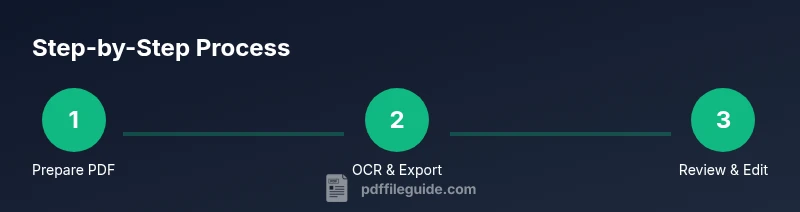
A practical workflow begins with preparing the PDF (ensuring readable scans and correct orientation), then importing it into the OCR tool. Configure language and output format, run OCR, and immediately review the results in Word. Next, polish layout, fix misreads, reflow tables, and insert or adjust images with captions. Finally, save and back up your Word document, and perform a quick accessibility check to ensure structure is preserved for screen readers. This high-level flow minimizes surprises and keeps your project on track.
Enhancing Output: Layout, Fonts, and Accessibility
OCR often preserves text but not exact layout. Use Word styles to rebuild headings, lists, and sections, and adjust fonts to maintain readability. Reinsert images with captions, align tables, and ensure margins reflect the original document. For accessibility, add alt text to images, use proper heading levels, and create a logical reading order. PDF File Guide emphasizes that accessibility improves usability for a wider audience and future-proofing your documents. A clean, accessible Word file is easier to share and edit across teams.
Authority Sources
To deepen your understanding of OCR, consult these reputable sources. NIST provides guidance on text recognition and standard practices for evaluation, NIH offers research-oriented perspectives on OCR and document processing, and W3C covers accessibility and semantic structure that can inform how you tag content in Word for screen readers. These sources help you align OCR results with established technical standards and accessibility best practices.
Tools & Materials
- OCR software with PDF import(Ensure it can export to Word (.docx) and supports multi-page PDFs)
- Original PDF or high-quality scanned pages(Higher DPI yields better recognition rates; aim for 300–600 dpi when possible)
- A computer with adequate RAM(For large documents, 16 GB RAM or more improves performance)
- Word processor (e.g., Microsoft Word)(Needed for post-OCR editing and final formatting)
- PDF pre-processing tool (optional)(Rotate, crop, or deskew pages to optimize OCR input)
- Proofreading plan or grammar checker(OCR is not perfect—plan to proofread and correct output)
- Secure internet access (for online OCR options)(Consider privacy-sensitive documents before using cloud OCR)
Steps
Estimated time: 45-75 minutes
- 1
Prepare PDF for OCR
Ensure pages are legible with good contrast. Remove unnecessary pages, rotate misaligned scans, and deskew to straighten text. This reduces recognition errors later.
Tip: If possible, run a quick pre-scan check to identify pages requiring manual cropping. - 2
Import PDF into OCR tool
Open your OCR software and import the PDF file. Verify that all pages load correctly and that page order is preserved before processing.
Tip: Use batch import if you have multiple files to streamline the workflow. - 3
Set language and output format
Choose the primary language of the document and select Word (.docx) as the output format. Enable layout retention if available to preserve columns, tables, and headings.
Tip: Verify that fonts used in the source are supported by the tool. - 4
Run OCR
Start the recognition process. For large documents, processing can take time; monitor progress and split into batches if needed.
Tip: If errors appear, run OCR on a single page or a small batch to identify problematic layouts. - 5
Review and correct OCR results
Open the Word output and scan for garbled words, broken hyphenations, and misread numerals. Correct errors manually and run a spell check.
Tip: Use find-and-replace to quickly fix repeated OCR mistakes. - 6
Polish layout and fonts
Apply Word styles for headings, lists, and captions. Reflow tables and reinsert images with captions so the document resembles the original structure.
Tip: Avoid over-formatting; rely on consistent styles for future edits. - 7
Export and save
Save the final document as .docx and create a backup copy. If needed, export a PDF backup for reference.
Tip: Name the file clearly to reflect revision date and source. - 8
Accessibility checks
Add alt text to images, use proper heading structure, and verify reading order. A more accessible Word file benefits assistive technologies.
Tip: Run a quick screen-reader check to confirm the flow reads logically.
Questions & Answers
What is OCR and why do I need it to convert PDF to Word?
OCR converts images of text into editable text. It's essential for scanned PDFs to become Word documents that you can edit.
OCR turns scanned text into editable content you can modify in Word.
Can OCR work on text-based PDFs without scanning?
If the PDF already contains selectable text, OCR is not required; you can export or copy-paste directly. OCR may still improve recognition in some cases.
If the PDF has text, OCR isn't required, but you can run it to refine accuracy.
Which tools support OCR to Word conversion?
Many tools support OCR with Word export, including desktop apps and online services. Look for PDF input, Word output, and language options.
There are many options; ensure it can export to Word and handle your language.
How accurate is OCR when converting PDFs to Word?
Accuracy depends on input quality, font, and layout. Expect some corrections after conversion, especially with decorative fonts or complex layouts.
Accuracy varies with scan quality and font; plan to proofread.
Is there an alternative to OCR when converting PDFs to Word?
If the PDF is text-based, you can often copy-paste or export directly to Word. For scans, OCR is still essential.
If text exists, copy-paste may work; otherwise OCR is needed.
How can I fix formatting and embedded images after OCR?
Reapply Word styles for headings and lists, adjust images with captions, and ensure tables align with the original layout.
Reformat in Word to better match the original.
Watch Video
Key Takeaways
- Define your end goal: editable Word or structured text.
- Input quality directly affects OCR accuracy.
- Choose tools that preserve layout for easier editing.
- Always proofread and adjust after conversion.