When Converting from PDF to Word: A Practical Guide
Learn how to convert PDFs to Word accurately, preserving formatting, fonts, and layout. This educational guide covers tools, steps, and common pitfalls for professionals and students.


When converting from pdf to word, you can achieve accurate results by choosing the right method and then carefully verifying the output. The goal is to preserve layout, fonts, and images while minimizing manual edits. This guide shows practical steps, tool options, and quality checks to help professionals and students produce reliable Word documents.
Why PDF to Word accuracy matters
In professional settings, the ability to convert a PDF into an editable Word document without sacrificing layout, fonts, or images is essential. When the result drifts from the source, teams spend hours correcting formatting, recreating tables, or rewriting text, which delays projects and increases revision cycles. According to PDF File Guide, the accuracy of a PDF-to-Word conversion depends on the source document's structure, the chosen method, and the quality of post-conversion cleanup. For legal, education, marketing, and administrative workflows, preserving headings, captions, and visual fidelity isn't optional—it influences readability, searchability, and collaboration.
Common challenges when converting PDFs to Word
Common problems include font substitutions that change appearance, dropped diacritics, misaligned tables, broken multi-column layouts, and stray line breaks. Images may shift or resize, and bullets or numbering can lose indentation. Scanned PDFs require OCR to extract text, which can introduce errors. Another challenge is embedded fonts and color profiles not mapping cleanly to Word. Understanding these issues helps you pick the right method and anticipate the amount of post-conversion editing needed.
Choosing the right conversion method
Different methods offer different balances of accuracy, privacy, and convenience. Built-in Word converters are convenient but limited for complex layouts. Desktop tools like Adobe Acrobat provide robust options, including OCR for scans. Online services can be fast but raise privacy concerns; always check data policies. For sensitive documents, prefer offline desktop software or enterprise tools. Also consider batch conversion needs and whether you require OCR or not.
Step-by-step overview of the process
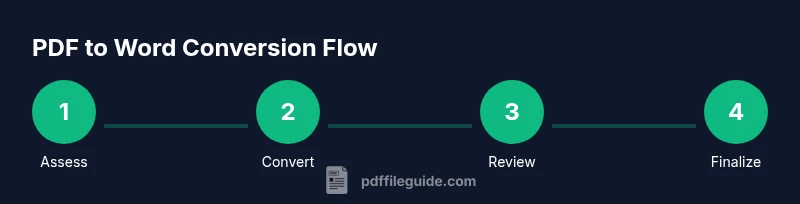
This overview outlines a practical workflow you can adapt to your environment: first assess whether the PDF is text-based or image-based; then choose a method based on document type and privacy needs. Run the conversion and save a Word copy, and perform a first pass to spot obvious formatting issues. Plan targeted edits for complex elements like tables and headers, then re-check the document in Word and compare key pages to the original. This high-level guide helps you align expectations before you dive into the detailed steps that follow.
Handling complex layouts: tables, columns, and images
Tables often break during conversion, so you may need to reconstruct or reformat them in Word. For multi-column layouts, consider reflow or section breaks to restore readability. Images should be anchored and wrapped appropriately so captions stay with the correct visuals. When possible, convert one representative page first to calibrate column widths, font substitutions, and image behavior before processing the entire document.
Post-conversion cleanup: validating and editing
After conversion, run a thorough check: verify headings, styles, and list numbering; compare a selection of pages against the original; spot stray characters or garbled text, and check for hyphenation and spacing issues. Use Word's built-in review tools (Spell Check, Grammar, and Style) and run accessibility checks to ensure a usable document. Save incremental versions to track changes, and document any manual edits for future updates.
Best practices for accuracy and efficiency
Establish a repeatable workflow that includes choosing the right tool for the job, validating results on a representative page set, and performing targeted edits first rather than reworking the entire document. Use consistent fonts across the source and target documents, embed fonts when needed, and avoid over-compressing images. Keeping a changelog of adjustments helps teams reproduce high-quality results and speeds up future conversions.
Accessibility and compliance considerations
Ensure that converted Word documents maintain logical heading structure, accessible styles, and meaningful alt text for images. If the PDF contained tagged content, aim to preserve reading order in Word and verify that screen readers can interpret the document correctly. This is especially important for legal, educational, and government contexts where accessibility standards are essential.
Security and privacy considerations
Be mindful of confidential information when using any conversion tool, especially online services. Prefer offline software for sensitive PDFs and review the tool's data handling policy. If you must use cloud-based options, remove any sensitive material after conversion and consider performing an internal quality check before distribution.
Tools & Materials
- Computer with internet access(Needed to run converters and access cloud tools if used.)
- Source PDF file(s)(Original documents to convert.)
- Word-compatible editor(Microsoft Word or compatible application.)
- Conversion tool (desktop or online)(Choose based on document type, privacy, and features.)
- Quality-check checklist(Optional; helps ensure consistent results.)
Steps
Estimated time: 45-90 minutes
- 1
Assess the source PDF
Check whether text is selectable or if the document is image-based. Note fonts, tables, and any complex elements that may require extra cleanup or OCR.
Tip: If text is selectable, OCR may not be necessary; skip to the review step. - 2
Choose the conversion method
Select a method that fits your privacy and accuracy needs (desktop software, built-in editor, or a trusted offline/online service).
Tip: For sensitive data, prefer offline tools to avoid data exposure. - 3
Run the conversion
Execute the conversion and save a Word copy with a clear filename. Keep an original backup of the PDF in case you need to re-check.
Tip: Use batch processing if you have many files to reduce manual effort. - 4
Initial review and rough fixes
Scan the converted document for obvious formatting issues, misplaced objects, and font substitutions. Mark pages that require detailed edits.
Tip: Tackle the highest-impact pages first (headings, tables, and key figures). - 5
Targeted formatting and layout tweaks
Rebuild problematic tables, reflow multi-column text, and adjust image anchors and captions. Ensure headings use consistent styles.
Tip: Keep a reference copy of the original layout to guide adjustments. - 6
Validate accuracy and accessibility
Run Spell Check, Grammar, and a basic accessibility scan. Check reading order and alt text for visuals, especially if the document will be used by assistive technologies.
Tip: Use a representative page set to validate the overall look and feel. - 7
Finalize and archive
Save the final Word document and an exportable PDF version if needed. Document any manual edits for future iterations.
Tip: Create a version history so changes can be traced later.
Questions & Answers
What is the best way to convert a PDF to Word without losing formatting?
Use a reputable converter and review the Word output for formatting, fonts, and layout. Expect some adjustments and plan for editing.
Use a reputable converter and review the Word output for formatting and layout.
Can scanned PDFs be converted to editable Word documents?
Yes, but you typically need OCR to recognize text before editing. Post-editing is often necessary for accuracy.
Yes, but OCR is usually needed to edit scanned PDFs.
Do online converters protect my data?
Some services claim privacy; read their terms and avoid sensitive documents when using online tools.
Read terms and avoid sensitive documents with online tools.
Why does formatting get lost during conversion?
PDF and Word handle layouts differently; tables, fonts, and columns often require adjustments after conversion.
PDF and Word handle layouts differently, so adjustments are common.
Is OCR required for image-based PDFs?
Yes, image-based PDFs require OCR to convert images to editable text.
Yes, OCR is needed to convert images to text.
Will complex layouts convert accurately?
Not always; multi-column and complex tables may need manual reflow and adjustments.
Not always; complex layouts often require manual tweaks.
Watch Video
Key Takeaways
- Plan your method before converting.
- Expect formatting adjustments and plan edits.
- Test with representative pages.
- Choose reputable tools.
- Always verify accessibility.