How to Change DOCX to PDF: A Step-by-Step Guide
Learn reliable methods to change docx to pdf. This professional guide compares Word, Google Docs, LibreOffice, and offline/online options with practical steps, tips, and security considerations for PDF-ready sharing.


Learn how to change docx to pdf using your word processor or a dedicated tool. This guide covers offline and online options, explains how to preserve formatting, fonts, and hyperlinks, and shows how to verify the final PDF before distribution. It discusses Word, Google Docs, LibreOffice, print-to-PDF, and safe online converters.
Why changing docx to pdf matters
In professional workflows, changing docx to pdf is a reliability discipline. PDF preserves layout, fonts, and embedded elements across devices and operating systems, ensuring your documents look the same for every recipient. For many teams, the PDF format reduces misinterpretation and accidental edits, making it ideal for contracts, reports, and client deliverables. According to PDF File Guide, adopting a robust conversion habit enhances consistency and reduces back-and-forth when sharing drafts. When you change docx to pdf, you also lock in a view that supports offline access, archival integrity, and compliance with basic accessibility expectations. This section lays the groundwork for choosing the best method based on your environment and file sensitivity.
When to choose a PDF over a DOCX
DOCX files are editable, which is great for drafting. PDFs, by contrast, excel at static presentation. If you’re sharing finalized materials, PDFs prevent inadvertent edits and ensure color, margins, and fonts remain stable. When documents include complex layouts, embedded fonts, or interactive elements, a properly generated PDF is more likely to render consistently on desktops, tablets, and mobile devices. For legal, educational, and corporate settings, PDFs align with record-keeping expectations and security practices. PDF File Guide emphasizes that PDFs simplify distribution via email, cloud links, or document portals without exposing source templates.
Quick overview of conversion methods
There are several reliable paths to change docx to pdf. If you have Microsoft Word, Saving or Exporting to PDF is straightforward and preserves most formatting. Google Docs offers a cloud-based option, useful when you don’t have Word installed. LibreOffice/OpenOffice provides a strong offline alternative, especially on Linux. Printing to PDF via a virtual printer is universally available on modern Windows and macOS systems. For rapid tasks or batch jobs, online converters or automation scripts can scale, but require security considerations to protect sensitive data. Each method has trade-offs between quality, speed, and privacy.
Tools & Materials
- Computer or device capable of running Word, Google Docs, LibreOffice, or a web browser(A stable internet connection is needed for online tools.)
- Microsoft Word (2019/365) or Word Online(Word is the most seamless path for many users.)
- Google account and Google Docs access(Useful for cloud-based conversion.)
- LibreOffice or OpenOffice(Good offline alternative with strong compatibility.)
- Web browser (Chrome, Edge, Firefox)(Needed for online converters.)
- PDF viewer (e.g., Adobe Acrobat Reader)(For verifying output and accessibility checks.)
- Printer or PDF printer driver (e.g., Microsoft Print to PDF)(Built-in on Windows/macOS; useful when native Save/Export isn’t available.)
Steps
Estimated time: 30-60 minutes
- 1
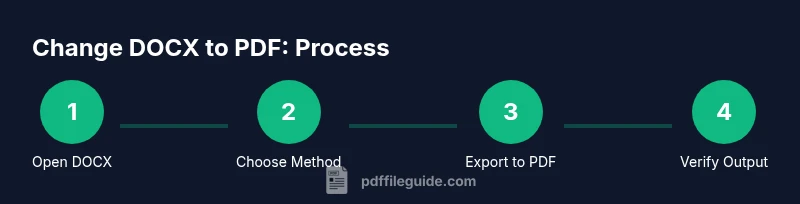
Identify the source DOCX
Locate the DOCX you need to convert and note any sensitive content. If batch-converting, prepare a folder with all files to process. This initial step prevents missed files and helps plan which method to use.
Tip: Organize files by project and keep a copy of the original in a secure archive. - 2
Choose your conversion method
Decide whether you will use Word, Google Docs, LibreOffice, a print-to-PDF workflow, or an online converter. Your choice depends on software access, file sensitivity, and the need for batch processing.
Tip: For sensitive content, prefer offline methods to avoid data exposure on third-party servers. - 3
Open the DOCX in the chosen app
Launch Word, Google Docs, or LibreOffice, then open the DOCX you intend to convert. Confirm that fonts and layout appear correct before saving as PDF.
Tip: If fonts appear jumbled, consider embedding fonts in the PDF options if available. - 4
Export or Save as PDF
In Word: File > Save As > Choose PDF. In Google Docs: File > Download > PDF document. In LibreOffice: File > Export As > Export as PDF. Ensure you select proper options for image quality and font embedding where offered.
Tip: Use the highest compatible resolution and enable font embedding if present. - 5
Configure PDF settings
Review options such as image compression, font embedding, and whether to include accessibility tags. Adjust settings to balance file size and quality. For longer documents, enable subset fonts if available.
Tip: Enable bookmarks for easier navigation in long documents. - 6
Save the PDF with a clear name
Choose a descriptive filename that reflects the document and version. Save to a predictable folder structure to support sharing and archiving.
Tip: Include version numbers like v1.0 to track revisions. - 7
Alternate path: Print to PDF
If the export method isn’t available, use Print and select a PDF printer (e.g., Save as PDF on macOS, Microsoft Print to PDF on Windows). Verify page range and layout after saving.
Tip: Avoid “print to file” prompts that create extra redirection; use the built-in PDF print option when possible. - 8
Validate the output
Open the PDF in a viewer to check fonts, images, hyperlinks, and overall layout. Click links, scroll through pages, and test forms if present.
Tip: Check that color and margins align with the original design. - 9
Batch-convert multiple files (optional)
If handling several documents, use a batch option or scripts when available. Verify each file individually for quality before distribution.
Tip: Create a small sample batch first to confirm quality before wider conversion. - 10
Accessibility and metadata
Add basic accessibility tags and check document metadata. Ensure screen-readers can navigate with headings and meaningful alt text for images.
Tip: Use built-in accessibility checkers where available. - 11
Secure the PDF
If needed, apply password protection or restrict editing. Avoid sharing sensitive PDFs without appropriate protection.
Tip: Only apply permissions that are necessary for recipients. - 12
Distribute and archive
Share via secure channels and save the final version in a controlled archive. Document the process for future reference.
Tip: Maintain an audit trail for compliance and reproducibility.
Questions & Answers
Do I need Microsoft Word to convert DOCX to PDF?
No. You can convert DOCX to PDF using Google Docs, LibreOffice, or print-to-PDF options built into your operating system. Word is the most straightforward path if you already use it, but alternatives work well if Word isn’t available.
You don’t need Word to convert; Google Docs or LibreOffice can do it as well.
Will fonts and formatting be preserved?
Most tools preserve fonts and layout, especially when you embed fonts or use export options. Some rare fonts or complex layouts may require adjustments after export.
In most cases, fonts and layout stay intact, but always check the result.
Are online converters safe for sensitive documents?
Online converters introduce potential privacy risks. Avoid converting confidential files through public services. If you must use an online option, remove sensitive data and use trusted, reputable sites.
Online tools can be convenient but carry privacy risks; use offline methods for sensitive files.
Can hyperlinks and interactive elements stay clickable in the PDF?
Yes, most reputable converters preserve hyperlinks. Test all links after export to ensure they work as expected.
Yes, links usually stay clickable; test them after conversion.
How do I batch convert many documents efficiently?
Look for a batch or script-based approach in your chosen tool or use a lightweight automation workflow. Validate a representative sample before processing the full batch.
Batch processing works best with automation; test a sample first.
What’s the best practice for sharing PDFs securely?
Apply permissions or password protection when distributing sensitive PDFs. Use secure channels and keep traceability logs for compliance.
Protect sensitive PDFs with passwords and share through secure channels.
Watch Video
Key Takeaways
- Choose the method that matches your privacy needs.
- Always verify fonts, links, and layout after conversion.
- Use descriptive filenames and versioning for traceability.
- Consider accessibility features during export.
- Batch processing saves time but requires quality checks.