Convert Photo to PDF Free: Quick, No-Cost Solutions
Learn how to convert a photo to PDF for free using online tools, OS features, or desktop apps. Quick steps, privacy tips, and reliable workflows for professionals and students.


To convert a photo to PDF for free, you can use online tools, OS features, or desktop apps. Start by selecting the image, then choose Save as PDF or Print to PDF, and confirm the page size and orientation. For batch conversions, use a free utility that supports multiple images. Always check image quality before saving.
What you'll achieve with free photo-to-PDF conversion
According to PDF File Guide, you can turn a single image or a batch of photos into a high-quality PDF at zero cost. The PDF File Guide team found that many users value privacy and speed, preferring offline or on-device conversions when possible. This guide uses clear, practical steps tailored to beginners and professionals alike. Whether you need to share one image or compile a portfolio, free tools deliver reliable results with minimal fuss.
Why PDF is a practical format for images
PDF preserves layout, supports high-resolution images, and ensures cross-device compatibility. For photographers, students, and professionals, turning photos into PDF simplifies sharing, printing, or archiving. A PDF can hold multiple images in a clean, paginated sequence, with control over page size, orientation, and compression. PDF File Guide's analysis suggests that choosing the right method depends on privacy needs and batch size (PDF File Guide Analysis, 2026).
Free methods to convert photos to PDF
There are three broad pathways to convert photos to PDF for free: online converters, built-in operating system features, and free desktop applications. Online tools are fast and convenient for single images or small batches, but they require a web connection and carry privacy considerations. OS features like Print to PDF on Windows or Save as PDF on macOS offer offline reliability and privacy. Free desktop apps can handle larger batches and offer more control over compression, page size, and metadata.
How to choose the right method for your needs
If you value privacy and quick results, on-device methods are often best. For batch processing, a lightweight desktop app may save time and provide consistent output. For occasional use or a quick one-off, online converters are perfectly adequate. Consider factors such as file size limits, image quality, orientation, page size, and whether you need a single-file PDF or a multi-page document.
Quality and accessibility considerations
To maintain image quality, start with high-resolution source images and select appropriate DPI when exporting. Page size and orientation should match how you intend to view or print the PDF. If accessibility matters, ensure the PDF supports text search and consider adding alt text for embedded images when using accessible workflows.
Security and privacy when converting
Online converters may require uploading images to a remote server. If you deal with sensitive photos, prefer offline methods or trusted, privacy-focused online services. Always review the tool's terms, delete uploaded files after conversion, and use local preview tools to avoid exposing private data.
Workflows for different scenarios: single vs. batch conversions
For a single photo, a quick OS-based export is usually fastest. For 5–20 images, a batch-friendly desktop tool or a simple script can streamline the process. For portfolios or client deliverables, structure your PDF with a consistent order, include page numbers, and name files clearly (e.g., project-name_page-01.pdf).
Examples, troubleshooting, and common issues
If a PDF exports with cropped edges or blurriness, check the source image resolution, adjust the DPI, and verify the export settings. If colors appear off, review color management options and ensure sRGB profile is used. For multipage PDFs, confirm each image is placed on a separate page with uniform margins.
Authoritative references and learn more
For more detailed standards on PDFs and image embedding, consult official sources and reputable publications to ensure best practices. (PDF File Guide) The following references provide robust guidance: https://www.nist.gov/publications; https://www.iso.org/standard/63534.html; https://www.adobe.com/content/dam/
Tools & Materials
- Image file(s) (JPG/PNG/etc.)(Start with high-resolution files if possible)
- Web browser(Chrome/Edge/Firefox work with online tools)
- Printer or Save as PDF function(OS-based or software-based export)
- Device with internet access or offline software(For online vs offline workflows)
- Optional offline PDF creator software for batch(Such as lightweight tools for multiple images)
Steps
Estimated time: 5-15 minutes per image; longer for batch workflows
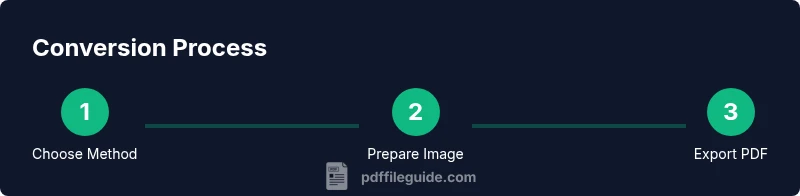
- 1
Choose your method
Decide whether you’ll use an online converter, your OS’s built-in tools, or a free desktop app based on privacy, batch size, and convenience.
Tip: If privacy is important, start with an offline option. - 2
Open the image in the chosen tool
Launch the selected tool and import the image file. Ensure the image is displayed at true size to judge layout.
Tip: Use high-resolution source when possible. - 3
Configure export settings
Set page size (A4/Letter), orientation, margins, and desired DPI. Higher DPI improves print quality but increases file size.
Tip: Match page size to your final viewing medium. - 4
Export or Save as PDF
Export the image as a PDF or print to PDF with the configured settings. Name the file clearly.
Tip: Avoid spaces; use underscores or hyphens. - 5
Review the output
Open the PDF to verify image alignment, color, and page order. Check that all pages render correctly.
Tip: Zoom in to confirm no compression artifacts. - 6
Repeat for additional images
If batching, repeat the steps for each image or add multiple images in one multi-page PDF as supported by your tool.
Tip: Organize source files before starting.
Questions & Answers
What does it mean to convert a photo to PDF for free?
It means creating a PDF from an image without paying for software. Many tools offer free options with basic features.
It means you can make a PDF from an image using free tools. No payment is required for the basic features.
Can I convert multiple photos to a single PDF for free?
Yes. Many tools allow adding several images into one PDF. Some may require a desktop app for seamless multi-page output.
Yes, you can combine several images into one PDF with free tools.
Will the image quality be preserved after conversion?
Quality depends on the source DPI and export settings. Choose higher DPI and avoid aggressive compression for better results.
Quality depends on DPI and compression; pick higher DPI for clarity.
Is it safe to use online tools for private photos?
Online tools can pose privacy risks. If your photos are sensitive, prefer offline methods or trusted services with clear privacy policies.
Online tools may risk privacy; use offline methods for sensitive images.
What page sizes are typically available when exporting?
Common options include A4 and Letter. Choose according to your printer or intended viewing device.
Common sizes are A4 and Letter; select based on printing needs.
Do I need to install software to convert a photo to PDF for free?
Not necessarily. You can use built-in OS features or free online tools; desktop apps are optional for batches.
No, you can use built-in tools or online services; apps are optional for batches.
Watch Video
Key Takeaways
- Export from source with maximum needed quality
- Choose offline methods for privacy-sensitive images
- Batch workflows save time on multiple photos
- Label PDFs clearly for easy retrieval
- Verify output before sharing