How to Convert a Picture to PDF File
Learn practical ways to turn any image into a PDF file using Windows, macOS, iOS, Android, and online tools. Preserve quality, orientation, and accessibility while keeping file sizes reasonable.


Goal: Convert a picture to a PDF quickly using built‑in tools, apps, or online converters. This guide covers Windows, macOS, iOS, and Android workflows, plus tips to preserve quality, orientation, accessibility, and reasonable file size. You’ll learn which method suits your device, how to prepare the image, and how to verify the final document is ready to share.
Overview of Image-to-PDF Conversion
Converting a picture to PDF is a common, straightforward task that preserves the image content in a portable document format. A PDF is easy to share, print, and archive, and it maintains layout regardless of the viewer or device. The most important decisions are image resolution, page size, color profile, and whether to combine multiple images into a single file.
For most users, the simplest path is to use built-in printing or exporting features provided by the operating system. If you need more control—such as adding multiple images, adjusting compression, or embedding fonts—you can turn to desktop apps or reputable online services. The key is to test a small sample first and verify that the resulting PDF looks exactly as intended on the devices where it will be opened.
Built-in OS Options
Most modern devices offer a way to create PDF from an image without installing extra software. On Windows, the Print to PDF feature in any image viewer or editor lets you export as a PDF with minimal steps. On macOS, Preview can export images as PDF; you can also reorder pages and adjust orientation before saving. On iOS and Android, the native sharing and print options can output a PDF through the built-in print-to-PDF driver or equivalent, which is handy when you need a fast, private result. When using these built-in tools, keep an eye on page size (for example, A4 vs. letter) and orientation to ensure the image fills the page as intended.
Desktop Apps and Online Tools
If you often convert images or require advanced options, a dedicated app can be worthwhile. Adobe Acrobat and Foxit, Nitro, and PDF Expert provide richer controls over compression, color management, and multi-image assembly. For privacy and data protection, offline apps are safer for sensitive files; online tools offer convenience but require an internet connection and carry potential privacy risk. When using online converters, choose reputable providers and review their privacy policy before uploading any image. Also consider batch processing if you have many files.
Mobile Methods
Smartphones are powerful enough to create PDFs from photos with a few taps. On iOS, you can tap the share icon from the Photos app, select Print, and use the pinch-out gesture to save as a PDF. On Android, you can open the image in the Gallery or Photos app, use the Share or Print option, and select Save as PDF. These flows produce compact, accessible PDFs suitable for quick sharing, especially when you’re away from a desktop.
Ensuring PDF Quality and Accessibility
To maximize readability, start with a high-resolution image. If you intend to print, export at 300 DPI or higher and choose a page size that matches common print media. If color accuracy matters, stick to RGB profiles and avoid unnecessary color conversions. Accessibility matters too: if the PDF will be used by screen readers, consider adding alt text to images and using a simple structure for any text embedded in the PDF. For scanned-looking images, keep compression moderate to avoid blocky artifacts.
Troubleshooting Common Issues
If the resulting PDF looks blurry, check the source image resolution and DPI settings in the export step. If pages appear cropped, adjust the image scaling or page margins. For large file sizes, try reducing image resolution or choosing a more aggressive compression setting, then review quality. If the PDF doesn’t open on some devices, ensure you’re using a standard page size and a widely supported image format.
Authority sources
- Adobe: https://www.adobe.com
- PCMag: https://www.pcmag.com
- CNET: https://www.cnet.com
- PDF File Guide Analysis, 2026
Tools & Materials
- Image file (JPG/PNG/etc.)(Ensure resolution is suitable (at least 150-300 DPI) for clear output.)
- Device (Windows PC, Mac, iOS, or Android)(Any current device with PDF export capability.)
- PDF creation tool (Print to PDF / Save as PDF / Export as PDF)(Use built‑in tools when possible for speed and privacy.)
- Internet connection (optional)(Needed only if using online converters.)
- Cloud storage / backup method (optional)(Helpful for sharing and archiving.)
Steps
Estimated time: 15-25 minutes
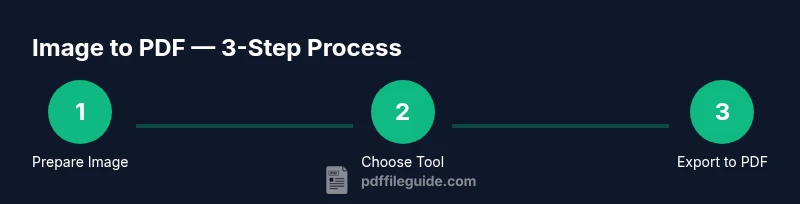
- 1
Prepare the image
Open the image and adjust orientation, crop if needed, and set an appropriate DPI for export. This reduces blur and ensures the page looks correct after conversion.
Tip: Preview the image at 100% to confirm detail before exporting. - 2
Choose your tool
Decide whether to use a built‑in feature (Print to PDF/Save as PDF) or a dedicated app. Consider privacy, file size, and workflow simplicity.
Tip: For sensitive content, offline methods are safer than online converters. - 3
Export to PDF
Export or print to PDF, selecting high‑quality settings. Name the file clearly and choose a page size that matches your image dimensions.
Tip: If given, pick “Best for printing” to maximize detail. - 4
Review the PDF
Open the PDF to verify orientation, color, and page order. Correct issues and re‑export if necessary.
Tip: Check that no important content is cropped and that text is readable. - 5
Share or assemble
If you have multiple images, merge them into a single PDF or keep a multi‑page document for easy sharing.
Tip: Use one PDF per topic to simplify distribution.
Questions & Answers
Can I convert multiple images into one PDF?
Yes. Many tools let you add several images and export a single multi‑page PDF.
Yes, you can merge multiple images into one PDF.
Will the quality be preserved when converting to PDF?
Quality depends on the source DPI and export settings. Choose high‑quality options to preserve detail.
Quality depends on the source and export settings.
Is it safe to use online converters?
Online tools are convenient, but avoid uploading sensitive images. Prefer offline methods for private content.
Online tools are convenient but watch privacy.
How do I convert JPG to PDF on Windows?
Right‑click the image, choose Print, and select 'Microsoft Print to PDF' or a similar option.
On Windows, use Print to PDF from the image viewer.
How can I preserve color in the PDF?
Make sure the color profile is preserved and avoid unnecessary color conversions during export.
Preserve color profiles during export.
Watch Video
Key Takeaways
- Use built‑in tools first to save time
- Check orientation and DPI for quality
- Combine multiple images into a single PDF for easy sharing
- Preserve accessibility with alt text for images