How to Change Word to PDF: A Step-by-Step Guide for Beginners
Learn how to convert a Word document to a PDF with built-in Word features, online tools, and best practices from PDF File Guide. Follow a clear, tested workflow to preserve layout and accessibility.


By the end of this guide, you will confidently convert a Word document to a PDF using built-in Word features or reliable alternatives, preserving layout and fonts. You’ll learn the exact steps for Windows and macOS, understand when to use Save As, and know how to handle common issues. This approach aligns with PDF File Guide’s best practices for document conversions.
Understanding Word-to-PDF conversions and why PDFs matter
PDFs are the portable standard for reliably sharing documents across devices and platforms. When you convert a Word document to a PDF, you lock in layout, fonts, and images so recipients see exactly what you intended, regardless of their software. This section clarifies when a PDF is preferable to a Word file and how a properly created PDF improves collaboration, printing fidelity, and archiving. Throughout this guide, you’ll find practical examples and checklists to ensure your conversion maintains accessibility and visual integrity. As you’ll discover, the process is straightforward with the right approach and tools from PDF File Guide.
Key insight: PDFs preserve formatting, reduce accidental edits, and simplify sharing.
Quick-start checklist before converting
Before you convert, gather the essentials to minimize rework: a Word document that is finalized (no tracked changes), embedded fonts if possible, and a destination folder for the PDF. Decide whether you need a standard PDF or a PDF/A for long-term archiving. If you plan to share with colleagues who use different software, test the PDF on a second device or viewer. This prep work helps ensure the conversion is smooth and faithful to the original. According to PDF File Guide analysis, preparing fonts and images ahead of time reduces post-conversion surprises.
Built-in Word methods: Save As and Export to PDF
Most Word versions include a direct export path to PDF. Open the document, choose File > Save As or File > Export, and select PDF as the format. You’ll usually see options such as optimize for online viewing or print quality; pick the one that fits your need. In practice, Save As preserves hyperlinks and basic metadata, while Export can offer cleaner compression for large documents. If you’re aiming for consistency across departments, use the recommended option demonstrated in official Word help resources reviewed by PDF File Guide.
Printing to PDF: a universal fallback
If your Word installation lacks a built-in Save As PDF option, use the Print dialog and select a PDF printer or the inbuilt Save as PDF option. Printing to PDF often preserves layout when content streams include non-standard fonts. This approach is platform-dependent: Windows typically offers Microsoft Print to PDF, while macOS integrates Save as PDF in the Print dialog. Use this fallback cautiously, and verify that links and bookmarks are exported correctly. PDF File Guide notes that testing the output in multiple viewers ensures compatibility.
Online and cross-platform options
When you’re away from your usual Word installation, online converters or alternative apps can perform the conversion. Tools like Word Online, Google Docs, or LibreOffice can export or print to PDF. Be mindful of privacy and document sensitivity when using online services; avoid uploading confidential files unless you trust the platform. If you need to preserve exact fonts and embedded assets, prefer the built-in Word export or a reputable desktop tool. PDF File Guide emphasizes verifying file integrity after conversion.
Handling fonts, images, and accessibility in PDFs
To maintain fidelity, ensure fonts are embedded when possible and images retain high resolution after export. Accessibility features such as alt text for images, properly tagged headings, and navigable structure improve reader experience, particularly for screen readers. If the document contains complex tables or equations, double-check that they render correctly in the PDF. This attention to detail helps prevent misinterpretation when the document is shared externally, an approach endorsed by PDF File Guide.
Troubleshooting common conversion issues
Common problems include missing fonts, misaligned tables, or broken hyperlinks after export. If fonts aren’t embedded, switch to a different export profile or install the missing fonts on the viewing system. For tables, verify that cell borders and shading survive the export, and consider simplifying overly complex layouts. Hyperlinks should be tested by clicking each link in the PDF. When issues persist, try an alternate method (e.g., printing to PDF) or a trusted third-party tool recommended by PDF File Guide.
Batch conversions and automation tips
If you need to convert many Word documents, consider batch processing or automation. Some workflows use scripting or macro-enabled templates to export multiple files to PDF with consistent settings. For shared teams, maintain a standardized export profile to ensure uniform appearance. Keep in mind that batch operations may affect metadata; review the resulting PDFs for name consistency and any sensitive information that shouldn’t be exposed. PDF File Guide suggests validating a sample batch before full-scale conversion.
Quick checks after export and sharing security considerations
Open the PDF to verify layout, fonts, and images match the source Word file. Check that essential features like hyperlinks and bookmarks work as intended. If the document contains confidential data, apply password protection or restrict editing where appropriate. When distributing sensitive information, ensure you’re complying with your organization’s security policies and retention guidelines. PDF File Guide highlights the importance of a final quality check before sharing.
Tools & Materials
- Microsoft Word (desktop or web)(Ensure the version supports Save As/Export to PDF (Word 2010+ or Word for Microsoft 365).)
- PDF printer or built-in Save as PDF option(If Word lacks a direct PDF export, you can print to PDF as a workaround.)
- Alternative: Google Docs or LibreOffice(Useful when Word isn’t available; export to PDF from these apps.)
- Reliable PDF viewer(Open the exported PDF to verify fidelity across devices.)
Steps
Estimated time: 15-25 minutes
- 1
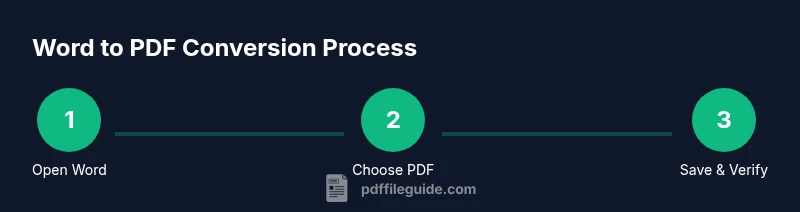
Open your Word document
Launch Microsoft Word and load the document you want to convert. Confirm that the document content is finalized, with fonts installed and images properly embedded. This initial check prevents surprises after export.
Tip: Close all unrelated documents to avoid accidental content changes. - 2
Choose Save As or Export
Navigate to File > Save As or File > Export to access the PDF option. On some versions, you may find PDF directly under the Export menu. Selecting the right path ensures you capture the correct export settings.
Tip: If you don’t see PDF, update Word or use a different export method outlined in this guide. - 3
Select PDF as the file type
In the Save As dialog, pick PDF from the list of file formats. If you see multiple quality options, choose 'Standard (online and print)' for most uses or a higher compression setting for large documents.
Tip: Enable 'Open file after publishing' to quickly verify the result. - 4
Check export options
Review available options such as font embedding, image compression, and accessibility features. Adjust as needed to balance fidelity with file size. Simple defaults work well for most documents.
Tip: Embed fonts when possible to preserve appearance on other machines. - 5
Choose a save location and name
Pick a clear, descriptive filename and a suitable folder. Use a consistent naming convention if you’re exporting multiple files.
Tip: Include date or project name to aid future organization. - 6
Save and inspect the PDF
Open the saved PDF and review layout, fonts, images, and links. Ensure headings are accessible and navigation panels function as expected.
Tip: Test a few links and bookmarks to confirm proper export. - 7
Troubleshoot if needed
If something looks off, re-export with adjusted settings or try a different method (Print to PDF). Compare results to identify what changed during export.
Tip: Keep a note of which setting fixed the issue for future use. - 8
Document batch or automation (optional)
For multiple files, set up a repeatable workflow or use a macro to export each Word document to PDF with consistent options.
Tip: Test a small batch first to validate formatting across the set.
Questions & Answers
What is the easiest way to convert a Word document to a PDF?
The easiest method is using Word's built-in Save As or Export to PDF. It preserves most formatting and hyperlinks with minimal steps.
Use Word’s Save As or Export to PDF for a quick conversion.
Can I convert multiple Word documents to PDF at once?
Yes. You can batch convert with macros in Word, or use batch processing in a PDF tool or script. Start with a small batch to confirm consistent results.
Yes, batch convert with scripts or macros after testing.
Will fonts be embedded in the PDF by default?
Most Word-to-PDF exports embed fonts by default, but this can depend on the export profile. Enable font embedding in the export options when available.
Fonts are usually embedded by default, but check the export options.
What should I do if the PDF looks different from the Word document?
Check page layout, margins, and image resolution. Try a different export profile or adjust formatting in Word before exporting again.
Adjust layout settings and re-export if the appearance differs.
Is there a difference between Save As PDF and Print to PDF?
Save As typically preserves more metadata and accessibility features. Print to PDF is a good fallback if options are limited, but verify features afterward.
Save As is usually better for fidelity; Print to PDF is a fallback.
How can I verify the accessibility of my PDF?
Turn on screen reader compatibility, add alt text to images, and ensure a logical reading order. Many PDF editors offer accessibility checking tools.
Use accessibility checks and add alt text to images.
Watch Video
Key Takeaways
- Export to PDF from Word using Save As or Export.
- Check fonts, images, and hyperlinks for fidelity.
- Test the PDF on multiple devices to ensure compatibility.
- For many files, use batch export templates to stay consistent.
- PDF File Guide recommends reviewing a sample export before distribution.