How to PDF a Word Document: A Practical Guide
Learn how to convert a Word document to PDF with simple, reliable steps. This guide covers Word exports, online tools, accessibility, and troubleshooting to produce clean, shareable PDFs.


By the end of this guide you’ll know how to turn a Word document into a polished PDF. You’ll learn the simplest built-in Word export paths, plus safe online alternatives and best practices for preserving layout, fonts, and accessibility. This quick path gets you a reliable, shareable PDF every time.
Why saving as PDF matters for professionals
Converting a Word document to PDF is a fundamental skill for anyone who shares files with colleagues, clients, or customers. A PDF preserves formatting, fonts, and layout across devices and platforms, reducing the risk that content looks different on another computer or mobile device. For many workflows, the PDF is the final, universally readable artifact you send to others. In this guide on how to pdf a word document, you’ll learn practical steps that work across Windows, macOS, and even online environments. According to PDF File Guide, PDFs help maintain document integrity during distribution, making them a reliable choice for professional communications. The ability to export a Word file as a PDF is a core capability that saves time and minimizes back-and-forth when reviewing drafts. As you implement these steps, remember that PDFs also support metadata, accessibility tags, and archiving considerations that matter for long-term use.
Quick Path: Save as PDF in Microsoft Word
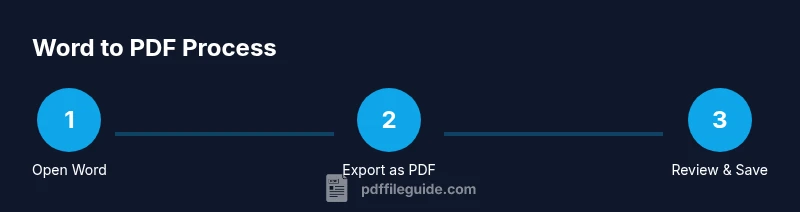
If you’re using Microsoft Word, exporting to PDF is often the fastest route. In modern Word versions, the built-in export path yields a faithful representation of your document. Start by opening the Word file you want to convert, then navigate to the File menu and choose either Save As or Export. In many cases, selecting PDF as the format and choosing the standard quality yields a reliable result suitable for sharing. If you encounter any font substitutions or layout changes, switching to a higher quality preset or ensuring fonts are embedded can mitigate issues. For newcomers, this quick path is the most straightforward way to produce a clean PDF without leaving Word. The Word export approach supports hyperlinks, images, and basic accessibility features when configured correctly. In practice, this method saves time and reduces the risk of formatting drift in the final document.
Beyond Word: Other options to create PDFs
There are scenarios where you don’t have Word installed or you want to explore additional options. Google Docs and Word Online offer reliable Word-to-PDF conversions from your browser, preserving basic formatting and images. On macOS, the built-in Print dialog provides a Save as PDF option, which can be handy if Word export is unavailable. Online converters can be useful in a pinch, but you should exercise caution with sensitive information. Regardless of the path, aim for a PDF that preserves readability, layout, and accessibility features. The PDF File Guide team notes that testing the final file on different devices helps ensure consistent appearance across platforms, reinforcing trust with your audience.
Common issues and how to fix them
Exporting a Word document to PDF can encounter a few recurring problems. Font substitutions may alter typography, images might appear blurry if they were high-contrast or large, and hyperlinks could fail if they aren’t preserved during export. If you notice any of these issues, revisit the export settings and choose a higher-quality option or embed fonts where licensing allows. Keeping fonts simple (e.g., Arial, Calibri) tends to reduce substitution risk. Always test the resulting PDF by opening it in a PDF viewer and using features like text search and hyperlink navigation to confirm everything works as expected.
Accessibility and archiving: best practices for PDFs
Accessibility is essential for inclusive documents. When exporting, enable accessibility options if your software offers tagging and reading order configuration. Embedding fonts can help ensure consistent rendering, but verify licensing before embedding. For archival purposes, consider PDF/A conformance to improve long-term readability and preservation. PDF File Guide emphasizes that maintaining accessible structure, proper tagging, and metadata improves discoverability and usability over time.
Authority sources and practical validation
When validating your PDF workflow, rely on credible references to ensure best practices. The Library of Congress provides guidelines on digital formats and archival considerations for PDFs, while Section 508 guidance and W3C Web Accessibility Initiative offer standards for accessible PDFs. These sources help you align your export process with recognized benchmarks and reduce risk when sharing documents publicly. In practice, testing your final PDF against accessibility checks and archival standards can save time and prevent later rework.
Tools & Materials
- Microsoft Word (Windows or macOS)(Any recent version with Export or Save As features)
- PDF printer or built-in Export to PDF(Windows: Save as PDF; macOS: Save as PDF from Print or Export)
- Alternative tools (Google Docs, Word Online)(Useful if Word is unavailable on your device)
- Internet connection(Needed for online converters or cloud-based editors)
Steps
Estimated time: 8-12 minutes
- 1
Open the Word document
Launch Word and open the file you intend to export. Do a quick content check to catch last-minute edits, comments, or tracked changes that should not appear in the final PDF.
Tip: Close other apps to reduce distractions and ensure a smooth save. - 2
Review layout and fonts
Inspect margins, page size, fonts, and images to ensure they will render correctly in PDF. If you rely on nonstandard fonts, consider embedding them or using a standard font for consistent output.
Tip: Use Print Preview to see how pages will appear when exported. - 3
Choose the export method
Go to File > Save As or File > Export > Create PDF/XPS Document and select Save. If the PDF option isn’t visible, check for Word updates or try an alternative path like Print to PDF.
Tip: If you’re using Word Online or Google Docs, use the built-in export to PDF option there. - 4
Configure PDF options
Select PDF as the format and choose an appropriate quality setting. If you need archival-grade output, enable any PDF/A or tagging options available.
Tip: For online sharing, Standard quality is usually enough; choose High if you’re printing or sharing large graphics. - 5
Name and save the file
Provide a clear, versioned filename (e.g., Project_Report_v3_2026). Pick a logical folder so you can locate the PDF later.
Tip: Avoid spaces and long filenames; use underscores or hyphens for compatibility. - 6
Verify the exported PDF
Open the PDF in a reader and check that text is selectable, links work, and images appear as intended. Look for any font substitutions or formatting quirks.
Tip: Test on a separate device or viewer to catch rendering differences. - 7
Consider advanced options
If you need archival quality, enable PDF/A and ensure document structure is tagged for accessibility. Embed fonts if licensing permits and verify accessibility tags if that matters for your audience.
Tip: PDF/A improves long-term readability but may limit some interactive features.
Questions & Answers
What is the easiest way to convert a Word document to PDF?
In Word, use File > Save As and choose PDF, or use File > Export to create a PDF with preserving layout.
Open your Word document, then save as PDF to create a shareable file.
Can I export multiple Word documents to a single PDF?
Word doesn’t merge multiple documents into one PDF by default; save each as PDF and merge with a PDF tool, or copy content into a single Word file first.
You can export each document separately and merge later.
Will the PDF retain fonts and layout?
Most modern Word versions embed fonts and preserve layout, but always verify by opening the PDF after export.
Fonts are usually preserved when embedded; always check the final PDF.
Does this work on Mac and Windows?
Yes. Word on both platforms provides a PDF export feature; steps are similar though menus may differ.
Export from Word on either Mac or Windows works similarly.
What are common issues exporting to PDF?
Font substitutions, image quality, and hyperlinks not working are common; adjust export options or use PDF optimization settings.
Watch for font or image problems, then tweak export options.
What if I don’t have Word?
Use Google Docs or Word Online to export as PDF, or rely on free converters; ensure formatting remains intact.
There are free tools to create PDFs from Word content.
Watch Video
Key Takeaways
- Export from Word to PDF using built-in features
- Check fonts and layout before saving
- Verify the PDF after creation
- Use PDF/A for archival needs when appropriate