How to PDF a Picture: A Complete Step-by-Step Guide
Learn how to convert any picture into a PDF across Windows, macOS, iOS, and Android. Step-by-step methods, quality tips, and best practices from PDF File Guide for professionals and beginners.


By the end of this guide, you will convert a picture into a PDF using built-in tools or free software. This quick path works on Windows, macOS, iOS, and Android, with simple steps and no special programs required. You’ll learn single-image and multi-image options for clean, shareable PDFs that are ready to save and distribute easily.
Practical reasons to PDF a picture
According to PDF File Guide, turning a picture into a PDF is a practical way to archive and share images. The format is universally viewable, preserves layout, and avoids issues with incompatible image formats when sending files. Whether for client proofs, personal backups, or quick reports, a PDF stays consistent across devices. If you’re learning how to pdf a picture, you’ll find that the core steps are remarkably similar across platforms, with minor interface differences. This consistency is why many professionals rely on PDFs for picture-based deliverables in 2026.
In this guide, you’ll learn how to convert a single image or multiple images into one PDF, and you’ll discover options that require no paid software. The goal is a clear, printable document that preserves your image’s integrity while staying easy to share. The guidance here references the approaches most users can access with common hardware and free tools.
How to preserve quality: DPI, compression, and image sizing
The quality of a converted PDF depends on resolution (DPI), compression, and how the image is scaled during the export or print process. If you start with a high-resolution image (for example, 300 DPI), you’ll typically produce a crisper PDF. Avoid aggressive compression that reduces detail, and avoid enlarging small images beyond their native resolution, which can introduce pixelation. When you learn how to pdf a picture, you should decide whether you want print-ready quality or a lightweight file for web sharing. PDF tools often provide a balance slider for image quality versus file size, so test a sample before finalizing.
Another factor is color profile. sRGB is widely supported and safe for viewing on most screens. If your workflow requires precise color reproduction (e.g., branding or proofs), configure color settings accordingly before exporting to PDF. Keeping color management consistent across steps helps prevent color shifts in the final file.
Windows: Step-by-step to save a single image as PDF
Windows users can use the built-in Print to PDF feature or the “Save as PDF” option in many image viewers. Start by right-clicking the image and selecting Print, then choose Microsoft Print to PDF or a similar PDF printer. Set the paper size to match your image’s aspect ratio (e.g., A4 for standard photos), and ensure the quality setting is high. Click Print and choose a destination folder. This method works well for a quick one-off conversion and requires no extra software.
Tip: If you don’t see the Print to PDF option, install a free PDF printer driver or use the native Export or Save As dialog in your image viewer. For batch work, you can use Windows Explorer to select multiple images, then print them to a single PDF using the same tool. This keeps your workflow compact and efficient.
macOS: Step-by-step to export an image as PDF
Mac users have a robust built-in option via Preview or the Image Capture utility. Open the image in Preview, go to File > Export as PDF, name the file, and pick the destination. If you’re combining multiple images into one document, arrange files in Preview’s sidebar, then choose File > Print, and in the print dialog, select Save as PDF. The integration with macOS often yields high fidelity with minimal setup.
Why this matters for the phrase how to pdf a picture: macOS users frequently rely on Preview for quick conversions, maintaining page size and orientation identical to the image. If you’re creating a PDF for professional sharing, consider using Preview’s export options to optimize for print or screen viewing. The built-in tools ensure a seamless, reliable outcome without additional software.
iOS: Step-by-step to convert a photo to PDF on iPhone or iPad
On iOS devices, Photos app can export to PDF through the share sheet or a dedicated app. Open the photo, tap Share, then choose Print; pinch out to reveal the PDF preview, then tap Share again to Save to Files or Copy to a preferred destination. If you need multiple images in one PDF, use a third-party app or the Files app’s “Create PDF” feature after selecting multiple images. This approach aligns with modern mobile workflows, letting you generate a high-quality PDF on the go.
Pro tip: For frequent mobile conversions, save a shortcut that creates a PDF from a selected image to speed up your process. This keeps your mobile productivity fluid and aligned with professional needs.
Android: Step-by-step to convert a photo to PDF on Android
Android users have several options, including the built-in “Print to PDF” feature in the image viewer or in a dedicated printing dialog. Open your photo, select Print, and choose Save as PDF or a local PDF printer. Configure the page size to match your photo and save to your desired location. For batch conversions, use a free app that supports multi-image PDFs and ensure you select a consistent output size.
If your device lacks a built-in option, many free apps on the Play Store provide reliable one-click conversions. Always verify the final PDF’s page orientation and margins before sharing.
Batch and multi-image PDFs: when and how to combine
When you need more than one image in a single PDF, combine them before exporting. On Windows, you can select the images, use a PDF printer, and ensure they appear in the desired order. macOS users can drop photos into Preview, arrange them in the right sequence, then export as a single PDF. Mobile devices offer similar capabilities via third-party apps or the Files app. Keeping a consistent order is essential for readability and professional presentation.
Quality, DPI, and file size considerations for image-to-PDF conversions
For the highest quality, start with the original image resolution and avoid resampling during export. If file size matters, balance resolution with compression; many tools offer a “best for web” or “high quality” option. Consider embedding the image at its native size to minimize scaling artifacts. If you frequently convert images to PDFs, create a standard workflow with preset export settings so every file maintains consistent quality and size.
Troubleshooting common issues when PDF-ing pictures
If your PDF appears cropped or blurred, check the image’s aspect ratio and how the page size was chosen during the export. If colors look off, review color profile settings and ensure you’re exporting in the correct color space. For very large batches, monitor device memory and try converting in smaller groups to prevent crashes. When problems persist, revert to a trusted method (e.g., Preview on macOS) to confirm the issue is tool-specific, not your image.
Accessibility and sharing considerations for image PDFs
When sharing PDFs containing images, consider adding alternative text or a short caption for context, especially if the PDF will be read by screen readers. Ensure that any embedded text in images is legible and that the document’s structure supports navigation. A well-constructed PDF improves accessibility and broadens your audience reach, aligning with best practices recommended by PDF File Guide.
Best practices and quick checklist before sharing
Before you share the PDF, confirm the page orientation matches the image, verify that all images are in the correct order, and ensure the file name is informative (e.g., project-name_date). Double-check the final file size and the presence of any sensitive metadata. This final check helps maintain professional standards and reduces back-and-forth with recipients.
Tools & Materials
- A computer or smartphone with image viewing capabilities(Windows, macOS, iOS, or Android)
- The image file you want to convert (JPG, PNG, TIFF, etc.)(Use the highest resolution available)
- A printer or Save as PDF option (built-in or free tool)(Virtual PDF printer or export option)
- Optional: Free PDF converter or image editor (for edits or batch processing)(e.g., small utilities or apps)
- Internet connection (optional)(Needed only for online converters)
Steps
Estimated time: 15-25 minutes
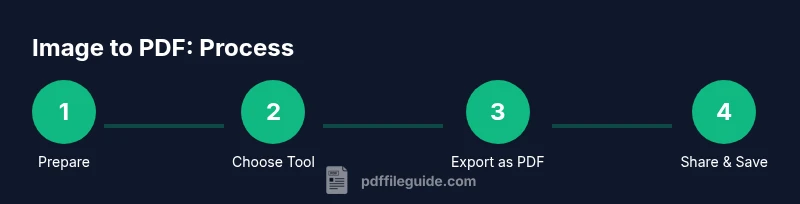
- 1
Prepare your image
Open the image and check its orientation, resolution, and color profile. If needed, crop or adjust brightness/contrast to ensure the picture prints clearly in PDF form.
Tip: Use lossless edits (e.g., crop rather than compressing) to preserve quality. - 2
Choose your conversion method
Decide whether to use Print to PDF, Save as PDF, or a dedicated converter. The method may differ by device, but the goal remains the same: create a faithful PDF from the image.
Tip: If unsure, start with the built-in Print to PDF option for speed and reliability. - 3
Configure page size and orientation
Set the page size to match the image’s aspect ratio (e.g., 4:3 or 16:9) and choose the correct orientation (portrait or landscape). This prevents unwanted borders or cropping.
Tip: A quick test print on a small page helps you confirm alignment. - 4
Export or Save as PDF
Export the image as a PDF or use Save as PDF. Pick a descriptive filename and a logical folder so you can locate it easily later.
Tip: Use a consistent naming convention across projects. - 5
If multiple images are needed, assemble first
Before exporting, arrange multiple images in the desired order. Use a viewer that supports multi-page PDFs or batch export to combine later.
Tip: Arrange by project phase to keep outputs organized. - 6
Batch conversion (optional)
For several images, consider batch processing with a free tool or app. Create a single PDF with all images in the intended order.
Tip: Test a small batch first to confirm results. - 7
Verify the final PDF
Open the PDF to confirm image integrity, margins, and readability. Check page order and ensure no unintended blank pages.
Tip: Zoom in to verify pixel-level clarity. - 8
Store and share
Move the final PDF to a secure location and share via email or cloud storage, following your organization’s data policies.
Tip: Avoid sending large attachments that may violate size limits.
Questions & Answers
Can I combine multiple pictures into a single PDF?
Yes. Most methods let you add several images to one PDF. On desktop, you can arrange images in a viewer like Preview or use a PDF printer that supports multiple pages. Mobile apps often offer a multi-image export feature.
Yes, you can combine multiple images into one PDF using built-in or free tools; just arrange them in the correct order before exporting.
Is there a difference between 'Save as PDF' and 'Print to PDF'?
Both create a PDF, but the interface and options may differ. Print to PDF emphasizes layout through the print dialog, while Save as PDF may offer direct export settings. In practice, either method yields a usable PDF for most images.
Save as PDF and Print to PDF both work; the main difference is where your export settings live.
Will converting degrade image quality?
Quality depends on the original resolution and the export settings. If you choose high resolution and minimal compression, the PDF will closely match the image. Excessive compression or resizing can reduce sharpness.
If you keep high resolution and avoid heavy compression, the image quality stays strong.
Can I convert from a smartphone without a computer?
Yes. Many smartphones have built-in options or apps that export to PDF directly from a photo. The steps are similar to desktop methods but tailored to the mobile UI.
Yes, you can convert images to PDF directly on mobile devices with built-in features or free apps.
What formats are supported for conversion to PDF?
Common image formats like JPG, PNG, TIFF, and BMP are widely supported. Some apps can handle RAW formats, but results vary depending on the tool used.
Most tools support JPG and PNG; check specific app documentation for RAW formats.
Are there accessibility concerns when sharing image PDFs?
Yes. Include descriptive captions or alt text for images when possible to aid screen readers. Ensure document structure supports navigation for better accessibility.
Yes, consider adding alt text or captions to help screen readers understand the image content.
Watch Video
Key Takeaways
- Convert with built-in tools for speed
- Maintain aspect ratio to avoid distortion
- Batch image PDFs to streamline workflows
- Check color profiles for accurate reproduction
- Verify final file before sharing