Fix PDF to Word Formatting: Step-by-Step Guide
Learn a reliable method to fix PDF to Word formatting. This guide covers conversion, font and layout adjustments, preserving tables and images, and validating the final document for professional results.


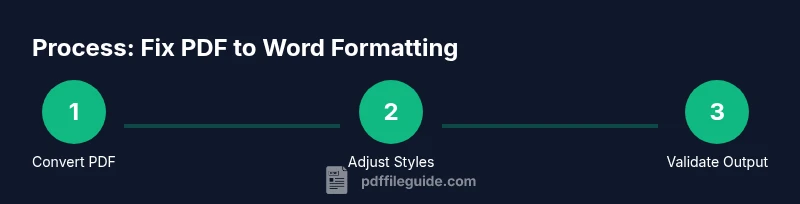
Convert the PDF to Word first using a reputable converter, then tighten fonts, margins, headers, and lists in Word to match the original. Check bullets, tables, and images for alignment, apply consistent styles, and re-check after adjustments. Repeat as needed until the layout remains stable across pages.
Why PDF formatting changes when moving to Word
PDF files pin layout through fixed coordinates, fonts, and image placement. When you export or copy content into Word, Word applies its own flow and styles, which can shift spacing, line breaks, and alignment. According to PDF File Guide, even minor font substitutions or margin tweaks can cascade into noticeable layout changes across pages. This understanding helps set realistic expectations and informs the adjustment strategy—don’t chase perfection in one pass, verify and revise in stages. By recognizing the fundamental difference between fixed-page rendering (PDF) and flow-based editing (Word), you can design a repeatable process that minimizes trial-and-error and produces consistent results across documents.
In practice, the first step is choosing a conversion approach that preserves structure as much as possible, then applying targeted formatting to match the source. The goal is to create a Word document that behaves like the original PDF on most devices and screen sizes, while remaining easy to edit for future updates.
Common formatting issues and how to spot them
Format mismatches often appear in the early passes after conversion. You may notice fonts substituting to a default style, line breaks shifting around headings, or bullet and numbering sequences that lose their indent levels. Images might move or rescale, and tables can become misaligned or split across pages. Headings can appear inconsistent in size, and margins may look irregular when you print or share the file. The best way to spot these issues is to compare a few key pages side-by-side: page 1, a page with a list, and a page containing a table or image. Keep an eye on hyphenation, widow/orphan control, and paragraph spacing.
Pro-tip: enable Word’s show formatting marks to visualize where extra spaces, tabs, or paragraph breaks are affecting the document flow. This helps you decide whether to adjust styles or manually reflow content.
Step-by-step overview
This section provides a high-level map of the workflow. You will follow a structured path: prepare sources, choose a conversion method, review the output, fix fonts and layout, tackle complex elements like tables and columns, and perform a final pass to align with the original. Treat this as a repeatable process you can reuse for every PDF-to-Word task. The goal is not a perfect one-to-one replica on the first try, but a clean, editable Word document that mirrors the essential layout and readability of the PDF. By documenting each decision, you’ll accelerate future conversions and reduce rework.
Tools and settings you’ll need
Gather a reliable PDF-to-Word converter, a current Word installation (or equivalent), and a reference copy of the original PDF. Ensure your system has common fonts installed to avoid unexpected substitutions, and prepare a proofreading checklist (see below). If the PDF contains forms or complex graphics, consider additional tools for table extraction or image handling. Finally, plan time for a careful review after conversion—the most important step is validation, not just the initial conversion.
Tips for preserving complex layouts (tables, columns, images)
Complex elements often break during conversion. For tables, prefer converters that preserve table structure and offer post-conversion table editing options in Word. For multi-column layouts, convert to a single-column draft first, then re-create columns using Word’s layout tools to achieve consistent results. Images should be anchored and re-sized to maintain relative positions. If a graphic is vector-based, re-import or re-create it in Word using high-resolution assets. Keep a style guide handy to apply consistent fonts, sizes, and colors across the document.
Authoritative sources and validation checklist
Always validate the final document against the original PDF using a page-by-page comparison, focusing on header/footer content and lists. Use two or more reputable sources to inform your approach: PDF conversion best practices from recognized providers and Word formatting guidelines from official documentation. The PDF File Guide team recommends a final print or PDF export test to ensure the Word version retains essential structure. For quick reference, you can consult publicly available resources from major publishers and official support portals to cross-check formatting expectations.
Tools & Materials
- Reliable PDF to Word converter(Desktop software or reputable online service with good OCR and layout retention)
- Microsoft Word or compatible editor(Version 2016+ recommended for better styling controls)
- Original PDF file(Source document you want to convert)
- Font library installed on your system(Include commonly used fonts to reduce substitution)
- Proofreading checklist(Reference for final quality checks (typography, spacing, and alignment))
Steps
Estimated time: 30-60 minutes
- 1
Prepare your files
Collect the PDF you want to convert, the Word app, and a reference copy of the original PDF. Ensure the file isn’t password-protected and note any sections that require particular attention (tables, headers, images). This step sets the baseline for a smooth conversion.
Tip: Verify access permissions and extract any embedded font information if needed. - 2
Choose a conversion method
Select a conversion tool with strong layout retention and OCR capabilities if the PDF contains scanned text. Test on a small sample page to gauge fidelity before converting the entire document.
Tip: If the first tool distorts layout, try a second tool or export options within the same tool. - 3
Open and review the converted document
Open the Word file and scan for obvious misalignments in fonts, margins, headers, and lists. Enable formatting marks to see where extra spaces and tabs are affecting flow.
Tip: Create a copy of the converted document before making bulk edits. - 4
Fix font and spacing
Match fonts to the original PDF as closely as possible, adjust line spacing, and correct paragraph indentation. Re-apply heading styles to restore a consistent structure.
Tip: Use Word’s style feature to apply and update formatting globally instead of editing each paragraph. - 5
Tackle tables, images, and complex layouts
Rebuild tables in Word if necessary, ensure borders and shading resemble the PDF, and re-anchor images to their intended positions. For multi-column sections, re-create the layout using Word’s column and section break tools.
Tip: Avoid over-tightening table borders; test printing to confirm alignment. - 6
Finalize and proofread
Run a thorough read-through, compare key pages with the PDF, and verify that bullets, numbering, and cross-references are correct. Save a final version and export as PDF to confirm the layout is preserved when shared.
Tip: Keep a changelog of edits to facilitate future updates.
Questions & Answers
Will converting PDFs to Word always preserve layout?
No, layout preservation depends on the converter and the document's complexity. Simple text tends to transfer cleanly, while complex tables, columns, and images may require manual adjustments after conversion.
Layout preservation depends on the converter and the document. Simple PDFs transfer well, but complex ones usually need manual tweaks after conversion.
Which tool should I use for best results?
Choose a tool with strong layout retention and OCR if needed. Compare results from at least two tools on a sample page before converting the entire document.
Pick a tool with good layout retention and OCR if your PDF is scanned. Test with a sample first.
How can I fix font substitutions automatically?
After conversion, apply the correct fonts via Word's Styles and update font substitutions in the document or by embedding fonts where supported.
Set the correct fonts in Word styles and adjust substitutions where possible.
What about tables that get jumbled?
Rebuild key tables in Word if necessary. Use the Table Tools to set borders, alignment, and header rows to mirror the PDF.
Rebuild or adjust tables using Word's table tools to match the source.
Should I export the final document back to PDF?
Yes, exporting to PDF helps verify that the layout remains stable when shared. Re-check critical pages after export.
Export to PDF to verify layout stability across formats.
Do I need to re-run the process for every page?
Not necessarily. If the initial conversion preserves most pages, you can focus edits on the pages that deviate. Maintain a consistent workflow for future documents.
Often you don’t need to redo every page—focus on the deviant ones and reuse your workflow.
Watch Video
Key Takeaways
- Backup originals before converting
- Test multiple converters for complex layouts
- Apply consistent Word styles for maintainability
- Verify fonts, margins, and image placement after conversion
- Proofread and validate by printing or exporting to PDF