How to Turn Word Doc into PDF: Step-by-Step Guide
Learn how to turn Word doc into PDF using built-in Word features, offline methods, and safe online tools, with tips to preserve layout, fonts, accessibility, and security.


To turn Word doc into PDF, use Word’s built-in Save As or Export for a fast, reliable conversion. If you print to PDF or use online tools, you can handle large files or add features like password protection or accessibility tagging. This guide covers Windows and Mac steps, plus safe online alternatives and tips to preserve layout, fonts, and images.
What gets preserved when how to turn word doc into pdf
If you’re wondering how to turn word doc into pdf, the answer hinges on preserving layout, fonts, and embedded content while ensuring the document remains faithful to the original in appearance and function. PDFs are designed to be portable, so the most important elements to verify after conversion are margins, line breaks, font substitutions, image placement, and hyperlinks. In many cases, Word's native conversion does a superb job at retaining these details, but complex documents—those with linked captions, smart art, or custom styles—may require a quick manual check and minor tweaks. By understanding what typically carries over and what can shift, you can choose the conversion method that best fits your document type. This is especially helpful when sharing with colleagues who may use different Word versions or operating systems. PDF output is widely readable across devices and platforms, which makes it ideal for final versions of reports, proposals, and forms that should look identical for every recipient.
Converting Word to PDF: core considerations
- Fonts and font embedding: If a document uses uncommon fonts, ensure they are embedded or substituted with a close match that resembles the original.
- Images and color accuracy: Check color profiles and image resolution to avoid blurry graphics.
- Hyperlinks and navigation: Ensure clickable links and a working table of contents (if present) are functional in the PDF.
- Accessibility: Tagging and reading order affect screen readers; plan to add tags if accessibility is critical.
- Size and performance: Large documents with high-resolution images may produce bigger PDFs; consider downsampling images if needed.
By aligning expectations with these factors, you’ll minimize surprises when others view your PDF.
How the conversion choices affect document fidelity
Different tools and settings impact fidelity in subtle ways. Built-in Word exports focus on preserving layout and hyperlinks but may reflow text on some devices. Printing to PDF mimics a virtual printer, which can yield better preservation of layout across platforms but might omit some Word-specific features. Online converters offer convenience for quick tasks but introduce concerns about data privacy. Understanding these trade-offs helps you select the best method for your situation.
When to prefer offline methods over online tools
For sensitive or proprietary documents, offline methods are generally preferable because you avoid uploading content to external servers. If you frequently convert documents with strict formatting, offline methods let you control the final output more precisely. For simple, fast conversions, online tools can be a practical option, provided you are comfortable with their privacy policies and terms of service. Always review the resulting PDF to confirm accuracy before distribution.
Preserving forms and interactive elements in PDFs
If your Word document contains form fields, check that they remain interactive in the PDF. Some methods support basic form fields, while others may convert them to static content. For more advanced forms, you may need a dedicated PDF editor to recreate or enhance the fields and ensure proper tab order. Always test form fillability after conversion to ensure a smooth user experience.
Troubleshooting common conversion issues
If fonts shift, images misalign, or links fail, try a different method (Save As vs. Export) or adjust the optimization settings (standard vs. minimum file size). Re-check the source document for hidden formatting marks, section breaks, or tracked changes that can alter rendering in the PDF. Finally, ensure you are using the latest Word version, as updates often improve compatibility with PDF output.
Authority sources
For further reading and official guidance, consult these sources:
- Microsoft Word: How to export or save as PDF – https://support.microsoft.com
- Adobe PDF format and best practices – https://www.adobe.com
- ISO 32000-1:2015 standard for PDF – https://www.iso.org/standard/75839.html
Tools & Materials
- Microsoft Word (Windows or macOS)(Word 2016 or newer; Office 365 subscriptions recommended for best compatibility)
- Save As / Export to PDF feature in Word(File > Save As > PDF or File > Export > Create PDF/XPS)
- Built-in PDF printer (optional)(E.g., Microsoft Print to PDF; useful if Save As/Export is unavailable)
- Adobe Acrobat Pro or another PDF editor (optional)(For advanced edits, compression, or metadata tweaks)
- Reliable internet connection (optional)(Needed only if you plan to use online converters)
Steps
Estimated time: 15-25 minutes
- 1
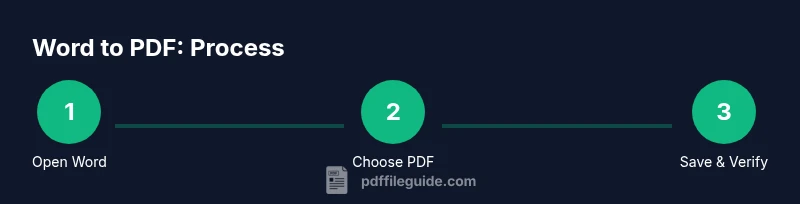
Open the Word document
Launch Word and load the document you need to convert. Save a backup copy before making changes to preserve the original content. This reduces risk if you later decide to revert edits.
Tip: Use Ctrl/Cmd+S to save frequently as you proceed. - 2
Choose the PDF conversion method in Word
Go to File > Save As to choose PDF, or use File > Export to Create PDF/XPS. Select PDF as the Save as type and review any available options such as including hyperlinks and the document structure tags.
Tip: Export typically preserves accessibility tags better than a straightforward Save As. - 3
Adjust PDF options
If available, pick between Standard (publishing online) or Minimum size (smaller file). Enable or disable hyperlinks, bookmarks, and image quality according to your needs. Decide whether to embed fonts if your document uses uncommon fonts.
Tip: For large documents with images, Standard often yields clearer results at a reasonable file size. - 4
Save the PDF to a chosen location
Choose a clear filename and a predictable folder. Avoid spaces or special characters that might cause issues in some workflows. Confirm the save action to generate the PDF file.
Tip: Note the destination path to quickly locate the file later. - 5
Verify the PDF output
Open the PDF in a reader and check layout, fonts, images, and links. Ensure table of contents and navigation work if your document includes them. Validate that form fields render correctly if present.
Tip: Use a second device or viewer to catch font or rendering issues you might miss on your primary screen. - 6
If needed, retry with an alternative method
If fidelity is off, try Print to PDF or use another tool to cross-check results. Some complex elements render differently based on the method, so testing multiple approaches can help.
Tip: When in doubt, stick to the built-in Word export for standard documents. - 7
Protect and share appropriately
If the document contains sensitive data, consider password protection or restricting permissions in the PDF. Share via secure channels and confirm that recipients can access the content.
Tip: Always minimize exposure of sensitive material when using online converters.
Questions & Answers
What is the easiest way to turn Word doc into PDF?
The simplest method is to use Word's built‑in Save As or Export to PDF. This preserves most formatting, hyperlinks, and layout without needing extra tools. For quick tasks, this is typically sufficient.
Use Word's Save As or Export to PDF for the fastest result.
Will the PDF preserve formatting and fonts?
In most cases, formatting and fonts are preserved, but rare font substitutions or layout shifts can occur. If you rely on a niche font, embed it or use a standard alternative to minimize differences.
Formatting is usually preserved, but check fonts and layout after conversion.
Can I password-protect a PDF from Word?
Yes. Word allows you to set password protection during the PDF export process, or you can add protection later with a PDF editor. Ensure you share the password securely.
Yes, you can add a password during export or with a PDF editor.
What’s the difference between Save As PDF and Print to PDF?
Save As creates a true PDF document with fixed content and metadata. Print to PDF uses a virtual printer and may yield similar results, but formatting and quality can vary by printer driver. Save As is generally more predictable for documents.
Save As is typically more predictable; Print to PDF acts like a printer.
How do I ensure accessibility in the PDF?
To improve accessibility, use Word’s features to create proper reading order and tagged structures, then export to PDF with accessibility options. For critical needs, verify with a screen reader and adjust as needed.
Make sure the PDF is tagged and tested with a screen reader.
What should I do if the PDF is too large?
Try reducing image resolution or using the Minimum size option in the export settings. If necessary, compress the PDF with a dedicated tool while preserving readability.
Reduce image quality or compress the PDF to reduce file size.
Watch Video
Key Takeaways
- Choose Save As or Export for reliable Word-to-PDF conversion.
- Verify fonts, images, and hyperlinks after export.
- Use offline methods for sensitive documents and test accessibility.
- Keep an unedited Word backup in case you need to revert.