How to Print to PDF on Mac: A Complete Guide for 2026
Learn how to print to PDF on Mac using built-in macOS tools. Step-by-step instructions, tips for quality and accessibility, troubleshooting, and best practices for archiving PDFs.


How to print to PDF on Mac is straightforward: use the built-in Print dialog from any app, click the PDF button, and choose Save as PDF. You can name the file, pick a location, and adjust options like page range, scaling, and metadata before saving. This workflow works across most macOS apps, including browsers, word processors, and image editors.
how to print to pdf on mac: built-in method and best practices
Printing to PDF on a Mac uses the built-in Print dialog found in most apps. This feature creates a faithful digital replica of your document, preserving fonts, margins, and layout. Whether you're saving a web page, a receipt, or a report, this method avoids third-party software and keeps your workflow streamlined. In this guide from PDF File Guide, we explain exactly how to use the built-in Print to PDF feature, outline common gotchas, and share tips for organized file naming and secure storage. You'll learn when to use Save as PDF, how to adjust export quality, and how to verify accessibility options so your PDFs remain usable across devices and assistive technologies. By understanding the nuances—like selecting the right page range, embedding metadata, or choosing a compatible font—you can produce professional PDFs for clients, teammates, or archival records. The steps are consistent across applications, though some apps label the option differently. Focus on the Print dialog's PDF button or Save as PDF option, then select a destination and finish with a named file.
Supported apps and the universal Print dialog
macOS provides a universal Print dialog that behaves the same across most apps. You can invoke it with Command-P or via File > Print in many programs. The dialog exposes a consistent set of options: printer selection (or the ability to print to PDF), page range, scaling, headers/footers, and quality choices. Because the PDF export path is built into the dialog itself, you don’t need separate software to generate a high-quality PDF. This consistency helps professionals save time when producing invoices, reports, or contracts from different tools.
Quick steps: print to PDF from macOS
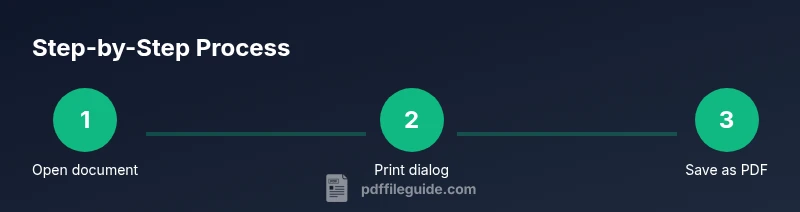
Follow these core steps to print to PDF from any supported app:
- Open the document you want to save as PDF. 2) Press Command-P to open the Print dialog. 3) In the bottom-left corner, click the PDF button. 4) Choose Save as PDF from the menu. 5) Enter a file name, select a destination folder, and add optional metadata. 6) Click Save and verify the file appears in your chosen location. If you adjust page range or scaling, preview changes before saving. These steps apply across most apps, including browsers and office suites.
Saving options: file naming, location, and metadata
A clear file name helps you locate PDFs later. Use a consistent naming convention, such as: Client_Project_Document_Date.pdf, and store PDFs in a dedicated folder structure (e.g., Documents/PDFs/Clients/2026). Consider adding metadata like title, author, and subject during export when the app supports it. Some apps expose a Checksums or Tags field; if available, fill it with a brief descriptor. If metadata isn’t exposed, you can add searchable text later by using a PDF editor or reader.
Using Preview to print or export as PDF
Preview offers robust PDF handling without third-party tools. Open the file in Preview, then use File > Export as PDF or File > Print followed by the PDF button. In Export, you can select the Quartz filter for compression, encryption, or color management, and you can password-protect the resulting PDF. Preview also allows you to combine pages from different documents into a single PDF by dragging pages within the Thumbnails view and selecting File > Export as PDF. This makes it easy to assemble reports or client deliverables in one file.
Advanced features: combining multiple PDFs, password protection, and encryption
macOS supports advanced workflows directly or via Preview and the Print dialog. To combine PDFs, open them in Preview, enable the Thumbnails pane, drag pages from one document into another, and save as a new PDF. For security, you can encrypt the PDF at export by using the Encrypt checkbox in the Export as PDF dialog or the Password option in the PDF menu, depending on your macOS version. Some apps also let you apply permissions (like printing or copying restrictions) during export. These features help protect sensitive content while maintaining accessibility.
Troubleshooting common issues
If Save as PDF is greyed out, check that the app supports exporting to PDF; some specialized apps may require a different export path. If the saved PDF contains missing fonts or layout shifts, try embedding fonts during export or choose a higher quality/print resolution. When you receive a “failed to save” error, ensure there is enough disk space in the destination folder and that the file name does not include illegal characters. If hyperlinks aren’t working, confirm that the PDF is exported with interactive elements enabled. Finally, page scaling issues can be resolved by resetting to 100% in the Print dialog.
Tips for high-quality PDFs and accessibility
To ensure professional output, embed fonts when possible and choose a high enough resolution for images (300 dpi is common for print-ready PDFs). Use descriptive document titles and add tags so assistive technologies can interpret the content. If you share frequently, consider creating a reusable export preset in the Print dialog for consistent results. Accessibility tools in macOS can audit PDFs for structure and reading order, which is especially important for long reports and forms.
Automation and shortcuts for repeated tasks
For repetitive tasks, you can automate PDF exports with macOS Shortcuts or Automator workflows. Create a shortcut that opens a document and exports it as a PDF with a predefined name and location. You can chain actions to rename files, apply basic metadata, and move PDFs to archived folders. This is ideal for regular reporting cycles or client deliveries where consistency matters and saves significant time.
Saving PDFs from the web and browsers
Browsers on macOS typically expose a Print-to-PDF option for saving web content. In Safari, Chrome, or Firefox, use Command-P to open Print, then choose Save as PDF in the PDF menu. For dynamic pages (with ads or dynamic content), check the Preview pane in the Print dialog to ensure you’re exporting the content you intend. If a site uses a lot of JavaScript-driven content, consider printing only the main article or saving a PDF snapshot of the essential sections.
Best practices for archiving PDFs
Establish a simple, scalable naming convention and folder structure, store backups in a secondary location, and maintain a short description within the file name. Password-protect sensitive documents and enable basic metadata where available. Regularly verify accessibility and readability of archived PDFs and periodically update encryption standards as needed. Documentation about your archiving process helps teams follow consistent steps.
Next steps and learning resources
Continue refining your PDF workflows with practical exercises and reference materials. The PDF File Guide team recommends practicing exports from at least three different apps (a browser, a word processor, and an image editor) to understand nuances. For deeper learning, consult official guides from Apple Support, Adobe, and browser-specific help pages, then apply best practices to your own projects.
Tools & Materials
- Mac computer with macOS Print-to-PDF support(Any modern Mac capability that includes the built-in Print dialog.)
- Document to print (PDF, DOCX, image, web page, etc.)(Have a sample file ready for export so you can follow steps precisely.)
- Destination folder for saved PDFs(Choose a clear, organized location (e.g., Documents/PDFs/Exports).)
- Optional: password or encryption capability(If you need to protect the PDF, ensure you use a password-protect option.)
Steps
Estimated time: 15-25 minutes
- 1
Open the document you want to print
Launch the app and load the content you intend to save as a PDF. Verify that margins, fonts, and layout look correct before exporting. This minimizes the need for re-exporting later.
Tip: Preview the document at 100% zoom to catch layout issues early. - 2
Open the Print dialog
Use Command-P to access the Print dialog, or choose File > Print in the app. The Print dialog is your gateway to saving as PDF in macOS.
Tip: If you don’t see the PDF button, switch to a different app tab or ensure you’re in a standard print-capable view. - 3
Click the PDF button in the Print dialog
Click the PDF drop-down in the lower-left corner to reveal export options. Select Save as PDF to begin the export workflow.
Tip: If Save as PDF isn’t visible, try exporting from the app’s menu instead of the Print dialog. - 4
Name the file and choose a save location
Enter a descriptive file name and pick a destination folder. Organize by project or client to simplify future retrieval.
Tip: Avoid spaces and special characters; use underscores or hyphens for compatibility. - 5
Add optional metadata and settings
If your app supports metadata, fill in Title, Author, and Subject. Check any available options for embedding fonts or image quality.
Tip: Embedding fonts helps preserve appearance across devices but may increase file size slightly. - 6
Save and verify the PDF
Click Save and then open the resulting file to confirm layout, links, and text are intact. If issues appear, re-export with adjusted options.
Tip: If hyperlinks are essential, test a few links to ensure they work correctly in the saved PDF. - 7
Optional: password-protect or encrypt
If you need to restrict access, choose Encrypt or Password-protect in the export dialog (where available) and set a strong password.
Tip: Store the password securely; do not embed it in the file name. - 8
Automate for repeated tasks
If you export PDFs frequently, create a macOS Shortcut or Automator workflow to repeat steps with a single trigger.
Tip: Test your automation with a small sample to ensure reliability.
Questions & Answers
Is printing to PDF available in all apps on macOS?
Most apps on macOS support the built-in Print dialog, including browsers, office apps, and image editors. Some specialized software may use a different export path, but the Print to PDF option is widely available.
Most macOS apps have a built-in Print to PDF feature. If you don’t see it in a specific program, try Print, then check the PDF menu, or export from the app’s own menu.
Can I password-protect a PDF exported from macOS?
Yes, many macOS apps offer an Encrypt or Password option during Export as PDF. This ensures only people with the password can open the file.
Yes, you can password-protect PDFs during export in compatible apps. Make sure you remember the password.
What should I do if the PDF export looks clipped or misformatted?
Check the print settings for page scaling and margins. Export at 100% scale and consider printing to PDF from a different app if issues persist.
If a PDF looks off, adjust scaling to 100% and re-export. Sometimes a different app handles page layout better.
How can I merge multiple documents into one PDF on Mac?
Open one PDF in Preview, enable Thumbnails, then drag pages from other PDFs into the thumbnail pane and save as a new file.
You can merge PDFs in Preview by arranging pages in the sidebar and saving a new document.
Does exporting to PDF preserve hyperlinks?
Yes, when exporting from supported apps, hyperlinks in the source document are typically preserved in the resulting PDF.
Most exports keep clickable links, but verify them after saving.
Where can I learn more about PDF accessibility and tagging?
Look for PDFs that include proper tagging and reading order. Apple Support and Adobe’s guides contain accessibility best practices.
Check official guides from Apple and Adobe for accessibility tips and best practices.
Watch Video
Key Takeaways
- Save frequently with clear, organized naming.
- Leverage the built-in Print dialog for universal PDF export.
- Enhance accessibility via tagging and metadata.
- Protect sensitive documents with encryption when needed.