How to Compress PDF on Mac: A Step-by-Step Guide
Learn step-by-step methods to shrink PDF files on macOS using Preview, Print, Automator, and trusted third-party tools while preserving readability and metadata.


You can compress a PDF on Mac using built-in tools like Preview with Quartz Filters, or by exporting via the Print dialog, and by automating processes with Automator. This guide also covers trusted third‑party apps and best practices to preserve readability while shrinking file size. According to PDF File Guide, choosing the right method depends on file content and desired quality.
Why compress PDFs on Mac
Cutting down PDF file sizes is often essential for sharing, emailing, or archiving documents. On a Mac, compressing PDFs helps reduce file sizes without always sacrificing readability, making attachments lighter and pages quicker to load. According to PDF File Guide, using the right combination of macOS tools and careful settings can reduce file size while keeping the document usable. Before you begin, decide whether you must preserve high-resolution images or if a modest drop in image quality is acceptable for distribution. This helps determine which method to use and how aggressively to compress. In practice, a typical workflow combines built-in capabilities with targeted adjustments to image quality and font embedding, reducing the need to turn to external services. The goal is to make attachments lighter and easier to share, without introducing surprises for the reader, such as blurred figures or illegible text.
Built-in macOS option: Preview with Quartz Filter
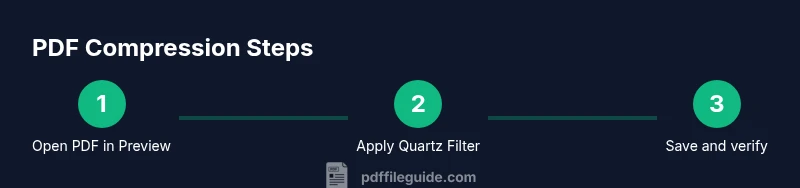
Preview is the fastest starting point for many Mac users. To compress a PDF with Preview, open the file and select File > Export (or File > Save As in some versions). In the dialog, pick a Quartz Filter—usually Reduce File Size—and save with a new name to keep the original intact. The filter lowers image fidelity and can compress embedded fonts, which is why you should compare the before and after. If the document mainly contains text, you may notice a more favorable balance between size and readability. When this option isn’t available, try the next built-in route or test a batch workflow via Automator. Remember to keep a backup and label the compressed version clearly.
Using the Print dialog to Save as PDF
Another native route is through the macOS Print dialog. With the PDF button in the lower-left corner, you can select Save as PDF and, in many apps, apply a Quartz Filter from the Filter menu. Choose Reduce File Size and save the file to a new location. This method can yield different compression results than Preview, depending on the app and macOS version. It’s particularly useful when exporting from applications that don’t expose an Export option. As with other approaches, create a separate copy of the original so you can revert if needed.
Automator quick actions for batch compression
For recurring tasks or a shared workflow, Automator can apply a compression filter to many PDFs at once. Create a Quick Action that takes PDF files as input, uses the Reduce File Size Quartz Filter, and outputs the compressed documents to a designated folder. The automation reduces manual clicks and ensures consistency across documents. If you’re new to Automator, start with a simple three-step workflow: get Finder items, apply Quartz Filter, and save to a chosen destination. Test with a small batch before running large folders. This approach works well for teams that regularly send compressed PDFs.
Evaluating third-party compression tools
When built-in options don’t meet your needs, third-party tools can provide finer control over downsampling, font embedding, and metadata retention. Look for an app that lets you adjust image DPI, preserve vector content when possible, and retain accessibility tags. Before installing, check privacy policies and whether the tool processes files locally or in the cloud. If your documents contain sensitive information, prioritize offline solutions and review how compressed files perform on different devices. A careful comparison can reveal which tool best balances size reduction with document integrity.
How to balance quality and size: best practices
Compression succeeds when you balance file size against readability. Always keep a backup of the original before you start. Compress in stages: first try Preview, then experiment with Print-based export or Automator for batch work. For image-heavy PDFs, downsampling resolution to a practical level (for screen viewing) often yields meaningful size reductions without sacrificing legibility. Check fonts and color spaces; avoiding unnecessary font embedding can help, but ensure you retain necessary accessibility features. Finally, document your chosen settings, so teammates understand the compression baseline for future shares.
Maintaining metadata and accessibility after compression
Compression can sometimes strip metadata or tags that support screen readers and searchability. After compressing, verify core properties (title, author, subject), bookmarks, and metadata. If the PDF includes accessibility tags or form fields, re-check that they still work and that text remains selectable. If you rely on search within the document, test a few keywords. When sharing publicly, consider regenerating a simple accessibility check to ensure assistive technologies can interact with the content. Keeping a small checklist helps you avoid friction during distribution.
Common mistakes and how to avoid them
Avoid applying compression across the board without testing; the results can vary by page. Do not rely solely on a single method—combine Preview, Print, and Automator to compare outcomes. Always back up the original and label compressed files clearly. Don’t forget to test color accuracy and legibility on different devices or screens. Finally, remember that some PDFs contain vector graphics that compress poorly with generic filters, so targeted adjustments may be necessary.
Practical testing steps after compression
After compressing, take a few minutes to validate the result. Open the compressed file and search for representative terms to confirm text remains selectable. Scroll through pages to inspect image clarity and legibility, and zoom in on complex figures to confirm readability. Print a sample page to catch any issues with layout or color. If the original included interactive elements or forms, test those features as well. If you notice problems, revert to the backup and adjust your approach before sharing widely.
Tools & Materials
- Mac computer running macOS 11+(Ensure you have access to Preview and Print dialogs)
- Preview app (built-in)(Used for Quartz Filter-based compression)
- Quartz Filter presets (Reduce File Size)(Accessible in Export or Print dialogs)
- Print dialog access(Useful for applying Quartz Filter during export)
- Automator app (optional)(For batch or automated compression workflows)
- Backup copy of original PDFs(Always keep the uncompressed file)
- Third-party PDF compressor (optional)(For finer control over downsampling and metadata)
Steps
Estimated time: 25-45 minutes
- 1
Open the PDF in Preview
Launch Preview and open the target PDF using File > Open or by dragging the file into Preview. Opening the document in a familiar editor helps you quickly assess image-heavy areas versus text-heavy pages. This initial check guides your compression approach.
Tip: Use Command+O for a quick open. - 2
Export with Quartz Filter
Go to File > Export and choose a destination. In the Format dropdown, select PDF and in Quartz Filter choose Reduce File Size. Saving under a new name preserves the original file for comparison.
Tip: Always compare the compressed file with the original to gauge quality loss. - 3
Save as a new file
Name the compressed version descriptively (e.g., Project_Proposal_v2.pdf) and store it in a dedicated folder. Keeping originals intact minimizes risk if you need to revert.
Tip: Use clear naming conventions to help teammates identify versions. - 4
Compare before/after quality
Open both files side by side and zoom into images, graphs, and fonts. If readability suffers, consider a partial re-compression (e.g., only image-heavy pages) or try a different method.
Tip: Check color accuracy and edge details in figures. - 5
Print dialog pathway (optional)
If you want to experiment further, use File > Print, then click the PDF button and select Save as PDF. Apply the same Quartz Filter if available and save a new copy.
Tip: This path can yield different results from Export; testing is key. - 6
Set up Automator for batch compression
Open Automator and create a Quick Action that accepts PDF files, applies the Reduce File Size filter, and saves to a chosen folder. Keep the action simple at first and test with a small batch.
Tip: Label the action clearly so it’s reusable for future documents. - 7
Test the Automator workflow on a small batch
Run the Quick Action on 3–5 PDFs to verify consistency. Review each output for quality and metadata preservation. If any file has issues, refine filters or revert to the original.
Tip: Start with non-critical files to avoid workflow mistakes. - 8
Batch compress a folder (advanced)
For larger tasks, expand the Automator action to process a whole folder, ensuring the destination folder is clearly named. This step saves time for ongoing projects.
Tip: Monitor the destination to catch any errors early. - 9
Finalize and archive originals
After you’re satisfied with the results, archive the original PDFs in a separate folder or drive. Document the chosen method and settings as a reference for future compressions.
Tip: Regular backups prevent accidental data loss.
Questions & Answers
Can I compress PDFs on Mac for free?
Yes. macOS includes built-in options in Preview and the Print dialog that can reduce PDF sizes without additional software. These tools are free and readily accessible.
Yes. You can compress PDFs on Mac using built-in tools like Preview and the Print dialog, without paying for extra software.
Will compression affect readability or image quality?
Compression can reduce image quality or font fidelity if you push the settings too far. Always compare the compressed output to the original to ensure important details remain legible.
Yes, compression can affect readability if overdone. Always compare the before and after.
Can I compress multiple PDFs at once?
Yes. Automator allows batch compression by applying a Quartz Filter to a folder full of PDFs, enabling consistent results with minimal manual steps.
Yes. Use Automator to batch-compress many PDFs at once.
Is Preview better than third‑party tools for compression?
Preview is quick and convenient for simple cases, but third‑party tools offer finer control over image downsampling, fonts, and metadata for complex documents.
Preview is fastest for easy cases; third‑party tools give more control for complex files.
How should I verify a compressed PDF?
Open the compressed file, check text search, zoom into images, and confirm that bookmarks and interactive elements still work. If problems arise, revert to the original and try an alternate method.
Open the file, test search and visuals, and verify interactive elements work.
What metadata should I preserve after compression?
Preserve core properties like title, author, and subject, along with bookmarks if present. Some tools may strip metadata, so recheck after processing.
Keep essential metadata and bookmarks if possible; verify after compression.
Watch Video
Key Takeaways
- Choose Preview for quick, simple compression.
- Use Automator for repeatable batch work.
- Always back up originals before compressing.
- Test readability and metadata after compression.