How to Put PDF in Google Docs: A Complete Guide
A practical guide for placing PDFs in Google Docs, covering conversion to editable text, inserting references, OCR steps, and best practices for collaboration.


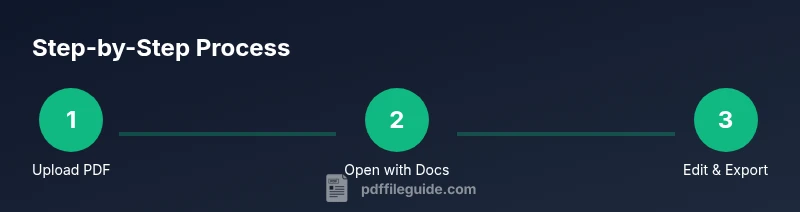
To put a PDF in Google Docs, you can either convert the file to a Google Docs document or insert it as a reference. First, upload the PDF to Google Drive and open it with Google Docs to enable editing. If you only need to reference content, insert a link or a page image instead of converting.
Overview: how to put a pdf in google docs
If you’re collaborating on documents and need to put a PDF in Google Docs, you have two practical paths: convert the PDF into an editable Google Docs document, or keep the PDF as a reference and embed it into a larger Docs file. Both approaches have trade-offs in accuracy, formatting, and ease of sharing. The decision depends on your goal: editable text or preserved layout. When you ask how to put a pdf in google docs, the best practice is to decide whether you need editable text or a static reference, then pick the method that minimizes rework. In this guide, the PDF File Guide team walks through the common workflows, highlighting OCR needs for scans, how to manage fonts and tables, and how to export the final result for distribution. By following these steps, you’ll save time and reduce formatting headaches during collaboration.
Preparing your PDF for conversion
Before you convert, assess whether your PDF is text-based or image-based. Text-based PDFs usually convert with minimal cleanup, while image-based PDFs (scans) require OCR to extract readable text. If your document contains complex layouts—columns, tables, or embedded images—expect some adjustment after conversion. Ensure fonts used in the PDF are common, or be prepared for substitution after the conversion, which can affect readability. For scanned PDFs, OCR matters: choose an OCR language that matches the document and review the extracted text for accuracy. The aim is to maximize fidelity while minimizing manual re-entry. If you’re unsure, start with a small page and test the conversion before processing the entire document. This stage sets the foundation for a smoother editing experience in Google Docs.
Step 1: Upload the PDF to Google Drive
Start by uploading your PDF to Google Drive. In Drive, click New > File upload and select the PDF file. After the upload finishes, locate the file in Drive, and avoid renaming it in a way that hides the original extension. Keeping the original file name helps you track versions later. If you plan to convert, you’ll open this file with Google Docs from within Drive. The goal of this step is to prepare a clean source file for the conversion process and to ensure you have a fallback copy in case the conversion doesn’t meet your needs.
Step 2: Open with Google Docs to convert
Right-click the PDF in Google Drive and choose Open with > Google Docs. Google Docs will create a new document containing the converted text and imagery. If the PDF is image-based, OCR will be applied automatically to extract text where possible. Review the converted content for misread characters, missing headings, and misaligned tables. Depending on the original, you may see page breaks and column shifts that require manual reflow. Save frequently while correcting formatting so you don’t lose changes.
Step 3: Edit and adjust formatting in Google Docs
After conversion, focus on readability and structure. Apply heading styles to recreate the document’s outline, adjust font sizes, and reposition images so they sit logically with the text. Tables may appear as plain text or misplaced cells; you’ll need to reconstruct them using Google Docs’ table tools. If you spot inconsistent bullet points or hyphenation, fix these to ensure a clean, professional document. Remember to use the built-in review features to track changes and capture comments for collaborators.
Step 4: Export or save as Google Docs or PDF
When your editing is complete, decide how to save and share. If you want to preserve editability, keep the file as a Google Docs document and share via Drive permissions. If you must deliver a PDF, download the file as PDF by selecting File > Download > PDF Document (.pdf). You can also export back to other formats like Word or plain text, depending on downstream needs. Maintaining both a Google Docs version and a PDF backup helps teams stay flexible.
Alternative: Insert PDF as a reference in a Google Docs document
If your goal is to reference content without converting, you can insert a link or an image of the first page into a Google Docs document. To insert a link, copy the Drive shareable link and paste it into your Doc. To insert the first-page image, open the PDF in Drive and save a thumbnail, then insert it via Insert > Image > Drive. This approach keeps the original PDF intact while still giving readers quick access to the content.
Handling scanned PDFs and OCR
For scanned PDFs, the quality of OCR is crucial. If the scan is blurry or uneven, text extraction may produce errors that require manual correction. Always run spell-check and proofread the converted document. When language or font complexity increases, consider using a dedicated OCR tool to pre-process the PDF before uploading, and then re-run the conversion in Google Docs. If you frequently work with scans, build a small workflow that preserves a clean image or provides a reliable OCR source.
Troubleshooting, tips, and a quick decision guide
If conversion yields heavy formatting loss, revert to the reference method for a while and plan a separate document that consolidates content. For long PDFs, extract sections progressively to manage edits in smaller chunks. Always test with a representative sample page before processing the entire file. Finally, keep archives of the original PDF and the converted Docs version to compare changes over time.
Tools & Materials
- Google account with Drive access(Needed to upload, convert, and store PDFs in Google Docs)
- PDF file(The file you want to convert or reference)
- Computer or mobile device with internet(Access to Drive and Docs)
- OCR capability (optional)(Improve text extraction for image-based PDFs)
- Optional: pre-processing software(Can enhance scans before uploading (contrast, despeckling))
Steps
Estimated time: 15-30 minutes
- 1
Prepare your PDF and choose a method
Decide whether you need editable text or a static reference, then proceed with the appropriate method. This upfront decision shapes your workflow and saves time later.
Tip: If the document is mostly text, conversion is usually best; if it’s a designed brochure, reference might be easier. - 2
Upload the PDF to Google Drive
Upload the file to a safe location in Drive so you can access it from anywhere. Keep the original file name to track versions later.
Tip: Use a clear, versioned file name for easy retrieval. - 3
Open with Google Docs to convert
From Drive, use Open with > Google Docs to start the conversion. OCR will apply automatically for scans where available.
Tip: Review the first page to gauge overall fidelity before converting the entire document. - 4
Edit and adjust formatting
Format headings, adjust fonts, and realign images. Rebuild any complex tables to ensure readability and accuracy.
Tip: Utilize styles for consistency and enable Track Changes if collaborating. - 5
Export or save as Google Docs or PDF
Decide whether to keep editing in Docs or export to PDF for distribution. Use Download > PDF Document to share a finished file.
Tip: Keep both formats available for maximum flexibility. - 6
Insert as reference if needed
If you don’t need editing, insert a link or the first-page image to reference content within a Docs file.
Tip: Links stay dynamic; the original PDF remains in Drive. - 7
Share and manage access
Configure Drive permissions to control who can view, comment, or edit. Use version history to track changes.
Tip: Grant the minimum necessary access to maintain document integrity.
Questions & Answers
Can Google Docs edit a PDF directly?
Google Docs can convert a PDF to an editable document, but results vary and formatting may require cleanup. It’s best for text-heavy PDFs.
Google Docs can turn PDFs into editable text, but you may need to fix formatting afterward.
Will conversion preserve formatting?
Conversion preserves many elements but often shifts fonts and table layouts. Complex layouts may need manual reflow.
Formatting may change after conversion; plan for some cleanup.
What if the PDF is scanned?
For scanned PDFs, enable OCR during or after conversion to extract text. The accuracy depends on the scan quality.
OCR helps with scanned PDFs, but results can vary.
Can I edit after converting if the PDF has columns or images?
Yes, but you may need to reflow text and reinsert images. Tables often require reformatting.
You can edit, but expect extra formatting work for complex content.
How do I add the PDF back as a PDF after editing?
In Google Docs, use File > Download > PDF Document to export the edited file as a PDF.
Export the document as a PDF when you’re done.
Is it safe to share converted docs?
Share with intended collaborators and use permission settings in Drive. Keep original PDFs separate if needed.
Share with the right people and set permissions.
Watch Video
Key Takeaways
- Choose convert for editable text when formatting is manageable
- Use OCR for scanned PDFs to extract text effectively
- Insert as a link or image for quick reference without losing the original PDF
- Review and adjust formatting after conversion for readability
- Export to PDF if you need a shareable, non-editable version