How to Use the Microsoft PDF to Word Converter
Learn how to convert PDFs to Word using Microsoft Word and best-practice tips from PDF File Guide. This educational how-to covers built-in conversion, limitations, OCR considerations, and polishing techniques for 2026.


Microsoft Word provides a built-in way to convert PDF files by opening a PDF in Word, which converts it to an editable document. Save the result as a Word (.docx) file. The accuracy depends on the PDF’s layout and fonts; simple PDFs convert cleanly, but complex formatting may require edits afterward. This guide from PDF File Guide walks you through the steps.
Why conversion quality varies across PDFs
When you convert a PDF to Word, the result depends on how the PDF was created. Word's built-in converter does a good job with text, fonts, and simple layouts, but it can struggle with intricate formatting, multi-column pages, or scanned images. According to PDF File Guide, the conversion quality largely mirrors the PDF's structure: text-heavy, searchable PDFs typically translate cleanly, while documents with unusual fonts or embedded graphics often require manual cleanup. In 2026, the PDF File Guide Analysis notes that many professionals rely on Word’s converter as a first pass, then use dedicated tools for final polishing. The takeaway is to start with a simple document, expect some tweaks, and test the result in Word across devices to ensure the layout holds.
How Microsoft Word's built-in converter works
Microsoft Word treats a PDF as a static document and attempts to recreate editable text, images, and basic formatting when you open the file. The process is triggered by File > Open and selecting the PDF; Word then performs a best-effort reconstruction into a .docx. The engine relies on embedded fonts, text boxes, and the original page flow, so results vary with document complexity. For many standard forms, letters, and reports, the outcome is sufficiently accurate for quick edits and note-taking. For highly styled brochures or PDFs with complex tables, images that span columns, or unusual color treatments, expect some rearrangement and manual tweaks after conversion. Remember that any non-text elements—scans, screenshots, or vector art—may not translate cleanly and often require re-creation or replacement in Word.
When to use the built-in converter vs alternative tools
Use Word’s converter for simple, text-driven PDFs, quick edits, or when you don’t want to install extra software. If your document includes heavy tables, intricate formatting, or nonstandard fonts, you may benefit from dedicated PDF tools like full-featured editors or OCR-capable apps. In practice, many teams use Word for a first pass and then rely on Acrobat Pro or other editors for final polishing. This approach minimizes workflow disruption while preserving essential content. PDF File Guide's insights suggest a staged approach: start with Word, assess results, and pick a fallback option only if needed.
Preparing your PDF for smoother conversion
Before converting, ensure the PDF is text-based and not just a scan. If you have a scanned document, run OCR to create real text; otherwise, the converter may produce garbled output. Confirm fonts are embedded or available on your system, as missing fonts can cause spacing shifts. Remove excessive layers, complex forms, or encrypted content that might hinder Word’s parsing. If possible, export a clean copy or preflight the PDF to reduce surprises. By taking these steps, you help Word reconstruct paragraphs, headings, and bullets more reliably, speeding up subsequent editing.
Optimizing for tables, images, and fonts
Tables often lose their structure in conversion. If Word reconstructs a table, verify borders, headers, and merged cells. For images, Word places images where it finds them; you may need to resize or rewrap text. Font handling is critical: if the original uses a nonstandard font, Word may substitute a similar font, affecting spacing. To mitigate, prefer PDFs with standard fonts (e.g., Arial, Times New Roman) and avoid embedded fonts that aren’t installed. After conversion, inspect each page for repeat headers and footers, and adjust margins to preserve readability.
OCR and image-based PDFs: implications
PDFs created from scans rely on optical character recognition (OCR) to turn images into editable text. Word’s converter can handle some OCR content if the PDF includes embedded text layers, but true OCR results benefit from specialized OCR software or using Word after an OCR pass. If you routinely receive scanned documents, consider investing in a dedicated OCR tool to streamline the workflow, then re-run the conversion in Word. This approach reduces manual retyping while preserving layout fidelity.
Common troubleshooting and fixes
If Word seems to misplace headings, lists, or columns after conversion, try reflowing text using Word styles rather than manual spaces. Word doesn’t expose many options; editing remains the fastest fix. For tables, re-create headings or merge cells as needed. If images appear cropped, adjust layout options and wrap text; removing extra whitespace reduces awkward spacing. Finally, compare the converted document against the original PDF to identify gaps and plan targeted edits.
A quick workflow: convert, edit, and verify in Word
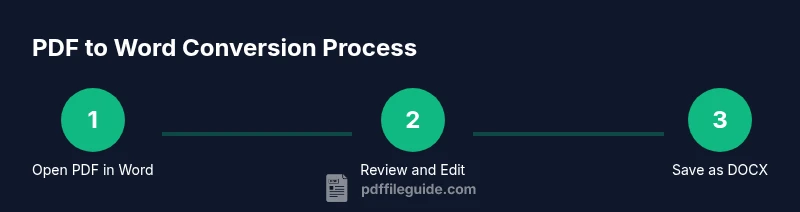
Start with a backup copy of the PDF. Open Word, choose File > Open, select the PDF. Review the Word document for obvious layout gaps. Use Styles to re-create headings and bullet lists. Reinsert images where necessary and adjust captions. Save as a .docx file. Open the docx on another device or share with a colleague to check cross-device fidelity.
Advanced options: using cloud-based converters or alternative apps
While Word can handle many PDFs, for heavy-duty conversion or multi-column documents, cloud-based tools and full-feature editors offer advanced controls. Tools like dedicated PDF-to-Word converters provide layout-preserving options, batch processing, and better table support. If your workflow requires high fidelity, evaluate trial options and compare results with Word's outputs. PDF File Guide suggests testing multiple options to identify your preferred balance of accuracy, speed, and cost.
When to switch to professional tools for complex PDFs
In rare cases, when the document contains long tables, complex multi-column layouts, or strict formatting for legal or academic purposes, Word’s converter may not meet requirements. In such situations, consider professional PDF editors or conversion suites that offer more granular control over fonts, spacing, and embedded graphics. Start with a pilot with a representative page set to evaluate fidelity before committing to a full-scale conversion.
Final checks before sharing your Word document
Do a final read to catch typos, verify headings, and ensure consistent font usage. Check margins, page breaks, and image placement, then save a final version as both DOCX and PDF if needed for distribution. If you need to share with colleagues, run a quick cross-device check to confirm that the layout holds across platforms. Keeping a versioned archive of the original PDF along with the converted Word file helps with auditing and future updates.
Tools & Materials
- Microsoft Word (2019 or Microsoft 365)(Ensure it’s updated to the latest build)
- Source PDF file(Unencrypted and accessible)
- Backup copy of the original PDF(Keep a pristine copy for reference)
- Optional OCR software for image-based PDFs(Use if you routinely work with scans)
- Reliable internet connection(Needed for online tools or updates)
Steps
Estimated time: 30-60 minutes
- 1
Back up the original PDF
Create a secure backup of the original PDF before starting. This protects you if the conversion introduces formatting changes or data loss. Store the backup in a separate folder and name it clearly.
Tip: Keep the backup unmodified for reference. - 2
Open PDF in Word to trigger conversion
Open Word, go to File > Open, and select the PDF. Word will automatically attempt to convert the PDF into an editable document. Review any prompts and proceed.
Tip: Close other applications to ensure the file loads cleanly. - 3
Review converted document
Scan for obvious layout issues, misaligned headings, broken lists, or missing elements. Mark sections that require reformatting so you can tackle them efficiently later.
Tip: Use the Navigation pane to jump between headings. - 4
Apply Styles to headings and lists
Re-create document structure using Word Styles for headings, subheadings, and lists. This makes the document easier to edit and improves consistency.
Tip: Consistent Styles help with table of contents and accessibility. - 5
Fix tables and images
Reformat tables to restore borders and headers; adjust image size and text wrapping as needed. Ensure captions remain accurate and aligned with content.
Tip: Use Table Tools to refine borders and shading. - 6
Save as DOCX
Save the edited document as a Word file (.docx). If backward compatibility is needed, you can also save as .doc.
Tip: Choose a descriptive file name including a date/version. - 7
Verify on another device
Open the converted file on a different computer or device to confirm layout consistency and clean rendering.
Tip: Check fonts, margins, and image placement on multiple screens.
Questions & Answers
Can Microsoft Word convert any PDF to Word?
Word can convert many PDFs, but not every. Text-based PDFs convert well, while complex layouts may require manual edits or alternative tools.
Yes, Word handles many PDFs, especially text-based ones, but heavy formatting may need manual edits.
Does the formatting stay the same after conversion?
Formatting retention varies by document. Simple PDFs often retain structure; complex layouts may require reformatting.
Formatting can change; plan for some tweaks with complex layouts.
What about scanned PDFs?
Scanned PDFs usually require OCR before conversion. Word’s built-in converter can struggle without OCR.
For scans, use OCR first, then convert in Word for better results.
How do I save the converted file?
After conversion, use File > Save As to choose .docx. If needed, save also as .doc for compatibility.
Save as DOCX, with an optional legacy format if required.
Are there limitations with tables?
Tables and multi-column layouts may not translate perfectly; you may need to reformat cells and adjust borders.
Tables often need manual adjustment after conversion.
What about alternatives to Word’s converter?
For complex PDFs, consider dedicated PDF editors or OCR-enabled converters for greater control.
Yes, other tools can offer more control for complex PDFs.
Watch Video
Key Takeaways
- Try Word first for quick conversions.
- Expect layout tweaks for complex PDFs.
- Prepare PDFs to improve fidelity.
- Review and refine formatting after conversion.
- Choose dedicated tools for highly formatted documents.