MS Word to PDF Converter: A Complete How-To Guide
Learn how to convert Word documents to PDF with a reliable MS Word to PDF converter. This guide covers built-in options, free tools, best practices, and tips to preserve formatting, accessibility, and security.


The goal is to convert Word documents into reliable, properly formatted PDFs using a MS Word to PDF converter. You can use Word's built-in Export feature or choose a trusted third-party tool depending on volume, security needs, and accessibility requirements. This guide covers built-in methods, free options, and best practices for clean, shareable PDFs.
Why a Word to PDF Converter Matters
In professional environments, converting Word documents to PDF ensures consistent formatting across platforms, preserves fonts and layouts, and makes sharing easier. A reliable MS Word to PDF converter is essential for workflows that require archiving, client delivery, or printing. The PDF File Guide team emphasizes choosing tools that respect document fidelity, ensure accessibility, and support batch processing when needed. Real-world scenarios include contract templates, reports, and proposals that must look the same for every recipient.
Built-in Word Export: Step-by-Step (Word 365/2019)
Microsoft Word includes a built-in option to export or save as PDF. In most versions, go to File > Save As, then select PDF as the file type. Check the 'Best for printing' or 'Standard (publishing online and printing)' options for fidelity. If your document contains complex tables or images, test a sample first to adjust image quality settings. After saving, open the PDF to verify layout, links, and fonts. For accessibility, use the 'Set Tags' option if available.
Tip: Use a short filename without special characters to avoid export issues. Always preview the PDF to confirm that headers, footnotes, and captions align with the Word source.
Using Free Online Tools vs Desktop Apps
Online converters can be convenient for quick tasks, but they require uploading content to a third party. Desktop apps or Word itself offer more control and privacy. When choosing an online tool, review privacy policies, avoid sensitive data, and consider temporary usage. For batch tasks, desktop applications or scripts can automate conversions, reducing manual steps and errors. If your workspace restricts data leaving your network, favor offline methods or trusted on-premise solutions.
Pro tip: Before using an online tool, read user reviews and verify encryption standards to minimize exposure.
Best Practices for Preserving Layout, Fonts, and Images
To maintain fidelity, ensure fonts used in Word are embedded or substituted with similar fonts. Avoid complex fonts and heavy graphics. Check image resolution and compression settings before exporting. Use table styles that translate well to PDF. If a document includes footnotes or cross-references, verify they appear correctly in the PDF. Consider exporting with high-quality print settings for doc-ready files. When fonts aren’t embedded, PDF viewers may substitute fonts, altering spacing and alignment.
Tip: Convert a small sample page first to validate font embedding and image quality before processing entire documents.
Accessibility and Security Considerations
PDFs should be accessible to screen readers; use built-in Word to tag headings and lists before exporting. After generating the PDF, run a quick accessibility check and add a document structure outline. For security, apply password protection or restrictions only when necessary, and ensure that sensitive information is redacted or removed before sharing. When distributing publicly, choose appropriate permissions and consider adding a readable text layer to scanned or image-based content.
Note: Always balance accessibility with security; avoid disabling essential accessibility features for the sake of convenience.
Handling Hyperlinks, Bookmarks, and Interactive Elements
Hyperlinks in the Word document usually carry over to the PDF; bookmarks can be auto-generated from Word headings or manually added post-export. After exporting, open the PDF in a reader to test links and bookmarks; adjust heading styles to ensure correct bookmark levels. If your document contains forms, test fields in PDF readers for proper tab order and font visibility. For long documents, consider adding a table of contents with clickable entries for easy navigation.
Batch Conversion Strategies for Teams and Projects
For teams handling many Word documents, batch conversion saves time and maintains consistency. Use macro-enabled workflows in Word to export multiple files, or leverage Power Automate/PowerShell scripts for automated processing. Desktop tools often provide queueing, scheduling, and error reporting for large jobs. When using cloud-based tools, ensure proper data governance and access controls to protect sensitive materials.
Pro-tip: Create a small pilot batch to validate settings before running large-scale conversions; document the exact options used for repeatability.
Troubleshooting Common Issues
If fonts appear incorrect after export, verify font embedding options and substitute fonts if necessary. If images appear blurry or missing, check image compression settings and ensure images aren’t linked rather than embedded. Broken hyperlinks usually result from export settings or obvious formatting changes; re-check links and re-export. For accessibility, ensure headings, alt text, and tag structures are correctly applied before exporting. Finally, if a PDF won’t open, verify file integrity and use a trusted viewer.
Quick Validation and Repeatable Workflows
After every conversion, validate critical aspects: font fidelity, image quality, hyperlink functionality, and accessibility tags. Maintain a repeatable workflow by documenting the exact Word version, export settings, and any third-party tools used. For frequent tasks, save a preset export profile and share it with teammates to ensure consistency across documents. Regularly review the latest Word updates and converter recommendations to optimize quality.
Tools & Materials
- Microsoft Word (Office 2019 or Microsoft 365)(Ensure you have the latest updates for best export fidelity to PDF.)
- Computer with internet access(Needed for online converters or cloud features)
- Web browser(For accessing online converters and reference guides)
- Trusted third-party Word-to-PDF converter (optional)(Choose reputable tools for batch or advanced options)
- PDF reader or editor for verification(Validate links, bookmarks, and accessibility)
- Privacy/compliance guidelines (for sensitive documents)(Have a policy for handling confidential content)
Steps
Estimated time: Estimated total time: 15-25 minutes
- 1
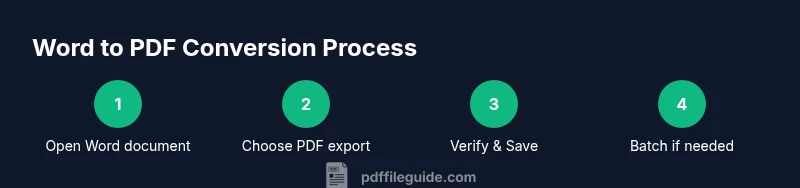
Open the Word document
Launch Word and load the document you want to convert. Confirm that formatting, fonts, and images look correct in the editor before exporting.
Tip: Working from a clean, final version minimizes rework. - 2
Access Save As or Export
Navigate to File > Save As or File > Export to locate PDF options. This path is where you specify the output format.
Tip: If Save As is used, choose a descriptive file name for easy retrieval. - 3
Choose PDF as the output format
Select PDF from the format list and pick the appropriate preset (Standard or Minimum size). Review options like embed fonts and include document properties.
Tip: Use Standard for print-ready or online publishing; adjust for file size only if needed. - 4
Configure accessibility and quality options
Enable tagging for accessibility, check image compression levels, and decide whether to export with bookmarks or hyperlinks.
Tip: Tagging improves screen reader compatibility; test a sample to confirm structure. - 5
Save and verify the PDF
Save the file, then open it with a PDF viewer to verify layout, fonts, and hyperlinks. Check that bookmarks align with headings.
Tip: Don’t skip a quick validation pass after export. - 6
Batch or automate when needed
If converting multiple documents, consider a batch process using a desktop tool or automation script to maintain consistency.
Tip: Document the exact steps used for repeatability. - 7
Document and secure the workflow
Keep a record of the Word version, export settings, and any security options applied. Apply password protection only when required.
Tip: Store sensitive output in secure locations with access controls.
Questions & Answers
What is a Word to PDF converter?
A Word to PDF converter turns Word documents (.docx) into PDFs. Built-in Word export works for most tasks, while third-party tools can handle batch processing and advanced options.
A Word to PDF converter changes Word files into PDFs, with options built into Word or available as external tools.
How do I convert a Word document to PDF in Word itself?
Open the document in Word, go to File > Save As or Export, choose PDF as the format, adjust options, and save. Preview the result to confirm fidelity.
In Word, use Save As and pick PDF to create a PDF version, then review the output.
Are free online Word to PDF converters safe?
Some are convenient, but privacy and data security can be concerns. Use reputable sites and avoid uploading confidential material unless necessary policies are verified.
Free online converters can be risky for sensitive documents; choose trusted sites and avoid sharing private data.
Can I preserve hyperlinks and bookmarks when exporting?
Yes, hyperlinks usually transfer. Bookmarks can be generated from Word headings or added after export; verify in the PDF reader.
Hyperlinks usually transfer; use Word headings to generate bookmarks and test in a PDF reader.
What settings affect PDF quality?
Font embedding, image compression, and bookmark/tag settings influence fidelity. Higher quality settings produce larger files but better output.
Embedding fonts and using high-quality export options improve PDF fidelity, though they may increase file size.
How can I batch convert Word files to PDF?
Use Word macros, Power Automate workflows, or desktop/batch tools to process many documents consistently and efficiently.
Batch tools automate conversion of many Word files to PDFs with consistent settings.
Watch Video
Key Takeaways
- Use built-in Word export for quick conversions.
- Check formatting, fonts, and links in the PDF.
- Choose appropriate security settings only when needed.
- Batch conversions save time for large workloads.
- Validate accessibility tags for screen readers.