Transfer PDF to JPG Online: Step-by-Step Guide
Learn how to transfer PDF to JPG online safely and efficiently. This comprehensive guide covers choosing converters, privacy, settings, batch options, and quality tips for converting PDFs to high-quality JPG images.


To transfer pdf to jpg online, upload your PDF to a trusted converter, choose JPG as the output, and download the resulting images. This quick process covers privacy considerations, how to handle multi-page PDFs, and tips to preserve image quality during conversion. In addition, you can convert PDFs in batches. No software installation needed; most services offer batch options.
Why transfer pdf to jpg online matters
In today’s workflow, being able to convert PDF documents to JPG images quickly can streamline review processes, archiving, and sharing. For professionals who edit, convert, and optimize PDFs, online tools offer accessibility across devices without installing software. The PDF File Guide team has analyzed several popular services and found that online conversion remains a practical option for non-sensitive documents, especially when you need fast previews or web-friendly images. This section helps you understand the core reasons to use online conversion and what to watch for as you translate your PDFs into JPGs. When you plan to transfer pdf to jpg online, consider factors like page count, image quality, and privacy policies. This ensures you maintain fidelity while avoiding unnecessary data exposure.
- Pros: fast, cross-device access, no installation
- Cons: potential privacy risks, variable quality across services
- Best practice: choose a reputable converter with clear privacy terms and SSL encryption.
How online converters work behind the scenes
Most online PDF to JPG tools operate by uploading the PDF to a remote server, where the pages are rasterized into images and then returned to you for download. The process involves parsing the PDF structure, rendering vector content, and encoding images as JPEG files. Reputable services perform this work in transient sessions and auto-delete data after processing. From a user perspective, you interact with a simple web form: select the file, pick JPG as the output, adjust optional settings (resolution, color, ranges), and click convert. The message from PDF File Guide analysis, 2026, emphasizes choosing tools that clearly state data retention policies and use HTTPS.
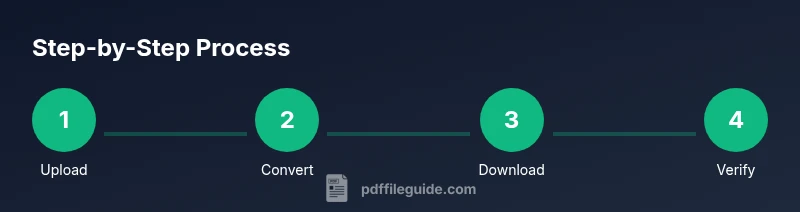
- Key steps: upload → configure → convert → download
Before you convert: privacy, security and data handling
Online conversions introduce data exposure risks if sensitive PDFs are uploaded to unfamiliar platforms. To minimize risk, limit uploads to trusted sites with strong privacy policies, TLS/SSL encryption, and automatic deletion after processing. If your document contains confidential information, consider offline tools or desktop software. Always verify that the site uses HTTPS, and read their retention policy to know how long your data stays on their servers. PDF File Guide recommends reviewing terms and understanding data handling before you proceed.
- Quick privacy tips: check for a lock icon, and avoid sharing credentials on public networks.
Choosing the right converter: features to compare
When selecting a converter, compare features such as page range options, batch processing, image quality controls, and output formats beyond JPG (e.g., PNG, TIFF). Some services let you convert a single PDF per batch or split a multi-page PDF into separate JPG files. Look for clear pricing, transparent privacy statements, and any limits on file size or number of pages. A good choice supports cross-platform use (web, mobile) and provides a way to preview results before download. The PDF File Guide recommends prioritizing tools with reliable uptime and strong data protection policies.
Step-by-step workflow overview
This section provides a high-level map of the conversion process so you can anticipate what happens at each stage: (1) select a converter, (2) upload your PDF, (3) configure JPG output (resolution, color, page range), (4) run the conversion, (5) review results, (6) download files, and (7) delete or store locally. While the exact steps vary by site, the overall flow remains consistent: input → processing → output. Keeping this flow in mind helps you transfer pdf to jpg online smoothly and minimizes surprises.
Optimizing output quality: resolution, compression, color settings
Quality is a function of the original document and the converter’s encoding. If you need sharp images, choose a higher resolution (e.g., 300 DPI) and color mode that matches the source (RGB for photos, CMYK for print workflows). Be mindful that higher resolution increases file size and download time. Many tools let you balance quality with compression; test a sample page to confirm the final JPG looks as intended. Always compare against the source PDF to verify fidelity.
Common challenges and how to fix them
Users often encounter cropped pages, misalignment, or color shifts after conversion. Check the page range settings and ensure the correct pages are selected. If a single page becomes a heavy file, reduce resolution or switch to a different converter. Some tools offer page-level zoom for preview; use it to spot issues early. For multi-page PDFs, ensure each page renders correctly as its own JPG and that the final ZIP (if offered) preserves order.
Best practices for online vs offline tools
Online converters offer convenience, but offline desktop tools give you more control over privacy and batch processing. If you handle sensitive PDFs, consider desktop software or open-source tools that run locally. For non-confidential tasks, online services provide speed and accessibility. Maintain a habit of verifying output by opening a sample page in an image viewer and performing a quick QA on color, contrast, and legibility. PDF File Guide suggests weighing privacy needs against convenience when deciding between online and offline options.
Tools & Materials
- Web browser (Chrome, Firefox, Edge)(Ensure HTTPS and an updated browser for security.)
- Stable internet connection(Needed for uploading and downloading potentially large files.)
- Source PDF file(s)(Have the file ready before starting.)
- Trusted online converter (HTTPS)(Choose a reputable site with clear privacy terms.)
- Optional offline backup storage(Useful if you need to keep local copies.)
Steps
Estimated time: 5-15 minutes
- 1
Open a trusted online converter
Launch your browser and navigate to a reputable PDF-to-JPG converter that uses HTTPS. Confirm the site’s legitimacy by checking for a lock icon and a clear privacy policy.
Tip: Verify the URL matches the service you intend to use. - 2
Upload your PDF
Click the upload button and select the PDF from your device. If you have multiple PDFs, you can upload them in a batch when supported.
Tip: If the file is large, consider splitting it to avoid timeouts. - 3
Choose JPG as the output
In the converter’s options, select JPG as the desired output format and adjust optional settings like resolution and color mode.
Tip: Higher resolution yields crisper images but larger files. - 4
Configure optional settings
Set page range (e.g., all pages or 1-5), image quality, and any compression settings the tool offers.
Tip: For scanned documents, choose higher quality to preserve detail. - 5
Run the conversion
Click Convert or Start to begin processing. Wait for the progress indicator and avoid navigating away.
Tip: Large PDFs may take longer; batch mode can help if offered. - 6
Review the results
Preview the generated JPGs in your browser or downloaded folder to ensure page order and quality.
Tip: Check for color accuracy and readability on each page. - 7
Download the images
Save the JPG files to your computer or cloud storage. If available, download a ZIP to keep pages together.
Tip: Rename files to include page numbers for easy organization. - 8
Handle privacy after conversion
Delete the uploaded PDF from the site if the tool offers an auto-delete option, or clear your browser cache.
Tip: Prefer services with automatic data deletion after processing. - 9
Quality assurance
Open a sample JPG in a viewer on different devices to confirm legibility and color consistency.
Tip: Test on mobile if you’ll share images with others on phones.
Questions & Answers
Is it safe to upload PDFs to online converters?
Online converters can be safe if you use reputable sites with HTTPS and clear privacy policies. Avoid uploading highly sensitive documents to unknown services.
Yes, but only with trusted sites and HTTPS; read privacy policies before uploading.
Can I convert multi-page PDFs to multiple JPG files automatically?
Many online tools offer per-page JPG outputs or a ZIP containing all pages; check the settings before starting.
Most tools create one JPG per page or a ZIP; verify before downloading.
Will converting PDFs online affect image quality?
Output quality depends on the source document, the chosen settings, and the tool. Choose higher resolution options to preserve details.
Quality depends on the tool and settings; pick higher resolution when possible.
What about batch conversions?
Some services support batch conversions; you can upload multiple PDFs or process a multi-page PDF into multiple JPGs.
Yes, batch options exist; they can save time.
Are there offline alternatives to online transfer pdf to jpg online?
Yes, you can use desktop software or command-line tools that convert PDF to JPG without uploading to the web.
Offline tools let you convert without sending files over the internet.
What should I do if pages are cropped or misaligned?
Adjust output settings, ensure proper page range, or try another converter. Some tools offer crop options.
If pages crop, modify settings or try another tool.
Watch Video
Key Takeaways
- Choose a trusted converter to protect data.
- Select JPG with appropriate resolution for your use case.
- Review outputs before download.
- Consider batch conversions for large PDFs.
- Understand privacy policies and auto-delete features.