Open PDF as Word: A Practical How-To Guide
Learn how to open or convert PDFs in Word, preserving text, images, and formatting. This step-by-step guide covers built-in Word features and reliable external converters for editing PDFs in Word in 2026.


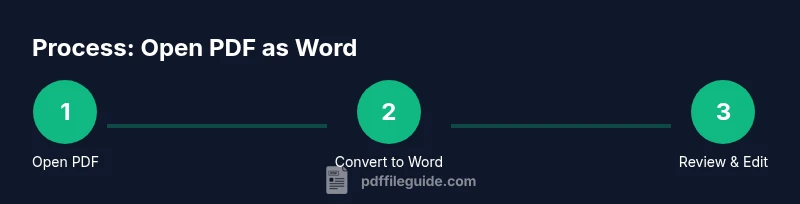
You can open a PDF in Word by converting it to a Word-friendly format (DOCX) or by using Word’s built-in PDF Reflow. Start with Word’s Open dialog to load the PDF as a converted document, or use a trusted converter to export to Word. You’ll then edit the file in Word with preserved text and images.
What the phrase "open PDF as Word" actually means in practice
According to PDF File Guide, the phrase typically refers to converting or importing a PDF into a Word-friendly format so you can edit and reflow content. This approach is valuable when you need to update text, adjust headings, or reformat layouts without recreating the document from scratch. For many workflows, you’ll convert the PDF to DOCX or use Word’s PDF handling features to preserve the original layout as much as possible while enabling full editing. In addition to text, you can retain images, tables, and linked content with varying fidelity depending on the source PDF. PDF File Guide analysis shows that fidelity varies more with complex layouts than with simple text blocks, so plan accordingly and test a sample page first. This avoids surprises later in the editing process and helps you set realistic expectations for final formatting. The takeaway is to treat conversion as a best-effort starting point, not a final layout.
How to decide which route to take: built-in conversion vs. external tools
The most convenient option is Word’s built-in conversion on open, which works well for standard PDFs created from digital text. If you encounter misaligned columns or missing fonts, consider a dedicated converter or OCR-enabled tool to improve fidelity. External tools can offer better preservation of complex elements like tables and multi-column layouts, but they may require extra verification to ensure formatting is not altered in subtle ways. Always compare headings, captions, and embedded images side-by-side with the original PDF to verify consistency. If you work with highly sensitive documents, prioritize offline software to avoid uploading your files to the cloud. In all cases, keep a backup copy before starting any conversion, so you can revert quickly if needed.
Methodology: understanding what Word can and cannot do with PDFs
Word can import PDFs and convert them into editable Word documents, but it isn’t a perfect replica of the source. Text usually reflows, but fonts, spacing, and certain graphics may shift. Tables can become misaligned after conversion, and numbered lists may need manual adjustment. By knowing these limitations, you can set expectations and plan your edits accordingly. Where fidelity matters most—contracts, resumes, or technical docs—consider a two-step approach: convert, then polish with careful, line-by-line verification. The PDF File Guide team recommends testing conversions on a small section before tackling the full document, especially for complex layouts.
Dealing with images, fonts, and color in Word-imported PDFs
Images often drop in at lower resolution and may require resizing or repositioning. Likewise, some fonts present in the PDF may not be installed on your computer, causing substitutes that alter the look. If the PDF uses color profiles that Word cannot reproduce exactly, you’ll have to adjust color settings manually. For scanned PDFs, OCR becomes essential; Word’s standard conversion will not extract text from images reliably. In these cases, pair Word with an OCR tool and then re-import the resulting text for final edits. The goal is to retain readability and professional appearance while ensuring you can edit the content efficiently.
Practical workflow tips: preparing PDFs for the best Word outcome
Before you start, check the PDF for accessibility and clarity: searchable text is easier to convert than scanned pages. Disable background images if they interfere with text flow, and extract any critical images separately if you plan to reuse them. When the conversion finishes, review paragraphs for run-on lines or orphaned hyphenations, and adjust line breaks to improve readability. If a document contains footnotes or endnotes, verify their placement and numbering after conversion, as Word may restructure these elements during the import. Time invested up front reduces backtracking later.
Common pitfalls and how to avoid them
A frequent issue is missing or garbled text in headers and footers, which can throw off page numbering. Another is oversized tables that span document margins, forcing unwanted wrap and misalignment. To mitigate these problems, manually adjust margins, reflow tables, and use Word’s table tools to re-create complex layouts. For PDFs with embedded fonts, ensure you have those fonts installed if Word reports font substitutions. If you’re unsure about a specific layout, test with a page that includes the critical formatting first and scale up after you confirm fidelity. The PDF File Guide team emphasizes patience: thorough checks save headaches later.
Best practices for editing PDFs in Word: a quick checklist
- Always keep a backup before starting.
- Work on a copy to preserve the original PDF.
- Use Word’s “Styles” to re-establish consistent headings.
- Check images, tables, and captions for alignment.
- Save frequently as DOCX and consider exporting back to PDF for distribution.
Final note: when to rely on PDF-ahead of Word
If the PDF is primarily a scanned document or relies on precise typography, a specialized PDF editor or OCR-first workflow may be preferable. The key is to balance editability with fidelity to the original. According to PDF File Guide, testing multiple approaches on a representative sample page helps you choose the most reliable method for your specific document. If editing in Word is mandatory, start with built-in conversion, then augment with targeted external tools only as needed.
Tools & Materials
- Computer or device with internet access(Essential for accessing Word or online converters)
- Microsoft Word (Office 365, 2019+, or equivalent)(Needed to open, convert, and edit DOCX files)
- Source PDF file(s) you intend to edit(Keep originals as backups)
- OCR tool (optional)(Useful for scanned PDFs to improve text extraction)
Steps
Estimated time: 25-60 minutes
- 1
Open PDF with Word (convert on open)
Launch Word and use File → Open to select your PDF. Word will convert the PDF to an editable document if possible. Expect some formatting changes, especially with complex layouts.
Tip: If Word prompts to convert, choose the default option and review the result carefully. - 2
Review the converted Word document
Scan for obvious misalignments in headings, lists, and tables. Note any text that didn’t convert and plan targeted edits. Check images for position and size relative to surrounding text.
Tip: Use the Navigation Pane to jump through headings for faster review. - 3
Fix formatting and reflow
Apply consistent styles to headings and body text. Reflow multi-column sections by adjusting column breaks and white space. Align tables and images to match the intended layout.
Tip: Leverage Word’s Styles (Heading 1, Normal, etc.) to maintain consistency. - 4
Handle PDFs with images or tables
Resize images as needed, reinsert any missing visuals, and re-create complex tables using Word’s table tools. If a table is too wide, split it into simpler blocks.
Tip: Right-click images to set text wrapping for better flow. - 5
Save and verify fidelity
Save as DOCX and compare key sections against the original PDF. If fidelity isn’t acceptable, consider an alternative converter or an OCR step for scanned pages.
Tip: Maintain an export copy to PDF for distribution while keeping a Word version for editing. - 6
Advanced path: OCR for scanned PDFs
If your PDF is scanned, run OCR (either in Word if available or a dedicated OCR tool) to extract text, then re-run the conversion. Review the extracted content for accuracy.
Tip: OCR results often require heavy proofreading—start with a small sample first.
Questions & Answers
Can I open a PDF directly in Word without conversion?
Word can import PDFs and convert them to editable documents, but this is not a perfect replica. Some formatting and fonts may change. For simple PDFs, the result is usually satisfactory; for complex layouts, expect manual tweaks.
Word can import PDFs, but it isn’t a perfect copy—expect some tweaks for complex layouts.
Will images and tables preserve after conversion?
Images and tables often require adjustments after conversion. Tables may shift columns, and images can resize. You may need to reformat to restore readability and alignment.
Images and tables may need adjustments; expect some shifts in spacing and alignment.
How accurate is the converted text?
Text accuracy depends on the PDF’s origin (native text vs. scan) and the conversion method. Simple PDFs convert well; scanned PDFs require OCR for reliable text extraction, followed by proofreading.
Text accuracy varies; use OCR for scans and always proofread.
What should I do if the layout is broken after conversion?
Identify the most affected sections and reapply consistent styles. Rebuild troublesome tables and adjust margins. If needed, try a different converter or export to PDF again after edits.
If layout breaks, fix styles, adjust tables, and consider another converter.
Are there free tools to convert PDFs to Word?
Yes, several free online converters exist, but they vary in quality and privacy. For sensitive documents, prefer offline software or trusted paid tools with clear data handling policies.
There are free tools, but choose carefully for privacy and quality.
Can I edit a scanned PDF after running OCR?
Yes. After OCR, you'll have editable text in Word, but proofreading is essential. OCR may misread characters, so check punctuation and unusual fonts.
OCR makes text editable, but proofs are essential.
Watch Video
Key Takeaways
- Convert PDFs to Word to enable editing.
- Expect some formatting adjustments; verify critically.
- Use OCR for scanned PDFs to improve text extraction.
- Always back up the original PDF before editing.