How to Convert Any Page to PDF: A Practical, Essential Guide
Learn a clear, step-by-step method to convert any web page or document page to PDF using browser tools, OS print features, or dedicated software. Includes tips, best practices, and common pitfalls for reliable results.


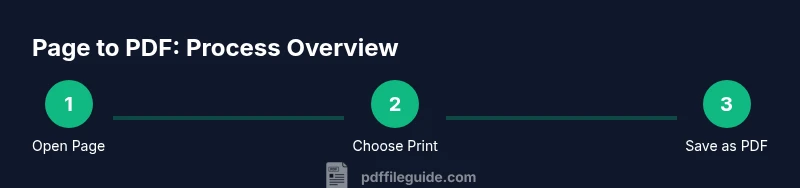
To turn any page into a PDF, use your device’s built-in print-to-PDF option or a PDF printer. Start by opening the page, choose Print, select the destination as Save as PDF or a PDF printer, adjust layout and margins, then save. For frequent tasks, install a browser extension or PDF tool for faster repeat conversions.
Why Page-to-PDF Matters
According to PDF File Guide, page-to-PDF conversions are a foundational capability for professionals who edit, convert, and optimize PDFs. Whether you're archiving receipts, sharing web content with colleagues, or delivering project documentation, turning a single page into a portable PDF ensures consistent formatting and broad compatibility. PDFs preserve fonts, layout, and links, regardless of the viewer or device, making them ideal for evidence, contracts, and manuals. This reliability reduces back-and-forth with collaborators and minimizes interpretation errors when content is shared across teams, departments, or client portals. In practice, a quick page-to-PDF snapshot can replace cluttered screenshots or bulky multi-page exports, letting you keep a clean, searchable archive. The skills covered here apply to browsers, operating systems, and mobile devices, so you can convert pages on desktop, tablet, or phone with confidence. By mastering these workflows, you’ll save time and improve consistency across your documentation and communications.
This guide also emphasizes security and accessibility considerations. When you generate PDFs from web pages or documents, you may need to embed fonts, preserve color integrity, and ensure screen-reader compatibility. PDF File Guide’s experts note that consistent workflows reduce formatting drift across devices and maintain the integrity of hyperlinks and metadata. As you read, you’ll encounter concrete steps, platform-specific tips, and guardrails to help you produce high-quality PDFs every time.
Core Conversion Methods for Page-to-PDF
There are several reliable ways to convert a page to PDF, each with its own strengths. The most common method is using the built-in print-to-PDF feature found in modern browsers. This approach is quick, doesn’t require extra software, and preserves the current page layout. If your system offers a dedicated PDF printer (such as Microsoft Print to PDF or Apple’s Save as PDF), you’ll often access additional options like embedding fonts or adjusting image quality. For long-term consistency, offline tools or dedicated PDF editors provide more control over font embedding, hyperlinks, and accessibility tags. Online services and desktop apps can handle batch conversions, but they may raise privacy concerns for sensitive content. When choosing a method, consider the page complexity, whether hyperlinks must stay clickable, and whether fonts must be embedded for cross-device fidelity. Below are platform-agnostic considerations and practical tips to help you pick the right approach for your needs.
Quality and Formatting: What to Watch For
High-quality page-to-PDF conversions depend on several formatting factors. Font embedding ensures text appears consistently on machines that don’t have the installed fonts. Image resolution should balance clarity with file size; avoid upscaling low-resolution images within PDFs. Background colors and images sometimes fail to print; enable background graphics where available, but test print-out to confirm. Hyperlinks should remain functional if you need easy navigation, so preserve them during export. Layout fidelity matters: portrait vs. landscape orientation, margins, and the scaling setting can dramatically affect readability. If your source page includes dynamic content, evergreen elements like headers and footers may render differently in PDF, so use a stable print view if possible. Finally, consider accessibility features—structure the PDF with headings and alt text so screen readers can interpret the document correctly.
Reliability, Security, and Compliance Considerations
When you convert pages to PDF for professional use, you should be mindful of security and compliance. If the PDF contains sensitive data, apply a password or restrict editing to protect information in transit or at rest. For sensitive workflows, prefer offline or trusted tools to minimize data exposure. Accessibility is also essential: ensure a logical reading order, tagged PDFs for screen readers, and descriptive document structure. Metadata like author, title, and subject can improve searchability in large libraries. Finally, create a reproducible workflow so that the same page-to-PDF steps apply across devices, partners, and teams, reducing inconsistency and support tickets.
Troubleshooting Common Issues and Solutions
If the PDF looks off after export, check orientation, margins, and scale settings in the print dialog. Missing fonts or garbled text usually indicate font embedding was not enabled — re-export with font embedding. If hyperlinks disappear, verify that the export option preserves links and avoid image-based text unless necessary. When images appear cropped or blurry, adjust image quality and ensure the print area matches the visible content. For pages with nested content or iframes, consider exporting from a simplified print view to capture a clean, single-page output. Finally, if you frequently convert the same type of page, build a small checklist to ensure you consistently enable fonts, images, and links during export.
Tools & Materials
- Web browser(Chrome, Edge, Firefox, or Safari; supports built-in print-to-PDF)
- Print to PDF / PDF printer capability(OS-level option like Save as PDF (Windows/macOS) or a third-party PDF printer)
- Document source(The page or document you want to convert)
- Optional: PDF creation software(Adobe PDF, CutePDF, or similar for advanced features)
- Optional: Browser extension for quick saves(Can speed up repeat conversions)
Steps
Estimated time: Estimated total time: 8-12 minutes depending on content length and device.
- 1
Open the page and invoke Print
Navigate to the page you want to convert and press Ctrl+P (Windows) or Cmd+P (macOS) to open the print dialog. This is the starting point to capture the current view for export.
Tip: If the browser lacks a print option, try the browser's menu > Print or use a keyboard shortcut specific to your browser. - 2
Set destination to Save as PDF or a PDF printer
In the print dialog, select Save as PDF or choose a local PDF printer. This tells the system to generate a PDF file instead of sending to a physical printer.
Tip: If you see multiple printers, pick the one labeled 'Save as PDF' or the equivalent for your OS. - 3
Choose the page range you need
If you only need a single page, specify 1-1 or the exact page numbers. This avoids creating unnecessary pages and keeps the file compact.
Tip: For multi-page articles, export the full range first, then remove unwanted pages later if needed. - 4
Adjust layout, margins, and scale
Select orientation (portrait/landscape), page size, and scale to fit content. Tight margins can clip important elements, while excessive margins waste space.
Tip: Use a 100% scale first; if content is cropped, try 90% or 110% and re-preview. - 5
Preview and verify fonts and images
Before saving, preview the PDF to check that fonts render correctly and images aren’t blurred or missing. Font embedding options may be available in some dialogs.
Tip: If fonts look inconsistent, re-export with font embedding enabled if available. - 6
Save to your preferred location
Choose a meaningful filename and folder to store the PDF for easy retrieval later. Consider including the page title and date.
Tip: Enable versioning in your naming convention if you plan multiple exports of the same page. - 7
For frequent tasks: automate or streamline
If you convert pages regularly, consider a browser extension, a scripted workflow, or a dedicated tool to speed up repeat conversions.
Tip: Document your steps so teammates can reproduce the same results.
Questions & Answers
What is the simplest way to convert a page to PDF?
The simplest method is using the built-in print-to-PDF feature in your browser or OS. Open the page, choose Print, and select Save as PDF or a PDF printer.
Use your browser's print option and choose Save as PDF to quickly create a PDF.
Can I convert a page to PDF on mobile devices?
Yes. Most mobile browsers offer a Print or Share option that includes Save as PDF or a PDF printer. You can also use third-party apps.
Yes, you can convert on mobile by using Print and choosing Save as PDF or a PDF printer.
Will fonts embed automatically when exporting to PDF?
Font embedding depends on the tool. Some languages and fonts require explicit embedding options. Check the export or print dialog for font embedding settings.
Font embedding may require you to enable it in the export settings.
What are common issues when converting pages to PDF?
Issues include layout shifts, missing images, or broken hyperlinks. Preview the PDF, adjust layout or margins, and re-export if needed.
Common issues are layout changes or missing graphics; preview and tweak before saving.
Are there accessibility considerations for PDFs from pages?
Yes. Ensure the PDF has a logical reading order, tagged structure, and descriptive alt text where appropriate to aid assistive technologies.
Make sure your PDF is accessible with proper structure and alt text.
What’s the difference between 'Save as PDF' and a PDF printer?
They are functionally similar: both generate a PDF. Differences come from driver options and platform integrations; embeddings and metadata controls may vary by tool.
Both create PDFs; actual features depend on the driver or tool you use.
Watch Video
Key Takeaways
- Choose the right export method for your content length and privacy needs.
- Embed fonts and optimize layout to preserve fidelity across devices.
- Test the PDF on target devices to catch format issues early.
- Leverage automation for repeated page-to-PDF tasks.