What’s Create PDF A: A Practical Guide to PDF/A for Archival-Ready Documents
Learn what's PDF/A, why archiving requires it, and step-by-step methods to create compliant PDF/A files with fonts, metadata, and accessibility.


You’ll learn how to create PDF/A-compliant documents by choosing the correct conformance level, embedding fonts, preserving color, and adding metadata. This quick answer highlights the essential steps and checks to ensure archival-quality PDFs that meet ISO standards. It’s crucial for long-term accessibility and retrieval. In practice, you’ll verify conformance with a validator, embed fonts, and preserve document structure.
what's pdf-a and why it matters
PDF/A is the standard for long-term digital preservation of documents. It defines a subset of features allowed in a PDF so that files can be reliably rendered years from now, regardless of software updates. If you're asking what's create pdf a in practice, the answer is that PDF/A ensures fonts are embedded, color is consistent, and accessibility data is preserved. This consistency is critical for legal filings, research archives, and corporate records. According to PDF File Guide, practitioners who adopt PDF/A at the outset save time later by avoiding subtle font substitutions, broken links, and missing metadata during migrations. In short, PDF/A is not just about appearance; it’s about trust, reproducibility, and long-term access.
Tools & Materials
- Word processor (Microsoft Word or LibreOffice Writer)(Ensure the version supports PDF/A export or Save As PDF/A.)
- PDF viewer/validator tool(Use a validator to verify PDF/A conformance after export.)
- Fonts installed(Use embedding-enabled fonts; prefer fonts with licensing for embedding.)
- ICC color profile(Optional but recommended for color consistency across devices.)
Steps
Estimated time: Total time: 20-40 minutes
- 1
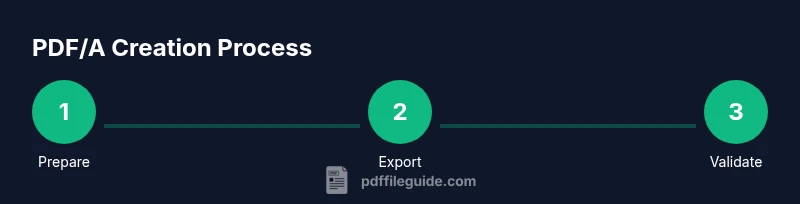
Prepare the source document
Review the document structure, fonts, and images. Remove unnecessary interactive elements that PDF/A disallows and plan the metadata fields you will include (title, author, subject, keywords). This upfront planning reduces rework later.
Tip: Create a clean source file with readable headings and accessible alt text for images. - 2
Choose the correct export path
Open your editor’s export or Save As dialog and select PDF/A as the target format. If your tool offers multiple PDF/A flavors (e.g., PDF/A-1, PDF/A-2), choose the level that matches your archival needs and the tool’s capabilities.
Tip: Prefer explicit PDF/A export rather than printing to PDF, which can lose metadata. - 3
Embed fonts and preserve appearance
Ensure all fonts are embedded (or subset embedded) so text renders correctly in future readers. Avoid font substitution by disabling default font substitution policies in your export options.
Tip: Check that embedded fonts include the glyphs used in your document. - 4
Set color management
Enable color management with an ICC profile to preserve color accuracy across devices and printers. PDF/A requires predictable color reproduction, so avoid relying on system color defaults.
Tip: If color accuracy matters for branding, export with a known ICC profile. - 5
Add and verify metadata
Fill in document metadata (title, author, subject, keywords) and ensure it remains accessible in future viewers. Metadata enhances searchability and preservation.
Tip: Use consistent naming conventions for metadata to ease future migrations. - 6
Tag the document for accessibility
Create a tagged PDF with logical reading order so screen readers can interpret the structure. This improves accessibility and aligns with PDF/A goals for archival accessibility.
Tip: Test with a screen reader to confirm the reading order is correct. - 7
Validate conformance
Run a PDF/A validator to confirm the file meets the chosen conformance level. Look for warnings about font embedding, color profiles, or metadata and address them before final export.
Tip: Document any validation errors and re-export after fixes. - 8
Export the final PDF/A
Perform the final export using the PDF/A preset. Save the file with a clear, archival-friendly name and verify the file integrity after saving.
Tip: Keep a backup of the source file in a separate location.
Questions & Answers
What is PDF/A and why is it used?
PDF/A is an ISO-standardized format designed for long-term digital preservation. It restricts features to keep documents renderable across decades, ensuring fonts, color, and metadata are preserved.
PDF/A is the archival standard that keeps documents readable far into the future.
Can every PDF be saved as PDF/A?
Not every PDF qualifies for PDF/A. Some dynamic content, JavaScript, or external references may violate PDF/A constraints, so you may need to adjust the source document before exporting.
Some PDFs can’t be saved as PDF/A without edits to content or metadata.
Which tools support PDF/A export?
Many modern editors like Adobe Acrobat, LibreOffice, and Microsoft Word offer PDF/A export options. Check the export settings to select the appropriate PDF/A conformance level.
Most popular editors have a PDF/A export option; look under Save As or Export settings.
What’s the difference between PDF/A-1, -2, and -3?
PDF/A-1 introduced the basics; PDF/A-2 added features like Unicode font support and transparency; PDF/A-3 allows attachments. Choose the level that matches your archival needs and software capabilities.
PDF/A-3 lets you attach files, while PDF/A-2 adds Unicode fonts and other features.
How do I validate PDF/A conformance?
Use a PDF/A validator or your editor’s built-in checker to confirm conformance. Review any warnings about fonts, color, or metadata and fix before finalizing.
Run a validator to confirm the file actually meets PDF/A standards.
Watch Video
Key Takeaways
- Embed fonts to avoid substitution
- Export as PDF/A from source tools, not by printing to PDF
- Validate conformance with a trusted validator
- Maintain accessible metadata and tagging for future readers