How to Tell if a PDF is PDF/A: A Complete Guide
Learn how to determine if a PDF is PDF/A, with practical checks, tool recommendations, and step-by-step guidance to ensure archival-grade compliance for official documents.


To determine if a PDF is PDF/A, start with a quick audit: check document properties for PDF/A conformance, ensure fonts are embedded, verify color management, and look for accessibility tagging. Use a validator or a reputable editor’s preflight tool for confirmation, then save a compliant copy if needed. PDF File Guide highlights these steps for reliable archival results.
What PDF/A is and why it matters
If you’re unsure how to approach archival documents, knowing how to tell if a PDF is PDF/A is essential for long-term preservation. PDF/A is a self-contained format designed for reliable electronic archiving, ensuring fonts, colors, and metadata are preserved regardless of the viewer or device. For professionals, this means documents remain searchable, viewable, and faithful to the original over decades. The PDF File Guide team emphasizes that understanding PDF/A is foundational to any formal document workflow, and a quick check now can prevent costly rework later. As you compare files, keep the goal in mind: an archival copy that remains usable without relying on external resources. This approach aligns with PDF File Guide’s guidance on best practices for document integrity and accessibility, especially when a document must withstand long-term access and legal scrutiny.
Quick signs a PDF might be PDF/A
PDF/A is not just about file extension; it’s about conformance. Look for embedded fonts, a stable color profile (ICC), and no external dependencies like missing fonts or embedded multimedia. If you see font substitution warnings or fonts that aren’t fully embedded, the file likely isn’t PDF/A compliant. Metadata should be complete and machine-readable, and the document should be tagged for accessibility (where applicable). In many cases, a quick visual check isn’t enough, so rely on formal validation. PDF File Guide notes that relying on visuals alone can miss subtle conformance issues that validators catch. A legitimate PDF/A file will be self-contained, transparent to readers, and consistent across platforms.
How PDF/A conformance is defined and levels
Conformance in PDF/A covers several areas: font embedding, color management, metadata, and device-independent rendering. The common levels include PDF/A-1, PDF/A-2, and PDF/A-3, with subtypes such as -b (backward compatibility) and -u (Unicode text). Each level has distinct requirements, but the core idea remains the same: the file must be self-contained and predictable in appearance. Understanding these levels helps you choose the right validation approach and sets expectations for what counts as compliant in different contexts. The PDF File Guide team highlights that most archival scenarios prioritize font embedding and metadata integrity, which are the backbone of reliable long-term access.
Practical verification workflow
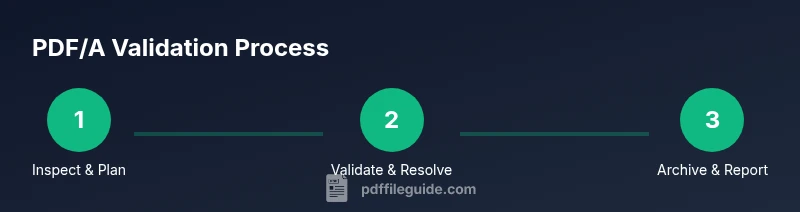
A practical workflow begins with a quick file inspection, followed by automated validation and targeted manual checks. Start by opening the file properties to confirm basic conformance signals, then run a validator to catch font and metadata issues. If the validator flags missing fonts or non-embedded subsets, you’ll know where to focus your remediation. After validation, review color profiles and ensure no external dependencies remain. Finally, re-run validation on a clean, archived copy to confirm the file meets PDF/A criteria. PDF File Guide recommends documenting each step for audit trails and compliance reports, which is particularly important in regulated environments.
Fonts, embedding, and color management
Fonts are a core pillar of PDF/A compliance. All fonts used in the document should be embedded within the file, preferably as fully embedded fonts or subsetted to the minimum set required. This prevents font substitution across viewing environments. Color management is equally important: PDF/A requires a stable color profile, often an ICC profile, to ensure consistent rendering. If colors appear differently on another system, it might indicate missing profiles or unsupported color spaces. By ensuring fonts and color management are correct, you lay a solid foundation for true PDF/A conformance, a point echoed by PDF File Guide when guiding editors through compliance workflows.
Accessibility and tagging considerations
Accessibility tagging (tagged PDFs) improves navigability for screen readers and search indexing. PDF/A doesn’t mandate tagging, but for documents intended for long-term accessibility, tagging is highly recommended. When tagging is present, ensure logical reading order and meaningful alt text for images. If tagging is incomplete or missing, you may still have a PDF/A file, but it won’t be fully accessible. Consequently, balance conformance with accessibility needs, particularly for government or educational documents. The PDF File Guide approach emphasizes evaluating the accessibility layer as part of the broader validation process.
Common pitfalls and how to avoid them
Several frequent issues trip teams up when validating PDF/A: font embedding is incomplete, color profiles are missing or incorrect, metadata is sparse or inconsistent, and external references or multimedia items violate self-contained requirements. Another common pitfall is assuming that simply changing the file extension to .pdf makes a file PDF/A compliant. True conformance depends on internal structure, not the extension. To avoid these errors, use a formal validator, review the report carefully, and perform remediation steps in a clean workflow as outlined by PDF File Guide.
Validation tools and how to interpret results
There are several tools to validate PDF/A conformance, including built-in validators in PDF editors and standalone validation suites. Look for a validator that checks font embedding, color management, metadata, and accessibility tagging. When interpreting results, pay attention to error codes and the exact sections they reference (fonts, color, metadata). A pass means the file meets the PDF/A criteria for the selected conformance level; a fail points you to remediation steps and where to apply changes. PDF File Guide advises gamers in this space to document outcomes, test multiple files, and maintain a library of clean PDF/A templates for future use.
Tools & Materials
- PDF reader/editor with preflight support(e.g., PDF editor with built-in Preflight or validation features)
- PDF/A validator tool(Could be a desktop app or trusted online validator)
- Access to source document (print-friendly or original font set)(Useful for cross-checking font embedding and color profiles)
- Backup copy of the file(Always preserve originals before remediation)
- Stable internet connection(Optional for online validators)
Steps
Estimated time: 60-120 minutes
- 1
Open the PDF and review basic properties
Open the file in a PDF editor and check the document properties for conformance hints. Note the version, possible PDF/A indicators, and any metadata fields that reference archiving standards. This initial scan helps decide the validator strategy and flags obvious non-conformance early.
Tip: If you see missing metadata, plan to populate at least the standard fields (title, author, creation date) during remediation. - 2
Check font embedding
Verify that all fonts are embedded, ideally as subset fonts to minimize file size. If fonts are not embedded, the document will fail PDF/A conformance because rendering may depend on external font access.
Tip: Use the validator to generate a font-embedding report; address any non-embedded fonts by embedding the fonts or replacing them with embedded substitutes. - 3
Verify color management
Assess color profiles and ensure a device-independent color reference is present. Missing ICC profiles or incompatible color spaces can break PDF/A conformance and lead to inconsistent rendering across devices.
Tip: Add or confirm an ICC profile for the document’s color space when possible. - 4
Review metadata and structure
Ensure metadata is complete, store- and search-friendly, and that the document structure is logical and accessible where applicable. Incomplete metadata or broken structural elements can impede long-term discoverability.
Tip: Fill in essential metadata: title, author, subject, keywords, and creation/modification dates. - 5
Evaluate tagging and accessibility
If the document is tagged, review reading order and alt text for images. Proper tagging helps assistive technologies and improves long-term usability, especially for archival copies.
Tip: If tagging is missing, plan a remediation pass to add meaningful tags and alt text. - 6
Run formal PDF/A validation
Use a trusted validator to confirm conformance against the target PDF/A level. Review any errors or warnings and map them to actionable remediation steps.
Tip: Prefer a validator that reports exact sections (fonts, metadata, color, tagging) to streamline fixes. - 7
Remediate and revalidate
Apply fixes in a controlled workflow, then re-run validation to verify success. If issues persist, repeat steps focusing on the error areas and consider converting to a compliant template for future use.
Tip: Document remediation actions and outcomes for audit purposes. - 8
Save as PDF/A and archive the copy
Save the final version using a PDF/A-compatible save option. Maintain a record of the validation report and the preserved original for reference.
Tip: Store the compliance copy alongside named metadata and version history for easy retrieval.
Questions & Answers
What does PDF/A mean and why is it important for archiving?
PDF/A is a self-contained format designed for long-term digital preservation. It requires fonts to be embedded, metadata to be complete, and consistent rendering, ensuring documents remain accessible over time. This is crucial for legal, governmental, and archival workflows.
PDF/A is for long-term preservation; it ensures fonts and metadata are embedded so documents render consistently long after creation.
Can any PDF be converted to PDF/A?
Many PDFs can be remediated to PDF/A, but some content types (like multimedia or complex annotations) may require special handling or may not be fully convertible. Validation will confirm what is feasible for a given file.
Most PDFs can be aligned to PDF/A, though some content may need adjustments or cannot be fully compliant.
What are common reasons a file fails PDF/A validation?
Common causes include non-embedded fonts, missing color profiles, incomplete metadata, or non-archival features like external references or multimedia elements. Identifying these helps target remediation efforts.
Typical failures involve fonts, colors, metadata, or multimedia that aren’t allowed in PDF/A.
Is PDF/A required for accessibility and tagging?
PDF/A compliance and accessibility tagging are separate concerns. PDF/A focuses on archival integrity, while tagging improves accessibility. Both can be pursued together for robust, future-proof documents.
PDF/A is about archival integrity; tagging improves accessibility and can be added alongside compliance.
Which tools are best for PDF/A validation?
Use reputable validators provided by major PDF editors or dedicated validation projects. Common options include built-in preflight tools in editors and standalone validators that report specific conformance issues.
Rely on trusted validators from editors or dedicated validation tools to get precise conformance reports.
Watch Video
Key Takeaways
- Identify the target PDF/A level before remediation.
- Embed fonts and confirm a stable color profile.
- Validate with a trusted tool and document results.
- Include metadata and accessibility tagging where appropriate.
- Maintain a compliant archival copy and a pristine original.