PDF Convert to Google Doc: A Practical Guide
Learn how to convert PDFs to Google Docs for easy editing. This guide covers when to convert, limitations, two main methods, tips for preserving formatting, and best practices for professionals using PDF File Guide methods.


You can convert PDFs to Google Docs to edit text, images, and formatting directly in Google Docs. This guide shows two reliable paths: upload a PDF to Google Drive and open with Google Docs, or rely on Drive's OCR for scanned PDFs. A few PDFs with complex layouts may need manual tweaks afterward.
Why PDF to Google Docs matters
For individuals and professionals who edit, convert, and optimize PDFs, turning a PDF into a Google Doc unlocks editable text, searchable content, and easy collaboration. The basic workflow lets you preserve much of the original structure while gaining access to Google Docs’ editing suite, comments, and revision history. This approach is particularly valuable when you need to extract text for repurposing, share content with teammates, or apply quick edits without specialized PDF software. According to PDF File Guide, mastering this conversion can save time on routine tasks and improve cross-team collaboration across cloud environments.
When you’re evaluating whether to convert a PDF, consider factors like whether the file is text-based or a scan, the complexity of tables and images, and how critical exact typography is for your project. In many cases, a straightforward document or a simple form benefits from conversion, while highly formatted brochures or forms with advanced layouts may require additional reformatting in Docs or alternative tools.
Tools & Materials
- Google account with Drive access(Sign in and ensure you have permission to upload and edit files.)
- Original PDF file(Have the file ready for upload; know if it is password-protected.)
- Web browser with internet access(Chrome is recommended for the best Drive integration.)
- Optional: basic image editor(For post-conversion image tweaks (e.g., crop or resize).)
- Organized Drive folder(Helpful for keeping related PDFs and docs together.)
Steps
Estimated time: Estimated total time: 25-60 minutes
- 1
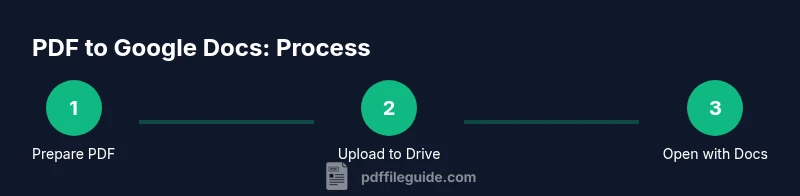
Prepare the PDF
Identify the PDF you want to convert and verify you have permission to modify it. If the file is password-protected, unlock it first. This step prevents roadblocks during conversion and ensures the content you need is accessible in Google Docs.
Tip: If the file is large, note its size and expected processing time. - 2
Upload the PDF to Google Drive
Upload or drag-and-drop the PDF into a dedicated folder in Google Drive to keep your project organized. Uploading in Drive ensures you can access the file from any device. This step sets the stage for a smooth Open with Google Docs action.
Tip: Create a separate folder named “PDF to Docs” for easy retrieval. - 3
Open the PDF with Google Docs
In Drive, right-click the PDF and choose Open with > Google Docs. Google Docs will automatically perform OCR on the document if it’s a scan, converting it to editable text. Be patient as the file loads—large PDFs may take longer to convert.
Tip: If you don’t see the option, click “Open with” and select Google Docs from the list. - 4
Review the initial conversion
Scan the resulting Google Doc for obvious formatting issues, such as misaligned headings, broken lists, or split lines. OCR accuracy can vary, so plan to correct text flow and paragraph breaks where needed.
Tip: Use - 5
Tweak formatting for readability
Apply heading styles, adjust bullet and numbered lists, and fix font inconsistencies to restore a clean structure. Consistent use of Docs styles makes future conversions easier.
Tip: Leverage the Styles pane to standardize headings and body text. - 6
Check images and tables
Verify that images appear in the right places and that tables retain their structure. You may need to reposition images, adjust table borders, or re-create complex tables using Docs tools.
Tip: If an image is missing, reinsert it and re-link captions if present in the original PDF. - 7
Save, rename, and set sharing
Rename the new Google Doc to reflect the source PDF and set appropriate sharing permissions. Saving in Google Docs makes it easy to collaborate and track changes.
Tip: Use meaningful filenames to avoid confusion when working with multiple PDFs. - 8
Export if needed
If you need a standalone PDF or a Word document, use File > Download and choose the desired format. This is useful for sending a finalized version to teammates who prefer other apps.
Tip: Exported PDFs will not retain the Google Docs revision history.
Questions & Answers
Can I convert password-protected PDFs to Google Docs?
No. Google Docs cannot access content behind a password. Remove the password or obtain an unlocked copy before converting.
Password protection blocks conversion; you’ll need an unlocked file to proceed.
Will formatting stay intact after conversion?
Not always. Some headings, fonts, and layouts may shift; manual edits are often required to restore the original look.
Formatting can change, so plan to adjust after conversion.
Is OCR applied to scanned PDFs automatically?
Yes. Opening a scanned PDF in Google Docs runs OCR to extract text, but accuracy depends on the scan quality.
OCR is automatic when converting scans; review for recognition errors.
How do I export the Google Doc back to PDF or Word?
Use File > Download and choose PDF Document or Microsoft Word to create a separate copy.
You can export to PDF or Word if you need a non-Google format.
What if the PDF is very large or multi-page?
Drive handles many pages, but conversion may take longer. For very large files, consider splitting into smaller parts before converting.
Large files can take longer to convert; splitting can help.
Watch Video
Key Takeaways
- Edit PDFs in Google Docs after conversion for quick collaboration.
- OCR enables text extraction for scans, but formatting may need tweaks.
- Use Docs styles to maintain structure across conversions.
- Export options let you preserve or share the final document in other formats.