How to Edit PDFs in Google Drive: A Practical How-To
Learn practical workflows to edit PDF files stored in Google Drive. This guide covers converting PDFs to editable formats, annotating, and exporting back to PDF while preserving layout and accessibility, with best practices and safety tips.


Edit PDFs stored in Google Drive by converting them to Google Docs or using trusted add-ons. This approach preserves layout for text edits, annotations, and form fields, then exports back to PDF when finished. This guide walks you through practical workflows, required tools, and safety tips for professional results.
What this approach enables for PDF editing in Google Drive
Editing PDFs within Google Drive combines accessibility, collaboration, and document control in a single cloud workspace. While Google Drive itself isn’t a full PDF editor, you can convert PDFs to editable formats like Google Docs to perform text edits, update annotations, and adjust layout before exporting back to PDF. This approach is particularly valuable for teams that rely on real-time collaboration, version history, and centralized file management. According to PDF File Guide, understanding the conversion process and how to verify formatting after export is key to preserving professional quality. Users can annotate with comments, track changes, and share feedback without sending large attachments back and forth, keeping work streamlined and auditable.
Prerequisites: what you need before starting
Before you begin editing PDFs in Google Drive, make sure you have the following in place. A Google account with Drive access is essential, along with the PDF you want to edit stored in Drive. A reliable internet connection and an up-to-date web browser (Chrome, Edge, or Firefox) are also required for smooth conversion and editing. If you plan to reuse this workflow regularly, consider integrating a trusted third-party PDF editing add-on from the Google Workspace Marketplace and reviewing its privacy policy. As PDF File Guide notes, start with a clear backup strategy: keep the original PDF untouched and work on a copy to avoid data loss. Finally, if accessibility or compliance is a concern, align your edits with PDF/A and PDF/UA guidance from reputable sources.
In-browser workflow: convert, edit, and export
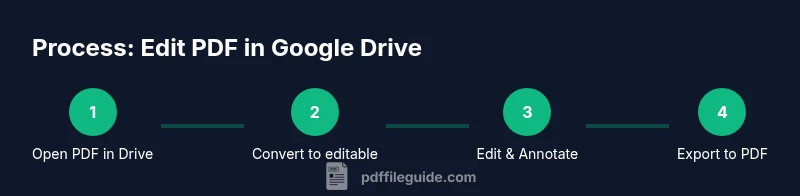
The typical in-browser workflow starts with locating the target PDF in Google Drive and opening it with Google Docs or a reputable PDF editor. The conversion creates an editable document where you can modify text, rearrange sections, and adjust formatting. After editing, review headings, fonts, margins, and images to ensure fidelity with the original. When satisfied, export back to PDF via File > Download > PDF Document (.pdf). This approach keeps your work centralized in Drive, while still producing a standard PDF suitable for distribution and printing. PDF File Guide emphasizes testing the final PDF on multiple devices to confirm readability and layout consistency.
Working with trusted add-ons and integrated apps within Drive
For more complex edits or form work, you may want to leverage third-party add-ons that integrate with Google Drive. Choose add-ons from reputable developers, review permissions, and test on a copy of your document before touching the final file. Add-ons can offer OCR improvements, better image handling, or direct export options back to PDF with enhanced compression or accessibility features. Always verify the privacy policy and data-handling practices of any tool you install. PDF File Guide advises keeping a minimal set of trusted tools to reduce risk while expanding capability.
Annotating PDFs: comments, highlights, and form fields
Annotations are essential for team review. Use Google Docs' commenting, highlighting, and suggested edits to collect feedback without permanently altering the source text. For PDFs that require form fields or fillable elements, you may need to re-create those forms in a dedicated PDF editor after exporting, since Google Docs doesn’t support native PDF form fields in all cases. Document collaboration is strengthened by tagging teammates, assigning tasks, and using resolution threads to close feedback loops. PDF File Guide recommends documenting decisions in the file’s history so future editors understand why changes were made.
Preserving formatting and fonts during conversion
One of the most common hurdles is font substitution and layout drift after conversion. Before editing, take note of the original font families and page sizes. After converting to Google Docs, compare headings, font weights, line spacing, and column layouts against the original. If discrepancies occur, adjust using consistent paragraph styles and, if necessary, reinsert images or charts to preserve visual fidelity. When exporting back to PDF, choose settings that minimize compression artifacts and ensure embedded fonts where possible. PDF File Guide highlights that meticulous review at this stage saves rework later.
Version control and backups for edited PDFs
Maintain a clear versioning strategy. Save edited files with versioned names (e.g., ProjectName_v2.pdf) and keep the original intact as a separate file. Use Google Drive’s version history to compare changes over time, especially when multiple collaborators are involved. Keeping a changelog within the document or a companion notes file helps teams understand the evolution of edits. This discipline reduces the risk of losing critical information and makes audits smoother, which is particularly important in professional environments.
Security, privacy, and compliance considerations
When editing PDFs in the cloud, it’s crucial to consider data security and privacy. Only install add-ons from trusted sources, review requested permissions, and ensure your organization’s data policies are followed. For sensitive information, prefer edits that keep data within your organization’s secure environment and minimize cross-service data transfer. PDF File Guide stresses the importance of using strong access controls, auditing, and encryption where feasible, and of validating that the final document complies with relevant standards for accessibility and archival quality.
Tools & Materials
- Google account with Drive access(Active account; enable two-factor authentication for security)
- PDF file stored in Google Drive(Original file you intend to edit)
- Stable internet connection(Reliable bandwidth to upload/download large PDFs)
- Web browser (up-to-date)(Chrome/Edge/Firefox recommended for compatibility)
- Trusted third-party PDF editing add-on (optional)(Choose from reputable providers with clear privacy policies)
Steps
Estimated time: 60-90 minutes
- 1
Open and prep the PDF
In Google Drive, locate the PDF you want to edit. Right-click and choose Open with > Google Docs or a reputable PDF editor if you have one installed. This initial conversion creates a working document while preserving a link to the original PDF.
Tip: Create a separate copy in Drive before editing. - 2
Convert to editable format
Use Open with > Google Docs to convert. Review the converted document for major formatting changes and adjust margins, fonts, and spacings to match the original as closely as possible.
Tip: If your PDF is image-based, expect OCR results to require cleanup. - 3
Edit text and layout
Make necessary textual edits in Google Docs. Use Find and Replace for consistency, and adjust headings and paragraphs. Preserve the document's logical structure to minimize reflow when exporting.
Tip: Use 'Show document outline' to navigate long edits. - 4
Annotate and solicit feedback
Switch to Suggesting mode for edits or add comments on sections that require review. Tag teammates and assign tasks using comments to streamline collaboration.
Tip: Keep edits non-destructive until approval. - 5
Prepare for export
Review all edits, ensure images and charts appear correctly, and verify that forms or field placeholders are ready to export. If your workflow relies on fillable fields, plan to re-create them in PDF form editors later.
Tip: Do a quick font check and page-size verification. - 6
Export back to PDF
Select File > Download > PDF Document (.pdf). Save with a versioned name to track changes. Open the downloaded PDF to verify that layout and annotations survived the export.
Tip: Prefer a high-resolution export (200-300 dpi) for print needs. - 7
Verify and replace if needed
Open the final PDF in a native reader, compare with the original, and check for any drift in fonts, margins, or line breaks. If discrepancies exist, revert to the previous version or adjust in the source document and re-export.
Tip: Maintain a changelog for future edits.
Questions & Answers
Can I edit a PDF directly in Google Drive without converting?
No. Google Drive requires converting a PDF to an editable format (often Google Docs) or using a third-party editor available from the Drive interface.
You can’t edit PDFs directly in Drive; conversion to an editable format is needed.
What about editing scanned PDFs?
Edited scanned PDFs require OCR to convert images to editable text. Google Docs offers basic OCR during conversion, but results vary; for complex layouts, use dedicated OCR tools.
OCR is needed for scanned PDFs; results may vary.
Will fonts and layouts stay the same after conversion?
Not always. Converting to Google Docs can change fonts, margins, and line breaks. Review carefully and adjust in the editable document before exporting back to PDF.
Formatting may change after conversion; review before exporting.
Are Google Drive add-ons secure for editing PDFs?
Only install trusted add-ons with clear privacy policies and review requested permissions. Use official marketplaces and keep permissions minimal.
Use reputable add-ons and review permissions before installing.
How can I revert to the original PDF if edits go wrong?
Keep a backup copy and use Google Drive’s version history to restore or compare changes. This protects against accidental data loss.
Keep backups and use version history to revert.
What’s the best practice for final PDF export?
Export with the highest suitable resolution, verify fonts and accessibility, and name files with version numbers for clarity.
Export at high quality and version your files.
Watch Video
Key Takeaways
- Convert PDFs to editable format in Drive to start edits quickly
- Review and adjust formatting after conversion
- Annotate using comments for collaboration
- Export with careful verification to preserve quality
- Maintain backups and version history for safety