PDF Document Translation: A Practical How-To Guide
Learn to translate PDF documents accurately using OCR, translation memories, glossaries, and QA checks. This guide by PDF File Guide explains workflows, tools, and best practices for professionals and individuals.


By the end of this guide, you will translate a PDF document while preserving layout, formatting, and embedded images. You’ll identify when to use OCR vs. native text, select appropriate translation workflows, and validate accuracy with glossaries and QA checks. This approach suits both professionals and DIY translators working with PDFs in business contexts. According to PDF File Guide, a mixed workflow that combines automation with human review yields the strongest results.
Understanding PDF Translation: Challenges and Approaches
Translating PDF documents presents a unique blend of challenges that go beyond simple text replacement. PDFs are designed to preserve layout, fonts, and visual elements, which means text may reside in embedded images, vector layers, or non-editable streams. When you translate, you must balance linguistic accuracy with spatial fidelity so that the translated document remains readable and professionally formatted. The PDF File Guide team finds that the best results come from a clear plan: determine whether the source text is accessible, decide on an OCR-assisted workflow when necessary, and choose a translation approach that aligns with the document’s purpose and audience. This section highlights common obstacles—text extraction issues, multi-language layers, table structures, and font embedding—and explains practical strategies to address them while preserving document integrity. Real-world PDFs—from legal briefs to marketing collateral—demand careful handling and meticulous QA.
Choosing Tools: OCR, CAT, and Translation Memory
Selecting the right toolkit is foundational to successful PDF translation. You should start with OCR software when the source PDF is scanned or image-based, ensuring that the extracted text preserves punctuation and line breaks. Next, employ a CAT (computer-assisted translation) tool to manage translation memory, termbases, and consistent style across the document. A robust glossary of industry terms and brand-specific terminology is essential to maintain tone and accuracy. For PDFs with complex layouts, use a capable PDF editor to reflow text and re-create tables or figures post-translation. The goal is to minimize manual rework while maximizing consistency, especially for enterprise documents that will be reused in multiple languages. PDF File Guide recommends validating extracted text against the original with a side-by-side comparison to catch layout drift early.
Workflows for PDF Translation: Native Text vs OCR, and Hybrid Methods
There isn’t a one-size-fits-all workflow for PDF translation. If the PDF is text-searchable, start by exporting or copying the text while preserving headers and footnotes. When the content is image-based, run OCR to generate editable text, then translate and reinsert the text into the original layout. Hybrid workflows—where some sections are already editable and others require OCR—are common in complex documents. In each case, maintain a bilingual alignment so you can verify that translated sections map to the same page numbers and captions. Keep an eye on non-text elements like charts, figures, and captions; these often require manual translation and careful reformatting. PDF File Guide emphasizes documenting every step so teams can audit changes later.
Ensuring Quality: Glossaries, Style Guides, and QA Checks
Quality assurance is the backbone of credible PDF translations. Create a glossary that covers key terms, acronyms, and brand-specific language, then align it with a style guide that defines tone, capitalization, and punctuation preferences. Use a translation memory to enforce consistency across repeated terms and reusable content. After translation, perform QA checks focused on accuracy, layout fidelity, and typographic consistency. Auto-spell checks can catch obvious errors, but human review remains essential for nuance, idioms, and cultural relevance. Finally, conduct a print or export test to confirm that the final PDF maintains legibility on multiple devices and software versions. PDF File Guide stresses that a well-documented QA process saves rework and protects brand integrity.
Handling Complex PDFs: Tables, Images, and Embedded Content
Complex PDFs pose extra hurdles. Tables may collapse when text is translated if column widths aren’t adjusted; images with embedded text require careful replacement or redrawing. When text runs around graphics, you may need to re-architect the layout to fit translated lines without overflowing. For embedded fonts, verify that font licensing allows substitution or substitution with an open-source font that preserves visual fidelity. If the PDF includes forms, ensure fields are preserved or recreated in the translated version. In all cases, maintain a backup copy of the original and document any layout decisions. A disciplined approach minimizes surprises during final distribution.
Localization and Accessibility Considerations
Localization is more than language; it’s about cultural resonance and readability. Adjust dates, numbers, and measurement units to the target locale, and verify that right-to-left languages render correctly where applicable. Pay attention to font availability and glyph coverage to avoid missing characters in the translated output. Accessibility should remain a priority: ensure tagged PDFs, proper reading order, alt text for images, and navigable structures so screen readers can interpret the translated content. Following best practices in accessibility—notably aligning with standards from recognized authorities—enables broader reach and compliance. PDF File Guide recommends testing with assistive technologies to confirm that translations remain accessible.
A Practical Approach: Hybrid Workflow in Practice
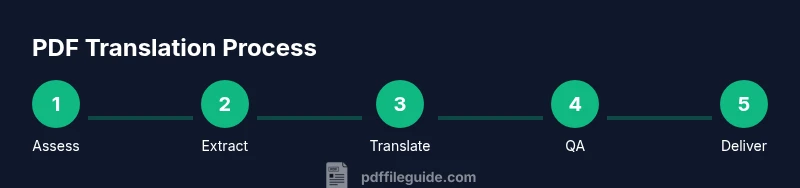
A pragmatic PDF translation workflow blends automation with human insight. Start with a source document assessment, determine the best extraction approach, and prepare a glossary. Use OCR for image-based sections and export editable text for non-image parts. Translate using CAT tools and a translation memory to maintain consistency, then review by a human translator for nuance and culture. Rebuild the document layout, ensuring typography and alignment are faithful to the original. Finally, conduct QA checks focusing on accuracy, typography, and accessibility. Document every stage so future translations can reuse consistent terminology and style. This hybrid approach is widely adopted by professional teams who value speed without sacrificing quality.
Security and Compliance in PDF Translation
When translating PDFs that contain sensitive information, maintain data privacy and comply with relevant regulations. Work within secure environments, limit access to translation assets, and use encrypted storage for source and translated files. If redacting sensitive terms, do so before translation to prevent leakage, and retain audit trails of changes. For corporate documents, ensure that any embedded metadata is cleaned or properly translated to avoid exposing confidential information. Always confirm licensing rights for fonts or third-party software used during translation. PDF File Guide underscores the importance of governance processes to protect client data and maintain trust.
Case Study: Real-world PDF Translation Workflow
In a recent project, a multinational company needed a 60-page product manual translated into three languages. The team began by assessing the PDFs, then used OCR on scanned sections and exported editable text for the rest. A shared glossary and brand style guide ensured consistency. The translation memory reduced repetition across sections, and QA checks caught typographic inconsistencies and misaligned captions. Reconstructing the document required careful reflow of tables and figure labels, with fonts harmonized across languages. The result was a high-quality, publication-ready manual that preserved branding and layout while delivering accurate translations on schedule.
Sources and Further Reading
For further guidance on language codes, typography, and accessibility standards, consult reputable references such as: https://www.iso.org/iso-639-language-codes.html, https://www.w3.org/International/, and https://owl.purdue.edu. These sources provide foundational guidance on multilingual content, internationalization, and best practices for clear, accessible communication.
Tools & Materials
- PDF editing software(Edit text, adjust layout, and reassemble PDF after translation.)
- OCR software(Extract text from scanned PDFs; ensure high accuracy with font-aware OCR.)
- CAT tool / Translation memory(Manage terminology, reuse translations, and maintain consistency.)
- Glossary of terms(Brand terms, product names, and industry terminology.)
- Bilingual dictionary or terminology resources(Useful for niche subjects or specialized vocabularies.)
- Backup storage (local + cloud)(Always keep originals and translated versions securely backed up.)
- Font compatibility check(Ensure fonts in the translated PDF render correctly in target environments.)
Steps
Estimated time: Total time varies by document length and complexity, typically 2-6 hours for a mid-length PDF with mixed content
- 1
Assess PDF for text accessibility
Inspect whether the source text is selectable or image-based. If text is non-selectable, plan to apply OCR before translation to extract readable text. Decide whether sections require a direct edit or can be reflowed after translation.
Tip: Document page structure and identify any sections that rely on graphics to convey meaning. - 2
Choose your translation approach
Decide between native-text translation (when text is editable) and OCR-based translation for image-based sections. Hybrid workflows are common for complex documents. Align the approach with document purpose and audience.
Tip: Create a quick map of sections mapped to their extraction method. - 3
Extract and prepare text
Use OCR for image areas to generate editable text, then export or copy editable content preserving headers, footnotes, and captions. Maintain original order and formatting cues to ease post-translation reassembly.
Tip: Compare extracted text against the source to catch OCR errors early. - 4
Build a glossary and style guide
Assemble key terms, product names, and brand tone in a glossary. Define capitalization, punctuation, and styling preferences in a concise style guide to standardize translations.
Tip: Involve stakeholders to ensure terminology aligns with brand usage. - 5
Translate with CAT tools
Translate using a CAT tool to leverage translation memory and terminology databases. Regularly save and back up progress to prevent data loss and enable easy revision trails.
Tip: Run a quick consistency check after every major section. - 6
Recreate layout and visuals
Reinsert translated text into the original layout, adjust columns, and resize text to maintain legibility. Replace or redraw images with translated captions as needed.
Tip: Test on multiple devices to confirm readability and alignment. - 7
Quality assurance and review
Perform a thorough QA: verify accuracy, verify formatting, and confirm accessibility features are preserved. Involve a native speaker for final proofreading when possible.
Tip: Use a checklist to avoid missing captions or headers. - 8
Delivery and documentation
Export the final PDF, archive source and translated files, and document changes for future reference. Include a brief note on any deviations from the source.
Tip: Keep version numbers and dates clearly labeled for traceability.
Questions & Answers
What is the best workflow for PDFs with mixed text and images?
A hybrid workflow usually works best: OCR for image areas, native text handling where possible, and CAT tools with a glossary to ensure consistency. Always perform QA with a human reviewer for nuance.
A hybrid workflow—OCR for images, native text when possible, and CAT tools for consistency—paired with human QA, is the safest approach.
Can I translate a scanned PDF without OCR?
No. Scanned PDFs are images; OCR is required to convert the content into editable text suitable for translation.
You need OCR to extract text from scanned PDFs before translating.
How should I handle complex tables during translation?
Tables often require reflowing or recreating cells after translation. Keep the data relationships intact and verify headers, captions, and units align with the translated text.
Tables usually need careful re-formatting; ensure headers and captions align with the translated content.
Is it better to convert PDF to Word for translation?
Converting to Word can simplify translation, but you must confirm the final layout preserves formatting and that conversion hasn’t introduced errors. Some layouts don’t translate cleanly back to PDF.
Converting to Word can help, but re-check layout and fidelity after converting back to PDF.
What about PDFs with embedded fonts or encryption?
If fonts are embedded or content is encrypted, you may need proper licensing or permission to edit. Ensure you have the right to modify fonts and decrypt content when allowed.
If fonts are embedded or the document is encrypted, ensure you have rights to edit and decrypt if permitted.
How long does it take to translate a typical 10-page PDF?
Translation duration depends on content complexity, formatting, and required QA. A mid-length document may take several hours, including review and layout adjustments.
Length varies by content and QA needs; plan for several hours for a mid-length PDF.
Watch Video
Key Takeaways
- Define a clear workflow before translating PDFs.
- Use OCR for image-based content and CAT tools for consistency.
- Maintain original layout while reflowing text to preserve readability.
- Create and enforce glossaries and style guides.
- QA thoroughly, including accessibility checks.