PDF Translation: A Step-by-Step Guide to Accurate PDF Localization
Master a practical, step-by-step approach to translating PDFs while preserving layout, fonts, and accessibility. Explore tools, workflows, and QA tips to deliver accurate, publication-ready translations.


Translate a PDF by converting it to editable text, translating it in a capable tool, and reinserting the translated content while preserving layout. Begin with OCR for scanned pages, pick a workflow (manual translator, machine-assisted, or hybrid), and validate both meaning and formatting after each stage. This guide provides step-by-step actions, recommended tools, and practical tips.
Why PDF Translation Matters
In today’s global workplaces, PDFs are a common delivery format for manuals, contracts, marketing collateral, and regulatory documents. Translating these files unlocks new audiences, preserves branding, and supports compliance across languages. According to PDF File Guide, a high-quality PDF translation preserves meaning while maintaining typography, tables, and embedded graphics, reducing the risk of misinterpretation. For professionals, getting this right means fewer revisions, faster delivery, and better customer satisfaction. The challenge is not just translating words but preserving layout, font choices, color schemes, and accessibility attributes. A poorly translated PDF can render a document illegible, cause misread compliance statements, or break data tables. That’s why a structured translation workflow—covering OCR (if needed), text extraction, glossary work, translation, and reassembly—is essential for reliable results. In this guide we’ll walk through practical workflows, recommended tools, and real-world tips so you can translate PDFs confidently without sacrificing quality or brand consistency.
Understanding the Translation Workflow
PDF translation typically follows one of three workflows: manual translation, machine-assisted translation (MAT) with human review, or a fully automated pipeline for routine documents. If the PDF is text-based, you can extract text directly and translate with a CAT tool or editor. If the PDF is a scanned image, you must run OCR to convert it into editable text before translation. Each workflow has trade-offs between speed, cost, and accuracy. Manual translation offers the highest accuracy for complex content and specialized terminology but takes longer. MAT speeds up production using translation memories and terminology databases, with a human reviewer ensuring quality. Fully automated translation can be suitable for internal drafts or weathered content, but it often requires heavy post-editing. Regardless of the workflow, implement a glossary of key terms, authoring styles, and brand rules to preserve consistency across chapters, sections, and captions. Close collaboration with subject-matter experts is recommended when technical diagrams or legal language are involved.
Choosing Tools That Fit Your PDF Type
Text-based PDFs (where selectable text exists) are best handled with a capable PDF editor and a CAT tool that can import and export XLIFF or TMX formats. Scanned PDFs require OCR, followed by text extraction and alignment with the original layout. For a successful project, pick tools that play well together: OCR engines with high accuracy, a reliable glossary, and a translation memory that grows with your projects. Keep fonts consistent by mapping embedded font families to your target language fonts, and prepare style sheets for headings, bold, and captions. If you work with regulated content, ensure your tools support redaction, version control, and secure storage. Finally, test export formats (PDF/A, PDF/X) to verify long-term accessibility and print fidelity. The right combination saves time and reduces the risk of broken tables or misaligned columns after translation.
Managing Fonts, Encoding, and Layout
Fonts, encoding, and layout are common pain points in PDF translation. Even when text is correctly translated, font substitutions can alter word spacing and glyph rendering, breaking your design. Encoding mismatches can cause quotation marks or accented characters to render incorrectly. Always perform a font-embedding check and maintain a mapped list of original font names to their recommended substitutes in the target language. Where possible, preserve vector-based text for maximum clarity and avoid rasterizing translated text. Keep an eye on data-heavy elements like tables, charts, and callouts; these often need manual reflow or re-creation in the target language. By planning layout reassembly early, you reduce the risk of late-stage fixes that disrupt timelines. Remember: font licensing and embedding policies may restrict certain substitutions, so verify licenses before distribution.
Step-by-Step Translation Process (High-Level Overview)
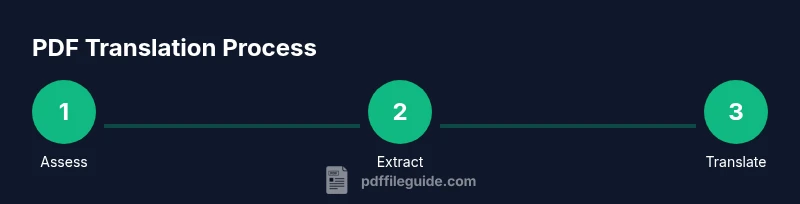
To orient your team, start with a clear plan that respects both linguistic and visual fidelity. First, classify pages by content type (legal, marketing, technical) and identify any special formatting (tables, footnotes, diagrams). Second, prepare your glossary and translation memory with existing bilingual assets. Third, extract text or perform OCR and align it with the original layout. Fourth, translate using CAT tools, applying style sheets and glossaries. Fifth, reinsert translated strings, re-create tables, and adjust visuals to suit the target language. Sixth, run a quality review focusing on terminology consistency, tone, and readability. Finally, export the final PDF with accessibility tags and, if required, an alternate text for images. Maintain version control and document any deviations from the original layout for future audits.
Quality Assurance and Validation
Quality assurance in PDF translation combines linguistic accuracy with layout integrity. Use a bilingual reviewer to verify terminology against your glossary and confirm that the layout matches the source where necessary. Perform functional checks by viewing the PDF in multiple readers and platforms to ensure consistent rendering. Validate search and replace operations, bookmarks, internal links, and table structures. For accessibility, confirm that tagged PDFs preserve reading order and alt text for images. Document issues and track correction cycles so future projects improve. Based on PDF File Guide analysis, teams often encounter recurring challenges with fonts, encoding, and table alignment, underscoring the need for early planning and rigorous QA. A post-delivery review with stakeholders helps catch any domain-specific terminology drift.
Accessibility, Security, and Compliance
Accessible PDFs require proper tagging, logical reading order, and descriptive alt text for non-text content. Your translation workflow should preserve or enhance accessibility, including semantic structure for headings and lists. Simultaneously, consider security and privacy: if the source documents contain confidential data, implement encryption, access controls, and secure sharing practices. When distributing translations, ensure that metadata and embedded fonts comply with licensing terms. Compliance considerations may include regional data protection laws, language rights for fonts, and archival standards. For regulated industries, provide redacted versions or separate deliverables where necessary and maintain an audit trail of changes for future audits.
Practical Best Practices and Common Pitfalls
- Start with a clean source file: the better the source, the easier the translation.
- Create and reuse glossaries across projects to maintain consistency.
- Use memos and style guides to enforce tone and formatting.
- Save iterative versions to track changes and recover previous states.
- Avoid over-reliance on machine translation; post-editing is essential for quality.
- Test thoroughly in real-world viewers and devices before delivery.
- Be mindful of licensing for fonts and embedded assets.
- Plan for accessibility from the outset to minimize rework.
References and Authoritative Sources
- Library of Congress: https://www.loc.gov/
- National Archives: https://www.archives.gov/
- National Institute of Standards and Technology: https://www.nist.gov/
Tools & Materials
- OCR-enabled PDF editor(OCR capability to convert scanned pages into editable text (e.g., high-accuracy OCR tool).)
- CAT tool or Translation Memory (TM) system(Supports import/export of TMX/XLIFF; builds consistency across projects.)
- Bilingual glossary and term base(Domain-specific terminology with preferred translations.)
- Font mapping and embedding checklist(List source fonts and substitutes; verify embedding rights.)
- Quality assurance checklist(Linguistic QA, layout QA, and accessibility QA checklists.)
- Secure storage and backups(Encrypted storage; version control and auditable logs.)
- Access to target-language fonts(Ensure licenses permit embedding in PDF deliverables.)
Steps
Estimated time: Total time: 2-6 hours
- 1
Assess PDF type and plan
Identify whether the PDF is text-based or scanned and plan the workflow accordingly. Decide language pairs, delivery timelines, and required QA checks before starting.
Tip: Quickly test for selectable text by selecting a line of text to confirm the base workflow. - 2
Prepare extraction and glossary
Set up a glossary and translation memory, and organize a project folder with source, TM, and target assets. Prepare style sheets for headings and captions to ensure consistency.
Tip: Create a shared term list for the entire project to minimize drift. - 3
Run OCR if needed
If pages are scanned, run OCR to generate editable text. Review OCR output for obvious misreads, especially with numbers and formulas.
Tip: Correct obvious errors before translation to reduce post-editing workload. - 4
Translate and align
Translate text with your CAT tool, applying the glossary and memory. Align translated segments with the original layout as you work to preserve structure.
Tip: Treat table cells and captions as separate segments to avoid reflow issues. - 5
Rebuild layout
Reinsert translated strings, recreate complex elements (tables, charts), and adjust typography to match the target language. Check reading order and ensure accessibility tags are intact.
Tip: Avoid squeezing longer translations; adjust column widths and spacing as needed. - 6
Quality check
Run linguistic QA against glossary terms, check overall tone, and verify layout fidelity across devices. Validate internal links, bookmarks, and metadata.
Tip: Perform a final pass with a native speaker who understands the domain.
Questions & Answers
What is the difference between text-based and scanned PDFs in translation?
Text-based PDFs already contain selectable text, which simplifies extraction and translation. Scanned PDFs are images of pages and require OCR to convert to editable text before translation.
Text-based PDFs are easier to translate because you can copy the text directly. For scanned PDFs, OCR is required first, then translation can proceed.
Can I translate PDFs without OCR?
Only if the PDF is text-based and the text is selectable. If text cannot be selected, OCR is necessary to extract content for translation.
OCR is needed whenever text cannot be selected in the PDF.
Which tools are best for PDF translation?
Choose tools that support text extraction, OCR, and CAT-based translation with glossary and memory. Ensure compatibility for preserving layout and fonts.
Use a workflow with OCR, a CAT tool, and strong glossary support.
How can I preserve layout after translation?
Rebuild/adjust tables, captions, and headings after translation. Use style sheets and fonts mapping to minimize reflow and preserve visual fidelity.
Keep layout intact by re-creating tables and adjusting typography post-translation.
Is it safe to translate confidential PDFs?
Yes, with proper security: encrypted storage, access controls, and secure sharing. Maintain an audit trail for compliance.
Yes, but use strong security and track changes.
How do fonts and licenses affect translated PDFs?
Fonts must be licensed for embedding in the PDF. Map original fonts to appropriate substitutes and respect embedding restrictions.
Check licensing and embed fonts only as permitted.
Should I include accessibility in translations?
Yes. Tag the PDF, preserve reading order, and provide alt text for images to support assistive technologies.
Yes—maintain accessibility through tagging and alt text.
What is the role of glossaries in PDF translation?
Glossaries standardize terminology across pages, ensuring consistency in tone and branding.
Glossaries help keep terminology consistent across the document.
Watch Video
Key Takeaways
- Plan layout retention from the start.
- Choose a workflow that matches content complexity.
- Use glossaries and TM to maintain consistency.
- Validate accessibility and security before delivery.