How to Convert PDF to Audio: A Step-by-Step Guide
Master pdf to audio workflows with our comprehensive, SEO-friendly guide. Learn text extraction, TTS setup, quality checks, and accessibility considerations for professional PDFs.


You can convert a PDF to audio by extracting its text and feeding it to a text-to-speech engine, then editing the resulting file for clarity and pacing. This guide walks you through a reliable, repeatable process suitable for professional PDFs, with attention to accuracy, pronunciation, and accessibility.
What pdf to audio means for professionals
pdf to audio describes turning the textual and structural content of a PDF document into spoken-word audio using text-to-speech (TTS) technology. For professionals who edit, convert, and optimize PDFs, this capability unlocks hands-free review, accessibility improvements, and new distribution channels. According to PDF File Guide, implementing reliable pdf to audio workflows begins with clear source material, clean text extraction, and careful selection of TTS voices that fit the document's tone and audience. In practice, you’ll balance accuracy, pronunciation, and licensing considerations when converting PDFs to audio. This section sets the stage for understanding how audio renditions can augment traditional PDFs and how to plan a workflow that respects format, layout, and user needs.
The value of pdf to audio in today’s workflows
Adopting pdf to audio can boost productivity by enabling listening during commutes, workouts, or hands-busy tasks. For accessibility, audio versions provide an alternative for users who rely on assistive technologies or prefer auditory learning. PDF File Guide analysis shows that teams adopting audio variants for critical documents—such as manuals, policy briefs, or research reports—often gain broader reach and faster comprehension, especially when combined with accurate transcripts and well-structured chapters. The core benefit is turning dense PDFs into a flexible, multimodal asset without sacrificing content fidelity or navigability.
A practical workflow for pdf to audio
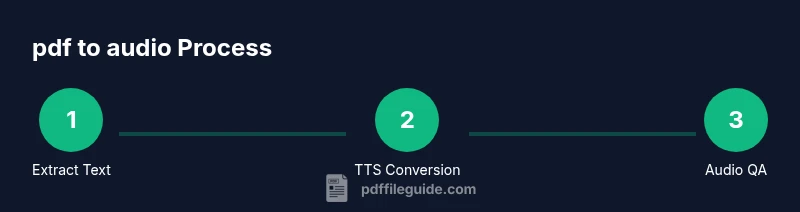
A reliable pdf to audio workflow begins with source quality, then moves through text extraction, text cleanup, voice selection, audio generation, and post-processing. Start by auditing the PDF to identify sections that require special handling (tables, figures, footnotes) and decide whether you need OCR for scanned pages. The workflow below aligns with professional needs: repeatable steps, clear handoffs, and built-in quality checks to ensure that the final narration preserves meaning and tone. This middle section dives into actionable process details you can reuse across multiple documents.
Tools and formats to support pdf to audio
Choosing the right tools is essential for success. For text extraction, you’ll need a capable PDF viewer/editor and, if necessary, OCR software for image-based pages. For TTS, select a synthesis engine that supports multiple languages, voices, and fine-grained prosody control. Audio editing software helps you normalize loudness, remove artifacts, and insert silence for pacing. Finally, plan for metadata and accessibility features, such as timestamps and alternating text passages where appropriate. This section outlines practical tool categories and the trade-offs between open-source and commercial options.
Common issues and how to fix them
Text extraction often encounters formatting quirks like column layouts, headers, and footnotes that can confuse TTS. OCR may struggle with low-contrast or ornate fonts, leading to misrecognized characters. To fix these problems, perform targeted cleanup: remove repeated headers, split long sentences, and standardize hyphenation. If pronunciation becomes an issue, adjust phonetics or select a voice that renders terms clearly. Regular QA checks help catch problems before you publish the audio product.
Accessibility, governance, and ongoing optimization
A compliant pdf to audio process includes accessibility considerations, such as offering a structured audio index, clear narrator cues, and an accompanying text transcript. Governance involves documenting sourcing rights, licensing for TTS voices, and version control for updated PDFs. Ongoing optimization means collecting user feedback, auditing playback on various devices, and updating pronunciation dictionaries as languages or terminology evolve. The result is an inclusive, adaptable workflow that scales with your organization.
Tools & Materials
- PDF reader/editor(Must support text selection and exporting to plain text or accessible formats)
- OCR/text extraction tool(Useful for scanned PDFs; accuracy improves with high-resolution scans)
- Text-to-speech software(Choose a voice and language that matches document tone)
- Audio editing software(Normalize levels, reduce noise, and edit pacing)
- Pronunciation guide or glossary(Helpful for technical terms and brand names)
- Headphones or studio monitors(Critical for accurate QA listening)
- Metadata templates(Chapters, timestamps, and title/information fields)
- Quality assurance checklist(Standardized QA across documents)
Steps
Estimated time: 1-2 hours
- 1
Inventory and assess the PDF content
Review the PDF to identify sections that need special handling (tables, images, footnotes). Note pages that require OCR, and determine whether a trimmed or full-text extraction is preferred for the final audio. This upfront audit reduces rework later.
Tip: Mark ambiguous sections with bookmarks or comments for follow-up. - 2
Extract and prepare the text
Use a reliable extractor to pull text, and run OCR on scanned pages if needed. Clean up headers/footers, remove duplicate content, and unify hyphenation to improve TTS readability.
Tip: Create a clean plain-text version as the master reference. - 3
Preprocess for TTS
Split long passages into digestible chunks, replace complex tables with descriptive captions, and insert natural pauses where paragraphs end. Normalize abbreviations and ensure consistent units or terminology.
Tip: Use a pronunciation guide for tricky terms. - 4
Choose voice and settings
Select a voice that matches the document’s tone (formal, instructional, narrative). Adjust speed and intonation to maintain clarity without sounding robotic. Consider multiple voices for sections like speaker notes.
Tip: Test with a short sample before processing the entire document. - 5
Generate audio
Run the TTS engine to produce an audio track from the prepared text. Enable features like breath sounds and emphasis where appropriate to mimic natural speech.
Tip: Monitor for mispronunciations and adjust the text accordingly. - 6
Edit and normalize
Import audio into editing software. Normalize loudness, remove noise, trim silences, and insert chapter markers or timestamps. Ensure smooth transitions between sections.
Tip: Align audio with the document structure for easy navigation. - 7
Add accessibility metadata
Create an accessible transcript, add timestamps, and label headings or sections in the audio. Ensure the output is compatible with screen readers if required.
Tip: Keep a separate, indexable text version for search and accessibility. - 8
Export, test, and iterate
Export in your chosen format (MP3/WAV), test on multiple devices, and solicit feedback from typical users. Iterate on pronunciation and pacing based on results.
Tip: Document any tweaks for future PDFs to streamline the workflow.
Questions & Answers
Can I convert scanned PDFs to audio?
Yes, but you must run OCR to extract text first. The quality of the audio depends on OCR accuracy, text cleanup, and appropriate TTS settings.
Yes, you can—OCR is essential for scanned PDFs, followed by careful text cleanup and TTS tuning.
What audio formats does pdf to audio support?
Common formats include MP3 and WAV. Choose based on where the audio will be used and the expected file size or compatibility.
Most people use MP3 or WAV; pick based on device compatibility and file size.
Is there a risk of mispronunciations?
Yes. Use a pronunciation guide, phonetic hints, or post-edit the audio to correct terms and ensure clarity.
Yes, and you can fix it by adding phonetic hints or editing the audio.
How can I ensure accessibility compliance?
Provide a structured audio index, a full transcript, and ensure the audio metadata aligns with accessibility best practices.
Add an index, a transcript, and metadata to support accessibility.
Can I automate pdf to audio in batch workflows?
Yes, with scripting or batch processing of your TTS pipeline, but monitor for rate limits and licensing constraints.
Yes, you can batch process, but watch limits and licenses.
What about licensing and rights?
Ensure you have rights to produce and distribute audio renditions, and respect any voice licensing terms.
Make sure you have rights to produce and share the audio.
Watch Video
Key Takeaways
- Plan content handling before extraction
- Choose TTS voices that fit the material
- Validate pronunciation with a glossary
- Test playback on target devices
- Document accessibility and licensing details