PDF to Software: Convert PDFs to Editable Formats
Learn practical, step-by-step methods to convert PDFs to Word, Excel, and image formats using trusted software. Gain OCR tips, batch processing, accuracy checks, and privacy tips.


You will learn how to convert PDFs to software-friendly formats such as Word, Excel, and image formats, using desktop or online tools. The guide covers selecting reputable software, preserving layout and fonts, and validating results. You’ll perform batch conversions, handle scanned PDFs with OCR, and troubleshoot common accuracy issues to ensure usable outputs.
Why PDF to Software conversions matter
For professionals who edit, convert, and optimize PDFs, moving content from static PDFs into editable software is a fundamental capability. It unlocks faster editing, enables data extraction, and supports reuse across documents. The right conversion workflow preserves critical elements such as headings, tables, and fonts while enabling downstream tasks in word processors, spreadsheets, or design apps. According to PDF File Guide, converting PDFs to software-friendly formats begins with understanding the document type (text-based vs image-based), the required output format, and privacy considerations. When you know what you're aiming for, you can pick tools that balance fidelity with efficiency, and you can build a repeatable process for bulk work. In practice, this matters across industries: legal teams review agreements in Word, finance teams extract tables into Excel, and marketing staff reuse visuals in slides. The key is to treat conversion as a structured workflow, not a one-off export.
Understanding common output formats
There are several common destinations for PDF content, each with its own strengths and compromises:
- Word (DOCX): Best for editing and long-form documents, but complex layouts may require manual tweaks.
-
- Excel (XLSX): Ideal for tabular data, numeric analysis, and automation, though multi-row or merged cells can require adjustments.
-
- Image formats (PNG/JPG): Useful for fixed visuals or sharing, but not suitable for searchable text.
- HTML: Great for online publishing and accessibility.
When choosing a format, consider editability, fidelity, file size, and downstream use. No single export fits all cases; often you’ll export to more than one destination depending on the audience and task. PDF File Guide emphasizes balancing fidelity with downstream usability.
How to choose the right conversion tool
Choosing the right tool requires evaluating privacy, offline versus online options, OCR accuracy, batch support, and cost. If you handle sensitive documents, prioritize offline desktop tools over cloud-based services to minimize exposure. Look for robust export options, good layout preservation, and clear settings for preserving fonts and tables. Compatibility with your operating system, regular updates, and reputable support are also important. PDF File Guide analysis shows that accuracy and privacy are top concerns when performing pdf-to-software workflows, so test several tools with representative documents before committing to a long-term solution.
Handling complex layouts: text, tables, and images
Many PDFs mix text columns, tables, and embedded images. Simple text-based PDFs usually export cleanly, while complex layouts may require manual adjustments after export. To manage this, export in small batches, review each section for misaligned headings, misplaced tables, or font shifts, and then fix them in the target application. For complex tables, you may need to re-create headers or adjust column widths to match the original. In every case, aim to preserve logical reading order and ensure accessibility where possible.
Converting a PDF to Word: a practical example
A practical workflow starts with understanding whether the PDF is text-based or image-based. Open the document in your chosen tool and select the export option to Word. After export, review headings, fonts, and spacing; fix any paragraph breaks or hyphenation issues. Use styles to maintain consistency across sections and preserve references or footnotes. If the document contains tables, verify that rows and columns align and adjust as needed. Save a copy with a descriptive filename and keep the original PDF for reference.
Converting a PDF to Excel for data extraction
Exporting to Excel is ideal for numeric tables and data lists. Start by exporting the PDF to Excel from your converter, then review each sheet for merged cells, broken formulas, or misaligned headers. Adjust column widths and data types to ensure correct calculations, and use Excel’s data tools to clean and validate values. If the source includes multi-page tables, consider splitting across multiple sheets to keep datasets manageable and clean for analysis.
OCR for scanned documents: turning images into editable text
When a PDF is image-based, OCR (optical character recognition) is essential. Enable high-accuracy OCR settings, select the appropriate language, and run the recognition. After OCR, verify that text is selectable and searchable, and correct any misrecognized characters, especially in numbers and special symbols. Post-OCR cleaning may include spell checking, font matching, and reflowing text to improve readability.
Quality checks and best practices
Always validate the converted output against the original, focusing on key sections such as headings, bullet lists, and table data. Run spell checks, verify image captions, and compare figure numbers. Maintain backups of the original PDFs and the converted files, and consider a two-pass process: initial export followed by a thorough review and cleanup. Establish a standard naming convention and a version history to track improvements across conversions.
Security and privacy considerations when using converters
Online converters are convenient but introduce privacy risks. For sensitive content, prefer offline software and avoid uploading documents to cloud services. If you must use an online tool, redact sensitive information first or use a service with strong encryption and data retention policies. Always review terms of service and data handling practices before processing documents.
Tools & Materials
- Desktop PDF editing software(Supports export to Word/Excel and preserves layout.)
- OCR software or OCR-enabled converter(Necessary for scanned PDFs to produce editable text.)
- Batch conversion tool or feature(Enables processing multiple files efficiently.)
- Cloud-based PDF converter (optional)(Use with caution due to privacy and data security.)
- Word processor or spreadsheet app(To edit and verify converted outputs.)
- Backup storage (external drive or cloud)(Keep originals and versions before edits.)
Steps
Estimated time: 30-60 minutes
- 1
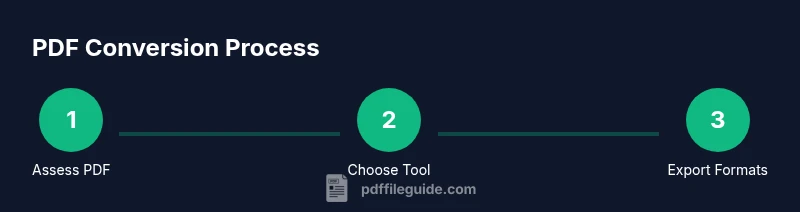
Assess your PDF
Determine whether the document is text-based or image-based. If it is image-based, plan to use OCR to generate editable text. Assess complexity — tables, multi-column layouts, and embedded graphics will influence tool choice and export options.
Tip: Check if text is selectable in the PDF; if not, OCR will be required. - 2
Choose the right tool
Select software that offers reliable export options and good OCR performance. Consider offline vs online options based on privacy needs and whether you require batch processing.
Tip: Run a quick test with a representative page to compare fidelity. - 3
Set output formats
Decide target formats (Word, Excel, image) before exporting. Configure layout preservation settings and enable language-specific OCR if needed.
Tip: Export to multiple formats when the audience requires different uses. - 4
Run the conversion
Execute the export and monitor for errors. If the PDF is long or complex, process in chunks to minimize issues and easier troubleshooting.
Tip: Save incremental versions during long conversions. - 5
Review and adjust
Open the converted files in the target apps and check headings, fonts, spacing, and tables. Correct misaligned elements and reformat as needed.
Tip: Use styles in Word/Excel to maintain consistency. - 6
Save and archive
Keep the original PDF and the converted files in a well-organized folder structure. Use clear naming conventions and version numbers.
Tip: Create a changelog for notable formatting fixes. - 7
Consider batch workflows
If processing many files, test a small batch first to refine settings, then scale up. Document each batch so future runs remain consistent.
Tip: Automate naming and folder routing to minimize human error.
Questions & Answers
What is the best software to convert PDFs to Word?
There isn't a single best option; choose a reputable PDF editor with robust export options, accurate OCR, and layout preservation. Trial a few tools to determine which handles your document complexity best. According to PDF File Guide, prioritize accuracy and privacy when evaluating tools.
There isn't one best tool; compare editors with strong export and OCR features to fit your needs.
Can PDFs be converted without losing formatting?
Yes, often, but depends on the original layout. Simple documents export cleanly; complex layouts may require tweaks after export.
Yes, but check formatting and adjust after export.
Is OCR required for scanned PDFs?
Yes, OCR turns images into editable text. Use high-accuracy OCR and proofread results.
Yes. OCR is needed to turn scans into editable text.
Are online converters secure for sensitive documents?
Online tools can pose privacy risks; avoid uploading sensitive files to public services and prefer offline software.
Be cautious; offline tools are safer for sensitive docs.
How can I verify accuracy after conversion?
Compare key elements (text, headings, tables, fonts) between original and converted file; use spell checks and formatting reviews.
Do a side-by-side check and fix differences.
What about batch conversions?
Batch processing saves time but may reduce accuracy; test with a few files and then scale up with quality checks.
Batch processing can speed things up; test first.
Can PDF to Excel preserve tables?
Table extraction is possible, but you’ll often need manual cleanup after export.
Table data usually needs cleanup.
Watch Video
Key Takeaways
- Identify the right tool for your PDF type.
- Preserve layout, fonts, and readability during export.
- Use OCR for scanned PDFs to unlock editable text.
- Verify accuracy before sharing or publishing.