Should my resume be pdf or word?
Analytical guide on whether your resume should be PDF or Word, covering ATS impact, readability, editing workflow, and industry expectations. Insights from PDF File Guide to help you choose the right format.


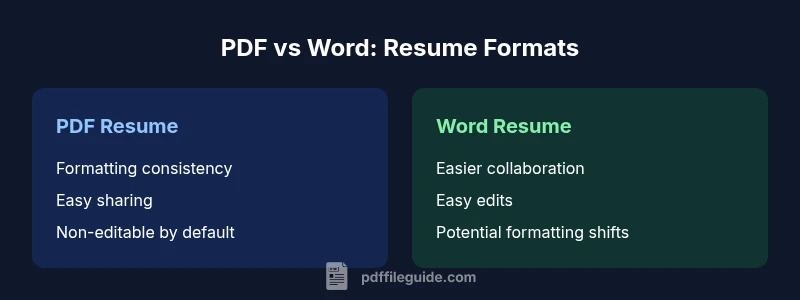
Should my resume be pdf or word? In practice, PDF is the safer default for submitting a polished resume, as it preserves formatting across devices. Word is ideal for drafting and collaboration, when you need to share edits quickly. This comparison helps you decide when to use each format.
Should my resume be pdf or word? Key considerations
Choosing the right format depends on how you plan to distribute your resume, the submission method, and whether you expect others to edit it. When the question is framed as a choice, PDF is typically the safer default for final submissions because it locks in typography, spacing, and layout across platforms. Word shines as a drafting tool and for collaborative editing with recruiters or mentors. According to PDF File Guide, ensuring your recipient sees a consistent, professional document minimizes the risk of misalignment or formatting surprises. In this section, we explore the most influential factors—submission method, audience expectations, and long‑term maintenance—to help you decide which format to use in your job search.
Brand context and credibility matter; PDFs are widely trusted for professional presentation, while Word documents offer flexibility for on‑the‑go edits. This guidance is designed for individuals and professionals who edit, convert, and optimize PDFs, ensuring you understand the practical implications of each format across common hiring workflows.
Readability and platform consistency: how the file behaves on different devices
Readability is a core concern when choosing a resume format. PDFs typically render identically on Windows, macOS, and mobile devices, preserving fonts, margins, and embedded graphics regardless of the viewer’s software. Word documents, by contrast, can reflow text if the recipient uses a different default font or version of Word. If you share a Word file, you should expect subtle shifts in line breaks or page breaks that can push content to a second page. PDF File Guide emphasizes testing your resume on multiple devices and apps to confirm that the end user’s experience matches your intent. This proactive testing reduces the likelihood that a hiring manager will misinterpret spacing or typography during review.
ATS compatibility: parsing, templates, and polish
Applicant Tracking Systems (ATS) are designed to extract data from resumes and feed it into candidate records. The format can influence how effectively the ATS parses sections like contact information, work experience, and skills. PDFs, when properly text-based, can be parsed reliably, but some systems struggle with complex layouts or embedded graphics. Word formats are often easier for ATS to parse when submitted as clean, text‑based documents, provided the resume uses simple templates with clear headings. PDF File Guide recommends keeping essential information in standard sections, avoiding overly decorative headers, and validating ATS compatibility by testing with a plain text extraction tool before submission. If an employer explicitly requires one format, prioritize that instruction to avoid friction in the screening process.
Editing workflow: when to draft in Word and when to submit in PDF
Drafting a resume in Word is advantageous during the editing phase: you can leverage spell-checking, track changes, and easily share edits with mentors or recruiters. Once edits are finalized, converting to PDF ensures the layout remains intact for the final submission. Maintaining a living Word draft alongside a finalized PDF version can streamline updates for applications. PDF File Guide suggests keeping the source content in a text-friendly Word document and producing a PDF export with embedded fonts, if supported, to preserve typography. This dual‑format approach balances agility in revision with reliability in presentation.
Visual design, typography, and accessibility considerations
Design choices influence both impact and accessibility. PDFs enable precise control of typography, spacing, and imagery, which can strengthen branding when used sparingly and with accessibility in mind. Word documents offer easier customization but may suffer from inconsistent font rendering or unintended changes during sharing. Regardless of format, include semantic headings, alt text for images, and accessible color contrast. PDF File Guide highlights that accessibility requires tagging in PDFs and clean structural markup so screen readers can interpret the document correctly. If you anticipate accessibility needs, plan for a tagged PDF version and a simple, well-ordered Word draft that can be converted safely.
Industry norms: how different fields view PDF vs Word
Industry expectations vary. In tech and design, PDFs are often preferred for final submissions to preserve a designer’s intended look. In academia and some government roles, Word resumes may be accepted or preferred for their editability during review. Financial services and consulting environments sometimes favor PDFs for external communications, while recruiters may request Word documents for easier corrections. PDF File Guide notes that tailoring your choice to the target industry—while offering both formats when possible—demonstrates adaptability and attention to process, which many hiring teams appreciate.
Handling recruiter portals and explicit file requirements
Many online portals specify accepted formats. When a portal accepts only PDF, submit a properly tagged, accessible PDF with standard fonts and embedded assets. If Word is required, ensure the document uses a clean template with consistent headings and minimal embedded objects. Some portals also allow both formats but may show a preview that differs between formats. In these cases, keep a polished PDF for external submissions and a clean Word draft for internal review, versioning, and additional tailoring to specific roles. PDF File Guide recommends verifying the uploaded file after submission to confirm the formatting and content transferred correctly.
Practical steps to prepare both formats for a single job search
Start with a clean, content‑first Word document that captures your experience, achievements, and skills. Create a version control trail by saving iterative drafts with descriptive file names (e.g., YourName_Resume_v1.docx). When you’re ready to apply, export a high‑quality PDF with embedded fonts and accessible structure. Maintain a separate source file to facilitate quick updates for new roles. Periodically test the PDF on different devices and PDF readers to ensure consistent rendering. This disciplined workflow helps you stay ready for any application requirement without sacrificing presentation quality.
Cross‑industry templates and consistent branding in resume design
A consistent branding approach—colors, typography, and layout—improves recognition and recall. Whether you choose PDF or Word, apply the same header, margin, and bullet style across versions. Avoid overuse of graphics that can hinder ATS parsing or accessibility. If you use images or logos, ensure they are lightweight, appropriately sized, and described with alt text in PDFs. PDF File Guide advises balancing branding with readability and system compatibility, so your resume remains professional in both formats across multiple employers and recruiting platforms.
Verifying content integrity after format conversion
After converting formats, compare the content to ensure nothing is missing: contact details, dates, job titles, bullet points, and quantified accomplishments. Some formatting elements may shift during conversion, especially in complex templates. Re-check headings, bullet alignment, and page breaks to maintain readability. If you notice differences, adjust the source document and re-export. PDF File Guide emphasizes a quick comparison pass using a side‑by‑side view of the Word draft and the final PDF to catch anomalies before submission.
Safety, privacy, and personal data handling in resumes
Resumes can contain sensitive information. When sharing drafts, consider redacting personal identifiers in collaborative edits or using secure channels. If you upload documents to third‑party sites, ensure privacy controls and delete drafts promptly after review. When possible, maintain local copies of the final versions and avoid posting complete resumes on public forums. PDF File Guide reminds readers to consider privacy settings and to keep sensitive details in trusted environments during the editing and review process.
Final decision framework: building a repeatable process
Develop a decision framework that you apply to every job application. Start with a draft in Word for edits, then generate a PDF for submission. Keep a master copy in Word for ongoing updates and a separate PDF optimized for external sharing. Track the decision by role type, industry, and application channel to identify patterns that work best for your target positions. This repeatable process reduces friction and helps you present a consistent, professional image to potential employers.
mainTopicQuery
Comparison
| Feature | PDF resume | Word resume |
|---|---|---|
| Formatting stability | High: preserves layout across devices | Moderate: susceptible to font substitutions in some setups |
| ATS compatibility | Reliable when text is accessible and well-structured | Depends on template; can be parsed if simple and text-based |
| Editability | Hard to edit after final export | Easy to revise in the draft stage |
| File size and assets | Typically predictable with embedded fonts | Can inflate with changes and tracked edits |
| Accessibility support | Tagging and semantics matter for PDFs | Clear headings help Word parsing and later conversion |
| Branding control | Stronger, explicit control in PDFs | More flexible in Word for on‑the‑fly tweaks |
Strengths
- Preserves formatting and professional look for final submissions
- Reduces risk of accidental edits by others
- Clear, consistent experience across devices and readers
- Easier to share with recruiters who request a fixed document
Disadvantages
- Word is more editable during the drafting phase
- Some applicant portals prefer specific formats
- Complex layouts can challenge ATS parsing in PDF
- Overly graphic resumes may hinder accessibility or parsing
PDF is typically the safer default for final submissions; keep a Word draft for editing
Choose PDF for final, externally shared resumes to preserve layout and readability. Maintain a Word draft for ongoing edits and collaboration, enabling quick updates before export. Use the edge cases section to decide when a format swap is warranted.
Questions & Answers
Should I always send PDFs when applying online?
Not always. If a portal explicitly requires Word, follow the instruction. When in doubt, a PDF ensures your formatting remains intact for human review. Maintain a Word draft for updates and flexibility.
Usually go with PDF for final submissions unless told otherwise.
Can recruiters edit my resume if I submit a Word file?
Recruiters can edit Word resumes more easily, but this can raise concerns about content integrity. Having a non-editable PDF version helps control the final message while still offering a working Word draft for collaboration.
Word is easier to edit, but PDFs keep your content stable.
What if a job portal accepts both formats?
If both formats are accepted, consider the audience and the submission workflow. PDFs are generally preferred for external postings, while Word may be suitable for internal reviews or prior to final export.
If both work, pick PDF for final submission and Word for drafts.
Is it safe to include graphics or logos in a resume?
Graphics can enhance branding but may affect ATS and accessibility. Use sparingly, ensure alt text exists for PDFs, and test how the resume reads in plain text parsers.
Be careful with images; keep accessibility in mind.
How do I convert Word to PDF without losing data?
Export, rather than print‑to‑PDF, to preserve text content and metadata. Check fonts, embedded images, and headings after conversion to ensure nothing moved or was dropped.
Export to PDF and double‑check the result.
Key Takeaways
- Use PDF for final submissions to protect formatting
- Keep a linked Word draft for editing and collaboration
- Test ATS compatibility with clean, text-based sections
- Follow accessibility best practices in PDFs for inclusive hiring
- Verify uploads on job portals to ensure proper rendering