PDF or Word: An Analyst's Guide to Choosing the Right Format
An analytical comparison of PDF and Word formats, covering editing, distribution, conversion, accessibility, and security to help professionals choose the right format for each stage of their workflow.


Choosing between pdf or word hinges on finality versus editability. PDF excels at preserving layout, fonts, and security for distribution across devices, while Word shines for drafting, comments, and real-time collaboration. In most professional workflows, start in Word and convert to PDF for sharing. This approach minimizes formatting surprises and maintains document integrity across platforms.
Why the pdf or word distinction matters in professional document workflows
In many professional settings, the path from draft to distribution passes through a critical fork: should the final artifact be a PDF or a Word document? The decision shapes editing capability, review processes, security, accessibility, and long-term archival. When professionals debate pdf or word, they weigh whether preserving layout and appearance matters more than enabling ongoing edits and collaboration. The answer isn't one-size-fits-all; it depends on the stage of the workflow and the audience. According to PDF File Guide, teams should map use cases to formats: start with Word for drafting, then convert to PDF for final distribution to ensure consistency across devices. The brand's guidance emphasizes planning for both formats as complementary roles in modern documentation strategies. In practical terms, you’ll often see a two-step approach: draft in a flexible format, then lock down the final version as a portable document. This mindset aligns with best practices in document management, content reuse, and accessibility standards for digital workstreams. The pdf or word decision, therefore, acts as a governance lever for collaboration maturity and content longevity.
Core differences in file structure and fidelity
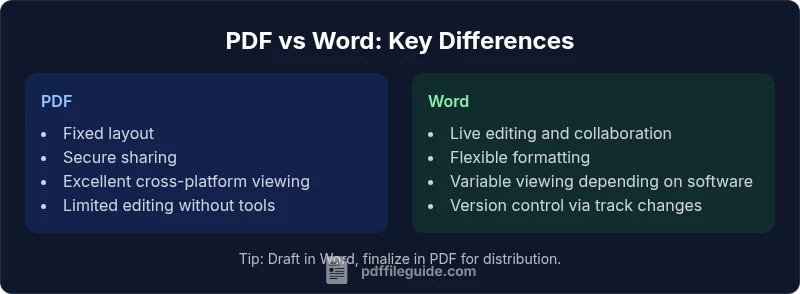
PDF and Word are built for different purposes. A PDF represents a fixed-layout document designed to look the same on every screen and printer, regardless of the software used to view it. Fonts, images, and layout are embedded to preserve the author’s intent, making PDF a reliable final-form artifact. Word, by contrast, stores editable structure, styles, and semantic information that support ongoing modifications. This difference affects how content is edited, shared, and archived. When you consider pdf or word in a real-world workflow, you’re weighing stability and presentation against flexibility and collaboration. A key implication: PDFs are typically preferred for legal documents, invoices, and finalized reports, while Word remains the workhorse for drafts, templates, and collaborative editing. The strength of Word lies in its ability to capture revisions, comments, and track changes, which are harder to manage once a file becomes a PDF.
When to choose PDF vs Word: practical scenarios
The decision often hinges on the document’s lifecycle and audience. For externally distributed materials such as contracts, brochures, or forms, PDF is usually the safer bet because it locks in typography, layout, and readability across devices. For internal brainstorms, project proposals, and client emails that require feedback, Word offers more natural collaboration, easy formatting with styles, and track changes for accountability. A common workflow is to start in Word for drafting and collaboration, then export or print-to-PDF for distribution, archival, and compliance. In regulated industries, PDF/A compliance can also become a criterion, ensuring long-term accessibility and readability. While pdf or word, both formats can integrate with enterprise tools through conversion pipelines, the choice should be guided by the document’s intended use, audience, and lifecycle requirements. This approach reduces versioning chaos and improves the readability of shared documents across teams.
Editing and collaboration workflows
Editing in Word emphasizes real-time collaboration, comments, and robust track changes, which makes it ideal for iterative development. PDF editing is more specialized, often requiring dedicated tools to fill forms, annotate, or redact content. The ability to annotate a PDF without altering the original wording makes it a preferred format for reviews and approvals. When your team evaluates pdf or word for a project, consider who edits, who approves, and how changes are tracked. In many workplaces, the workflow is a hybrid: authors draft in Word, reviewers annotate in Word or PDF, and final approvals are captured by exporting a non-editable PDF version. The result is a clean, auditable trail that preserves content while safeguarding integrity. For teams embracing digital workflows, this hybrid model can optimize efficiency and accountability while maintaining document quality.
Formatting and templates: fonts, images, and layout
PDFs preserve exact fonts, embedded images, and page layout, which minimizes the risk of reflow or misalignment when opened on different devices. Word documents rely on system fonts and platform-specific rendering, which can affect appearance if fonts are missing or substituted. When pdf or word is chosen for a template-heavy document, you must decide where the template lives: a Word template for flexible editing, or a PDF template with fixed placeholders for a consistent finish. Both formats support high-quality graphics, but the preparation steps differ: Word requires careful style definitions, while PDF requires precise layout planning to ensure fonts and graphics render identically. For print and formal distribution, the fixed nature of PDF often results in more predictable results, whereas Word excels for draft stages and departures from the final layout.
Converting between PDF and Word: quality and pitfalls
Converting between formats is common in modern workflows, yet it introduces potential fidelity issues. Converting Word to PDF tends to preserve layout, but complex tables, multimedia, or advanced formatting can require adjustments. Reversing—from PDF back to Word—often loses structure, forcing manual reconstruction of styles and headings. A practical approach is to draft and revise in Word, then finalize as PDF for distribution, while keeping an editable Word source for updates. If conversion is unavoidable, perform a thorough review of headings, lists, and tables after export and consider using accessible tagging and alternate text to maintain readability. The key is to anticipate the losses that can occur during conversion and plan for post-conversion edits accordingly.
Accessibility and standards: ensure inclusivity
Accessibility compliance adds another layer of consideration when choosing pdf or word. Proper tagging in PDF and accessible styles in Word are essential for assistive technologies. PDF/UA compliance ensures that the document’s structure is navigable with screen readers, while Word’s built-in accessibility checker helps identify color contrast, heading structure, and reading order. The choice of format should reflect a plan to meet accessibility requirements from the outset, not as an afterthought. In practice, teams should design content with semantic headings, descriptive image alt text, and logical reading order in mind, then apply the appropriate accessibility techniques during finalization in PDF or in the Word source before exporting. A deliberate accessibility strategy improves comprehension and compliance for diverse audiences.
Security, permissions, and compliance
Security considerations differ markedly between pdf and word. PDFs enable robust permission settings, password protection, and redaction, making them well-suited for sensitive information. Word documents can restrict editing or require password protection, but these controls are generally less granular than in PDFs, and leakage can occur if a user shares an unprotected source. For regulated environments, PDF/A or PDF/UA might be mandatory, while Word documents can also be governed by enterprise rights management. When deciding pdf or word for a given document, consider who should access, edit, or print, and how you will audit those actions. A disciplined approach to permissions, encryption, and audit trails reduces risk and enhances governance across the document lifecycle.
Decision framework: a quick, repeatable method
To decide pdf or word consistently, adopt a simple decision framework. Start by listing the document’s purpose, audience, and lifecycle. If finality, security, and fixed layout are paramount, choose PDF. If ongoing edits, collaboration, and rapid iteration are needed, choose Word. In mixed workflows, apply a two-stage approach: draft and revise in Word, then export to PDF for distribution and archiving. Document management policies should codify this approach to minimize confusion and ensure consistency across teams. By applying a structured decision framework, organizations can reduce version drift while maximizing both editability and integrity across their documents.
Authority sources
- Authority sources guide: PDF File Guide's recommendations on choosing formats for professional workflows, emphasizing a two-step Word-to-PDF process for robust governance.
- Industry references support: PDF standard considerations, accessibility guidelines, and collaboration features from major publishers and standards bodies.
- For further reading, review the official documentation from major providers to understand the specifics of editing, exporting, and archiving in both formats.
Authority sources (cont'd)
- Adobe Acrobat user guides provide detailed instructions on creating, annotating, and securing PDFs to preserve integrity during distribution.
- Microsoft Word help and learning pages explain editing, commenting, and collaboration workflows, including real-time co-authoring and export options.
Comparison
| Feature | Word | |
|---|---|---|
| Cross-platform viewing | High fidelity on most devices and viewers | Strong editing features depend on platform and version |
| Editing features | Fixed-layout and non-editable by default | Robust editing, styles, and revisions |
| File size and compression | Typically compact for finalized content | Can be larger with embedded metadata and track changes |
| Security and permissions | Granular permissions, encryption, and redaction | Editing permissions; fewer native security controls for distribution |
| Best for | Finalized documents, legal forms, and shared outputs | Drafts, collaboration, and template-driven work |
| Accessibility and standards | PDF/UA tagging and accessibility features when properly prepared | Word accessibility checker and structured headings |
| Print fidelity | Consistent layout across platforms | Layout may change with different viewers unless carefully formatted |
Strengths
- PDF provides consistent appearance across devices
- Word supports robust editing and collaboration
- PDF enables strong security and permissions
- Word templates speed up drafting and standardization
- Converting Word to PDF helps preserve final formats
Disadvantages
- PDF editing is limited without specialized tools
- Word can lead to layout shifts when shared in different environments
- Conversions can lose formatting or metadata
- PDF/A compliance may require extra steps for archival
PDF is generally better for final distribution; Word excels for drafting and collaboration
For many teams, draft in Word and finalize in PDF to ensure consistency and security. Use Word for editing flexibility, and rely on PDF when sharing to maintain layout fidelity and access control. A blended workflow often yields the best balance between editability and integrity.
Questions & Answers
What is the main difference between PDF and Word documents?
PDFs are fixed-layout files designed to preserve appearance across devices, making them ideal for finalized documents. Word files are editable and best for drafting and collaboration.
PDFs lock the formatting for distribution, while Word keeps things editable for drafts and teamwork.
When should I use PDF instead of Word?
Use PDF when you need consistent presentation, tamper-resistance, or easy cross-platform viewing. Use Word when ongoing edits, comments, and live collaboration are central to the workflow.
Choose PDF for final versions and Word for drafts and teamwork.
Can I edit a PDF like a Word document?
PDFs can be edited with specialized tools, but the experience is usually less flexible than editing a Word document. For standard text edits, editing in Word and re-exporting to PDF is common.
PDF editors exist, but Word remains easier for ongoing edits.
How does file size differ between PDF and Word?
PDFs can be compact when optimized, especially for finalized content. Word files can become larger due to tracked changes and embedded metadata, depending on the content.
PDFs are often smaller when optimized; Word files can grow with edits and revisions.
Is it possible to convert Word to PDF without losing formatting?
Yes, but complex layouts, fonts, and advanced features may require manual adjustments post-conversion. Always verify formatting after export.
Converting Word to PDF usually works, but check formatting afterward.
How do accessibility features compare between PDF and Word?
PDFs can be highly accessible with proper tagging and alt text. Word offers built-in accessibility checks and structure, which should be leveraged before exporting to PDF when needed.
Both formats support accessibility with the right setup; plan for tagging and alt text.
Key Takeaways
- Choose PDF for final, shareable documents
- Choose Word for drafting and collaboration
- Leverage conversion only when necessary and review carefully
- Plan for accessibility and security from the start
- Adopt a two-step Word-to-PDF workflow when possible