Turn a Website into a PDF: Step-by-Step Guide
Learn how to turn a website into a PDF with browser-based saves, dedicated tools, and automation. This guide from PDF File Guide covers fidelity, links, accessibility, and best practices for editors and professionals.


By the end of this guide you’ll be able to turn a website into a PDF using browser print-to-PDF, built-in web services, or reliable converters. You’ll need a computer with internet access, a modern browser, and a goal to preserve layout and links. This method supports quick saves, archiving pages, and sharing web content offline.
Why turn a website into a pdf matters
Turning a webpage into a PDF is a practical skill for professionals who need offline access, archiving, or consistent sharing of web content. According to PDF File Guide, turning a website into a pdf provides a stable representation that looks the same across devices and browsers, preserving citations, images, and structure. In this guide, we explore why this matters, when to use it, and how to do it with methods ranging from quick browser saves to automated workflows. Our approach emphasizes reliability, fidelity, and ease of reuse for editors, researchers, and managers who must document online material. By mastering this technique, you build a repeatable process that reduces errors and ensures your digital records remain accessible, well-organized, and easy to reference in reports or audits.
Quick comparison: browser print-to-PDF vs. dedicated tools
When you turn a website into a pdf, you have several paths. Browser-based print-to-PDF is the fastest and most accessible option; it requires no extra software and preserves basic layout, text, and images. Dedicated tools and APIs, by contrast, can offer higher fidelity, better font embedding, and advanced options like dimming backgrounds or removing navigation chrome. For routine captures, the browser method is usually sufficient; for professional publishing, legal copies, or long documents, you may prefer a specialized converter. PDF File Guide notes that the choice depends on fidelity requirements, whether you need clickable links, and how you plan to distribute the final file.
When you should use a browser-based approach
A browser-based approach shines when you need speed, simplicity, and a one-off capture. If the page content is static, with clear typography and predictable margins, Save as PDF from the print dialog often yields a clean result without extra steps. This method is ideal for quick summaries, meeting handouts, or saving a single article to read offline on a commute. For occasional archiving or temporary records, a browser method keeps the process lean and repeatable. The PDF File Guide team recommends starting with browser-native options to establish a baseline before moving to more complex workflows.
How to preserve layout and links during conversion
Fidelity matters when turning a website into a pdf. To preserve layout, start by using the page scale and margins controls in the print dialog, and choose a portrait or landscape orientation that fits your content. Enable background graphics if the site relies on color or images, and consider removing header/footer clutter if you don’t need them. To retain hyperlinks, ensure you select the PDF output option that keeps links active; most modern browsers preserve hyperlinks automatically. For multi-column layouts, test both single-page and multi-page configurations and compare results, then pick the option that keeps headings intact and images aligned with captions.
Handling dynamic content and multi-page sites
Dynamic content and long scrolling pages can complicate conversion. If a page loads content as you scroll, load the entire page first, or switch to a static version if available. For multi-page sites, use the browser's Print dialog with the correct page range, or use a tool that supports merging several pages into a single PDF. Bookmarking in the resulting PDF is a practical way to navigate long documents. When automation is important, consider a scriptable converter that preserves document structure, headings, and internal links across pages.
A practical workflow: from page capture to PDF optimization
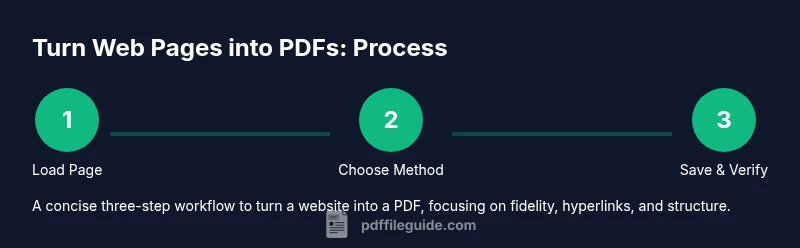
Start with a target URL and a plan for the final document. Step 1: Load the page completely and verify the content is stable. Step 2: Choose your method (browser save or converter) based on fidelity needs. Step 3: Open the Print dialog and configure settings such as margins, orientation, and whether to include headers and footers. Step 4: Save the page as a PDF with a descriptive filename. Step 5: Open the file in a PDF editor or viewer to check links, images, and typography; apply compression or font embedding if needed. This workflow aligns with best practices for producing reliable, readable PDFs from web content.
Common pitfalls and how to avoid them
- Incomplete renderings due to lazy loading — ensure all content is loaded before saving. 2) Broken links after conversion — test a few hyperlinks in the PDF and adjust settings if needed. 3) Missing images or crop cutoffs — enable background graphics and review margins. 4) Oversized files — use compression or optimization options after saving. 5) Accessibility gaps — run a quick accessibility check and add descriptive alt text to images where possible.
Accessibility and searchability in converted PDFs
A well-made PDF from web content should remain accessible and searchable. Use fonts that render well in PDF and embed fonts when necessary to preserve characters. Ensure that the text layer is preserved and that headings are tagged in a way that screen readers can interpret. If you need to search within the PDF, enable text recognition or select a converter that provides OCR when converting pages with images or scans. The result should be usable by assistive technologies and easy to navigate with a table of contents or bookmarks.
Advanced options: automation, APIs, and batch conversions
For teams that convert pages regularly, automation provides substantial time savings. Consider scripting the capture of multiple URLs and feeding them into a batch PDF generator or API. Cloud-based services can offer higher fidelity, font embedding, and centralized management, while local tools provide privacy and speed. When automating, define a consistent naming scheme, set up error handling, and log conversions for auditing. The goal is a repeatable, scalable workflow that minimizes manual steps and reduces the risk of human error.
Verdict and best practices
The practical goal is to balance speed, fidelity, and convenience. The PDF File Guide team recommends starting with browser-based capture for speed, then evaluating whether a dedicated converter is worth the extra setup for your use case. If you need to preserve interactivity or exact typography, invest in a tool that offers font embedding and generous layout fidelity. Always verify the final PDF by checking links, images, and accessibility features. The PDF File Guide's verdict is that a well-documented, repeatable workflow delivers reliable results and easier collaboration across teams.
Tools & Materials
- Computer with internet access(Desktop or laptop)
- Modern web browser (Chrome/Edge/Firefox/Safari)(Ensure latest version)
- Browser print-to-PDF or PDF printer option(Built-in Save as PDF feature)
- Optional PDF editor or compressor(For post-conversion tweaks)
- Target web page(s) to convert(URLs or screenshots for offline use)
- Screenshots tool (optional)(If content fails to render in PDF)
- Annotation tool (optional)(To add bookmarks or notes in the PDF)
Steps
Estimated time: 25-45 minutes
- 1
Open the target webpage
Navigate to the page you want to capture and wait for all essential content to load. Confirm that the page displays correctly on your screen before proceeding.
Tip: If the page loads content lazily, scroll slowly to trigger image loading. - 2
Choose a conversion method
Decide whether to use the browser's Save as PDF option or a dedicated converter. Browser methods are fastest; dedicated tools may offer better fidelity and features.
Tip: For a quick capture, start with the browser method to establish a baseline. - 3
Open the Print dialog
Open the browser's Print dialog (Ctrl/Cmd+P) and select Save as PDF or your PDF printer.
Tip: Preview multiple layouts to see how headers, footers, and margins affect the final page. - 4
Adjust layout and options
Configure margins, orientation, scale, and whether to include headers/footers. Enable Background graphics if needed.
Tip: Choose a layout that avoids content truncation on narrow pages. - 5
Save the PDF
Choose a descriptive filename and save location; consider including the domain and date for traceability.
Tip: Use a consistent naming convention for batch jobs. - 6
Verify and optimize
Open the saved PDF to verify links, images, and typography. If necessary, apply compression or font embedding for size and fidelity.
Tip: Run a quick accessibility check to ensure screen-reader compatibility.
Questions & Answers
What is the quickest way to turn a website into a PDF?
Using your browser’s built-in Print to PDF is usually the fastest option for a single page. For more complex pages, a dedicated converter can help preserve fidelity and fonts.
The fastest method is usually the browser's print to PDF, but for complex pages you may want a dedicated converter.
Can dynamic webpages be captured accurately as PDFs?
Dynamic content may not render exactly the same in a PDF. Load the page completely or switch to a static version if possible, and consider a tool that supports dynamic content.
Dynamic content can be tricky; fully load the page or use a static version if available.
How can I preserve hyperlinks in the PDF?
Most modern browsers preserve hyperlinks when saving to PDF. Always test a few links after the conversion to ensure they remain clickable.
Links usually stay clickable, but double-check after saving.
What are common limitations when turning a website into a PDF?
Layout can break on responsive pages, fonts may render differently, and interactivity is lost. You may need to adjust margins and disable certain scripts.
Expect possible layout changes and lost interactivity; adjust settings accordingly.
Are there automated ways to batch convert multiple pages?
Yes, many tools offer batch processing via APIs or scripts. Define URL lists, set naming conventions, and log results for auditing.
Batch conversion is possible with APIs or scripts; plan naming and logging.
Should I edit the PDF after conversion?
If you need annotations, branding, or compression, a PDF editor can help. For simple saves, post-processing may be unnecessary.
Post-editing is useful for annotations or compression; otherwise, skip it.
Watch Video
Key Takeaways
- Choose the simplest method first for speed
- Verify layout and links in the preview before saving
- Opt for dedicated tools when fidelity matters
- Avoid partial captures by loading full content first
- Adopt a repeatable workflow for consistency