How to Convert PDF to PDF/A Free: A Comprehensive Step-by-Step Guide
Learn free methods to convert PDFs to PDF/A for archival, with step-by-step offline and online options, conformance checks, and best practices for fonts, metadata, and color profiles.


You can convert a PDF to PDF/A for archival using free tools and online services. This guide walks you through safe, step-by-step methods (offline software and web-based options), how to verify conformance, and considerations for fonts, metadata, and color profiles to ensure your PDF/A meets archival standards today easily.
What is PDF/A and why it matters
PDF/A is an ISO-standard designed for long-term digital preservation of electronic documents. It requires that all fonts be embedded, color profiles be defined, and metadata be preserved, so the document renders consistently across software and decades of use. For professionals who edit, convert, or archive PDFs, understanding PDF/A helps ensure regulatory compliance, reliable document retrieval, and improved accessibility. Choosing PDF/A over a standard PDF reduces the risk that fonts or external resources will fail to render properly. ISO 19005 covers several conformance levels, including PDF/A-1, PDF/A-2, and PDF/A-3, each with different capabilities. Before converting, decide which conformance level fits your archival needs to avoid backtracking later. According to PDF File Guide, selecting the right PDF/A variant early aligns with archival goals and streamlines the workflow.
Free ways to convert to PDF/A: overview
There are reliable free paths to PDF/A without paying for software. Free offline options give you control and privacy, while free online tools offer convenience for quick jobs. The key is to plan for conformance from the start—embed fonts, preserve metadata, and define color spaces. This section outlines when to choose offline versus online tools, what each method guarantees, and common caveats. PDF File Guide emphasizes balancing cost, privacy, and accuracy when picking a workflow. Remember that no method is truly “one size fits all”; your choice should reflect document type, required conformance, and whether accessibility tagging is essential.
Tools & Materials
- Ghostscript(Command-line tool for PDF/A conversion; supports PDFA and color/profile handling.)
- LibreOffice (or Apache OpenOffice)(Use File > Export as PDF, then choose PDF/A options and conformance level.)
- veraPDF Validator(Free conformance checker with GUI or CLI to verify PDF/A compliance.)
- PDF viewer(To review output locally before archiving.)
- Web browser(Helpful for quick online checks or to upload/download test files.)
- Source PDF(The document you will convert to PDF/A.)
Steps
Estimated time: 30-90 minutes
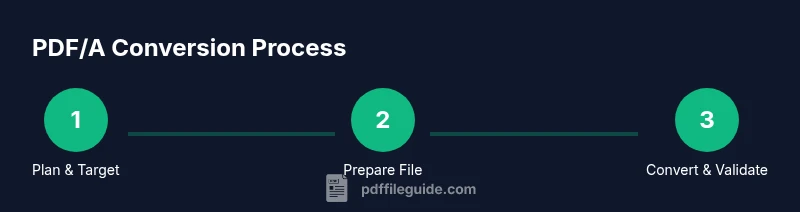
- 1
Determine target PDF/A conformance
Decide whether you need PDF/A-1, -2, or -3 based on archival needs, collaboration requirements, and whether embedding other file formats is necessary. Document the decision to guide subsequent steps.
Tip: If no external formats are required, start with PDF/A-1b for broad compatibility. - 2
Prepare the source document
Ensure the source PDF has embedded fonts, high-quality images, and accessible tagging if available. Remove sensitive metadata when not needed for archive.
Tip: Embed fonts and preserve color profiles to avoid rendering changes in other viewers. - 3
Choose a free conversion path
Select Ghostscript for command-line conversion or LibreOffice for GUI-based export. Decide based on your comfort with terminal commands or a graphical interface.
Tip: For beginners, LibreOffice provides a simpler, visual workflow. - 4
Run the conversion
Execute the conversion to PDF/A with your chosen tool, ensuring the proper flags or dialog selections for PDF/A conformance and color space preservation.
Tip: Make a copy of the original before running the conversion. - 5
Validate conformance
Use veraPDF (GUI or CLI) to check PDF/A compliance. Review any errors or warnings and re-run conversions after fixes.
Tip: Pay attention to font embedding, transparency, and color profile warnings. - 6
Archive with metadata and save
Attach descriptive metadata (title, author, keywords) and save the final PDF/A in your archival folder with a clear naming convention.
Tip: Maintain a changelog for the PDF/A workflow to facilitate audits.
Questions & Answers
What is PDF/A and why should I use it?
PDF/A is an ISO-standardized format designed for long-term preservation. It requires embedded fonts, defined color profiles, and preserved metadata to ensure consistent rendering in the future. This makes documents more reliably archivable and accessible over time.
PDF/A helps ensure documents look the same years from now because fonts and colors are embedded and metadata is preserved.
Which PDF/A conformance level should I choose?
Choose based on your archival needs: PDF/A-1 for basic visual fidelity, PDF/A-2 for transparency and embedded formats, and PDF/A-3 for complex workflows that embed other file types. Start with PDF/A-1b for broad compatibility and upgrade if needed.
Start with PDF/A-1b for compatibility, then consider higher levels if your workflow requires embedded files.
Can I convert scanned PDFs to PDF/A for archiving?
Yes, but you may need OCR data and proper font embedding to preserve searchability and readability. Ensure the conversion preserves text layers and metadata where possible.
You can, but ensure OCR results are embedded and the text layer is preserved for accessibility.
Are online tools safe for confidential documents?
Online tools can pose privacy risks for sensitive material. Prefer offline tools for confidential documents, and only use reputable services if you must go online.
Be cautious with confidential files online; offline tools are safer for sensitive content.
What should I check after conversion?
Verify font embedding, color profiles, metadata, tagging, and accessibility features with a conformance checker. If issues appear, adjust source settings and re-run the process.
Check embedding, color, metadata, and tagging; fix issues and re-check.
Watch Video
Key Takeaways
- Define target PDF/A conformance before starting
- Choose a free offline tool for privacy and control
- Embed fonts and set color profiles for reliability
- Use veraPDF or equivalent to verify conformance
- Document metadata and archiving details for audits