How to Draw in a PDF: A Practical Guide for Annotations
Learn how to draw in a PDF using annotation tools and editors. This educational guide covers desktop and mobile workflows, best practices, and common pitfalls for professionals who edit, convert, and optimize PDFs.


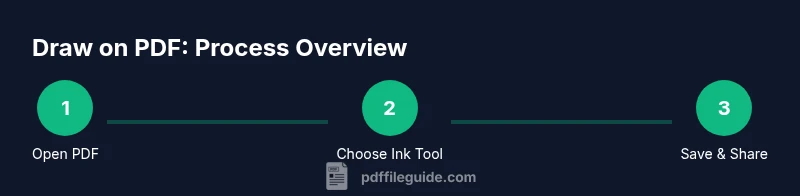
You can draw in a PDF by using built-in annotation tools or dedicated editors that support freehand drawing, shapes, and line weights. Start by opening the file in a compatible app, select the draw/freehand tool, and sketch your marks. Save or export a new copy to preserve edits. This guide walks you through reliable methods and best practices.
Understanding drawing on a PDF and its scope
Drawing on a PDF refers to placing freehand marks, shapes, arrows, and callouts directly over the document surface without altering the underlying text or images. This is different from editing the document's content or reflowing text, and it relies on annotation or canvas-like features in the viewer or editor. According to PDF File Guide, the core idea is to preserve the original document while adding visual notes. The reliability of your drawings depends on choosing the right tool, planning the annotation layers, and keeping a clean version for distribution. For professionals who edit, convert, and optimize PDFs, drawing is a collaborative tool used in reviews, proofs, and design handoffs. The quality of your marks—line weight, color contrast, and spacing—determines how effectively readers understand your commentary. Remember that not all PDFs permit drawing by default; sometimes you must enable editing, unlock permission, or choose a viewer that supports ink annotations. This is the starting point for a consistent, interpretive workflow.
Tools and file formats you should consider
To draw effectively on PDFs, you need a tool that supports freehand ink, shapes, and layer management. Desktop editors likeAdobe Acrobat Pro, Foxit PhantomPDF, and Nitro Pro offer robust annotation drawers and export options. In some cases, a lightweight editor such as PDF-XChange Editor or Foxit’s free viewer can handle basic ink marks. Web-based tools like PDFescape or Smallpdf’s annotate feature provide browser-based options, great for quick tasks or on a computer without installation. On mobile, apps like Xodo or Adobe Acrobat Reader mobile enable finger or stylus drawing. Before you start, confirm that the file’s permissions allow annotations and be mindful of security when uploading sensitive PDFs to cloud services. For on-the-go work, you can draw in a pdf with mobile apps. PDF File Guide analysis, 2026, indicates that teams favor tools with reliable pen input, layer separation, and clear export controls to preserve edits after sharing.
Preparing to draw: planning, backups, and accessibility
Before you draw on any PDF, plan your edits to minimize rework. Create a backup copy of the original file so you can revert if needed. If your editor supports layers, place your annotations on a dedicated layer labeled “Annotations” or “Draw.” This separation keeps the original content intact. Consider color contrast and stroke width to ensure your marks are legible on screens and in print. For accessibility, describe major annotations in accompanying text or provide alt text for screen readers when sharing. This upfront preparation makes collaboration smoother and reduces the risk of accidental data loss.
Desktop vs mobile: tools, settings, and best practices
Desktop environments typically offer richer drawing capabilities, including pressure-sensitive input with styluses, adjustable line thickness, and multi-layer workflows. Mobile devices emphasize portability and quick feedback, often with gesture-based tools for rapid sketches. Regardless of platform, establish a consistent color palette and line weight for your team to maintain visual coherence. Test your annotations on a representative export (PDF/A or standard PDF) to confirm that marks render correctly when shared or printed. PDF File Guide notes that consistency across devices is a key factor in professional documents, especially when drawing informs critical decisions.
Workflows for collaboration and review
In collaborative workflows, attach your drawn notes to proofs and circulate them for feedback. Use comments to contextualize drawings, and pair freehand marks with text notes for clarity. When multiple reviewers annotate the same document, enable a clear layering strategy so edits can be merged or reversed without confusion. Saving iterative versions (e.g., “ProjectX_v2_clean.pdf”) helps track changes and ensures stakeholders review the latest marks. Close collaboration relies on documented standards for color, stroke, and symbol usage to prevent misinterpretation.
Accessibility and best practices for long-term documents
Readable annotations matter for accessibility. Choose high-contrast colors, avoid overly dense marks, and provide a brief legend describing what each mark indicates. When possible, accompany drawings with descriptive alt text or an accompanying caption. For archival purposes, preserve the original file and store a separate annotated copy with metadata about tools used, dates, and authors. Following these practices helps ensure your work remains useful to others over time and across devices.
Authority sources
For further reading and official guidance, consult the following sources:
- ISO 32000-1:2008 (PDF reference standard) on iso.org
- PDF/A standard and best practices at pdfa.org
- Adobe Acrobat help pages and developer resources at helpx.adobe.com
Tools & Materials
- PDF editor with freehand drawing and layers(Supports ink tools, color selection, and layer management)
- Stylus, pen tablet, or touch-enabled device(Better precision with pressure sensitivity)
- Original PDF copy(Keep a pristine version for archival)
- Backup storage or cloud space(Use for versioning if needed)
Steps
Estimated time: Total time: 25-60 minutes
- 1
Open the PDF in a drawing-enabled editor
Launch a PDF editor that supports ink or freehand drawing. Open the target file and verify you have permission to annotate. If the document is sensitive, work on a local copy to avoid accidental uploads.
Tip: Create a backup before starting to avoid data loss. - 2
Select the drawing tool and configure settings
Choose the freehand or ink tool. Set color, thickness, and opacity to suit the document's background and lighting conditions. If your tool supports pressure, test with your stylus to calibrate sensitivity.
Tip: Test a small area or a blank page to ensure the ink looks correct on-screen and in print. - 3
Draw on the page and use layers
Draw your marks on a dedicated layer called 'Annotations' so you can toggle visibility or delete without touching the original content. Keep drawings simple and purposeful to avoid clutter.
Tip: Split complex drawings into separate layers for easy management. - 4
Add contextual notes and callouts
Pair your drawings with brief text notes or callouts to explain intent. Favor concise language and avoid overlapping text with the marks to maintain readability.
Tip: Use arrows or leaders to clearly connect notes to features. - 5
Review line weight, color, and alignment
Inspect for consistency: thicker strokes for emphasis, contrasting colors for visibility, and straight lines where appropriate. Align marks with existing margins or guides to look intentional.
Tip: Preview the document in print view to catch misalignments. - 6
Save, export, and share
Save as a new file to preserve the original. If needed, flatten only after review to prevent accidental editing restrictions during distribution. Share via a secure channel or set permissions to view-only.
Tip: Keep a versioned record of annotations with dates and authors.
Questions & Answers
What is the best way to draw on a PDF for professional documents?
Use a dedicated PDF editor with a reliable freehand tool, consider using layers, and save a new annotated copy. Maintain a pristine original for archival purposes.
Use a reliable PDF editor with a freehand tool, keep annotations on a separate layer, and save a new copy for sharing.
Can I draw on a scanned PDF without converting it first?
Yes, you can annotate a scanned PDF with ink tools. For more flexibility, you may convert the scan to a vector-based PDF or use an OCR-enabled editor.
Yes, you can annotate a scanned PDF; conversion or OCR can improve edit flexibility.
Are there free options to draw on PDFs?
Yes. Many free editors and web apps support basic freehand drawing and shapes. They are suitable for quick reviews but may lack advanced layering.
Yes, there are free tools for quick annotations, though they may have limits on features.
How do I remove drawings I added by mistake?
Use the editor's erase or delete tool on the annotation layer, or revert to a backup copy if available. Always keep a pristine version for recovery.
Use the erase tool on the annotation layer or revert to a backup copy.
Will my annotations stay the same on different devices?
Most modern editors preserve annotations across devices if you open the same file. Check synchronization and export settings before sharing.
Annotations usually persist across devices when opened in the same file; verify sync and export settings.
Watch Video
Key Takeaways
- Choose a tool with freehand ink and layers.
- Back up the original PDF before drawing.
- Use clear contrast and legible colors.
- Save as a new copy for sharing.
- Test print to verify appearance.