How to Add Signature to PDF Already Signed: A Complete Guide
Learn how to add a second signature to a PDF that’s already signed. This guide explains incremental updates, tool options, best practices, and verification to preserve existing signatures.


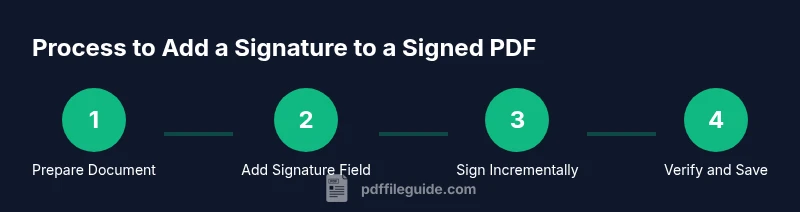
You can add a second signature to a PDF that’s already signed by using an incremental update and a new signature field. Start with a tool that supports multiple signatures, create a new signature field, apply the signature, and save as a new incremental version. This preserves the first signature while recording the second.
Understanding signatures in PDFs
Digital signatures in PDFs are tamper-evident seals that verify authorship and integrity. When a document is signed, the signature covers the content as it existed at signing time, and changes to the signed portion typically break the seal. However, many modern PDF workflows support incremental updates: new content can be appended without rewriting the existing bytes, so earlier signatures remain valid while new signatures are added. This capability is essential for scenarios where multiple parties need to sign in sequence, or where an auditor must see a complete signing trail. In practice, professional editors distinguish between a standard edit and an incremental update. For those who ask how to add signature to pdf already signed, the answer hinges on using the right tools and the right kind of update: use signature fields, maintain a secure signing certificate, and verify the chain after each addition. According to PDF File Guide, awareness of incremental signing is the difference between a document that remains legally binding and one that doesn’t.
Tools & Materials
- PDF editor with signature support (e.g., Adobe Acrobat Pro)(Must support adding signature fields and incremental updates without invalidating existing signatures)
- The signed PDF document(Original file containing existing signatures to preserve)
- Digital certificate or signing credentials(Needed to apply a new signature and establish trust)
- A secure workstation and trusted environment(Protect private keys and signing workflow)
- Optional: Remote signing workflow setup(If you’ll sign from a different location or device)
Steps
Estimated time: 25-40 minutes
- 1
Open the signed PDF in a capable editor
Launch the PDF editor and load the signed document. Confirm you have permission to add a signature and that incremental signing is supported. Review the existing signatures to understand their positions and validity before proceeding.
Tip: Use a non-destructive view of signatures to avoid accidental changes. - 2
Enable incremental updates for the file
Ensure the editor is configured to save in an incremental mode or use a Save As / Save a Copy workflow that preserves existing content. This is essential to avoid invalidating prior signatures.
Tip: If unsure, check the editor’s save options and choose the option that explicitly mentions incremental or append-only save. - 3
Add a new signature field where desired
Place a new signature field at the location where the second signer will sign. Do not alter existing signed regions or fields to preserve the first signature.
Tip: Label the field clearly (e.g., ‘Second Signature’). - 4
Select the proper signing certificate
Choose the correct certificate or signer identity for the new signature. Ensure the certificate is trusted and matches the signer’s requirements.
Tip: Verify issuer, validity, and time-stamp settings before signing. - 5
Apply the signature and perform incremental signing
Sign the document so the new signature is added as an incremental update. Do not flatten or finalize the document unless required by policy.
Tip: Prefer a visible signature appearance or keep it as an invisible field if visibility is not needed. - 6
Save as a new version for audit trails
Save the signed copy as a new version to maintain a clear audit trail that shows both signatures. Use a naming convention that includes dates and signer initials.
Tip: Document versioning helps compliance and future reviews. - 7
Verify both signatures in the viewer
Open the signature panel and verify each signature’s validity, certificate details, and signing time. Ensure neither signature is marked as invalid.
Tip: Click each signature to inspect chain of trust and any revocation data. - 8
Distribute and track
Share the updated PDF with stakeholders and maintain records of who signed when. Ensure downstream recipients can also verify the signature chain.
Tip: Keep an auditable trail with timestamps and signer identities.
Questions & Answers
Can you add a signature to a PDF that's already signed?
Yes, typically you can add a second signature using incremental updates that leave the first signature intact. Some PDFs are locked or have restrictions, so permissions may be required.
Yes, you can add a second signature using incremental updates, if the document allows it.
What software supports incremental signing on PDFs?
Many professional PDF editors support incremental signing or append-only updates. Look for features like 'incremental save' or 'append mode' and ensure signature validation after the addition.
Most professional editors support incremental signing; check for incremental save options.
Will adding another signature break the first one?
If you use incremental updates and avoid flattening or finalizing, the first signature remains valid. Some tools may invalidate signatures if the document is altered in restricted ways.
If you preserve prior signatures with incremental updates, the first one stays valid.
Do I need permission from the first signer to add another signature?
Often yes. Depending on the signing policy, modifications may require consent or re-signing. Check the document’s terms or obtain explicit approval from the original signer.
Usually you should get permission or ensure the policy allows additional signatures.
How do I verify signatures after adding a second?
Open the Signature panel to review each signer’s certificate, signing time, and validity. Confirm that both signatures are listed and valid.
Check the signature panel and each certificate details to confirm both signatures.
Can this be done on mobile devices?
Some apps support multi-signature workflows on mobile, but capabilities vary by app. Check your editor’s mobile features and security implications.
Yes, some mobile apps support it, but features differ by app.
Watch Video
Key Takeaways
- Plan before you sign to avoid conflicts.
- Use incremental updates to preserve existing signatures.
- Verify all signatures after adding a second signer.
- Keep a clear versioned audit trail of signatures.
- Choose tools that explicitly support multi-signature workflows.