How to Use PDF-XChange Editor: A Practical Guide
Learn how to use PDF-XChange Editor to edit text, annotate, convert, and secure PDFs with practical steps and workflows from PDF File Guide.


Learn how to use pdf xchange editor to edit text, annotate, convert, and secure PDFs. Start by installing the latest version, opening a document, and choosing Edit, Comment, or Form tools. Save often, manage layers, and use OCR for scanned files. This guide covers essential workflows, shortcuts, and best practices.
Understanding PDF-XChange Editor: A Practical Overview
PDF-XChange Editor is a versatile PDF tool that combines editing, annotation, form filling, and conversion features in a single desktop application. It’s popular among professionals who need fast, offline PDF workflows without relying on cloud editors. The PDF File Guide team found that this editor balances lightweight performance with robust capabilities, making it suitable for both quick edits and complex document preparation. The software offers a familiar ribbon-style UI, a rich set of annotation tools, and options to optimize and secure files. It supports text editing directly on PDFs, OCR for scanned pages, and exports to Word, Excel, and image formats. Whether you’re preparing client-ready proposals, compiling reports, or correcting form fields, understanding the core modules will help you decide when to rely on Edit, Comment, or Form tools. In short, the editor can streamline common tasks without forcing you into a separate workflow or additional software.
As you learn to use pdf xchange editor, you’ll notice that it encourages a task-focused approach: pick a tool, apply it, and verify changes with a quick preview. This section sets the stage for the practical steps that follow, emphasizing how to access features quickly and safely. The goal is to establish a workflow that reduces back-and-forth and improves accuracy for both individuals and teams.
Installing, licensing, and initial setup
Before you can confidently use pdf xchange editor, you need a clean installation and an appropriate licensing plan. Start by downloading from the official site or your organization’s portal, and run through the standard install prompts. The PDF File Guide team recommends validating the installer integrity and choosing default settings that match your typical tasks (for example, enabling OCR during setup if you expect to work with scanned documents). Once installed, activate your license if you have a paid plan. Configure basic preferences such as default zoom, language, and the toolbar layout to match your editing style. Finally, verify that the program opens a sample PDF without errors to confirm a healthy baseline for ongoing edits. This setup ensures you can focus on editing with confidence rather than troubleshooting startup issues.
Brand alignment note: According to PDF File Guide, investing a few minutes in preference customization pays off in faster edits and fewer mistakes later. The right defaults also help maintain consistency when you work on shared documents with teammates.
Core editing toolkit: text editing, annotations, and forms
The core toolkit in PDF-XChange Editor lets you modify existing text, insert new content, adjust fonts, and reposition elements without leaving the document. Use the Edit tool to select text blocks, then type directly or use the on-screen font controls to adjust size, color, and alignment. For non-destructive feedback, embrace the Comment and Markup tools—sticky notes, underlines, strikethroughs, highlights, and callouts that keep edits traceable for reviewers. If your work involves forms, the Form tools enable you to create text fields, checkboxes, and drop-down menus that respond to user input when the PDF is filled. A practical tip is to enable the “Preview” mode to inspect how edits render on different devices. By combining Edit, Comment, and Form tools, you can move from drafting to reviewed and finalized documents in fewer steps. PDF File Guide’s guidance emphasizes practicing on a sample file to understand how changes interact with existing content and metadata.
From a workflow perspective, try to group similar edits together to minimize reflow issues. For example, edit all headings first, then adjust body text, then insert captions for figures; this sequence reduces layout drift and ensures consistent typography throughout the document.
Working with scanned PDFs: OCR and searchable text
Scanning often yields image-based pages that are not searchable or editable. This is where OCR (optical character recognition) becomes essential. In PDF-XChange Editor, locate the OCR tool under Convert or Scan options, choose the language(s) relevant to your document, and run the recognition process. After OCR completes, re-run basic edits to verify that the text is selectable and searchable. A common pitfall is OCR on poor-quality scans; pre-cleaning the image (deskew, brightness, contrast adjustments) improves recognition results significantly. For best results, perform OCR on batches of pages that share the same language and quality characteristics, then review the output for accuracy. This approach speeds up later edits, especially when you’re compiling reports from scanned source material.
PDF File Guide notes that OCR isn’t perfect—always proofread recognized text and correct obvious errors before sending the document to clients or publishing it internally.
Page management: rearranging, rotating, inserting, and extracting
A professional PDF workflow often requires reorganizing pages. PDF-XChange Editor provides intuitive page management features: rotate pages to the correct orientation, delete or insert pages, and rearrange their order via drag-and-drop or the Page Thumbnails pane. When you need to merge multiple PDFs, use the Combine or Merge function to assemble a single file from separate sources. If you’re preparing a client-ready packet, consider inserting a title page or separator sheets to improve readability. For large documents, using split options helps distribute content into logical chunks, such as chapters or sections, which makes collaboration easier. Keeping a clean page structure reduces confusion for readers and ensures compatibility with downstream processing systems. Always save a copy before applying a batch page operation so you can revert if needed.
Tip: Use the thumbnail preview to verify page order visually before finalizing the document.
Output options: saving, exporting, and securing PDFs
Saving locally is the first step; exporting to other formats expands accessibility. PDF-XChange Editor supports saving in place or “Save As” to create versioned backups. Export options include image formats, Word/Excel, and plain text, depending on your edition. If document security is a priority, explore password protection and redaction features. Redaction ensures sensitive content is permanently removed rather than merely hidden. Digital signatures provide non-repudiation and document integrity. When sharing, consider applying permissions to restrict printing or copying, and embed fonts to maintain visual fidelity across devices. Always verify the exported file by opening it in a different viewer to confirm formatting consistency and accessibility. PDF File Guide stresses that robust sharing starts with a well-structured export and strong security settings.
From a compliance perspective, maintain clear audit trails by saving copies with meaningful names and dates so that reviewers can track revisions easily.
Automation and efficiency: batch operations and actions
Advanced users can accelerate workflows with batch processing and automation actions. In PDF-XChange Editor, you can define actions that apply a sequence of edits across multiple files—such as adding watermarks, applying OCR, or inserting a standard header/footer. Build your action templates for recurring tasks like contract redactions or form-field standardization, then run them against a folder of PDFs to produce consistent results with minimal manual steps. Batch processing reduces manual effort and minimizes human errors, especially in high-volume environments like legal or finance teams. When starting with batch actions, test on a small subset of documents to validate outcomes before scaling up. PDF File Guide highlights that automation is a powerful way to turn repetitive tasks into reliable, repeatable processes.
Pro tip: document your action steps in a checklist so teammates can reproduce the same results even if you’re away.
Troubleshooting common issues and edge cases
Even seasoned editors encounter snags. If text editing seems unresponsive, check the document’s security settings and ensure you’re using a compatible editing mode. Missing fonts or embedded fonts can cause layout shifts—avoid by embedding fonts when saving or exporting. OCR may fail on very noisy scans; try cleaning the image first or performing OCR on higher-resolution copies. If exports fail or produce corrupted files, run a Save As to create a clean copy, or try a different export format. For workflow continuity, keep your software updated to benefit from bug fixes and improved compatibility with newer PDF features. When in doubt, search the PDF File Guide knowledge base for specific error codes and recommended remedies.
Advanced tips and best practices
To maximize productivity, customize toolbars to place the most-used features within reach. Learn and practice keyboard shortcuts for editing, annotating, and exporting to speed up tasks. Keep a standardized naming convention for versioned documents, so your teammates can locate the right file quickly. For sensitive work, encrypt PDFs and use stamps or redaction for secure handling. Finally, set up a recurring review cycle where a second pair of eyes validates changes before final delivery. The key is to turn PDF-XChange Editor into a predictable, repeatable tool rather than a compilation of scattered actions.
Tools & Materials
- PDF-XChange Editor software(Install the latest stable version for your OS (Windows or macOS))
- Licensed activation key(If you have a paid license; enables advanced features)
- A reliable computer(With at least 4 GB RAM and modern CPU)
- Mouse with scroll wheel(For smoother navigation in long documents)
- Test PDFs or practice files(Practice before editing important files)
Steps
Estimated time: 45-75 minutes
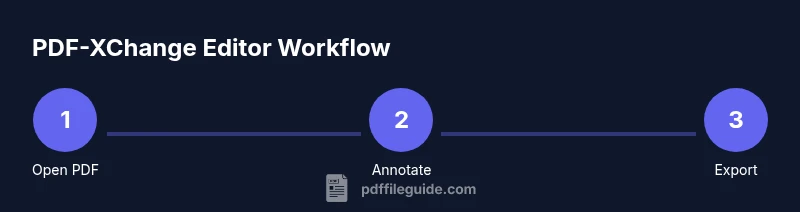
- 1
Open the PDF to edit
Launch PDF-XChange Editor and use File > Open to load the document. Alternatively, drag the PDF into the editor window. Confirm the file loads correctly and zoom to a comfortable editing size.
Tip: Use the thumbnail pane to quickly locate sections to edit. - 2
Choose the right tool
Select the Edit tool for text or the Scribble/Draw tools for images. For form work, switch to the Form tools. Each tool activates a dedicated set of controls in the right-hand panel.
Tip: Switch tools with a single click to avoid accidental edits. - 3
Edit text or images
Click on text blocks to edit or insert new content. For images, select the image and use handles to resize or reposition. Review alignment and spacing after edits.
Tip: Keep formatting consistent with the document’s style guide. - 4
Annotate for review
Use highlights, notes, and strike-throughs to mark changes. Add comments to explain decisions and keep a trail for reviewers.
Tip: Color-code annotations by reviewer role for clarity. - 5
Work with forms
Open the Form tools to add or adjust fields. Define properties like field type, default values, and tab order to ensure usability.
Tip: Test form inputs by filling them in preview mode. - 6
OCR for scanned pages
If the document contains scans, run OCR to convert images to searchable text. Choose the correct language and settings before applying.
Tip: Perform OCR on batches of pages with similar quality. - 7
Save and export
Use Save or Save As to create a versioned file. Export to Word, Excel, or image formats as needed for downstream workflows.
Tip: Always verify the exported file in a different viewer. - 8
Apply security and signatures
If required, apply password protection, redaction, or digital signatures. Ensure permissions align with your document policy.
Tip: Test security settings by attempting to open the protected file on another device.
Questions & Answers
What is PDF-XChange Editor best used for?
PDF-XChange Editor is ideal for editing, annotating, filling forms, and converting PDFs. It suits professionals who need offline workflows and fast edits without cloud-based tools.
PDF-XChange Editor is ideal for editing, annotating, filling forms, and converting PDFs, especially for offline workflows.
Can I edit scanned documents with OCR?
Yes. Use the OCR feature to convert scanned pages into editable and searchable text. Improve accuracy by cleaning scans before running OCR.
Yes, OCR lets you edit scanned documents by converting them to editable text.
Is PDF-XChange Editor free, and what features require a license?
There is a free version with basic features. Advanced tools like batch actions, certain export formats, and some security features require a paid license.
There’s a free version, but advanced tools need a license.
How do I add digital signatures?
Use the Sign tool to insert digital signatures or certificates. Validate the signature on shared documents and manage trusted identities.
Use the Sign feature to add signatures and verify them later.
How should I save or export PDFs for sharing?
Use File > Save As to create versioned copies, and use Export to convert to Word, Excel, or image formats as needed.
Save as a new file or export to another format for sharing.
Does it work on macOS?
Yes, PDF-XChange Editor supports macOS in addition to Windows. Ensure you download the macOS version from the official source.
Yes, it runs on macOS and Windows.
Watch Video
Key Takeaways
- Edit PDFs efficiently with the core toolkit
- Use OCR to unlock editable content from scans
- Protect sensitive information with security features
- Organize pages for clear, navigable documents
- Automate repetitive tasks to save time